Configure Looker as a data pipeline source
Set up Looker as a data pipeline source to extract content, user, LookML, and query history metadata from your Looker instance into your destination.
Use this guide to review the features and prerequisites, connect Looker as a data pipeline source, configure the pipeline, and understand the supported objects, sync modes, schema handling, and limitations.
Features supported
The following features are supported when you use Looker as a pipeline source:
- Cloud connectivity: Connect to your Looker instance over HTTPS through Looker API version 4.0. On-prem groups aren't supported.
- Full sync and incremental sync:
Query Historyoffers both sync modes and useshistory.created_timeas a cursor in either mode. All other objects support full sync only. Refer to Sync modes for more information. - Object-level selection: Select Looker objects, such as
Looks,Dashboards,Users,Projects, andQuery History, to sync as separate tables in your destination. Refer to Supported objects for the full list. - Delete tracking: Reflect records deleted in Looker on the next sync for full-sync objects except
Project Files. Refer to Delete tracking for more information. - Fixed object schemas: Select fields from fixed schemas based on the Looker API 4.0. New Looker API fields become available after Workato updates the connector schemas.
- Field-level data protection: Hash or replicate sensitive fields as is before the data reaches your destination.
- Configurable sync frequency: Schedule syncs on a time-based interval or with a cron expression. The minimum supported interval is 15 minutes.
Prerequisites
Connecting Looker as a data pipeline source requires:
- A Looker instance and its API host URL, including the API port if your instance requires one.
- Looker API3 credentials, which consist of a client ID and a client secret. Looker admins create API3 credentials on the Users page of the Admin panel. Users create credentials on their Account page in Looker (Google Cloud core) instances after an admin enables API management. Refer to the Looker API authentication guide for more information.
REQUIRED PERMISSIONS
API3 credentials inherit the roles and permissions of the Looker user they belong to. Workato recommends API3 credentials for a user with the Looker Admin role because administrative objects, such as Users, Groups, Roles, Scheduled Plans, Projects, Connections, and Integrations, require admin-level access. Query History requires the see_system_activity permission, which Looker admins have by default. Objects the user can't access fail with a permissions error.
Supported connection types
Looker data pipelines support API3 credentials authentication. Provide the client ID and client secret for a Looker user with access to the objects you plan to sync.
OAUTH 2.0 CONNECTIONS AREN'T SUPPORTED
The Authentication type drop-down menu also lists OAuth 2.0 (authorization code + PKCE). Data pipelines don't support this authentication type, and a connection that uses it fails as a pipeline source. Create a separate connection that uses API3 credentials for your data pipeline.
Connect to Looker
Complete the following steps to connect Looker as a data pipeline source:
Connect to Looker
Select Create > Connection or press C twice.
Search for Looker and select it as your app.
Enter a name in the Connection name field.
Use the Location drop-down menu to select the project where you plan to store the connection.
Use the Connection type drop-down menu to select Cloud. Looker data pipelines don't support on-prem groups.
Use the Authentication type drop-down menu to select API3 credentials.
Enter your Looker API host in the Looker instance URL field. Omit https:// and include the API port if your instance requires one, for example analytics.example.com:19999.
Use the API version drop-down menu to select Version 4.0. Data pipelines support only Looker API version 4.0.
Enter the client ID of your API3 credentials in the Client ID field.
Enter the client secret of your API3 credentials in the Client secret field.
Select Connect to verify and save the connection. Workato displays a success message when the connection is established.
Configure the pipeline
Complete the following steps to configure Looker as your data pipeline source:
Select Create > Data pipeline or press C+I.
Enter a name for the data pipeline in the Data pipeline name field.
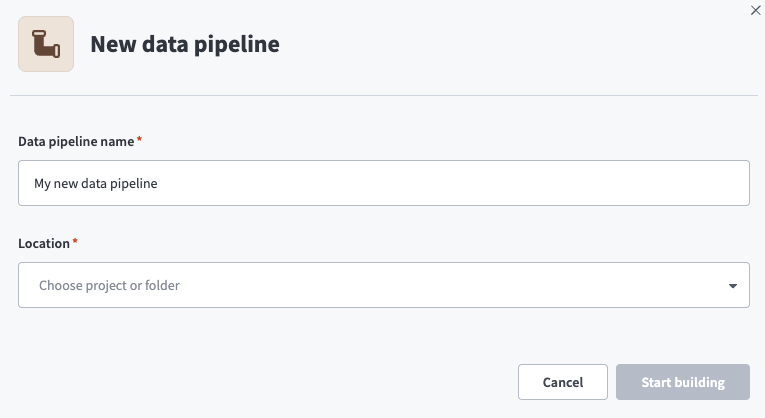 Data pipeline setup
Use the Location drop-down menu to select the project where you plan to store the data pipeline.
Click Start building.
Click the Extract new/updated records from source app trigger. This trigger defines how the pipeline retrieves data from Looker.
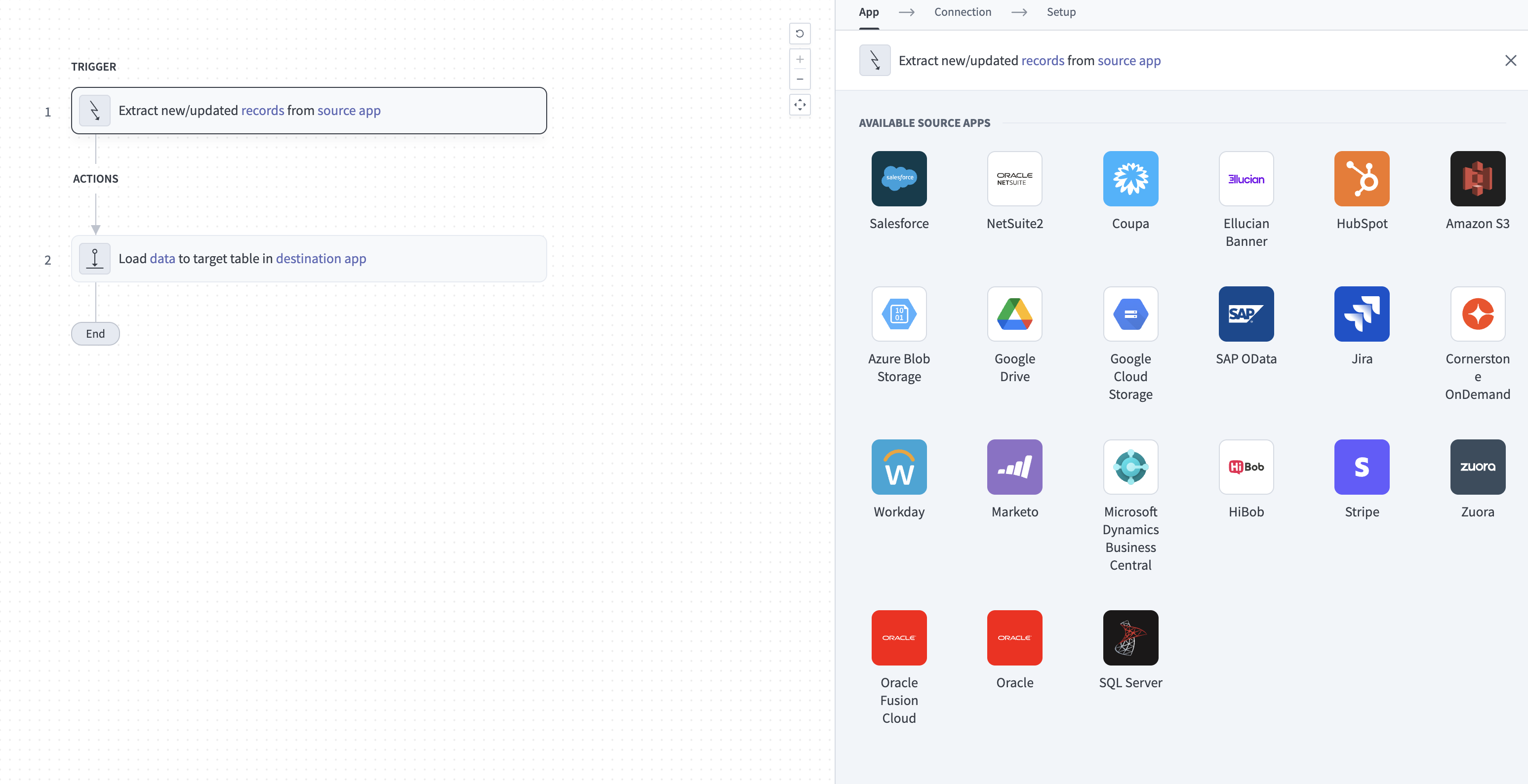 Configure the Extract new/updated records from source app trigger
Use the Your Connected Source Apps drop-down menu to select Looker.
Choose the Looker connection you plan to use for this pipeline. Alternatively, click + New connection to create a new connection.
Click Add object to open the Add new objects panel.
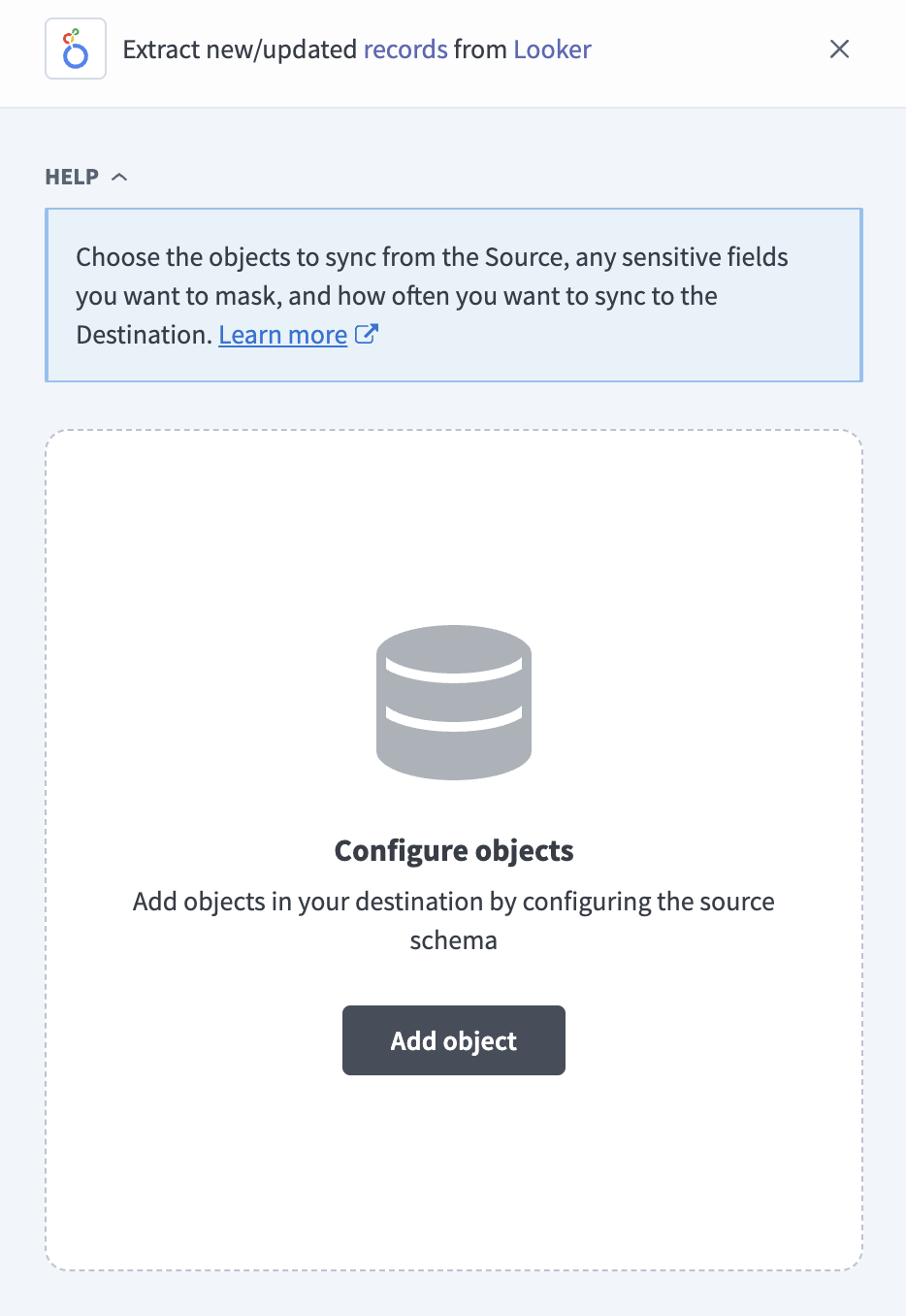 Add objects
Search or browse the list of available Looker objects, select the objects you plan to sync, and click Add.
FULL SYNC ONLY OBJECTS
Only Query History has a timestamp cursor. All other objects always sync in full. Refer to Sync modes for more information.
Optional. Click the gear icon next to Query History to open its Sync mode settings. Use the Sync mode drop-down menu to select Full sync or Incremental, then click Save.
Workato recommends Incremental to capture new Query History records on each run. Query History uses a timestamp cursor and doesn't track deleted rows in either sync mode. Refer to Sync modes for more information.
Review and customize the schema for each selected object. The pipeline automatically fetches an object's schema when you select it. This ensures the destination matches the source.
Expand an object to view associated fields. Keep all fields selected to extract all available data, or deselect specific fields to exclude them from data extraction and schema replication.
Optional. Configure field-level data protection by expanding an object and choosing how to handle each field:
- Replicate as is: Data values at the source replicate identically to the destination.
- Hash: Hash sensitive data values in the field before syncing to your destination.
Workato recommends hashing personally identifiable information (PII) and other sensitive fields. Refer to Sensitive data handling for a list of fields that commonly contain PII.
Click Add object again to add more objects. Repeat this step to include additional Looker objects in your pipeline.
Use the Choose how to handle schema changes drop-down menu to select a schema drift handling option:
- Auto-sync new fields: Adds fields that become available after an update to the connector's fixed schema.
- Block new fields: Keeps the selected schema fixed until you add newly available fields manually.
Neither option detects new fields in your Looker instance, because Looker objects use fixed schemas. Refer to Schema replication and schema drift management for more information.
Optional. Enter a value in the Concurrency limit field to cap the number of concurrent operations. Leave the field blank to use the default limit set by Workato. The maximum value is 5.
Choose either a standard time-based schedule or define a custom cron expression in the Frequency field. This determines how often the pipeline syncs data from Looker to the destination.
Supported objects
Looker data pipelines sync data from the Looker API 4.0. Each object syncs as a separate table in your destination.
Content objects
These objects sync the Looks, dashboards, boards, folders, and schedules in your instance. Workato retrieves Dashboard Elements, Dashboard Filters, and Dashboard Layouts for each dashboard, Dashboard Layout Components for each dashboard layout, and Content Metadata for each folder.
| Object | Sync mode(s) | Delete tracking |
|---|---|---|
Looks | Full sync | Yes |
Dashboards | Full sync | Yes |
Dashboard Elements | Full sync | Yes |
Dashboard Filters | Full sync | Yes |
Dashboard Layouts | Full sync | Yes |
Dashboard Layout Components | Full sync | Yes |
Boards | Full sync | Yes |
Board Items | Full sync | Yes |
Board Sections | Full sync | Yes |
Folders | Full sync | Yes |
Content Metadata | Full sync | Yes |
Scheduled Plans | Full sync | Yes |
Scheduled Plans includes the schedules of every user in your instance.
User and access objects
These objects sync the users, groups, and access configuration of your instance. Workato retrieves User Sessions for each user.
| Object | Sync mode(s) | Delete tracking |
|---|---|---|
Users | Full sync | Yes |
User Sessions | Full sync | Yes |
Groups | Full sync | Yes |
Roles | Full sync | Yes |
Permission Sets | Full sync | Yes |
Model Sets | Full sync | Yes |
User Attributes | Full sync | Yes |
LookML and instance objects
These objects sync LookML projects and models, database connections, and instance configuration. Workato retrieves Project Files for each project.
| Object | Sync mode(s) | Delete tracking |
|---|---|---|
LookML Models | Full sync | Yes |
Projects | Full sync | Yes |
Project Files | Full sync | No |
Workspaces | Full sync | Yes |
Connections | Full sync | Yes |
Datagroups | Full sync | Yes |
Integrations | Full sync | Yes |
Workspaces syncs the development and production workspaces of your instance. Connections syncs the database connections that Looker uses, not Workato connections.
Usage objects
This object syncs query activity from the Looker System Activity History Explore:
| Object | Sync mode(s) | Delete tracking |
|---|---|---|
Query History | Full sync, incremental | No |
Query History syncs one row per query run. Refer to System Activity history retention for the limits that apply to this object.
Sync modes
Looker data pipelines support full sync and incremental sync. Looker doesn't provide a common changed-since filter across its API, so every object except Query History supports full sync only.
Full sync
A full sync reads all available records on every run for every object except Query History.
Query History also offers full sync, but it uses its timestamp cursor in either sync mode. Extraction resumes from the saved cursor if one exists. Otherwise, extraction starts at the date you select, or 90 days before the run if you leave the date blank. Workato doesn't track deletions for Query History.
Incremental sync
Query History uses the history.created_time field as its cursor. The first run reads query history from the start date you select, or from 90 days before the first run if you leave the start date blank. Each later run reads records created at or after the most recent history.created_time value from the preceding run, and skips records that the pipeline already synced.
Delete tracking
Delete tracking depends on the object:
- Full sync only objects except
Project Files:Yes. Workato marks records you delete in Looker as deleted in your destination on the next full sync. Project FilesandQuery History:No. Workato doesn't detect deleted records for these objects, and records missing from a later sync aren't marked as deleted.
Schema and data type handling
The following considerations apply to schema and data types when you sync data from Looker:
Fixed schemas
Each object uses a fixed schema based on the Looker API 4.0 resource type. Looker objects don't have custom fields. Query History syncs the history.id, history.created_time, query.id, and user.id fields.
Nested fields
Nested objects and arrays, such as the can permission map, the folder and model fields on Looks, and vis_config on Dashboard Elements, sync as JSON objects. Some child resources, such as Dashboard Elements and Board Items, sync as separate tables rather than nested JSON. A parent object can still carry a JSON copy of a child resource's fields alongside the separate table.
Workato syncs JSON fields to the destination's native JSON type, such as VARIANT in Snowflake. Workato serializes JSON fields as strings if the destination doesn't support a native JSON type.
Timestamps
Timestamp fields sync as timestamps with time zone. Workato treats Looker timestamps that don't include a time zone offset as UTC. The created_at, stale_before, trigger_check_at, and triggered_at fields on Datagroups sync as Unix timestamp integers, matching the Looker API.
Synthetic columns
Workato adds the following column to every object except Project Files and Query History:
| Column | Type | Purpose |
|---|---|---|
_workato_is_deleted | Boolean | Indicates whether the record was deleted in Looker. Refer to Delete tracking for more information. |
Sensitive data handling
Looker objects can contain personally identifiable information (PII) and details about your database infrastructure. The following objects commonly contain sensitive fields:
| Object | Sensitive fields |
|---|---|
Users | first_name, last_name, display_name, email, avatar_url, avatar_url_without_sizing |
User Sessions | ip_address, city, state, country, browser, operating_system |
Looks, Dashboards | user_name |
Dashboards | last_updater_name |
Scheduled Plans | scheduled_plan_destination, user |
Query History | user.id |
Connections | host, port, database, schema, tmp_db_host, jdbc_additional_params |
Projects | git_remote_url, git_username |
User Attributes | default_value |
Workato doesn't sync API3 credentials, database passwords, certificates, deploy secrets, or other secret values from Looker.
Use the Hash option in field-level data protection during pipeline configuration to protect PII before it reaches your destination. Refer to the Configure the pipeline steps for more information.
Limitations
The following limitations apply when you use Looker as a data pipeline source:
System Activity history retention
Query History reads from Looker System Activity, which keeps query history for approximately 90 days by default. Elite System Activity can extend this limit. The pipeline can't extract query history that Looker no longer retains, even if you select an earlier start date. Schedule regular syncs to capture query history before it ages out of System Activity.
Minimum sync frequency
The minimum supported sync interval is 15 minutes.
Last updated: