Configure Google BigQuery as your data pipeline destination
This page provides steps to set up Google BigQuery as a destination for your data pipeline. This connection enables Workato to replicate data from source applications into your Google BigQuery instance using the source schema.
Features supported
The following features are supported when using Google BigQuery as a pipeline destination:
- Automatic creation of destination tables based on source schema
- Support for full and incremental data loads
- Field-level data replication without explicit field mapping
- Schema drift handling and update operations
Prerequisites
You must have the following configuration and access to use Google BigQuery as a pipeline destination:
- A Google Cloud project with BigQuery enabled
- A dataset in Google BigQuery where you plan to write data
- A user account (OAuth 2.0) or service account with permissions to create tables and write data in BigQuery
Refer to the Google BigQuery connection setup page for required permissions.
Connect to Google BigQuery
The Google BigQuery connector supports the following authentication methods:
SERVICE ACCOUNT AUTHENTICATION
You can use a service account to authenticate without a personal user account. Workato recommends service account authentication for consistent, uninterrupted pipeline connections.
Complete the following steps to connect to Google BigQuery as a data pipeline destination. This connection allows the pipeline to write records into a target table in your BigQuery dataset.
OAuth 2.0
Complete the following steps to connect to Google BigQuery as a data pipeline destination with OAuth 2.0 authentication:
Connect with OAuth 2.0
Select Create > Connection.
Search for Google BigQuery and select it as your app.
Enter a unique name for your connection in the Connection name field that identifies which Google BigQuery instance it's connected to.
Use the Location drop-down to select the project where you plan to store the connection.
Use the Authentication type drop-down menu to select OAuth 2.0.
Click Sign in with Google.
Click Allow when prompted to authorize Workato to access your Google account.
Service account
Complete the following steps to connect to Google BigQuery as a data pipeline destination with service account authentication:
Connect with service account
SERVICE ACCOUNTS AND CUSTOM ROLES
You must supply the project ID directly in Workato if you use a custom role for your service account. The Select project drop-down in Setup doesn't load for custom roles, and you must provide the project ID manually.
Refer to the Google BigQuery connection setup page for steps to create a Google service account and assign the required permissions.
Select Create > Connection.
Search for Google BigQuery and select it as your app.
Enter a unique name for your connection in the Connection name field that identifies which Google BigQuery instance it's connected to.
Use the Location drop-down to select the project where you plan to store the connection.
Use the Authentication type drop-down menu to select Service account.
Enter the email address of your service account in the GCP Project service account email field.
Enter the private key of your service account in the Private key field.
Optional. Expand the Advanced settings section and select the scopes to request for your connection.
Select Connect to verify and store the connection.
Configure the destination action
Ensure the dataset in Google BigQuery is newly created and empty before you start the pipeline. This prevents errors during the initial sync and allows the pipeline to create destination tables without conflicts.
Sign in to your Workato account and open the data pipeline recipe you plan to configure.
Click the Load data to target table in destination app action. This action defines how the pipeline replicates data in the destination.
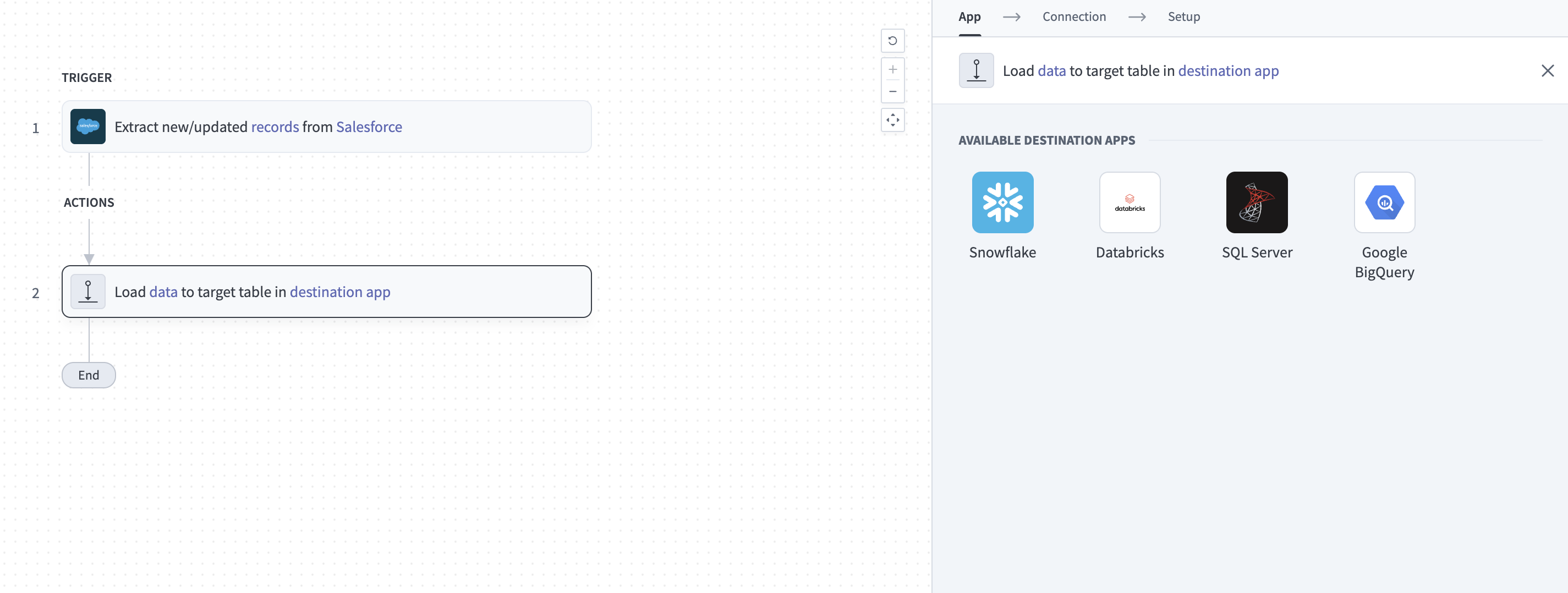 Configure the Load data to target table in destination app action
Select Google BigQuery from the list of available source apps.
Choose the Google BigQuery connection you plan to use for this pipeline. Alternatively, click + New connection to create a new connection.
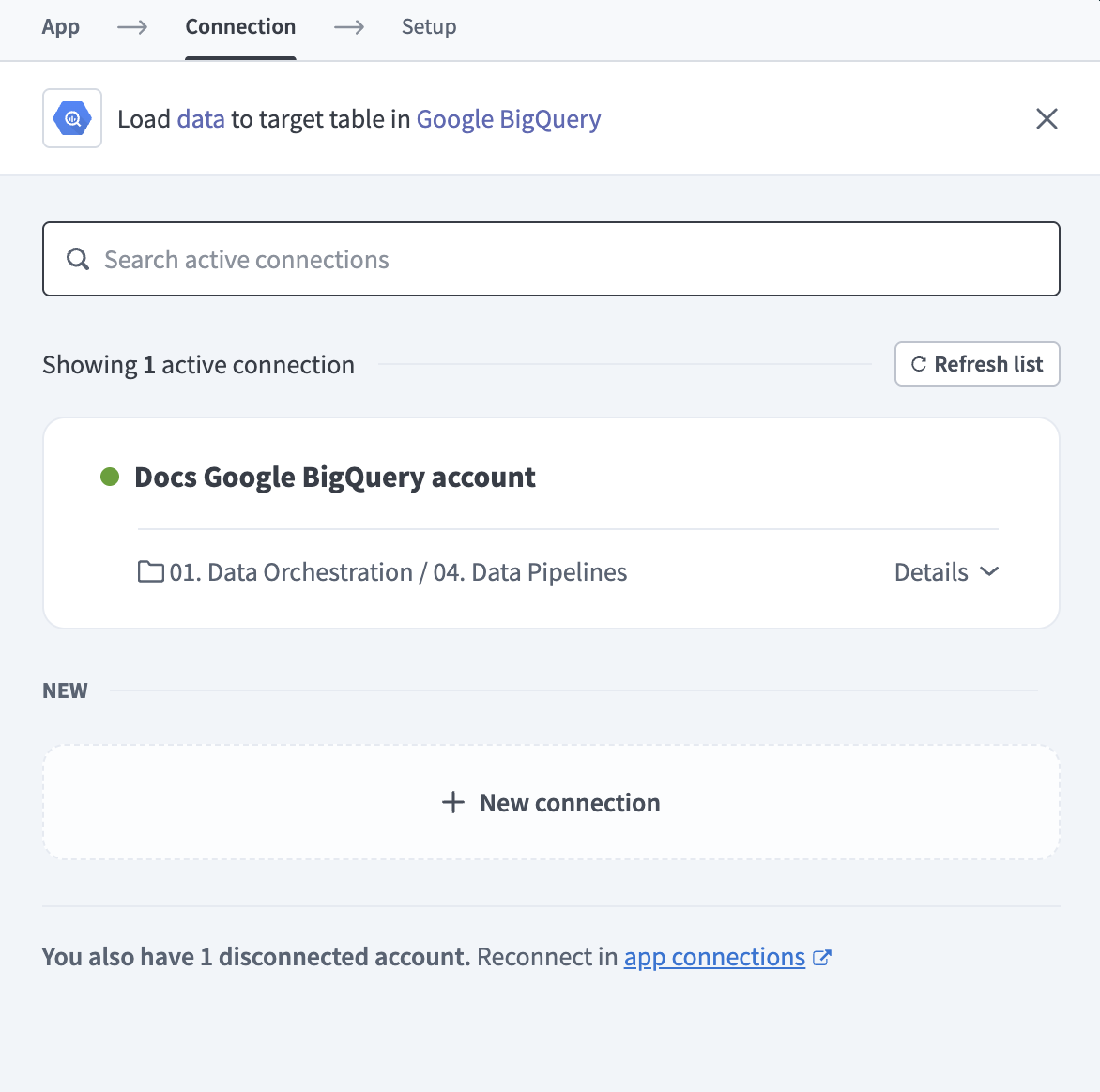 Choose a Google BigQuery connection
The Load data to target table in destination app action automatically replicates the object schema from the source to Google BigQuery. Explicit field mapping isn't required.
Workato pipelines automatically create destination tables based on the source schema. The pipeline also creates stage and temporary tables to support data replication and update operations.
Use the Project drop-down to select the Google BigQuery project where data is written.
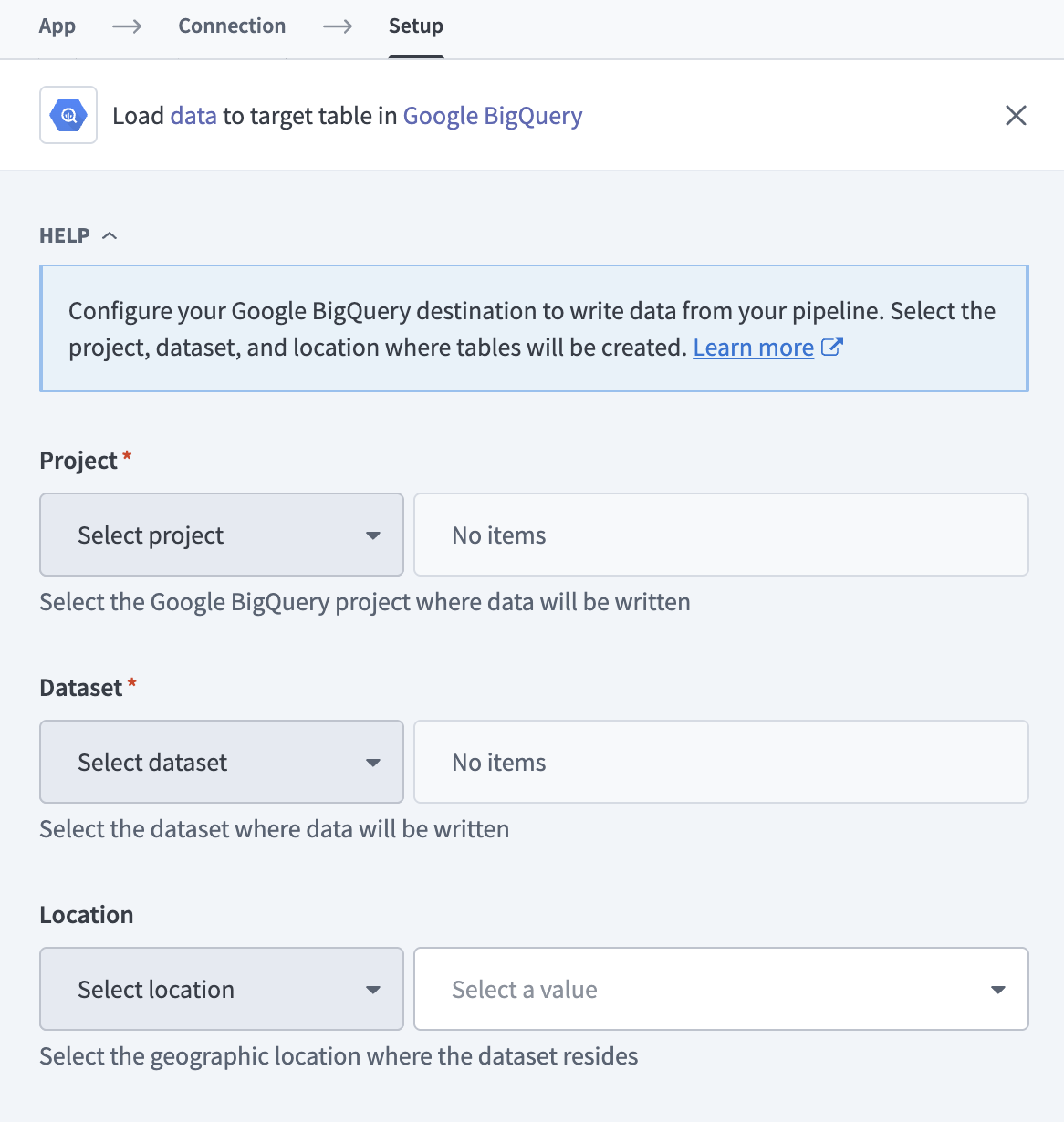 Configure your Google BigQuery destination
Use the Dataset drop-down to select the dataset where data is written.
Use the Location drop-down to select the geographic location where the dataset resides.
Select Save to save the pipeline.
Last updated: