Configure Ellucian Banner as your data pipeline source
Set up Ellucian Banner as a data pipeline source to extract and sync records into your destination. This guide includes connection setup, pipeline configuration, and key behavior for working with your Banner environment.
Features supported
The following features are supported when using Ellucian Banner as a data pipeline source:
- Extract and sync data using the Ellucian Ethos Integration APIs
- Support for full syncs
- Field-level selection for data extraction
- Schema drift detection and handling
- Field-level data masking
Prerequisites
Ensure you have completed the following tasks before you begin:
- Access your Ellucian Banner Cloud environment.
- Generate an Ethos Integration API key.
- Obtain your Ellucian Cloud region and domain details.
- Configure the underlying Ethos API integration to allow the required scopes for Banner Student API endpoints.
- Grant read privileges to the API key for each Banner object you plan to sync.
Workato only syncs objects for which the API key has read access.
Connect to Ellucian Banner
Complete the following steps to connect to Ellucian Banner as a data pipeline source. This connection enables the pipeline to extract and sync records from your Ellucian environment.
Connect to Ellucian Banner
Select Create > Connection or press C twice.
Search for Ellucian Banner and select it as your app.
Enter a name in the Connection name field.
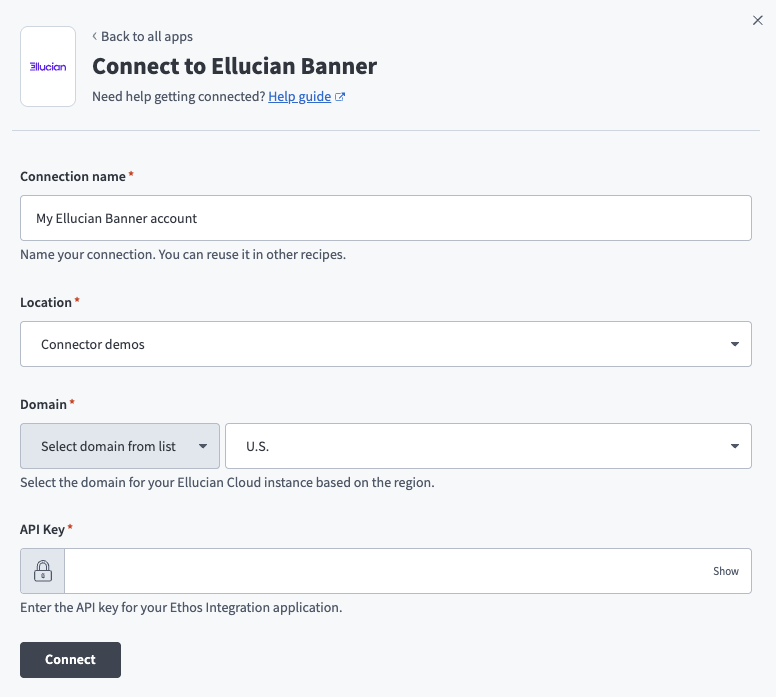 Ellucian Banner connection setup
Use the Location drop-down to select the project where you plan to store the connection.
Select Cloud in the Connection type field, unless you need to connect through an on-prem group.
Select your region from the Domain drop-down. Choose the domain based on the location of your Ellucian Cloud instance (for example, U.S., Canada, or Europe).
Enter your API key. This is the API key for your Ethos Integration application in Ellucian.
Select Connect to verify and store the connection.
Configure the pipeline
Complete the following steps to configure Ellucian Banner as your data pipeline source.
Select Create > Data pipeline or press C+I.
Enter a name for the data pipeline in the Data pipeline name field.
 Data pipeline setup
Use the Location drop-down menu to select the project where you plan to store the data pipeline.
Click Start building.
Click the Extract new/updated records from source app trigger. This trigger defines how the pipeline retrieves data from Ellucian Banner.
 Configure the Extract new/updated records from source app trigger
Use the Your Connected Source Apps drop-down menu to select Ellucian Banner.
Choose the Ellucian Banner connection you plan to use for this pipeline. Alternatively, click + New connection to create a new connection.
Click Add object to open the object wizard.
Search or browse the list of available Ellucian Banner objects. Select the objects you plan to sync and click Add.
Review and customize the schema for each selected object. The pipeline automatically fetches an object's schema when you select it. This ensures the destination matches the source.
Expand an object to view associated fields. Keep all fields selected to extract all available data, or deselect specific fields to exclude them from data extraction and schema replication.
Optional. Configure field-level data protection. After you expand an object, choose how to handle each field:
- Replicate as is (default): Data values at the source are replicated identically to the destination.
- Hash: Hash sensitive data values in the column before syncing to your destination.
Click Add object again to add more objects using the same flow. You can repeat this step to include multiple Ellucian Banner objects in your pipeline.
Use the Choose how to handle schema changes drop-down menu to select a schema drift handling option:
- Auto-sync new fields: Automatically detects and syncs new fields added in the source.
- Block new fields: Keeps the schema fixed after the pipeline starts. You must add new fields manually. This option may cause the destination to fall out of sync if the source schema updates.
Refer to Schema replication and schema drift management for more information.
Choose either a standard time-based schedule or define a custom cron expression in the Frequency field. This determines how often the pipeline syncs data from Ellucian Banner to the destination.
Object schema behavior
The Ellucian Banner connector extracts records from objects exposed through the Ethos Integration API. These objects define the schema used by the pipeline.
Workato infers schema and data types from the selected reference object at the time of configuration. The structure of each object must remain consistent to ensure accurate schema mapping and reliable data replication.
Last updated: