Configure Amazon Redshift Data API as your data pipeline destination
Set up Amazon Redshift Data API as a destination for your data pipeline. This connection enables Workato to replicate data from source applications into Amazon Redshift tables, staging data in Amazon S3 before loading it into Redshift through the Redshift Data API.
Features supported
The following features are supported when using Amazon Redshift Data API as a pipeline destination:
- Automatic creation of destination tables based on source schema
- Field-level data replication without explicit field mapping
- Data staged in Amazon S3 before loading into Redshift through the Redshift Data API
- IAM role or AWS access key authentication
Prerequisites
Connecting Amazon Redshift Data API as a data pipeline destination requires:
- An Amazon Redshift cluster or workgroup, and the AWS region it's located in
- An Amazon S3 bucket to stage data before it loads into Redshift
- AWS credentials, either an IAM role ARN to assume, or a static AWS access key ID and secret access key
- The name of the Redshift database to connect to
Connect to Amazon Redshift Data API
Complete the following steps to connect to Amazon Redshift Data API as a data pipeline destination. This connection allows the pipeline to replicate and load data into Amazon Redshift.
Connect to Amazon Redshift Data API
Select Create > Connection or press C twice.
Search for and select Amazon Redshift Data API on the New connection page.
Enter a name in the Connection name field.
Use the Location drop-down menu to select the project where you plan to store the connection.
Use the Authorization type drop-down menu to select how AWS credentials are supplied, then complete the corresponding steps based on your selection:
Enter the Region where your Redshift cluster or workgroup is located, such as us-east-1.
Use the Deployment type drop-down menu to select your Redshift deployment type:
- Serverless for a Redshift Serverless workgroup.
- Provisioned for a provisioned Redshift cluster.
Enter the name of your Redshift Serverless workgroup in the Workgroup name field, or the identifier of your Redshift cluster in the Cluster identifier field, depending on the Deployment type you selected.
Enter the name of the Redshift database to connect to in the Database field.
Click Connect to verify and establish the connection.
Configure the destination action
Ensure the destination database and schema are newly created and empty before you start the pipeline. This prevents errors during the initial sync and allows the pipeline to create destination tables without conflicts.
Complete the following steps to configure the destination action:
Click the Load data to target table in destination app action. This action defines how the pipeline replicates data in the destination.
Select Amazon Redshift Data API from the list of available destination apps.
Choose the Amazon Redshift Data API connection to use for this pipeline. Alternatively, click + New connection to create a new connection.
The Load data to target table in destination app action automatically replicates the object schema from the source to Redshift. Explicit field mapping isn't required.
Use the S3 staging bucket field to select the S3 bucket Workato uses to stage data before loading it into Redshift. Alternatively, enter the bucket name directly.
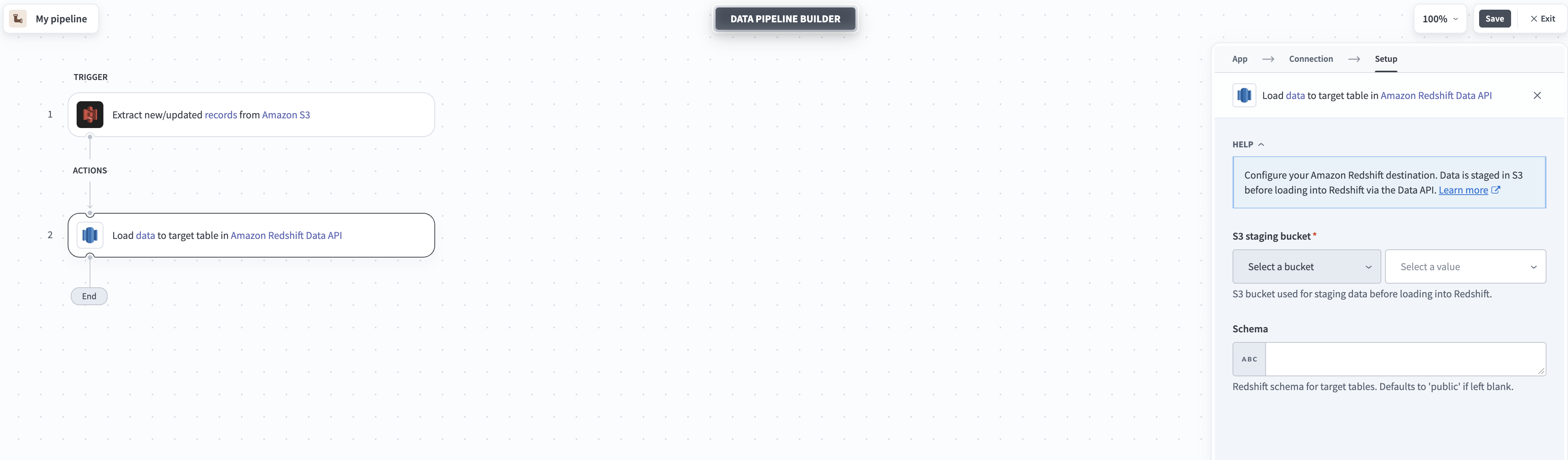 Configure Amazon Redshift Data API destination
Optional. Set the Redshift schema for target tables in the Schema field. Workato uses the public schema if you leave this field blank.
Select Save to save the pipeline.
Last updated: