Coupa Approval Operations MCP server
The Coupa Approval Operations MCP server enables LLMs to manage Coupa approvals through natural conversation. It provides tools to find pending approvals, retrieve full approval context, and approve, reject, hold, or request more information on approvals without requiring direct interaction with the Coupa interface.
Uses
Use the Coupa Approval Operations MCP server to perform the following actions:
- Find pending approvals in your queue, sorted by how long items have been waiting
- Retrieve the full context of a specific approval, including document details and requester information
- Approve pending approvals after reviewing the complete document summary
- Reject approvals with a documented reason
- Place approvals on hold when you need additional review before deciding
- Request more information from requesters by posting comments on documents
- Monitor organization-wide approval health across all approvers and document types
Example prompts
Use the following example prompts to invoke Coupa Approval Operations MCP server tools:
What approvals are waiting for my decision?Show me my most stalled pending approvals.Get the details for approval ID 12345.Approve this requisition.Reject this invoice because it exceeds the approved budget.Place this purchase order on hold for further review.Ask the requester for more details before I approve this.Show me all stalled approvals across the organization.What has been pending for more than 5 days?
Coupa Approval Operations MCP server tools
The Coupa Approval Operations MCP server provides the following tools:
| Tool | Description |
|---|---|
| search_pending_approvals | Finds pending approvals. |
| get_approval | Retrieves an approval, including its status, document summary, and available actions. |
| approve_approval | Approves a pending approval if it hasn't changed since it was last reviewed. |
| reject_approval | Rejects a pending approval for a reason you specify. |
| hold_approval | Places a pending approval on hold if Coupa reports it eligible for hold. |
| request_approval_info | Posts a comment on the underlying document asking the requester for more detail, without deciding the approval. |
Install the Coupa Approval Operations MCP server
Complete the following steps to install a prebuilt MCP server to your project:
Sign in to your Workato account.
Go to AI Hub > Enterprise MCP > Custom servers.
Click + Create MCP server.
Go to the Start with pre-built MCP Servers using your connected apps section and select the prebuilt MCP server you plan to use.
Click Use this server.
Provide a name for your MCP server in the Server name field.
Use the Location drop-down menu to select the project for the MCP server.
Go to the Connections section and connect to your app account.
Select the connection type you plan to use for the MCP server template.
- User's connection: MCP server tools perform actions based on the identity and permissions of the user who connects to the application. Users authenticate with their own credentials to execute the skill.
- Your connection: This option uses the connection established by the recipe builder and follows the same principles as normal app connections.
 Select your connection type
VERIFIED USER ACCESS AUTHENTICATION REQUIREMENTS
Only app connections that use OAuth 2.0 authorization code grant are available for user's connection. Refer to Verified user access for more information.
Complete the app-specific connection setup steps in the following section.
Coupa Approval Operations connection setup
View Coupa Approval Operations connection setup steps
API version
The Coupa connector uses the Coupa Core REST API.
How to connect to Coupa with OAuth 2.0
The Coupa connector has supported OAuth 2.0-based connectivity since January 2022. OAuth connections are more secure than API key-based connections. OAuth lets you specify the exact scopes you plan to use in the Workato connection settings. The Coupa connector supports OAuth 2.0 Client Credentials and OAuth 2.0 Authorization Code Grant connections. Refer to OpenID Connect Clients for more information.
View OAuth connection setup steps
Sign in to your Coupa instance, for example https://[your-instance-name].coupacloud.com/oauth2/clients.
Click Create to create a new OAuth client.
Use the Grant type drop-down menu to select Authorization Code or Client Credentials. You must select the same option in Workato for the Authentication type.
Provide a name in the Name field. For example: Workato Coupa OAuth connection.
Enter the redirect URIs you plan to use in the Redirect URIs field. Add the link https://www.workato.com/oauth/callback if you plan to use Authorization code.
Select the scopes you plan to provide to Workato. Include all objects and features you plan to automate with the Coupa connector. The scopes you select must match the scopes you configure in Workato. You must include the core.common.read and offline_access scopes at a minimum to establish a connection.
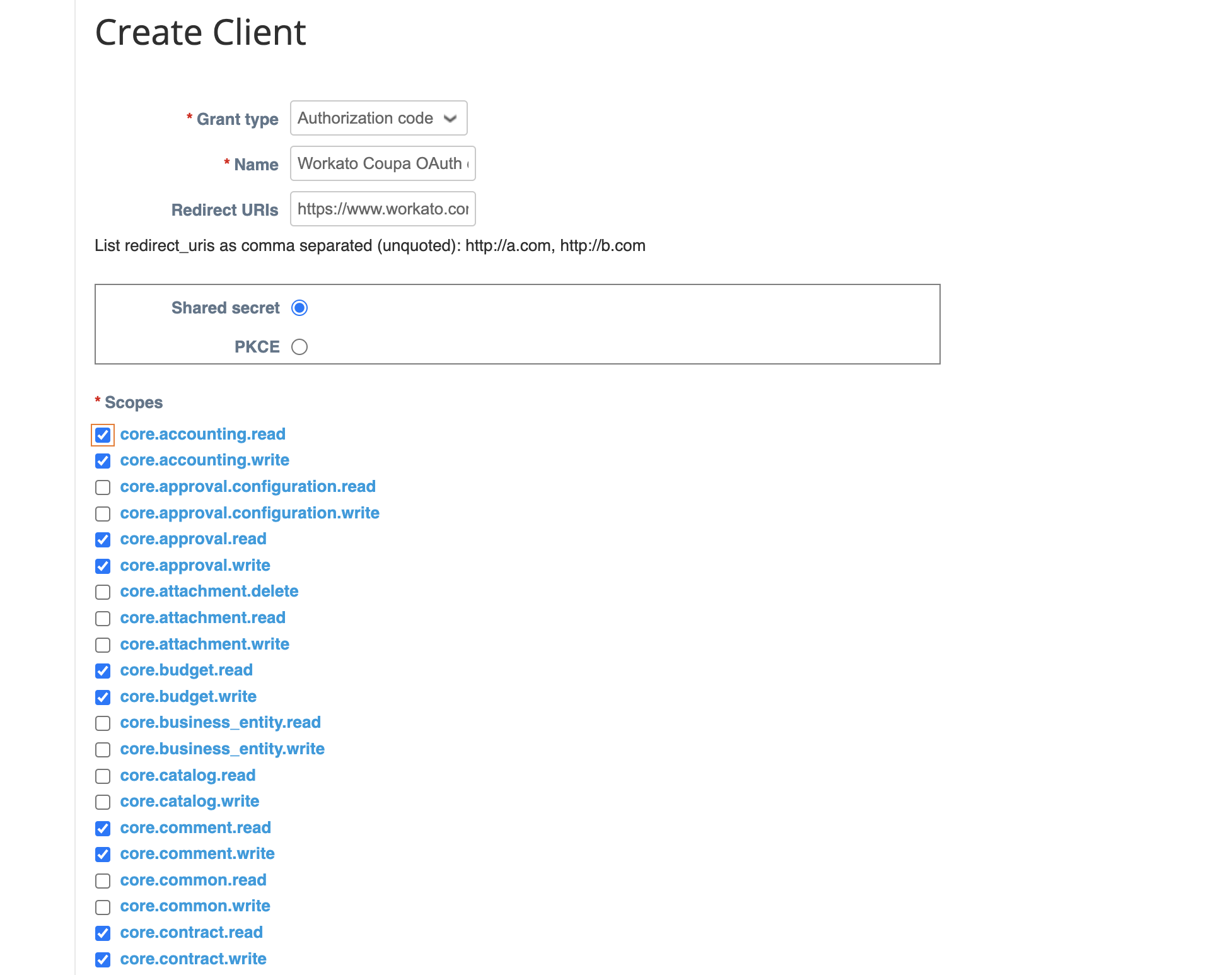 Create a new client
Click Save.
Copy and store the Identifier and the Secret for use in Workato.
Return to your Workato account and go to the project where you plan to add your connection.
Click Create > Connection or press C twice.
Search for and select Coupa as your connection on the New connection page.
Provide a unique name for the connection in the Connection name field.
Use the Location drop-down menu to select the project where you plan to store the connection.
Use the Authentication drop-down to select the Grant type provided in Coupa.
Enter the Client ID and Client secret.
Enter the Coupa URL for your instance in the Host field. For example, enter acme if your URL is http://acme.coupacloud.com.
Use the Scopes drop-down menu to select the same scopes you configured in Coupa. Include the required scopes core.common.read and offline_access to connect successfully.
Click Connect.
Coupa role requirements
Each tool's availability depends on the permissions granted to the connected account. Actions run with the authenticated approver's own Coupa permissions through Verified user access, using an OAuth 2.0 Authorization Code Grant connection instead of a shared service account. A request made without the required permission returns a permission-denied outcome.
How to use Coupa Approval Operations MCP server tools
Refer to the following sections for detailed information on available tools:
search_pending_approvals tool
The search_pending_approvals tool finds pending approvals and surfaces the oldest pending items first by default. You can also sort by newest pending items and filter by approver and elapsed time. Your LLM uses this tool to discover what approvals are awaiting your decision, identify stalled items, and monitor organization-wide approval queues.
Try asking:
What approvals are waiting for my decision?Show me my most stalled pending approvals.What has been pending for more than 5 days?Show me all stalled approvals across the organization.
get_approval tool
The get_approval tool retrieves an approval, including its status, document summary, and available actions. Your LLM uses this tool to inspect an approval before taking action.
Try asking:
Get the details for approval ID 12345.Show me the full context for this approval.Retrieve the document summary for the pending invoice.What are the details and who requested this approval?
approve_approval tool
The approve_approval tool approves a pending approval. The tool refuses the action if the approval has changed since it was last reviewed. Your LLM uses this tool to approve a pending item after showing the document summary and obtaining confirmation.
Try asking:
Approve this requisition.Approve the pending purchase order.I approve this expense report.Go ahead and approve this approval.
reject_approval tool
The reject_approval tool rejects a pending approval. The tool requires you to specify a reason for rejection. Your LLM uses this tool to reject a pending item and record the reason for the rejection.
Try asking:
Reject this invoice because it exceeds the approved budget.I'm rejecting this requisition because it exceeds the approved amount.Decline this approval because supporting documentation is missing.Reject this contract approval because it needs legal review before proceeding.
hold_approval tool
The hold_approval tool places a pending approval on hold. The tool refuses to place an approval on hold if the approval is ineligible. Your LLM uses this tool to pause a decision pending further review.
Try asking:
Place this purchase order on hold for further review.Hold this approval pending additional clarification.I need to put this requisition on hold temporarily.Hold this approval while we wait for more information.
request_approval_info tool
The request_approval_info tool posts a comment on the underlying document asking the requester for more detail, without deciding the approval. Your LLM uses this tool to request missing details before approving, rejecting, or holding.
Try asking:
Ask the requester for more details before I approve this.Request more information from the requester about the project scope.Ask for the budget justification for this approval.Post a comment asking the requester to provide the missing supporting documents.
Getting started
View and manage your MCP server tools in the Details tab Tools section. Tool management provides the following capabilities:
TOOLS MUST BE STARTED
Your LLM can only access active tools in your MCP server connector.
Last updated: