Coupa Procurement & Receiving MCP server
The Coupa Procurement & Receiving MCP server enables LLMs to manage Coupa procurement and receiving through natural conversation. It provides tools to create and track purchase requests, review and close purchase orders, submit purchase order change requests, record goods receipts to enable three-way invoice matching, and search the approved catalog. The server resolves its own suppliers, accounts, and users, so it can be deployed on its own, without requiring direct interaction with the Coupa interface.
Uses
Use the Coupa Procurement & Receiving MCP server to perform the following actions:
- Create purchase requests with catalog or free-form lines and submit them for native Coupa approval.
- Track a purchase request's status and approval position, and confirm purchase order generation once approved.
- Search and review purchase orders by supplier, status, date, or requester.
- Request changes to an issued purchase order, with protection against acting on stale data.
- Close purchase orders that are fully received and no longer expect further invoices.
- Record goods receipts against purchase order lines to enable three-way invoice matching.
- Search the approved catalog for line-ready item detail before adding items to a request.
- Monitor pending approval steps across purchase requests and purchase orders.
- Resolve suppliers, accounts, and users to compact reference records before a write.
Example prompts
Use the following example prompts to invoke Coupa Procurement & Receiving MCP server tools:
Create a purchase request for 10 laptop stands from Acme Corp, coded to the Facilities account.Submit my draft purchase request for approval.Where does my purchase request for office chairs stand?Show me all purchase orders from Acme Corp issued this quarter.Has this purchase order been received yet?Request a quantity change on this purchase order before I approve the invoice.Close this purchase order, everything on it has been received.Record a receipt of 5 units against this purchase order line.Find approved catalog items for standing desks.What's waiting in my approval queue right now?
Coupa Procurement & Receiving MCP server tools
The Coupa Procurement & Receiving MCP server provides the following tools:
| Tool | Description |
|---|---|
| create_requisition | Creates a purchase request with resolved references, and optionally submits it for approval. |
| submit_requisition | Submits a draft purchase request for native Coupa approval routing. |
| get_requisition | Retrieves a purchase request's status, paged lines, line suppliers, and available approval summary. |
| search_requisitions | Finds purchase requests by requester, supplier, status, or date range. |
| search_purchase_orders | Searches purchase orders by supplier, status, date range, or requester. |
| get_purchase_order | Retrieves full purchase order header, paged lines, version, and available approval summary. |
| search_pending_approvals | Finds pending approval steps on purchase requests and purchase orders, filterable by approver and elapsed time. |
| request_po_change | Creates a concurrency-checked purchase order change request and submits it for approval. |
| close_purchase_order | Closes an eligible, fully received purchase order. |
| create_receipt | Records a positive goods-receipt transaction against a purchase order line. |
| search_catalog_items | Searches the approved catalog and returns line-ready item detail. |
| search_suppliers | Finds suppliers by name and returns compact reference records. |
| search_accounts | Finds account and cost-center codes and returns compact reference records. |
| search_users | Finds Coupa users by name or email and returns compact reference records. |
Install the Coupa Procurement & Receiving MCP server
Complete the following steps to install a prebuilt MCP server to your project:
Sign in to your Workato account.
Go to AI Hub > Enterprise MCP > Custom servers.
Click + Create MCP server.
Go to the Start with pre-built MCP Servers using your connected apps section and select the prebuilt MCP server you plan to use.
Click Use this server.
Provide a name for your MCP server in the Server name field.
Use the Location drop-down menu to select the project for the MCP server.
Go to the Connections section and connect to your app account.
Select the connection type you plan to use for the MCP server template.
- User's connection: MCP server tools perform actions based on the identity and permissions of the user who connects to the application. Users authenticate with their own credentials to execute the skill.
- Your connection: This option uses the connection established by the recipe builder and follows the same principles as normal app connections.
 Select your connection type
VERIFIED USER ACCESS AUTHENTICATION REQUIREMENTS
Only app connections that use OAuth 2.0 authorization code grant are available for user's connection. Refer to Verified user access for more information.
Complete the app-specific connection setup steps in the following section.
Coupa Procurement & Receiving connection setup
View Coupa Procurement & Receiving connection setup steps
API version
The Coupa connector uses the Coupa Core REST API.
How to connect to Coupa with OAuth 2.0
The Coupa connector has supported OAuth 2.0-based connectivity since January 2022. OAuth connections are more secure than API key-based connections. OAuth lets you specify the exact scopes you plan to use in the Workato connection settings. The Coupa connector supports OAuth 2.0 Client Credentials and OAuth 2.0 Authorization Code Grant connections. Refer to OpenID Connect Clients for more information.
View OAuth connection setup steps
Sign in to your Coupa instance, for example https://[your-instance-name].coupacloud.com/oauth2/clients.
Click Create to create a new OAuth client.
Use the Grant type drop-down menu to select Authorization Code or Client Credentials. You must select the same option in Workato for the Authentication type.
Provide a name in the Name field. For example: Workato Coupa OAuth connection.
Enter the redirect URIs you plan to use in the Redirect URIs field. Add the link https://www.workato.com/oauth/callback if you plan to use Authorization code.
Select the scopes you plan to provide to Workato. Include all objects and features you plan to automate with the Coupa connector. The scopes you select must match the scopes you configure in Workato. You must include the core.common.read and offline_access scopes at a minimum to establish a connection.
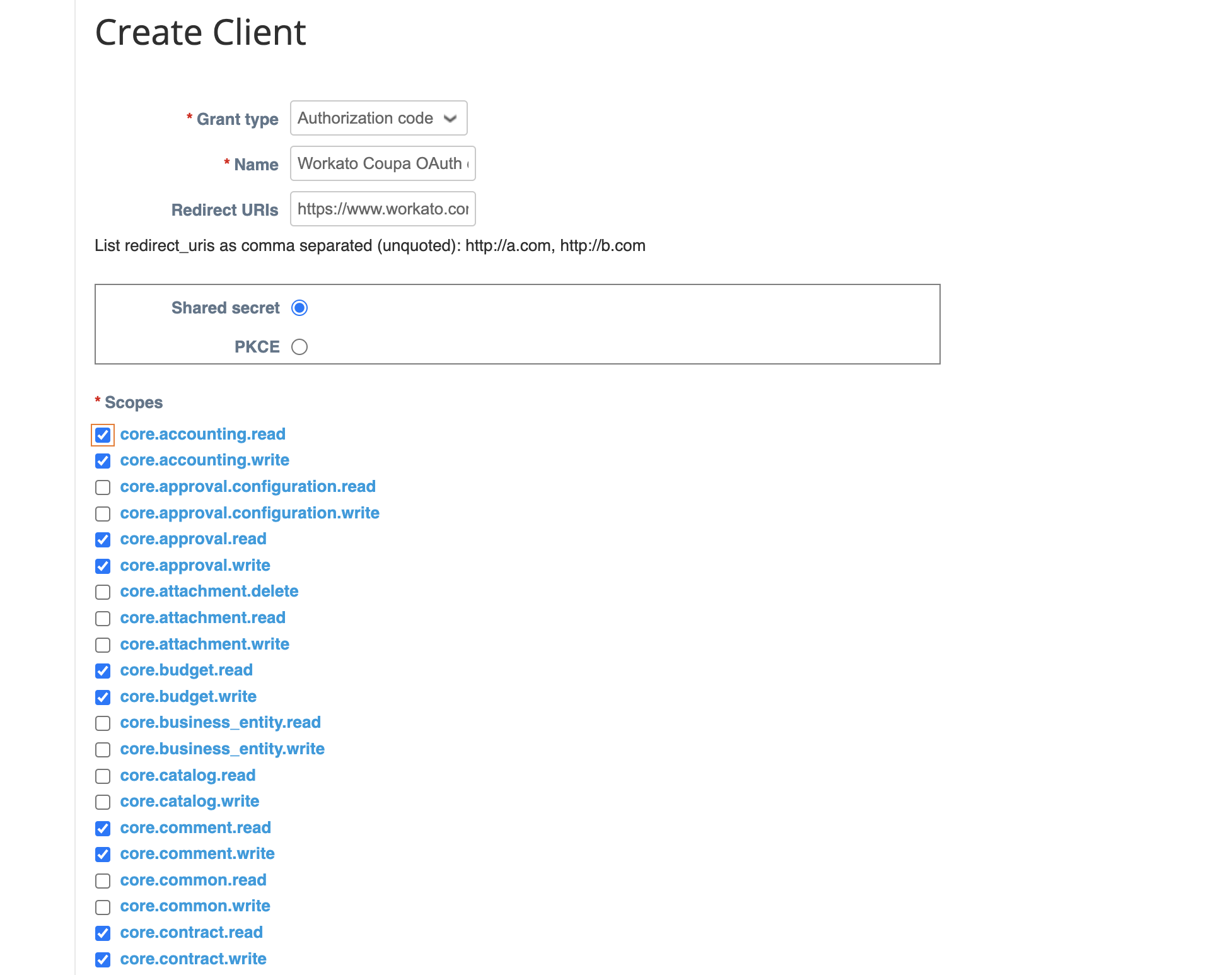 Create a new client
Click Save.
Copy and store the Identifier and the Secret for use in Workato.
Return to your Workato account and go to the project where you plan to add your connection.
Click Create > Connection or press C twice.
Search for and select Coupa as your connection on the New connection page.
Provide a unique name for the connection in the Connection name field.
Use the Location drop-down menu to select the project where you plan to store the connection.
Use the Authentication drop-down to select the Grant type provided in Coupa.
Enter the Client ID and Client secret.
Enter the Coupa URL for your instance in the Host field. For example, enter acme if your URL is http://acme.coupacloud.com.
Use the Scopes drop-down menu to select the same scopes you configured in Coupa. Include the required scopes core.common.read and offline_access to connect successfully.
Click Connect.
Coupa role requirements
Each tool's availability depends on the permissions granted to the connected account. Actions run with the authenticated user's own Coupa permissions through Verified user access, using an OAuth 2.0 Authorization Code Grant connection instead of a shared service account. A request made without the required permission returns a permission-denied outcome rather than a partial result.
Project property configuration
The Coupa Procurement & Receiving MCP server supports the following project-level properties to control behavior and defaults:
| Project-level property | Description |
|---|---|
requisition_custom_field_schema | Specify the tenant-required purchase request custom fields, and how to supply them to create_requisition. |
po_change_allowed_fields | Specify header and line fields the tenant permits in a purchase order change request. |
po_change_reason_mapping | Specify valid purchase order change reason values, the Coupa field they map to, and whether a reason is required. |
default_receiving_warehouse_id | Configure the default receiving warehouse used by create_receipt. This isn't exposed as a tool parameter. |
default_receiving_warehouse_location_id | Configure the default receiving warehouse location used by create_receipt. This isn't exposed as a tool parameter. |
idempotency_retention_days | Enter the retention window, in days, for the server-layer duplicate-protection store. The minimum is 1, the maximum is 30, and the default is 7. |
budget_enforcement | Configure the MCP-layer budget preflight policy that applies when submitting a purchase request. Options include block, advisory, and off. The default is block. This doesn't override Coupa's own native budget validation, which still applies in every mode. |
View project-level property configuration steps
Complete the following steps to configure your project-level properties:
Sign in to your Workato account and select Projects.
Select the project that contains your MCP server.
Click the Settings tab.
 Click the Settings tab.
Select Project properties.
Locate the project property you plan to update and click the Edit (pencil) icon.
Enter your changes in the Value field.
How to use Coupa Procurement & Receiving MCP server tools
Refer to the following sections for detailed information on available tools:
create_requisition tool
The create_requisition tool creates a purchase request with resolved references and optionally submits it for approval. Your LLM uses this tool after you select catalog items or specify free-form lines and confirm the requester, lines, coding, ship-to, need-by date, and total.
Try asking:
Create a purchase request for 10 laptop stands from Acme Corp, coded to the Facilities account.Draft a request for 5 units of the standing desk from the catalog.Create and submit a purchase request for a contractor invoice, need-by end of month.Start a purchase request for office supplies, I'll submit it later.
submit_requisition tool
The submit_requisition tool submits a draft purchase request for native Coupa approval routing. Your LLM uses this tool to submit the draft for approval when you confirm it's ready.
Try asking:
Submit my draft purchase request for approval.I've reviewed the request, go ahead and submit it.Send the office supplies request for approval now.
get_requisition tool
The get_requisition tool retrieves a purchase request's status, paged lines, line suppliers, and available approval summary. Your LLM uses this tool to check a specific request's detail or approval position after locating it with search_requisitions.
Try asking:
Where does my purchase request for office chairs stand?Show me the lines and suppliers on this purchase request.Who still needs to approve this request?Pull up the full detail for this purchase request.
search_requisitions tool
The search_requisitions tool finds purchase requests by requester, supplier, status, or date range and presents candidates for you to choose from when several match. Your LLM uses this tool to locate a request when you can't identify it by internal ID.
Try asking:
Find my purchase requests from this month.Show me all pending purchase requests for Acme Corp.Find the purchase request I submitted last week.List requests that are still in draft status.
search_purchase_orders tool
The search_purchase_orders tool searches purchase orders by supplier, status, date range, or requester. Your LLM uses this tool to find, review, or list purchase orders, or to confirm that a purchase order was generated after a request was approved.
Try asking:
Show me all purchase orders from Acme Corp issued this quarter.Did my purchase request turn into a purchase order yet?Find open purchase orders for the Facilities account.List purchase orders issued in the last 30 days.
get_purchase_order tool
The get_purchase_order tool retrieves full purchase order header, paged lines, version, and available approval summary. Your LLM uses this tool to capture the current version before requesting a change, or to obtain the order-line ID before recording a receipt.
Try asking:
Has this purchase order been received yet?Show me the full detail for this purchase order.What's the remaining balance on this purchase order's lines?Pull up this purchase order before I request a change.
search_pending_approvals tool
The search_pending_approvals tool finds pending approval steps on purchase requests and purchase orders, filterable by approver and elapsed time. Your LLM uses this tool to check what's awaiting approval, who holds it, or what's been pending the longest. This tool is read-only and doesn't act on approvals.
Try asking:
What's waiting in my approval queue right now?Which approvals have been pending the longest?Show me approvals that have been stuck for more than 5 days.What purchase requests are waiting on my approval?
request_po_change tool
The request_po_change tool creates a concurrency-checked purchase order change request and submits it for approval. Your LLM retrieves the current purchase order first, shows you the before and after values, and only proceeds after you confirm.
Try asking:
Request a quantity change on this purchase order before I approve the invoice.Change the need-by date on this purchase order to next Friday.Update the ship-to address on this purchase order.Reduce the quantity on this line to match what we actually ordered.
close_purchase_order tool
The close_purchase_order tool closes an eligible, fully received purchase order, which stops further receiving and invoicing against it. Your LLM uses this tool to close the order when you confirm it's fully received and no more invoices are expected.
Try asking:
Close this purchase order, everything on it has been received.This order is complete, go ahead and close it.Stop any further invoicing against this purchase order.
create_receipt tool
The create_receipt tool records a positive goods-receipt transaction against a purchase order line. Your LLM uses this tool to record the receipt once you confirm physical receipt of goods, using the order-line ID from get_purchase_order.
Try asking:
Record a receipt of 5 units against this purchase order line.We received the full order today, log the receipt.Record a partial receipt of 3 units for this line.Log today's delivery against this purchase order.
search_catalog_items tool
The search_catalog_items tool searches the approved catalog and returns line-ready item detail. Your LLM uses this tool to find items when you want to buy from the approved catalog, and presents results for you to select before creating a purchase request line.
Try asking:
Find approved catalog items for standing desks.Search the catalog for wireless keyboards.What laptop stands are available in the catalog from Acme Corp?Show me catalog items under the office furniture commodity.
search_suppliers tool
The search_suppliers tool finds suppliers by name and returns compact reference records. Your LLM uses this tool to resolve a supplier reference before a write, and presents candidates for you to choose from when several match.
Try asking:
Find the supplier record for Acme Corp.Search for active suppliers matching "Acme".Look up this supplier before I add a line to my request.
search_accounts tool
The search_accounts tool finds account and cost-center codes and returns compact reference records. Your LLM uses this tool to resolve account coding before a write, and presents candidates for you to choose from when several match.
Try asking:
Find the Facilities account for coding this request.Search for accounts matching "Marketing".Look up the right cost-center code before I submit this line.
search_users tool
The search_users tool finds Coupa users by name or email and returns compact reference records. Your LLM uses this tool to resolve a requester reference, and presents candidates for you to choose from when several match.
Try asking:
Find the user record for [email protected].Search for Coupa users named Chen.Look up this requester before I create the request on their behalf.
Getting started
View and manage your MCP server tools in the Details tab Tools section. Tool management provides the following capabilities:
TOOLS MUST BE STARTED
Your LLM can only access active tools in your MCP server connector.
Last updated: