Google BigQuery MCP server
The Google BigQuery MCP server enables LLMs to interact with Google BigQuery for analytics and data warehouse operations through natural conversation. It provides tools to discover datasets and tables, estimate query costs before execution, run parameterized SQL queries, execute data modifications, stream rows, and monitor jobs without requiring direct interaction with the Google BigQuery console.
Uses
Use the Google BigQuery MCP server to perform the following actions:
- Discover datasets, tables, and their schemas within a BigQuery project
- Preview table rows at zero query cost to sample data
- Estimate query costs via dry run before executing expensive scans
- Run parameterized read-only GoogleSQL SELECT queries with spend caps
- Retrieve complete result sets by polling long-running queries and paginating large results
- Execute data-modifying SQL statements
- Create, alter, and drop datasets, tables, and views via DDL
- Stream JSON rows into tables with per-row error reporting
- Monitor query and DML job progress and retrieve execution statistics
- Cancel running jobs on a best-effort basis
Example prompts
Use the following example prompts to invoke Google BigQuery MCP server tools:
What datasets are available in the analytics project?Show me the schema and row count for the customers table in my analytics dataset.Preview the first 10 rows of the events table to see what data is available.How many bytes would scanning all columns from the large_transactions table cost?Run a query to find the top 10 customers by revenue from the last quarter.What are the results of the query with job ID xyz123 in the US region?Update all records in the test_table where status equals pending to status equals completed.Stream 100 new event rows into the events table and report any failures.What is the status of my long-running data load job?Cancel the query job that's been running for too long.
Google BigQuery MCP server tools
The Google BigQuery MCP server provides the following tools:
| Tool | Description |
|---|---|
| list_datasets | Lists datasets in a BigQuery project. |
| get_dataset | Retrieves metadata for a specific dataset. |
| list_tables | Lists tables, views, and external tables in a dataset. |
| get_table | Retrieves a table's schema and metadata. |
| preview_table_rows | Reads sample rows directly from a table without running a query or incurring query cost. |
| estimate_query_cost | Validates a SQL statement and estimates bytes scanned without running it or incurring cost. |
| run_query | Runs a read-only GoogleSQL SELECT query and returns rows or a job reference. |
| get_query_results | Polls a query job and retrieves paginated result rows by job id. |
| execute_sql | Executes a single allowlisted data or schema-modifying SQL statement (DML or DDL). |
| insert_rows | Streams JSON rows into a BigQuery table. |
| get_job | Retrieves the status, statistics, and errors of a BigQuery job. |
| cancel_job | Requests best-effort cancellation of a running BigQuery job. |
Install the Google BigQuery MCP server
Complete the following steps to install a prebuilt MCP server to your project:
Sign in to your Workato account.
Go to AI Hub > Enterprise MCP > Custom servers.
Click + Create MCP server.
Go to the Start with pre-built MCP Servers using your connected apps section and select the prebuilt MCP server you plan to use.
Click Use this server.
Provide a name for your MCP server in the Server name field.
Use the Location drop-down menu to select the project for the MCP server.
Go to the Connections section and connect to your app account.
Select the connection type you plan to use for the MCP server template.
- User's connection: MCP server tools perform actions based on the identity and permissions of the user who connects to the application. Users authenticate with their own credentials to execute the skill.
- Your connection: This option uses the connection established by the recipe builder and follows the same principles as normal app connections.
 Select your connection type
VERIFIED USER ACCESS AUTHENTICATION REQUIREMENTS
Only app connections that use OAuth 2.0 authorization code grant are available for user's connection. Refer to Verified user access for more information.
Complete the app-specific connection setup steps in the following section.
Google BigQuery connection setup
View Google BigQuery connection setup steps
API version
The Google BigQuery connector uses the Google BigQuery API v2.
How to connect to Google BigQuery
View how to connect to Google BigQuery steps
The Google BigQuery connector supports the following authentication methods:
- OAuth 2.0
- Service Account
Google BigQuery setup for service account authentication
A Google service account is a specialized Google account associated with a Google Cloud Project (GCP) that can run API requests on your behalf.
Service accounts provide the following benefits:
- Continuous operation: Service accounts ensure that operations continue even if individual user permissions change.
- Dedicated permissions: Service accounts can only access projects that you share with them.
- Dedicated API quotas: You can manage a service account's API quotas through GCP and request quota increases directly from Google.
Refer to the Google service account documentation to learn more about service accounts.
You must create a Google service account and note its email address and private key before connecting with service account authentication.
Set up a Google service account
View set up a Google service account steps
Complete the following steps to set up a Google service account:
Create a service account in your GCP project.
Go to IAM & Admin > Service accounts. Ensure your dashboard is scoped to the project that contains your service account.
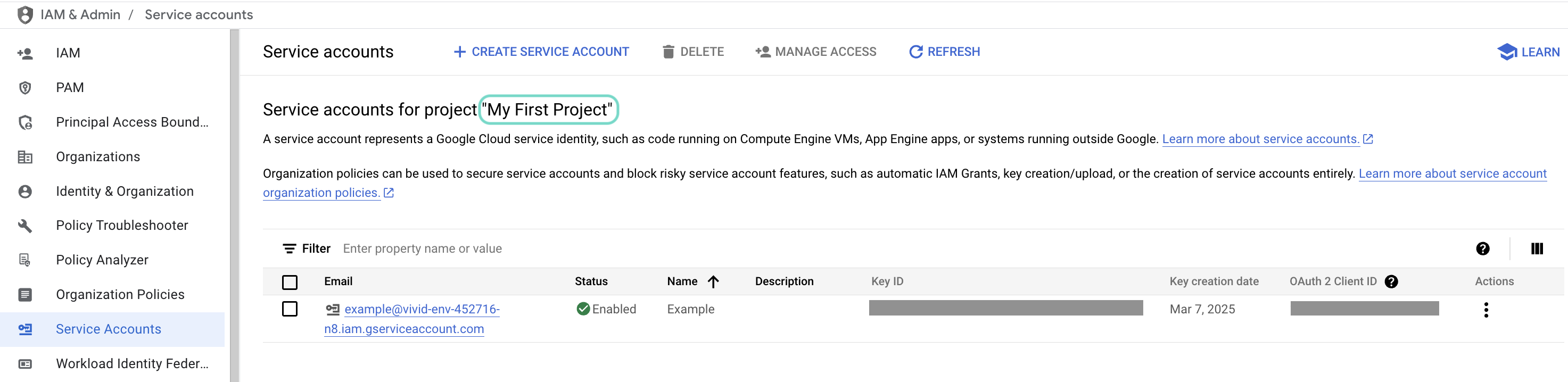 Check the scope of your dashboard.
Click the Email of the service account you intend to use.
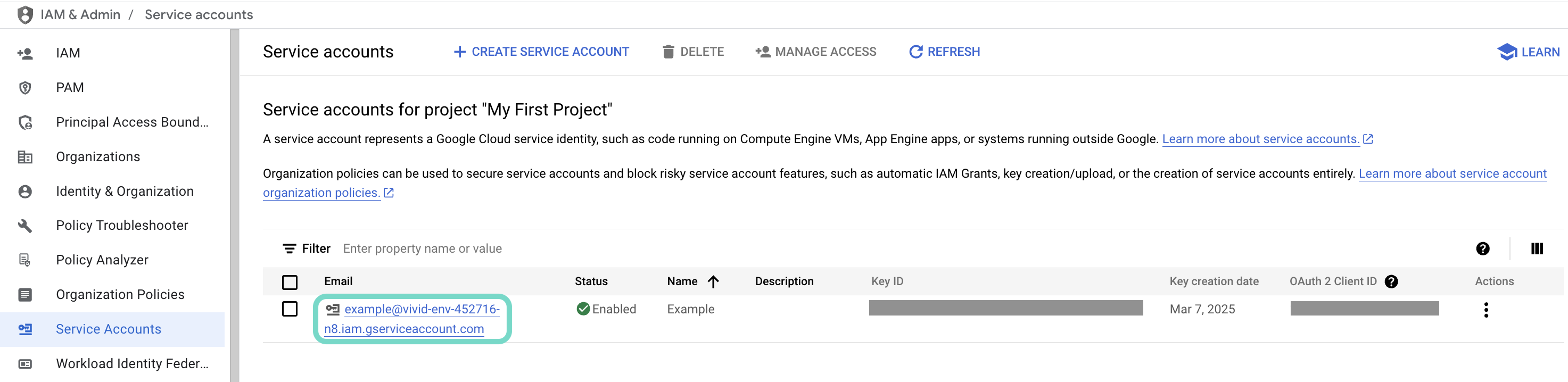 Click the Email of the service account you intend to use.
Copy the service account's Email and save it to configure your connection later.
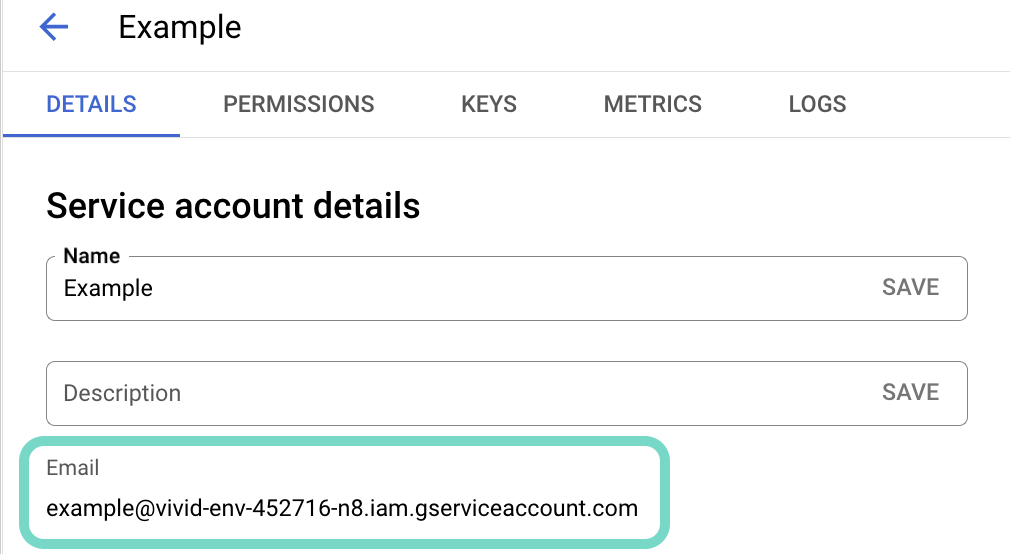 Copy the account's Email.
Go to the KEYS tab.
Generate a private key and download it in JSON format. You can only download the key once.
Open the JSON file, then copy the entire private key from -----BEGIN PRIVATE KEY----- to -----END PRIVATE KEY-----\n (inclusive) and save it to configure your connection later.
Enable the Google BigQuery API, then return to Workato to finish setting up your connection.
Connect to Google BigQuery
View connect to Google BigQuery steps
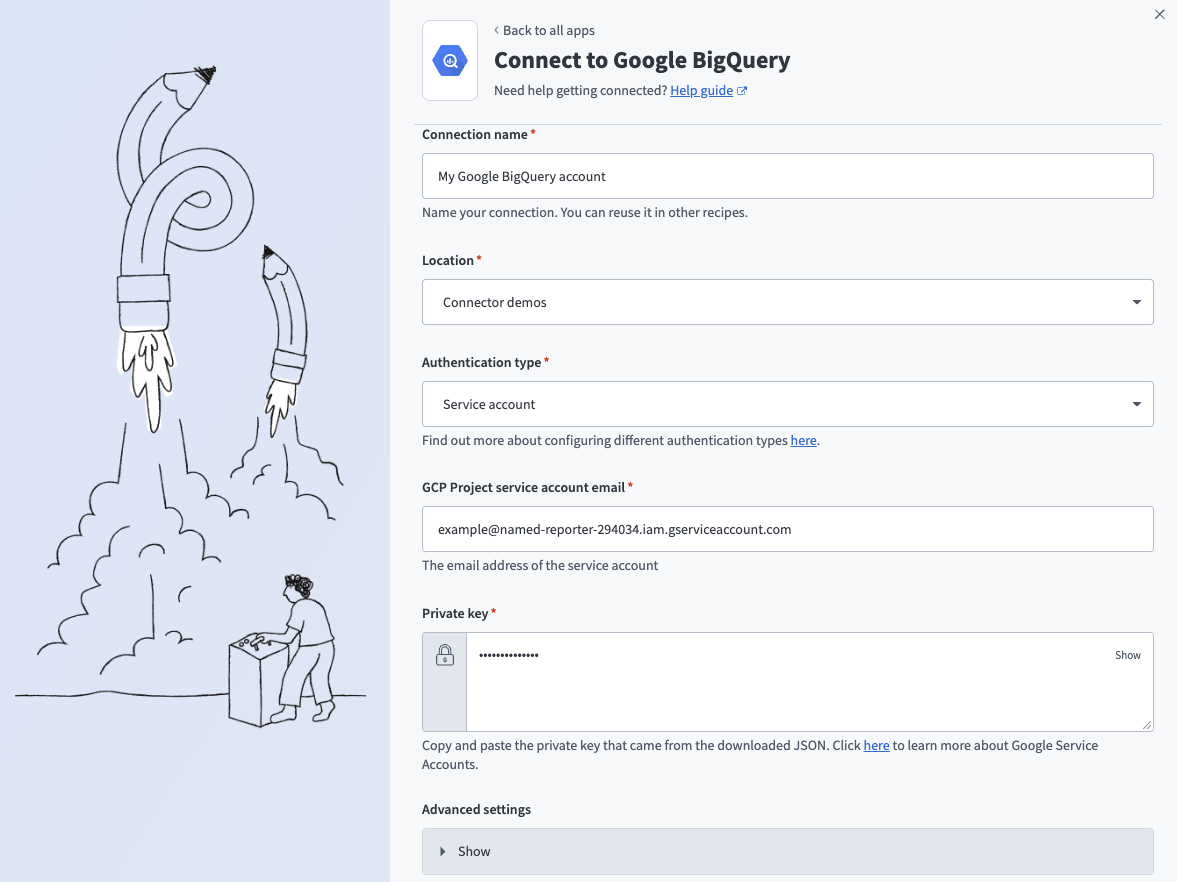
Complete the following steps to establish a connection to Google BigQuery in Workato:
Search for Google BigQuery and select it as your app.
Enter a unique name for your connection in the Connection name field that identifies which Google BigQuery instance it is connected to.
Use the Location drop-down menu to select the project or folder where you plan to store the connection.
Use the Authentication type drop-down menu to select OAuth 2.0 or Service account.
Complete the following steps if your Authentication type is Service account:
Enter the email address of your service account in the GCP Project service account email field.
Enter the private key of your service account in the Private key field.
Expand the Advanced settings section and select scopes to request your connection.
Click Sign in with Google.
Click Allow when prompted to authorize Workato to access your Google account.
Google BigQuery role requirements
Each tool's availability depends on the permissions granted to the connected account. A request made without the required permission returns a permission-denied outcome rather than a partial result. Refer to Google Cloud BigQuery IAM roles and permissions for the complete list of role capabilities.
Project property configuration
The Google BigQuery MCP server supports the following project-level properties to control behavior and defaults:
| Project-level property | Description |
|---|---|
| billing_project_id | Enter the billing project ID of the Google Cloud project that creates jobs and absorbs query charges. This project needs the bigquery.jobs.create permission. |
| default_location | Enter a default resolution for when the LLM omits the location parameter. Location auto-resolves from dataset metadata when available. |
| query_timeout_ms | Configure how long run_query and execute_sql wait synchronously before returning a job reference for polling. Defaults to 30,000 ms. |
| default_max_results | Enter a default number of rows for each page of results when the LLM omits max_results. Defaults to 100 rows. |
| max_response_bytes | Enter a server-side limit on the serialized payload returned for each page. Defaults to 1 MB. |
| default_maximum_bytes_billed | Enter a spend limit to apply to queries when the LLM omits maximum_bytes_billed. There's no limit by default. |
| max_maximum_bytes_billed | Enter a hard server-side spend limit for governed environments. There's no limit by default. |
| read_only | Enable this flag to disable data modification tools. Defaults to Off. |
| on_demand_price_per_tib | Enter a price assumption for on-demand cost approximations. Defaults to $6.25/TiB (US multi-region on-demand list price). |
| job_labels | Specify additional deployment-defined labels to attach to every job this server creates. |
View project-level property configuration steps
Complete the following steps to configure your project-level properties:
Sign in to your Workato account and go to Projects.
Go to the project that contains your MCP server.
Click the Settings tab.
 Click the Settings tab.
Select Project properties.
Go to the project property you plan to update and click the Edit (pencil) icon.
Go to the Value field and make your changes. For example, set query_timeout_ms to 25,00 ms or default_max_results to 50.
How to use Google BigQuery MCP server tools
Refer to the following sections for detailed information on available tools:
list_datasets tool
The list_datasets tool lists datasets in a BigQuery project. Your LLM uses this tool to discover what datasets are available in a project, optionally filtered by labels, and to understand the warehouse structure before querying.
Try asking:
What datasets are available in my project?Show me all datasets with the environment label set to production.List all datasets in alphabetical order with their descriptions.
get_dataset tool
The get_dataset tool retrieves metadata for a specific dataset including location, description, and default expiration settings. Your LLM uses this tool to understand dataset configuration, determine the region for job routing, and verify dataset accessibility before running queries.
Try asking:
Where is the analytics dataset located?What's the description and default expiration for the raw_data dataset?Get the metadata for the events dataset to confirm its region.
list_tables tool
The list_tables tool lists tables, views, and external tables in a dataset. Your LLM uses this tool to see what tables are available within a dataset and understand what data is accessible for analysis.
Try asking:
What tables are in the analytics dataset?Show me all views in the staging dataset.List all external tables available in the data_imports dataset.
get_table tool
The get_table tool retrieves a table's full schema, row and byte counts, partitioning and clustering configuration, and streaming-buffer status. Your LLM uses this tool to ground itself in table structure before writing SQL, understand what columns are available, and learn about indexing that can reduce scan costs.
Try asking:
Show me the schema for the customers table.What are the partitioning and clustering columns for the events table?How many rows and bytes does the transactions table contain?
preview_table_rows tool
The preview_table_rows tool reads sample rows directly from a table without running a query or incurring query charges. Your LLM uses this tool to see actual data values, verify data quality, and sample a table's content without cost or SQL execution overhead.
Try asking:
Preview the first 20 rows of the users table.Show me some examples of data in the customer_events table.Get a sample of rows from the products table, showing just the name and price columns.
estimate_query_cost tool
The estimate_query_cost tool validates a SQL statement and estimates bytes that would be scanned without running the query, because dry runs don't incur cost. Your LLM uses this tool to check SQL syntax, understand what tables a query touches, and surface cost estimates to the user before expensive scans execute.
Try asking:
What would this query cost: SELECT * FROM huge_table WHERE year = 2024?Estimate the cost of a query joining customers and orders on the last month's data.Check if my query is syntactically valid and how many bytes it would scan.
run_query tool
The run_query tool runs a read-only GoogleSQL SELECT query. If the query completes quickly, it returns rows immediately. Otherwise it returns a job reference for polling, which the LLM should treat as normal progress rather than an error. Your LLM uses this tool to execute parameterized analytical queries and retrieve results.
Try asking:
Query the customers table to find all customers created in the last 30 days.Run a SELECT statement with a parameter to find orders where the amount exceeds @min_amount.Execute a query that joins three tables and returns the top 100 results by revenue.
get_query_results tool
The get_query_results tool polls a query job and retrieves paginated result rows by job id and location. The tool reports unfinished jobs as still running rather than as an error. Your LLM uses this tool to fetch results from long-running queries and handle multi-page result sets.
Try asking:
Get the results of job ID abc123 in the us-central1 region.Fetch the next page of results from my query using this page token.Poll the status of a query that was still running earlier.
execute_sql tool
The execute_sql tool executes a single allowlisted data or schema-modifying SQL statement. Your LLM uses this tool to insert, update, or delete rows, and to create, alter, or drop tables and datasets. The tool requires explicit user confirmation for destructive statements, such as DROP, TRUNCATE, or DELETE, before it executes. Otherwise it runs immediately.
Try asking:
Insert a new row into the customers table with these values.Update all records in the staging table where status equals pending to completed.Delete all test data from the events table that were created in the last hour.
insert_rows tool
The insert_rows tool streams JSON rows into a BigQuery table with optional duplicate suppression. Your LLM uses this tool to append event or application rows generated in the conversation to a table. The tool reports each row's outcome individually rather than treating the whole batch as a single success or failure.
Try asking:
Stream these 50 event records into the events table.Append new user signup records to the users table and report any failures.Insert rows with deduplication IDs to avoid inserting duplicates.
get_job tool
The get_job tool retrieves the status, statistics, and errors of a BigQuery job. Your LLM uses this tool to check whether a job is still running and review bytes processed and billed. The tool reports a failure for jobs that encountered errors.
Try asking:
What's the status of job ID xyz789 in the us region?Show me how many bytes my query processed and whether results came from cache.Get the error details for a job that failed.
cancel_job tool
The cancel_job tool requests best-effort cancellation of a running BigQuery job. Your LLM uses this tool to stop a runaway query before it incurs further costs, and to confirm the final state of a cancelled job.
Try asking:
Cancel the query job that's been running too long.Stop the data load job in the us-central1 region.Halt this insert operation before it processes more data.
Getting started
View and manage your MCP server tools in the Details tab Tools section. Tool management provides the following capabilities:
TOOLS MUST BE STARTED
Your LLM can only access active tools in your MCP server connector.
Last updated: