Zoho CRM MCP server
The Zoho CRM MCP server lets LLMs work with Zoho CRM for core CRM record management through natural conversation. It provides tools to search, retrieve, create, update, and delete leads, accounts, contacts, and deals, convert qualified leads, look up related records, and check a module's field metadata, without requiring direct interaction with the Zoho CRM interface.
Uses
Use the Zoho CRM MCP server to perform the following actions:
- Search leads, accounts, contacts, and deals
- Retrieve a specific record
- Create new leads, accounts, contacts, and deals
- Update a record's fields
- Apply a field change to a batch of records
- Upsert a record from an external source
- Delete a record that's no longer needed
- Convert a qualified lead into an account, contact, and optionally a deal
- List records related to a parent record through a named related list
- Search vendor and campaign records
- Look up a module's field names, required fields, and picklist values before writing a record
Example prompts
Use the following example prompts to invoke Zoho CRM MCP server tools:
Find the deal for Acme Corp that's closing this month.Create a new lead for Kiran Patel at Acme Corp.Update the stage on this deal to Negotiation.Move every deal in the Qualification stage to Needs Analysis.Sync this contact from our database into Zoho, and update it if it already exists.What contacts are linked to this account?Delete this duplicate lead.Convert this lead into an account, contact, and deal.What fields are required to create a new deal?Search for vendors matching "Acme".
Zoho CRM MCP server tools
The Zoho CRM MCP server provides the following tools:
| Tool | Description |
|---|---|
| search_records | Searches leads, accounts, contacts, or deals by field value, email address, phone number, or keyword. |
| get_record | Retrieves a single lead, account, contact, or deal. |
| create_lead | Creates a new lead. |
| create_account | Creates a new account. |
| create_contact | Creates a new contact. |
| create_deal | Creates a new deal. |
| update_record | Updates fields on an existing lead, account, contact, or deal. |
| bulk_update_records_by_id | Applies the same field change to up to 100 records. |
| upsert_record | Creates or updates a record. |
| delete_record | Deletes a lead, account, contact, or deal. |
| list_related_records | Lists records linked to a parent record through a named related list. |
| search_vendor | Searches vendor records. |
| search_campaigns | Searches campaign records. |
| convert_lead | Converts a lead into an account, contact, and optionally a deal. |
| get_module_fields | Returns a module's field API names, required and read-only flags, and picklist values. |
Install the Zoho CRM MCP server
Complete the following steps to install a prebuilt MCP server to your project:
Sign in to your Workato account.
Go to AI Hub > Enterprise MCP > Custom servers.
Click + Create MCP server.
Go to the Start with pre-built MCP Servers using your connected apps section and select the prebuilt MCP server you plan to use.
Click Use this server.
Provide a name for your MCP server in the Server name field.
Use the Location drop-down menu to select the project for the MCP server.
Go to the Connections section and connect to your app account.
Select the connection type you plan to use for the MCP server template.
- User's connection: MCP server tools perform actions based on the identity and permissions of the user who connects to the application. Users authenticate with their own credentials to execute the skill.
- Your connection: This option uses the connection established by the recipe builder and follows the same principles as normal app connections.
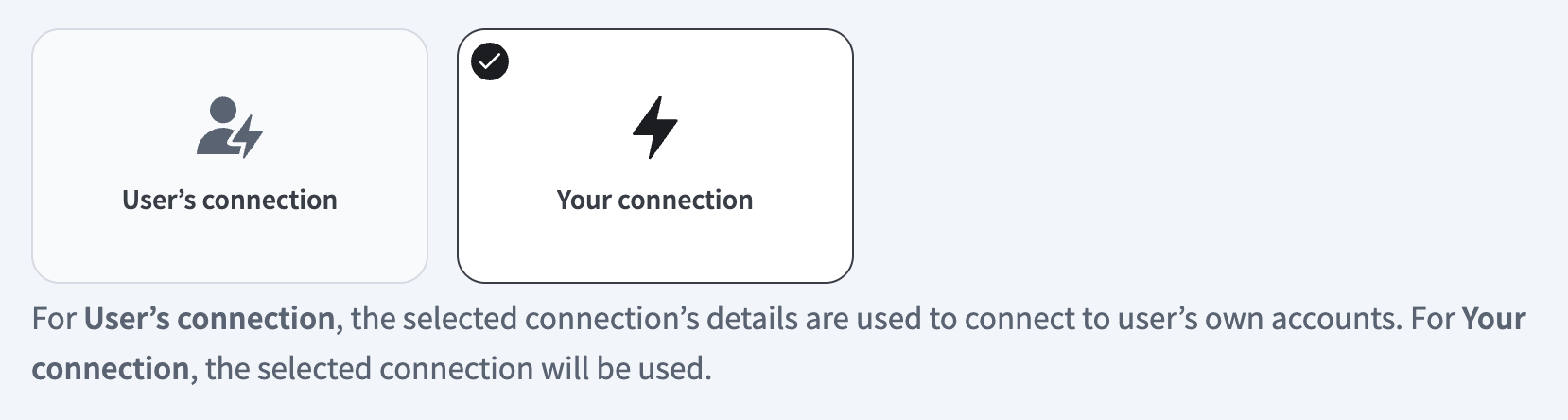 Select your connection type
VERIFIED USER ACCESS AUTHENTICATION REQUIREMENTS
Only app connections that use OAuth 2.0 authorization code grant are available for user's connection. Refer to Verified user access for more information.
Complete the app-specific connection setup steps in the following section.
Zoho CRM connection setup
View Zoho CRM connection setup steps
The Zoho CRM connector uses OAuth 2.0 authentication.
API version
The Zoho CRM connector uses the following Zoho CRM API versions:
How to connect to Zoho CRM
Complete the following steps to establish a Zoho CRM connection in Workato:
Click Create > Connection or press C twice.
Search for and select Zoho CRM on the New connection page.
Enter a name for your connection in the Connection name field.
 Connect to Zoho CRM
Use the Location drop-down menu to select the project or folder to store your connection.
Use the Account timezone drop-down menu to select your account timezone as specified in Zoho CRM.
Use the Data center drop-down menu to select your data center. You can find your data center at the end of your Zoho URL.
Expand the Advanced settings section to configure Scopes for your connection.
The following scopes are requested by default:
ZohoCRM.modules.contacts.READZohoCRM.settings.modules.READ
Defaults to ZohoCRM.modules.all, ZohoCRM.settings.all if left blank.
Optional. Use the Custom OAuth profile drop-down menu to select a custom OAuth profile for your connection.
Click Connect.
Zoho CRM role requirements
Each tool's availability depends on the permissions granted to the connected account. A request made without the required permission returns a permission-denied outcome rather than a partial result. Refer to Manage Users, Roles, and Permissions for the complete list of role capabilities.
How to use Zoho CRM MCP server tools
Refer to the following sections for detailed information on available tools:
search_records tool
The search_records tool searches leads, accounts, contacts, or deals by a field value, email address, phone number, or keyword. Your LLM uses this tool to find records before reading or writing them. A field search can match a field's exact value, or match if any word within it begins with the given text. Field search doesn't support broader partial-word matching.
Try asking:
Find leads from the West region.Show me deals over $50,000 closing this month.Find the contact with email [email protected].Search accounts for the keyword "Acme".
get_record tool
The get_record tool retrieves a single lead, account, contact, or deal by its ID. Your LLM uses this tool to read a record's full details before acting on it.
Try asking:
Show me the full details for this deal.What are the current fields on this contact?Get the details for this account.
create_lead tool
The create_lead tool creates a new lead. Your LLM uses this tool when you ask to add a new lead.
Try asking:
Create a new lead for Kiran Patel at Acme Corp.Add a lead for the contact I just described.Log a new lead from this morning's call.
create_account tool
The create_account tool creates a new account. Your LLM uses this tool when you ask to add a new account.
Try asking:
Create a new account for Acme Corp.Add an account record for this organization.Log Acme Corp as a new account.
create_contact tool
The create_contact tool creates a new contact. Your LLM uses this tool when you ask to add a new contact.
Try asking:
Create a new contact for Jade Chen at Acme Corp.Add a contact for the person I just spoke with.Log Dana Smith as a new contact under this account.
create_deal tool
The create_deal tool creates a new deal. Your LLM uses this tool when you ask to add a new deal.
Try asking:
Create a new deal for the Acme Corp renewal.Add a deal closing at the end of the quarter.Log a new deal for this account.
update_record tool
The update_record tool updates fields you specify on an existing lead, account, contact, or deal. It shows a preview for your approval before it applies the change. Your LLM uses this tool when you ask to change a field on a record whose ID is already known.
Try asking:
Update the stage on this deal to Negotiation.Change the phone number on this contact.Correct the company name on this lead.Show me what this change will look like before you apply it.
bulk_update_records_by_id tool
The bulk_update_records_by_id tool applies the same field change to up to 100 records. It shows the record count and a preview for your approval before it applies the change. Your LLM uses this tool when you ask to apply the same update to multiple already identified records, typically from a prior search.
Try asking:
Move every deal in the Qualification stage to Needs Analysis.Update the owner on these 20 leads.Change the region on all of these accounts.
upsert_record tool
The upsert_record tool creates a record, or updates it if the Zoho duplicate-check finds an existing match. It shows a preview for your approval before it applies the change. Your LLM uses this tool when a record needs to exist with certain values regardless of whether it already exists in Zoho, such as when syncing from an external system.
Try asking:
Sync this contact from our database into Zoho, and update it if it already exists.Make sure this account exists in Zoho with these details.Upsert this deal from our external system.
delete_record tool
The delete_record tool deletes a lead, account, contact, or deal. It shows a preview for your approval before it removes the record. The delete is permanent. An account delete also removes its linked contacts and deals in Zoho. Your LLM uses this tool when you ask to delete a record.
Try asking:
Delete this duplicate lead.Remove this test deal.Delete this account. I created it by mistake.
list_related_records tool
The list_related_records tool lists records linked to a parent record through one named related list, such as the contacts under an account or the notes on a deal, optionally narrowed to specific fields. Your LLM uses this tool when you ask what's linked to a record.
Try asking:
What contacts are linked to this account?Show me the notes on this deal.List everything related to this lead.Just show me the names of the contacts linked to this account.
search_vendor tool
The search_vendor tool searches vendor records by specific field values. Your LLM only uses this tool to find vendor records. It can't create, update, or delete them.
Try asking:
Search for vendors matching "Acme".Find the vendor record for this supplier.
search_campaigns tool
The search_campaigns tool searches campaign records by specific field values. Your LLM only uses this tool to find campaign records. It can't create, update, delete, or manage membership for them.
Try asking:
Find campaigns running this quarter.Search for the campaign named "Fall Promo".
convert_lead tool
The convert_lead tool converts a lead into an account, contact, and optionally a deal. It shows a preview for your approval before it completes the conversion. Your LLM uses this tool when you ask to convert a specific lead whose record ID is already known. Conversion can't be undone through this tool, and it reports an already-converted lead as not found rather than already converted.
Try asking:
Convert this lead into an account, contact, and deal.Qualify this lead, but don't create a deal yet.Promote this lead now that it's qualified.
get_module_fields tool
The get_module_fields tool returns a module's field API names, required and read-only flags, and picklist values. Your LLM uses this tool to inspect field metadata before a write or search. Write operations don't validate values against picklist options, so Zoho saves values outside those options exactly as provided.
Try asking:
What fields are required to create a new deal?What are the valid values for the lead status field?Which fields on a contact are read-only?
Zoho CRM MCP apps
The Zoho CRM MCP server includes five MCP apps that preview changes for your approval: Record Preview Update, Record Preview Upsert, Record Preview Delete, Bulk Update, and Convert Lead. Convert Lead prompts you to fill fields it couldn't populate from the lead. You can't commit changes until all required fields are filled.
Getting started
View and manage your MCP server tools in the Details tab Tools section. Tool management provides the following capabilities:
TOOLS MUST BE STARTED
Your LLM can only access active tools in your MCP server connector.
Last updated: