Canva MCP server
The Canva MCP server enables LLMs to interact with Canva for structured design and content operations through natural conversation. It provides tools to search designs, retrieve design metadata, organize designs and assets into folders, upload reusable assets, export designs into shareable formats, and generate branded designs from templates without requiring direct interaction with the Canva interface.
Uses
Use the Canva MCP server to perform the following actions:
- Search for existing designs using keywords and filters
- Retrieve metadata and access links for a specific design
- Export a design in a shareable format
- Upload reusable assets from a URL
- Create folders for asset organization
- List the contents of a folder
- Track the status of export and asset upload jobs
- Track the status of autofill jobs (requires Canva Enterprise)
- Discover brand templates (requires Canva Enterprise)
- Retrieve the dataset schema that defines a brand template's autofill fields (requires Canva Enterprise)
- Generate a branded design by autofilling a template with structured data (requires Canva Enterprise)
Example prompts
Use the following example prompts to invoke Canva MCP server tools:
Find all designs that mention our Q3 product launch.Get the metadata and shareable link for the design titled Sales Deck Template.What export formats are available for this design?Export this design as a PDF and give me the download link.Check the status of the export job I started for the campaign deck.Upload this logo image from the URL and make it available in Canva.Show me everything inside the Marketing Assets folder.Create a new folder called Q3 Campaign and move these designs into it.Move this asset into the Brand Library folder.Get the metadata for the asset I just uploaded.Get the design created by the autofill job I started.Show me the brand templates I can use to generate a sales deck.Generate a branded design from the Q3 Sales template using this account data.Check the status of the autofill job for the account deck.
Canva MCP server tools
The Canva MCP server provides the following tools:
| Tool | Description |
|---|---|
| search_designs | Searches Canva designs using keywords and filters. |
| get_design | Retrieves metadata and access links for a Canva design. |
| get_design_export_formats | Retrieves available export formats for a Canva design. |
| create_design_export_job | Initiates an export job for a Canva design. |
| get_design_export_job | Retrieves the status and result of a Canva design export job. |
| upload_asset_from_url | Uploads an image or video asset to Canva from a URL. |
| get_asset_upload_job | Retrieves the status and result of an asset upload job. |
| get_asset | Retrieves metadata for a Canva asset. |
| list_folder_items | Lists the contents of a Canva folder. |
| create_folder | Creates a folder in Canva. |
| move_to_folder | Moves a design, asset, or folder to another folder. |
| list_brand_templates | Lists available Canva brand templates. Requires Canva Enterprise. |
| get_brand_template_dataset | Retrieves the dataset schema for a Canva brand template. Requires Canva Enterprise. |
| create_design_autofill_job | Creates a new design by autofilling a Canva brand template. Requires Canva Enterprise. |
| get_design_autofill_job | Retrieves the status and result of a Canva autofill job. Requires Canva Enterprise. |
Install the Canva MCP server
Complete the following steps to install a prebuilt MCP server to your project:
Sign in to your Workato account.
Go to AI Hub > MCP servers.
Click + Create MCP server.
Go to the Start with pre-built MCP Servers using your connected apps section and select the prebuilt MCP server you plan to use.
Click Use this server.
Provide a name for your MCP server in the Server name field.
Use the Location drop-down menu to select the project for the MCP server.
Go to the Connections section and connect to your app account.
Select the connection type you plan to use for the MCP server template.
- User's connection: MCP server tools perform actions based on the identity and permissions of the user who connects to the application. Users authenticate with their own credentials to execute the skill.
- Your connection: This option uses the connection established by the recipe builder and follows the same principles as normal app connections.
 Select your connection type
VERIFIED USER ACCESS AUTHENTICATION REQUIREMENTS
Only app connections that use OAuth 2.0 authorization code grant are available for user's connection. Refer to Verified user access for more information.
Complete the app-specific connection setup steps in the following section.
Canva connection setup
View Canva connection setup steps
The Canva connector uses OAuth2 authentication.
Install Canva Connect from the community library
View install Canva Connect from the community library steps
Complete the following steps to install the Canva Connect connector from the community library:
Open the recipe editor and search for a connector. Alternatively, you can search for a connector in the community library.
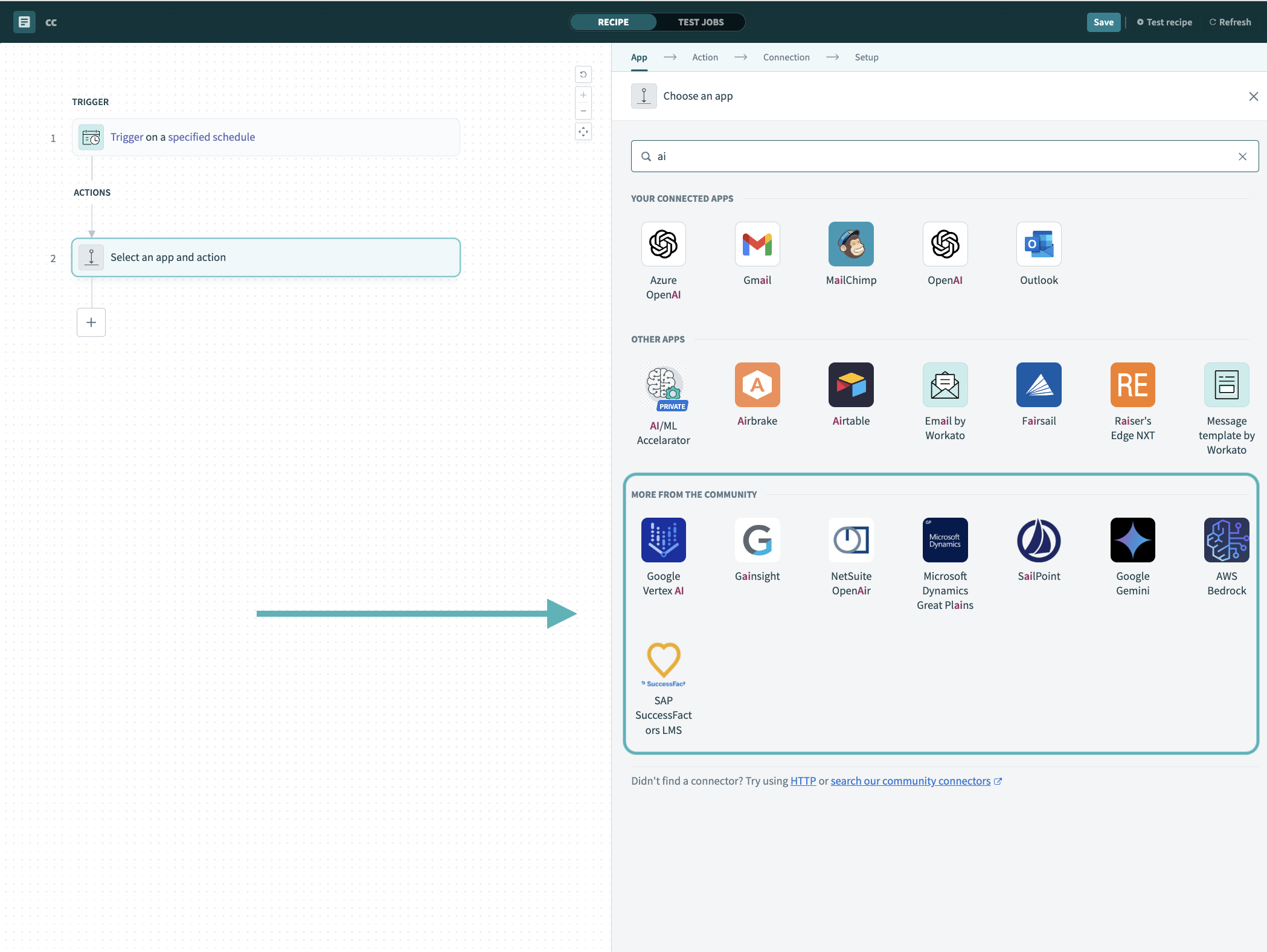 Search for community connectors in the recipe editor
Select the community connector you plan to install.
Click Install to install the connector from the community library.
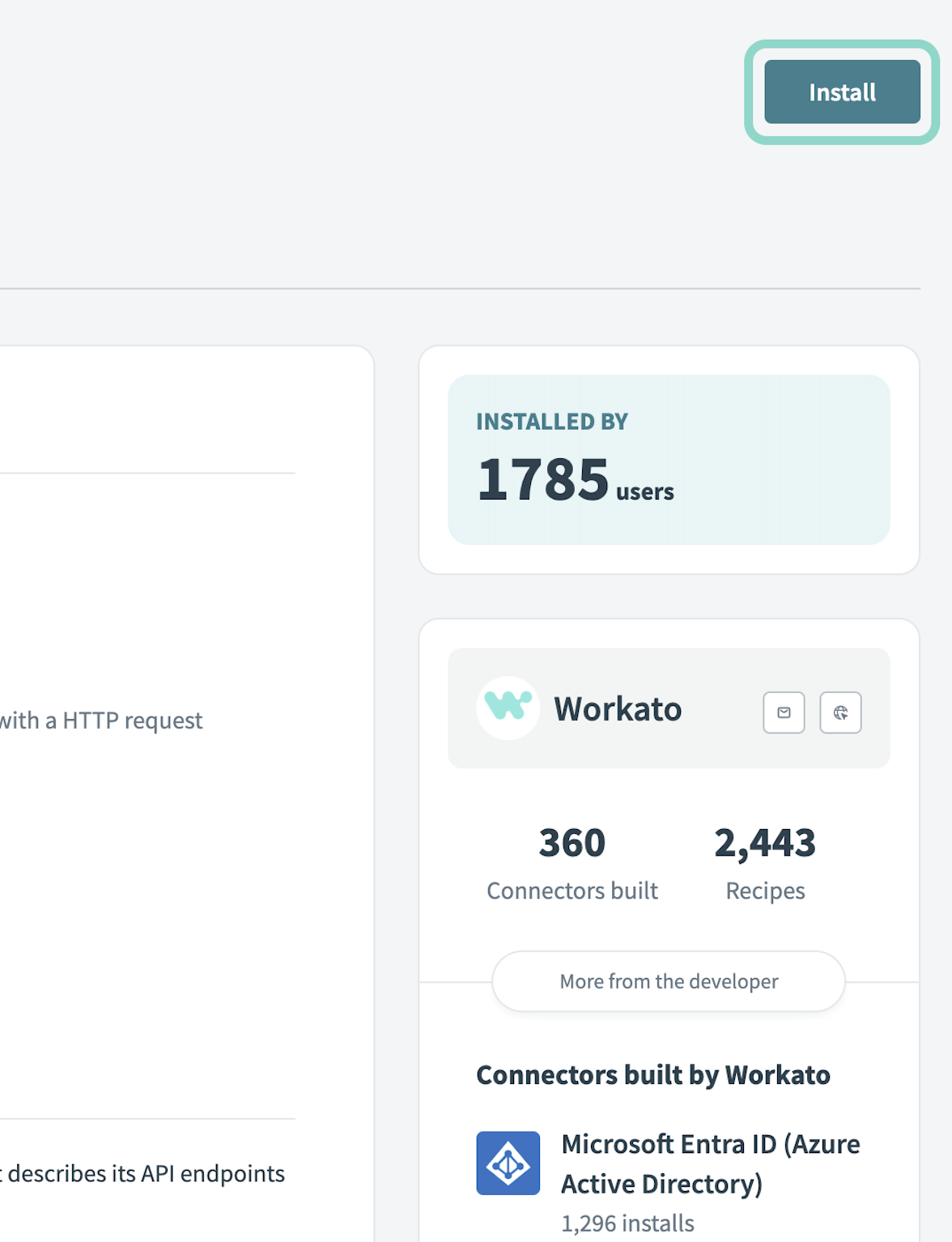 Click Install
Select Release connector. Alternatively, select Review code to review and modify the connector code before releasing it to the workspace.
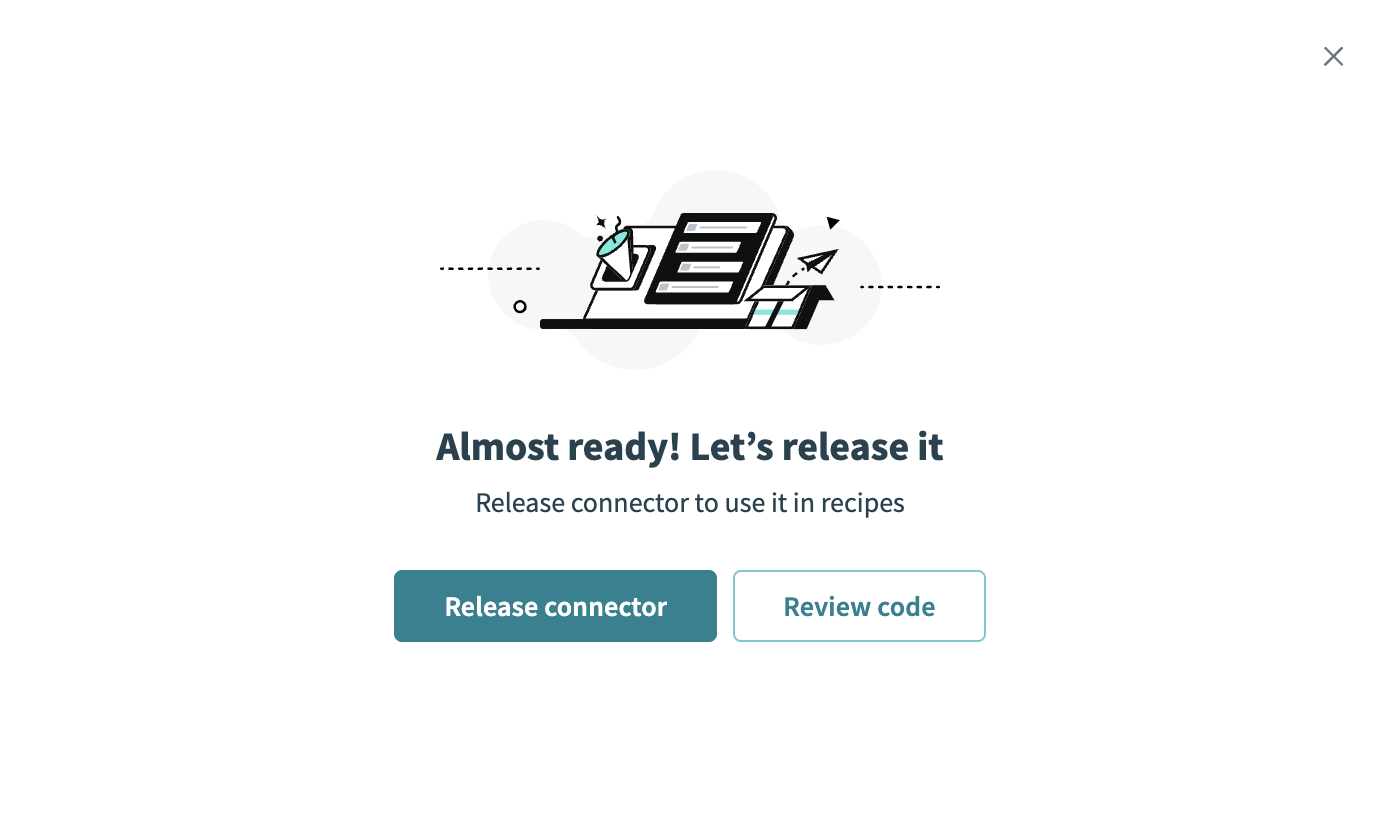 Release the connector
Summarize any changes you made to the connector, then click Release to allow workspace collaborators to use the connector in recipes.
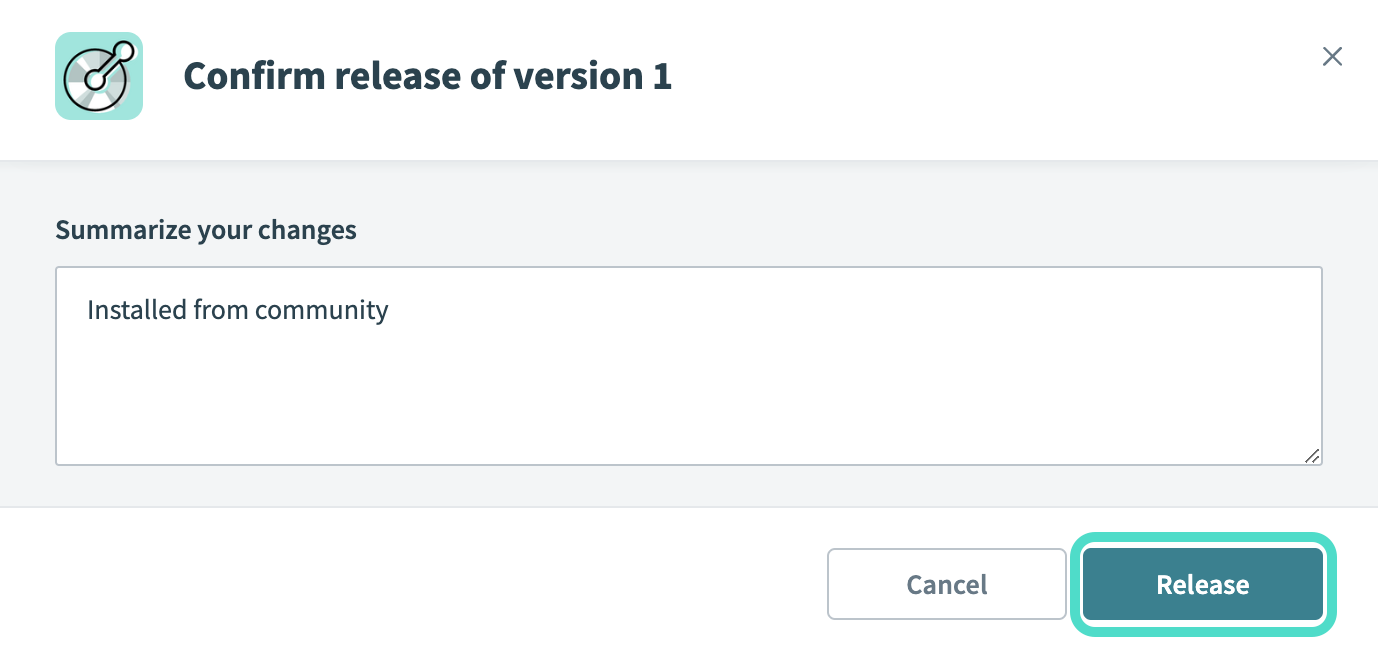 The Confirm release dialog
Canva setup for OAuth2 authentication
View Canva setup for OAuth2 authentication steps
Refer to the Canva Creating integrations guide to create a Client ID and secret and define the server's access.
The Canva MCP server can use the following scopes:
Asset:readAsset:writeBrandtemplate:content:readBrandtemplate:meta:readCollaboration:eventComment:readComment:writeDesign:content:readDesign:content:writeDesign:meta:readDesign:permission:readDesign:permission:writeFolder:permission:readFolder:permission:writeFolder:readFolder:writeProfile:read
Connect to Canva with OAuth2 authentication
View connect to Canva with OAuth2 authentication steps
Complete the following steps to connect to Canva Connect in Workato:
Click Create > Connection.
Search for Canva Connect and select it as your app.
Enter a name for your connection in the Connection name field.
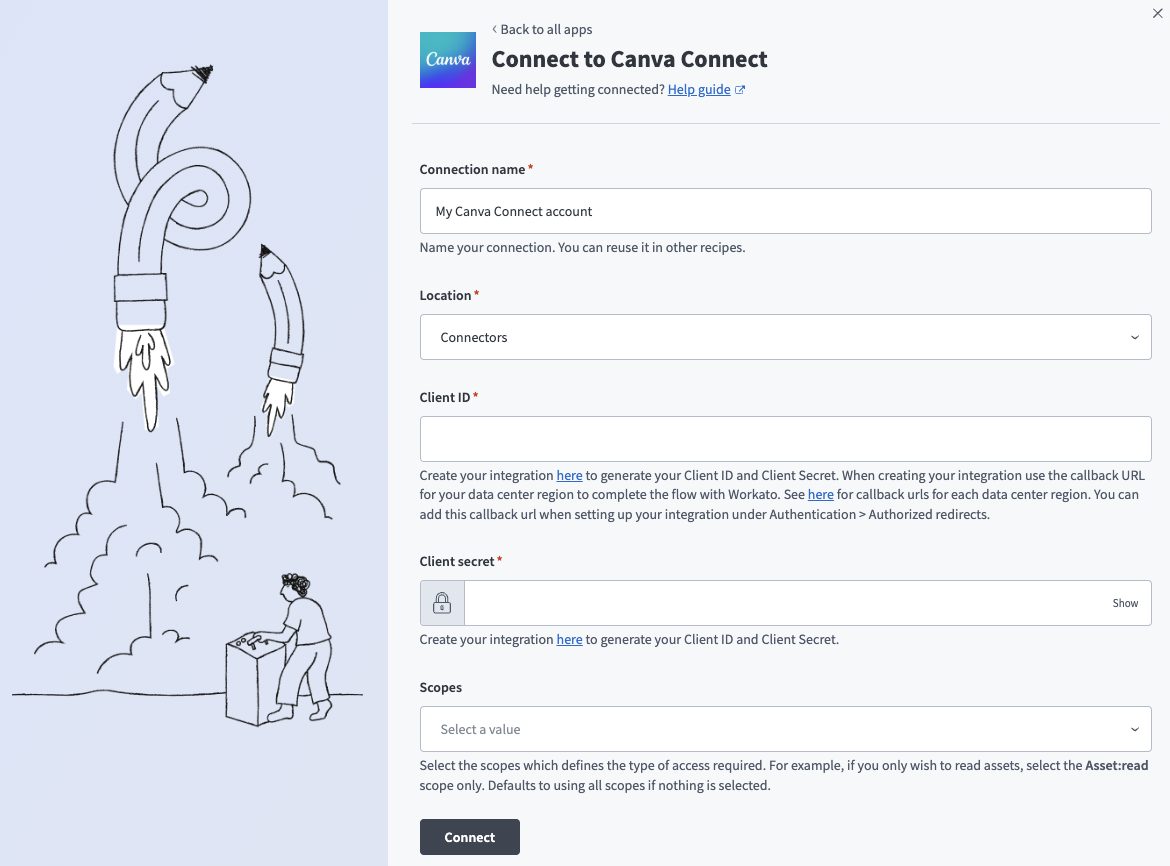 Canva connection setup
Use the Location drop-down menu to select the project where you plan to store the connection.
Enter the Client ID and Client secret. Refer to the Canva Creating integrations guide to create these values.
Use the Scopes drop-down menu to define permissions for the connection. Available scopes include:
Asset:readAsset:writeBrandtemplate:content:readBrandtemplate:meta:readCollaboration:eventComment:readComment:writeDesign:content:readDesign:content:writeDesign:meta:readDesign:permission:readDesign:permission:writeFolder:permission:readFolder:permission:writeFolder:readFolder:writeProfile:read
Click Connect.
How to use Canva MCP server tools
Refer to the following sections for detailed information on available tools:
search_designs tool
The search_designs tool searches Canva designs using keywords and filters. Your LLM uses this tool to locate existing designs by topic, name, or other criteria so it can retrieve, export, or organize them in subsequent steps.
Try asking:
Find all designs related to our summer campaign.Search for designs that mention onboarding.Show me the most recent designs that include the word webinar.
get_design tool
The get_design tool retrieves metadata and access links for a Canva design. Your LLM uses this tool to inspect a specific design's details and obtain links to view or share it after identifying it through a search.
Try asking:
Get the details for the design titled Q3 Sales Deck.Give me the shareable link for this design.What's the metadata for the design I just found?
get_design_export_formats tool
The get_design_export_formats tool retrieves available export formats for a Canva design. Your LLM uses this tool to determine which formats a design can be exported into before initiating an export job.
Try asking:
What export formats are available for this design?Can I export this design as a PDF?List the file types I can export this deck to.
create_design_export_job tool
The create_design_export_job tool initiates an export job for a Canva design. Your LLM uses this tool to start exporting a design into a chosen shareable format for distribution.
Try asking:
Export this design as a PDF.Start an export job for this deck in PNG format.Create an export of the campaign design so I can share it.
get_design_export_job tool
The get_design_export_job tool retrieves the status and result of a Canva design export job. Your LLM uses this tool to check whether an export has completed and to obtain the resulting download links.
Try asking:
Check the status of my export job.Is the PDF export finished yet?Get the download link for the completed export.
upload_asset_from_url tool
The upload_asset_from_url tool uploads an image or video asset to Canva from a URL. Your LLM uses this tool to bring reusable assets into Canva so they can be referenced across designs and templates.
Try asking:
Upload this logo image from the URL into Canva.Add this product photo from this link as an asset.Upload the video at this URL to Canva.
get_asset_upload_job tool
The get_asset_upload_job tool retrieves the status and result of an asset upload job. Your LLM uses this tool to confirm that an asset upload has completed and to obtain the resulting asset reference.
Try asking:
Check the status of my asset upload.Has the logo finished uploading?Get the result of the upload job I started.
get_asset tool
The get_asset tool retrieves metadata for a Canva asset. Your LLM uses this tool to inspect the details of an existing asset before reusing it in a design or moving it into a folder.
Try asking:
Get the metadata for the asset I just uploaded.Show me the details of this asset.What are the properties of this image asset?
list_folder_items tool
The list_folder_items tool lists the contents of a Canva folder. Your LLM uses this tool to review the designs, assets, and subfolders stored in a folder when organizing or locating content.
Try asking:
Show me everything inside the Marketing Assets folder.List the designs in the Q3 Campaign folder.What's stored in this folder?
create_folder tool
The create_folder tool creates a folder in Canva. Your LLM uses this tool to set up new folders for organizing designs and assets.
Try asking:
Create a folder called Q3 Campaign.Make a new folder named Brand Library.Set up a folder for our webinar assets.
move_to_folder tool
The move_to_folder tool moves a design, asset, or folder to another folder. Your LLM uses this tool to reorganize content by relocating items into the appropriate folder.
Try asking:
Move this design into the Q3 Campaign folder.Relocate this asset to the Brand Library folder.Move these designs into the Archive folder.
list_brand_templates tool
The list_brand_templates tool lists available Canva brand templates. Your LLM uses this tool to discover templates so it can generate branded designs from structured data or answer user questions. This tool requires a Canva Enterprise plan.
Try asking:
Show me the brand templates I can use to generate a sales deck.List the Canva templates that support autofill.Find brand templates for marketing campaigns.
get_brand_template_dataset tool
The get_brand_template_dataset tool retrieves the dataset schema for a Canva brand template. Your LLM uses this tool to determine which fields a template requires, and their types, before generating a design through autofill. This tool requires a Canva Enterprise plan.
Try asking:
What fields does this brand template need for autofill?Get the dataset schema for the Q3 Sales template.Show me the required inputs for this template.
create_design_autofill_job tool
The create_design_autofill_job tool creates a new design by autofilling a Canva brand template. Your LLM uses this tool to generate a branded design by applying structured data and image assets to a template's dataset fields. This tool requires a Canva Enterprise plan.
Try asking:
Generate a branded design from the Q3 Sales template using this account data.Autofill this template with the customer details and create a design.Create a sales deck from the brand template with these values.
get_design_autofill_job tool
The get_design_autofill_job tool retrieves the status and result of a Canva autofill job. Your LLM uses this tool to check whether an autofill job has completed and to obtain the generated design. This tool requires a Canva Enterprise plan.
Try asking:
Check the status of my autofill job.Is the generated design ready yet?Get the design created by the autofill job I started.
Getting started
View and manage your MCP server tools in the Overview page Tools section. Tool management provides the following capabilities:
TOOLS MUST BE STARTED
Your LLM can only access active tools in your MCP server connector.
Last updated: