Highspot MCP server
The Highspot MCP server enables LLMs to manage, discover, share, and track sales content in Highspot through natural conversation. It provides tools to access decks and battle cards, track pitch engagement, and get instant answers without requiring direct interaction with the Highspot interface.
Uses
Use the Highspot MCP server to perform the following actions:
- Search for sales enablement content by keyword or content type
- Get detailed information about specific content items
- View pitches you've created and their engagement metrics
- Get AI-generated answers to questions from Highspot content
- Browse available Spots (content collections)
- Track content engagement and pitch activity
- Access battle cards, case studies, and presentations
Example prompts
Find competitive battle cards in Highspot.Show me details about this sales deck.Show me my recent pitches and their engagement.What's our pricing model for enterprise customers?What Spots are available for product content?Find presentations about our AI platform.
Highspot MCP server tools
The Highspot MCP server provides the following tools:
| Tool | Description |
|---|---|
| search_content | Searches Highspot content items by keyword with optional sorting. |
| get_content_details | Retrieves full metadata for a Highspot content item you specify. |
| list_my_pitches | Lists pitches created by the current user with engagement summary data. |
| get_instant_answer | Returns an AI-generated answer to a natural language question with source citations from Highspot content. |
| list_spots | Lists available Spots in Highspot. |
Install the Highspot MCP server
Complete the following steps to install a prebuilt MCP server to your project:
Sign in to your Workato account.
Go to AI Hub > MCP servers.
Click + Create MCP server.
Go to the Start with pre-built MCP Servers using your connected apps section and select the prebuilt MCP server you plan to use.
Click Use this server.
Provide a name for your MCP server in the Server name field.
Use the Location drop-down menu to select the project for the MCP server.
Go to the Connections section and connect to your app account.
Select the connection type you plan to use for the MCP server template.
- User's connection: MCP server tools perform actions based on the identity and permissions of the user who connects to the application. Users authenticate with their own credentials to execute the skill.
- Your connection: This option uses the connection established by the recipe builder and follows the same principles as normal app connections.
 Select your connection type
VERIFIED USER ACCESS AUTHENTICATION REQUIREMENTS
Only app connections that use OAuth 2.0 authorization code grant are available for user's connection. Refer to Verified user access for more information.
Complete the app-specific connection setup steps in the following section.
Highspot connection setup
View Highspot connection setup steps
The Highspot connector uses API key authentication.
This authentication method requires the following access and values:
- Admin access to your Highspot instance
- API credentials from Highspot
Highspot API key authentication setup
View Highspot API key authentication setup steps
Complete the following steps to retrieve your API credentials from Highspot:
Sign in to your Highspot account.
Click your profile image and select Settings.
Go to Developer > Basics.
Copy and save the following values for use in Workato:
- URL: Your Highspot API instance URL. For example,
https://api-su2.highspot.com. - Key: Your API client key.
- Secret: Your API client secret.
Connect to Highspot with API key authentication
View connect to Highspot with API key authentication steps
Complete the following steps to connect to Highspot in Workato:
Click Create > Connection.
Search for Highspot and select it as your app.
Enter a name for your connection in the Connection name field.
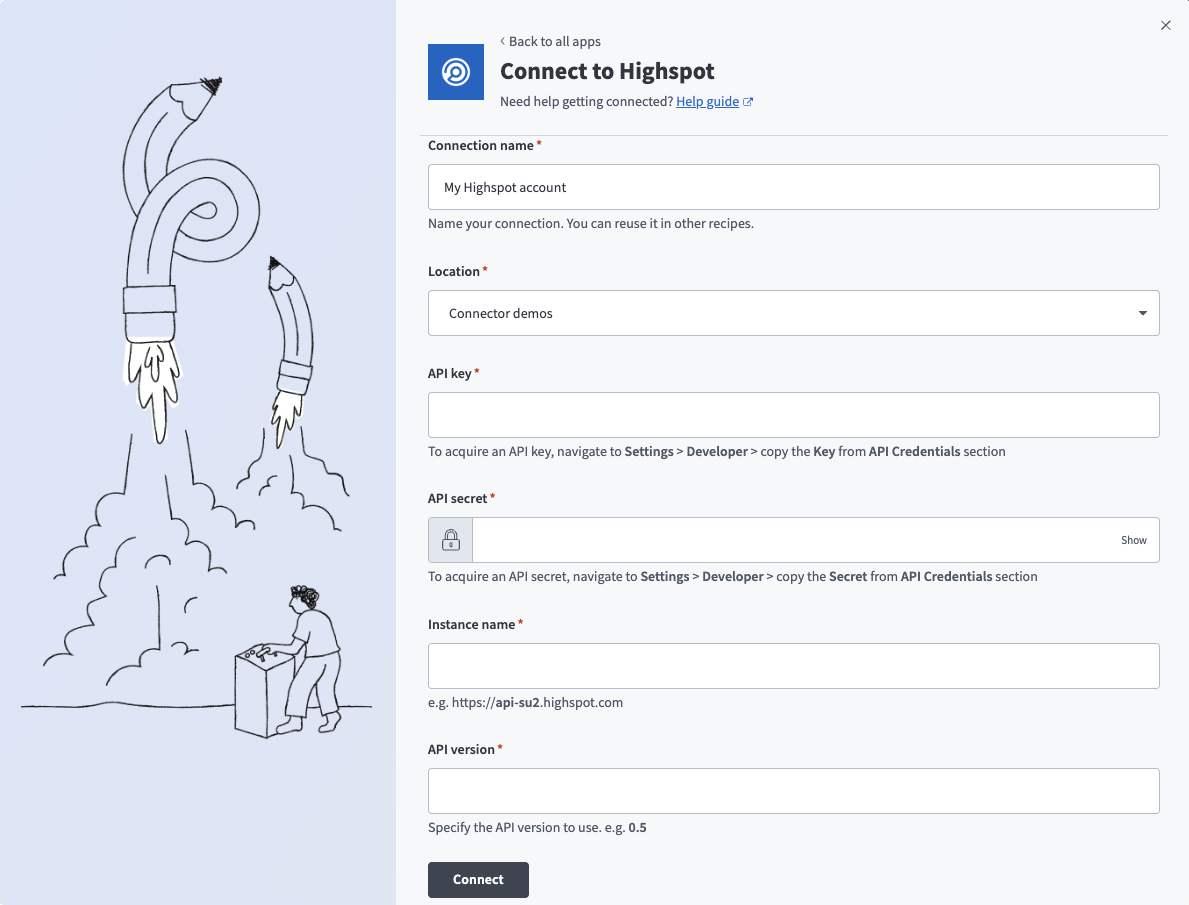 Connect to Highspot
Use the Location drop-down menu to select the project where you plan to store your connection.
Enter the API key and API secret.
Enter the Instance name. For example, https://api-su2.highspot.com.
Enter the API version you plan to use. For example, 0.5.
Click Connect.
How to use Highspot MCP server tools
Refer to the following sections for detailed information on available tools:
search_content tool
The search_content tool searches Highspot content items by keyword with optional sorting. Your LLM uses this tool to find, search for, or locate sales enablement content in Highspot, including requests for decks, presentations, playbooks, battle cards, case studies, one-pagers, whitepapers, videos, or other sales content.
Try asking:
Find competitive battle cards in Highspot.Search for presentations about our AI platform.Show me all our case studies.Find the latest product one-pagers.
get_content_details tool
The get_content_details tool retrieves full metadata for a Highspot content item you specify. Your LLM uses this tool to provide detailed information about a content item you specify.
Try asking:
Show me details about this sales deck.When was this battle card last updated?Get the full information for this presentation.Tell me more about that case study.
list_my_pitches tool
The list_my_pitches tool lists pitches you've created with engagement summary data. Your LLM uses this tool to view your pitches, shared content, Digital Sales Rooms, or pitch engagement metrics.
Try asking:
Show me my recent pitches.What have I sent to prospects?Has anyone viewed my pitch to Acme Corp?Get my pitch engagement data.
get_instant_answer tool
The get_instant_answer tool returns an AI-generated answer to a natural language question with source citations from Highspot content. Your LLM uses this tool to provide answers from Highspot content rather than a list of documents, such as product questions, process questions, or competitive positioning.
Try asking:
What's our pricing model for enterprise customers?How do we handle objections about security?What are the key differentiators vs Competitor X?What's our ROI story for manufacturing companies?
list_spots tool
The list_spots tool lists available Spots in Highspot. Your LLM uses this tool to understand how content is organized in Highspot, see available content collections or channels, or identify Spot names for context when searching content.
Try asking:
What Spots are available in Highspot?Show me the content collections.List all content channels.What Spots exist for product content?
Getting started
View and manage your MCP server tools in the Overview page Tools section. Tool management provides the following capabilities:
TOOLS MUST BE STARTED
Your LLM can only access active tools in your MCP server connector.
Last updated: