Marketo Leads and Activity Ops MCP server
The Marketo Leads and Activity Ops MCP server enables LLMs to interact with Marketo lead data through natural conversation. It provides tools to retrieve, create, and update lead records, inspect activity history, and manage static list membership, supporting day-to-day operational workflows for Marketing Ops teams without requiring direct interaction with the Marketo interface.
Uses
Use the Marketo Leads and Activity Ops MCP server to perform the following actions:
- Retrieve leads using filters such as email or Marketo ID
- Get specific lead details by Marketo ID
- Create new lead records with field values
- Update fields on existing lead records
- Review activity history for specific leads
- List and discover static lists with filters
- Get metadata for specific static lists
- Retrieve members of static lists
- View static lists associated with specific leads
- Add leads to static lists
- Remove leads from static lists
Example prompts
Use the following example prompts to invoke Marketo Leads and Activity Ops MCP server tools:
Find the lead with email [email protected].Get details for lead ID 1207345.Create a new lead for Marco Reyes at techcorp.com.Update this lead's job title to VP of Marketing.Show me the activity history for this lead.List all static lists in the Q1 Campaign program.Get details about the Webinar Attendees list.Who are the members of the Enterprise Prospects list?What lists is this lead a member of?Add these leads to the Trade Show Contacts list.Remove this lead from the Nurture Campaign list.
Marketo Leads and Activity Ops MCP server tools
The Marketo Leads and Activity Ops MCP server provides the following tools:
| Tool | Description |
|---|---|
| list_leads | Retrieves leads using explicit filters such as email or Marketo ID. |
| get_lead | Retrieves a Marketo lead by ID. |
| create_lead | Creates a new lead record with provided field values. |
| update_lead | Updates fields on an existing lead record. |
| get_lead_activities | Retrieves activity history for a lead you specify. |
| list_static_lists | Retrieves static lists using supported filters. |
| get_static_list | Retrieves metadata for a static list you specify. |
| get_static_list_members | Retrieves members of a static list you specify. |
| get_lead_list_memberships | Retrieves static lists associated with a specific lead. |
| add_leads_to_static_list | Adds one or more leads to a static list. |
| remove_leads_from_static_list | Removes one or more leads from a static list. |
Install the Marketo Leads and Activity Ops MCP server
Complete the following steps to install a prebuilt MCP server to your project:
Sign in to your Workato account.
Go to AI Hub > MCP servers.
Click + Create MCP server.
Go to the Start with pre-built MCP Servers using your connected apps section and select the prebuilt MCP server you plan to use.
Click Use this server.
Provide a name for your MCP server in the Server name field.
Use the Location drop-down menu to select the project for the MCP server.
Go to the Connections section and connect to your app account.
Select the connection type you plan to use for the MCP server template.
- User's connection: MCP server tools perform actions based on the identity and permissions of the user who connects to the application. Users authenticate with their own credentials to execute the skill.
- Your connection: This option uses the connection established by the recipe builder and follows the same principles as normal app connections.
 Select your connection type
VERIFIED USER ACCESS AUTHENTICATION REQUIREMENTS
Only app connections that use OAuth 2.0 authorization code grant are available for user's connection. Refer to Verified user access for more information.
Complete the app-specific connection setup steps in the following section.
Marketo connection setup
View Marketo connection setup steps
The Marketo connector uses custom authentication.
CUSTOM SERVICE CLIENTS
Marketo exposes REST endpoints to enable integration platforms like Workato to remotely access and execute core functionalities. We recommend you create a custom service client specifically for Workato to facilitate this integration.
Key benefits of using a custom service client include:
- Isolated logging: All operations are logged under a dedicated custom service client for integration and workflow processes. This approach enhances tracking and troubleshooting by isolating issues related to specific integration platforms.
- Customized permissions: A custom service client allows for tailored permissions and security profiles, independent of individual employee user accounts.
Ensure that the custom service client is granted all necessary permissions to perform the required actions for your integration scenario. If a 403 error occurs during recipe execution, it indicates that the service client lacks the appropriate permissions for the action.
Minimum scopes
View minimum scopes
You must select the following minimum role scopes when you create a new API role. Refer to Create an API role for more information.
Read-Only ActivityRead-Write ActivityRead-Only LeadRead-Write LeadRead-Only AssetRead-Write Asset
Marketo setup for custom authentication
Complete the following steps to set up a custom authentication connection to Marketo in Workato:
- Retrieve the REST API endpoint
- Create an API role
- Create an API user
- Create a custom service for Workato
- Retrieve client credentials
Retrieve the REST API endpoint
View retrieve the REST API endpoint steps
Complete the following steps to retrieve the REST API Endpoint in Marketo:
Sign in to your Marketo instance as a user with administrator privileges.
Go to Admin > Web Services.
In the REST API section, copy and save the Endpoint for use in Workato.
Create an API role
View create an API role steps
Complete the following steps to create an API role in Marketo:
Go to Admin > Users & Roles and select the Roles tab.
Click New Role.
Provide a name for your new role in the Role Name field. Optionally, add a description in the Description field.
Select the Access API checkbox in the Permissions field.
Click Create to create the API role.
Create an API user
View create an API user steps
Complete the following steps to create an API user in Marketo:
Go to Admin > Users & Roles and select the Users tab.
Click Create API Only User.
Fill out the Email, First Name, and Last Name fields.
Select the checkbox for the API role you created in the previous step from the Roles menu.
Click CREATE API ONLY USER.
Create a custom service
View create a custom service steps
Creating a custom service enables you to retrieve the client ID and client secret used to establish a connection in Workato. Refer to the Marketo Engage Developer Documentation for more information about custom services.
Complete the following steps to create a custom service in Marketo:
Go to Admin > LaunchPoint.
Click New > New Service.
Enter a descriptive Display name and select Custom from the Service drop-down menu.
Enter a description in the Description field.
Select the user you created in the previous step from the API Only User drop-down menu.
Click Create.
Retrieve client credentials
View retrieve client credentials steps
Complete the following steps to retrieve client credentials in Marketo:
Select View details for the new custom service you created in the previous step.
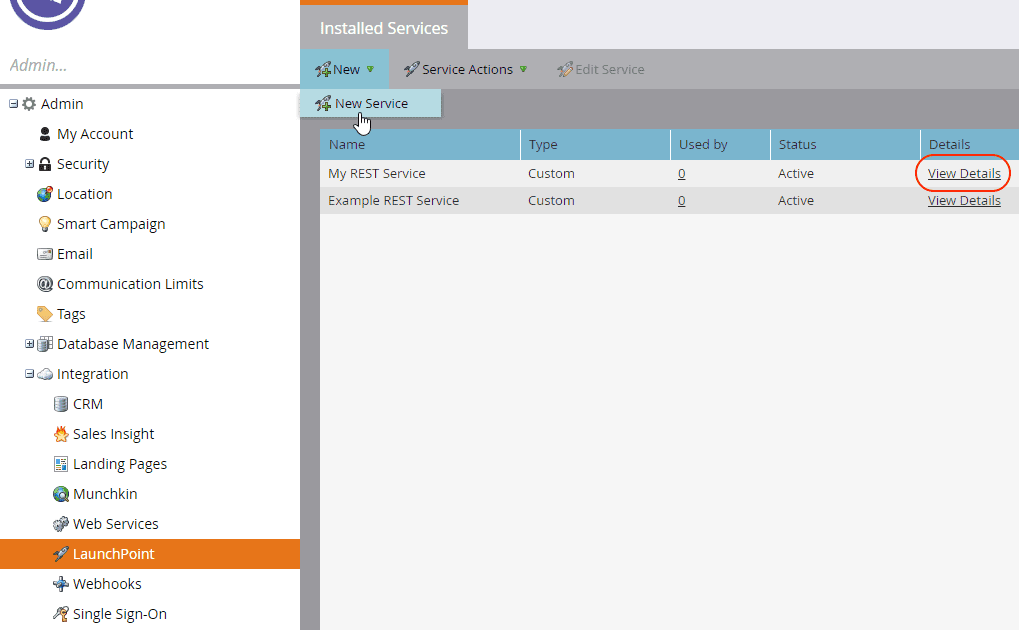 View custom service
Copy and save the Client Id and Client Secret for use in Workato.
Connect to Marketo with custom authentication
View connect to Marketo with custom authentication steps
Complete the following steps to connect to Marketo in Workato:
Select Create > Connection or press C twice.
Search for Marketo and select it as your app.
Enter a name for your connection in the Connection name field.
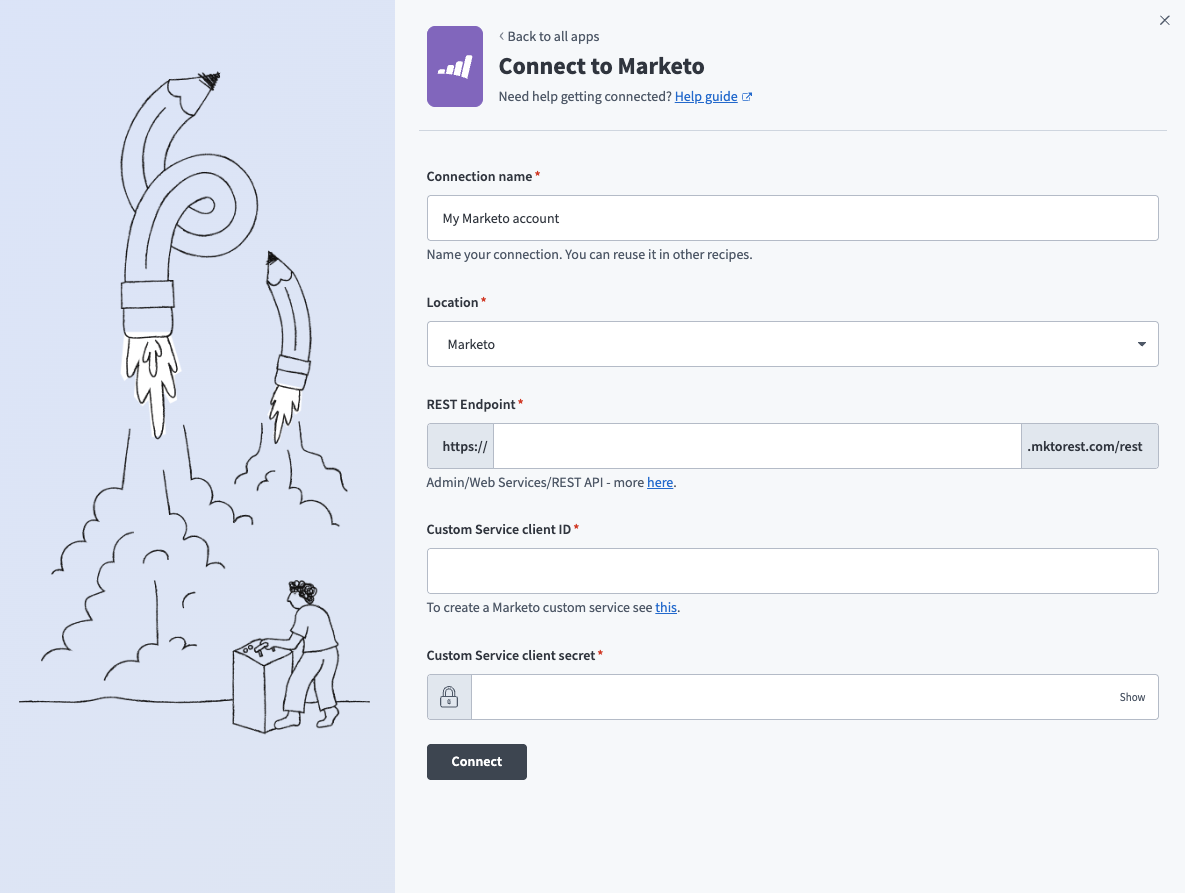 Name your connection
Use the Location drop-down menu to select the project where you plan to store the connection.
Enter the base URL of your Marketo instance in the REST Endpoint field. For example, if your REST endpoint is https://123-ABC-456.mktorest.com/rest, enter 123-ABC-456 in this field. Refer to Retrieve the REST API endpoint for more information.
Enter the Client Id from Marketo in the Custom Service client ID field. Refer to Retrieve client credentials for more information.
Enter the Client Secret from Marketo in the Custom Service client secret field. Refer to Retrieve client credentials for more information.
Click Connect.
Project property configuration
The Marketo Leads and Activity Ops MCP server supports the following project-level properties to control behavior and defaults:
| Project-level property | Description |
|---|---|
default_activity_time_window | Defines the default time range applied when get_lead_activities is invoked without a time_window parameter. This ensures bounded and predictable activity retrieval. |
default_activity_type_ids | Defines the set of activity type IDs used when get_lead_activities is invoked without an activity_type_ids parameter. Defaults to a standard engagement activity set, including: 1 — Visit Webpage, 2 — Fill Out Form, 6 — Send Email, 7 — Email Delivered, 8 — Email Bounced, 9 — Unsubscribe Email, 10 — Open Email, 11 — Click Email, and 27 — Email Bounced Soft. |
max_records | Defines the maximum number of records returned in a single response for collection-returning tools, such as list_leads, get_lead_activities, get_static_list_members, and get_lead_list_memberships. This limit applies per response page, not the total retrievable dataset. |
max_batch_size | Defines the maximum number of lead IDs allowed in batch operations. Applies to add_leads_to_static_list and remove_leads_from_static_list. This value can't exceed the Marketo API limit of 300. |
View project-level property configuration steps
Complete the following steps to configure your project-level properties:
Sign in to your Workato account and go to Projects.
Go to the project that contains your MCP server.
Click the Settings tab.
 Click the Settings tab.
Select Project properties.
Go to the project property you plan to update and click the Edit (pencil) icon.
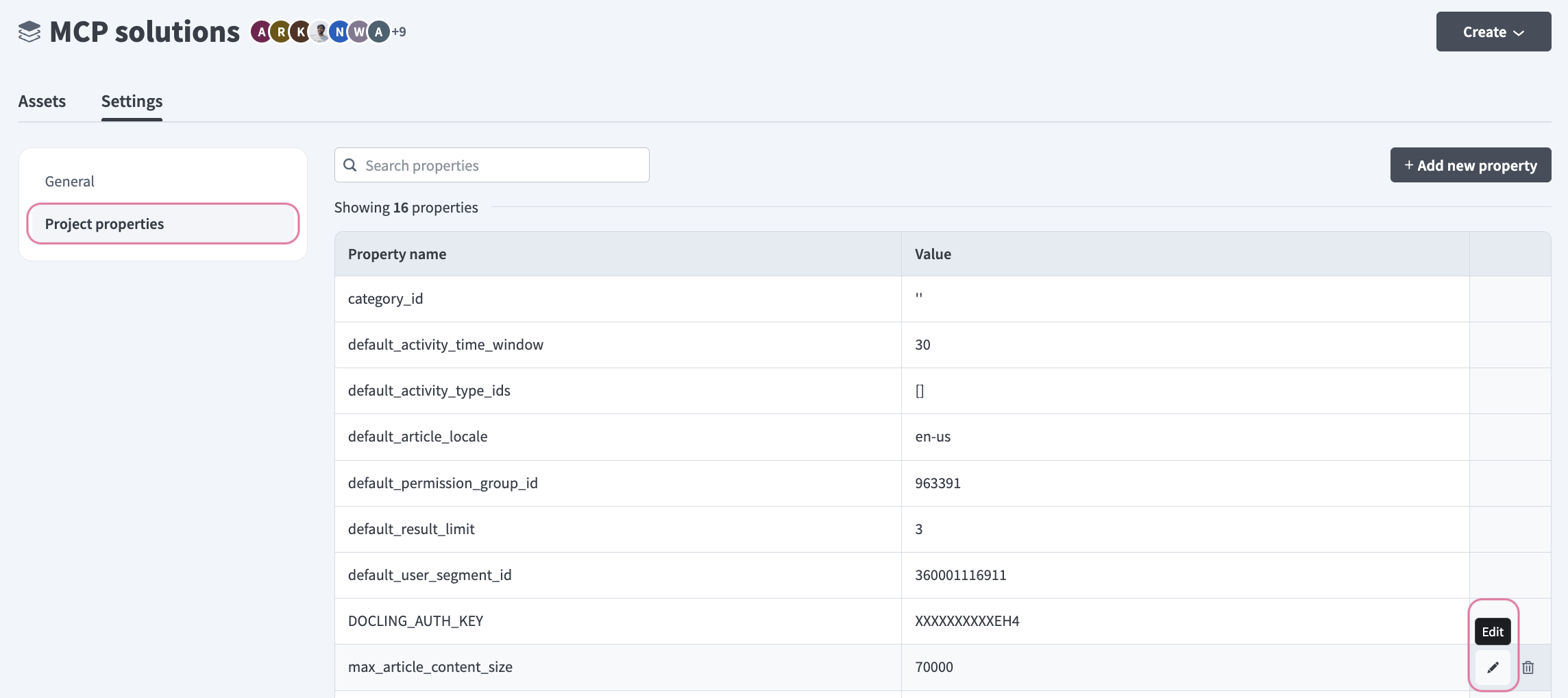 Click the Edit (pencil) icon.
Go to the Value field and make your changes. For example, set max_batch_size to 250 or max_records to 25.
How to use Marketo Leads and Activity Ops MCP server tools
Refer to the following sections for detailed information on available tools:
list_leads tool
The list_leads tool retrieves leads using explicit filters, such as email or Marketo ID. Your LLM uses this tool to find or look up a lead using email or Marketo ID.
Try asking:
Find the lead with email [email protected].Look up leads with Marketo IDs 12345 and 67890.Search for the lead with email [email protected].Get leads matching these email addresses.
get_lead tool
The get_lead tool retrieves a Marketo lead by ID. Your LLM uses this tool when a lead has been uniquely identified by Marketo ID.
Try asking:
Get details for lead ID 1207345.Show me the complete information for Marketo lead 67890.Retrieve lead 54321 from Marketo.What are the details for this lead ID?
create_lead tool
The create_lead tool creates a new lead record with provided field values. Your LLM uses this tool when you explicitly ask to create a new lead.
Try asking:
Create a new lead for Marco Reyes at acme.com.Add Jade Anderson as a lead with email [email protected].Create a lead record for Alex Chen, VP of Sales.Add a new Marketo lead for this contact.
update_lead tool
The update_lead tool updates fields on an existing lead record. Your LLM uses this tool to modify an existing lead after ensuring the lead is uniquely identified.
Try asking:
Update this lead's job title to VP of Marketing.Change the company name for lead 1207345 to Acme Inc.Update Mei's phone number to 555-0123.Modify this lead's status to Qualified.
get_lead_activities tool
The get_lead_activities tool retrieves activity history for a lead you specify. Your LLM uses this tool to view a lead's activity or engagement.
Try asking:
Show me the activity history for this lead.What engagement activities has lead 1207345 had?Get the activity log for Jade Anderson.Review this lead's interaction history.
list_static_lists tool
The list_static_lists tool retrieves static lists using supported filters. Your LLM uses this tool to discover or browse static lists, using the exact list name when provided or program name when you request lists belonging to a specific program.
Try asking:
List all static lists in the Q1 Campaign program.Show me static lists named 'Webinar Attendees'.What static lists exist in Marketo?Find lists in the Product Launch program.
get_static_list tool
The get_static_list tool retrieves metadata for a static list you specify. Your LLM uses this tool to get details about a specific list.
Try asking:
Get details about the Webinar Attendees list.Show me metadata for list ID 456.What are the details of the Enterprise Prospects list?Get information about this static list.
get_static_list_members tool
The get_static_list_members tool retrieves members of a static list you specify with pagination support for large lists. Your LLM uses this tool to view the members of a list.
Try asking:
Who are the members of the Enterprise Prospects list?Show me all leads in the Webinar Attendees list.List members of the Trade Show Contacts list.Get the leads in list ID 789.
get_lead_list_memberships tool
The get_lead_list_memberships tool retrieves static lists associated with a lead you specify. Your LLM uses this tool to view which lists a lead belongs to.
Try asking:
What lists is this lead a member of?Show me all static lists containing lead 12345.Which lists include Jade Anderson?What static lists is Marco in?
add_leads_to_static_list tool
The add_leads_to_static_list tool adds one or more leads to a static list. Your LLM uses this tool to add leads to a list, first resolving lead identities using list_leads or get_lead.
Try asking:
Add these leads to the Trade Show Contacts list.Put lead 12345 in the Enterprise Prospects list.Add Jade and Marco to the Webinar Attendees list.Include this lead in the Nurture Campaign list.
remove_leads_from_static_list tool
The remove_leads_from_static_list tool removes one or more leads from a static list. Your LLM uses this tool to remove leads from a list.
Try asking:
Remove this lead from the Nurture Campaign list.Take lead 12345 out of the Enterprise Prospects list.Remove Jade from the Webinar Attendees list.Remove these leads from the Trade Show Contacts list.
Getting started
View and manage your MCP server tools in the Overview page Tools section. Tool management provides the following capabilities:
TOOLS MUST BE STARTED
Your LLM can only access active tools in your MCP server connector.
Last updated: