Notion Pages MCP server
The Notion Pages MCP server enables your LLM to work with Notion pages as collaborative content containers through natural conversation. It provides tools to create, find, read, update, organize, and archive pages, and contribute to page-level discussions without requiring direct interaction with the Notion interface.
Uses
Use the Notion Pages MCP server to perform the following actions:
- Search for Notion pages by name, topic, or keywords
- Retrieve page metadata and properties
- Read page content including all blocks
- Create new pages as standalone or child pages
- Update page metadata and properties
- Archive or restore pages
- List child pages to navigate page hierarchy
- Append new content blocks to existing pages
- Update text content in specific blocks
- Delete blocks from pages
- View open comment threads on pages
- Add comments or reply to discussions on pages
Example prompts
Find my project planning page in Notion.Show me the metadata for the API documentation page.Read the content of the team onboarding page.Create a new page for meeting notes under the Team folder.Update the status property on this project page.Archive the old roadmap page.What pages are under the Product Documentation page?Add a new section to the troubleshooting guide.Update the heading text in the introduction block.Delete the outdated section from this page.Show me the open comments on the requirements page.Add a comment asking about the timeline.
Notion Pages MCP server tools
The Notion Pages MCP server provides the following tools:
| Tool | Description |
|---|---|
| search_pages | Searches for Notion pages by keyword. |
| get_page | Retrieves metadata and properties for a Notion page. |
| get_page_content | Retrieves the block content of a Notion page, with pagination for long pages. |
| create_page | Creates a new Notion page under a specified parent. |
| update_page | Updates metadata and properties for an existing Notion page. |
| set_page_archived_status | Archives or restores a Notion page by updating its archived status. |
| list_page_children | Lists the direct child pages under a specified Notion page. |
| append_page_blocks | Appends new content blocks to a Notion page. |
| update_text_block | Updates the text content of a supported block on a Notion page. |
| delete_block | Deletes a single block subtree from a Notion page. |
| list_open_comments | Retrieves open (unresolved) comment threads for a Notion page. |
| add_comment | Adds a new page-level comment or replies to an existing discussion on a Notion page. |
Install the Notion Pages MCP server
Complete the following steps to install a prebuilt MCP server to your project:
Sign in to your Workato account.
Go to AI Hub > MCP servers.
Click + Create MCP server.
Go to the Start with pre-built MCP Servers using your connected apps section and select the prebuilt MCP server you plan to use.
Click Use this server.
Provide a name for your MCP server in the Server name field.
Use the Location drop-down menu to select the project for the MCP server.
Go to the Connections section and connect to your app account.
Select the connection type you plan to use for the MCP server template.
- User's connection: MCP server tools perform actions based on the identity and permissions of the user who connects to the application. Users authenticate with their own credentials to execute the skill.
- Your connection: This option uses the connection established by the recipe builder and follows the same principles as normal app connections.
 Select your connection type
VERIFIED USER ACCESS AUTHENTICATION REQUIREMENTS
Only app connections that use OAuth 2.0 authorization code grant are available for user's connection. Refer to Verified user access for more information.
Complete the app-specific connection setup steps in the following section.
Notion connection setup
View Notion connection setup steps
Authenticate your Notion connection in Workato using one of the following methods:
- OAuth 2.0: Use this method for public integrations that require access across multiple Notion workspaces.
- API key: Use this method for internal integrations tied to a specific Notion workspace.
Download the Notion connector from the Community library
View download steps
Complete the following steps to install the Notion connector from the community library:
Open the recipe editor and search for a connector. Alternatively, you can search for a connector in the community library.
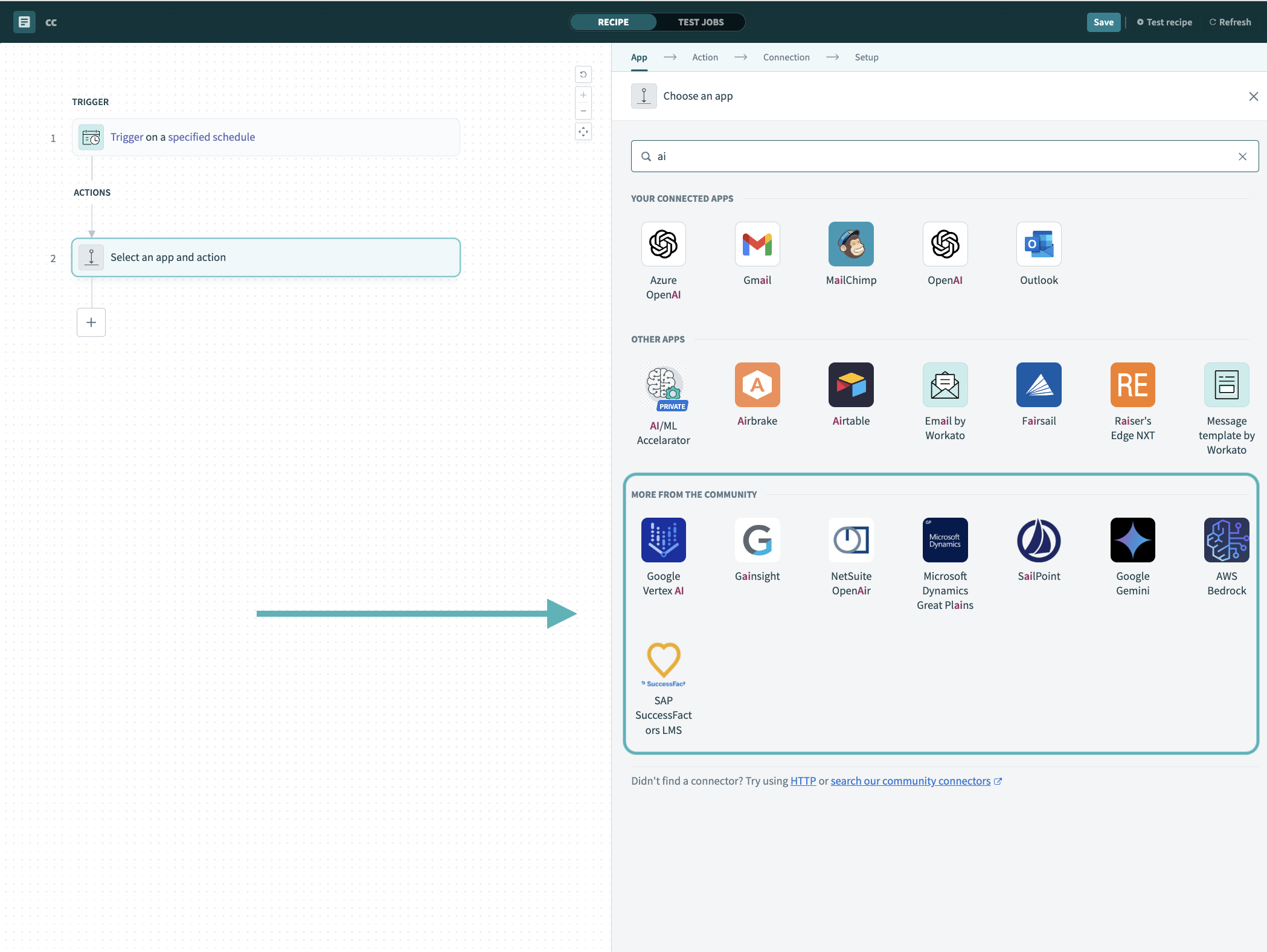 Search for community connectors in the recipe editor
Select the community connector you plan to install.
Click Install to install the connector from the community library.
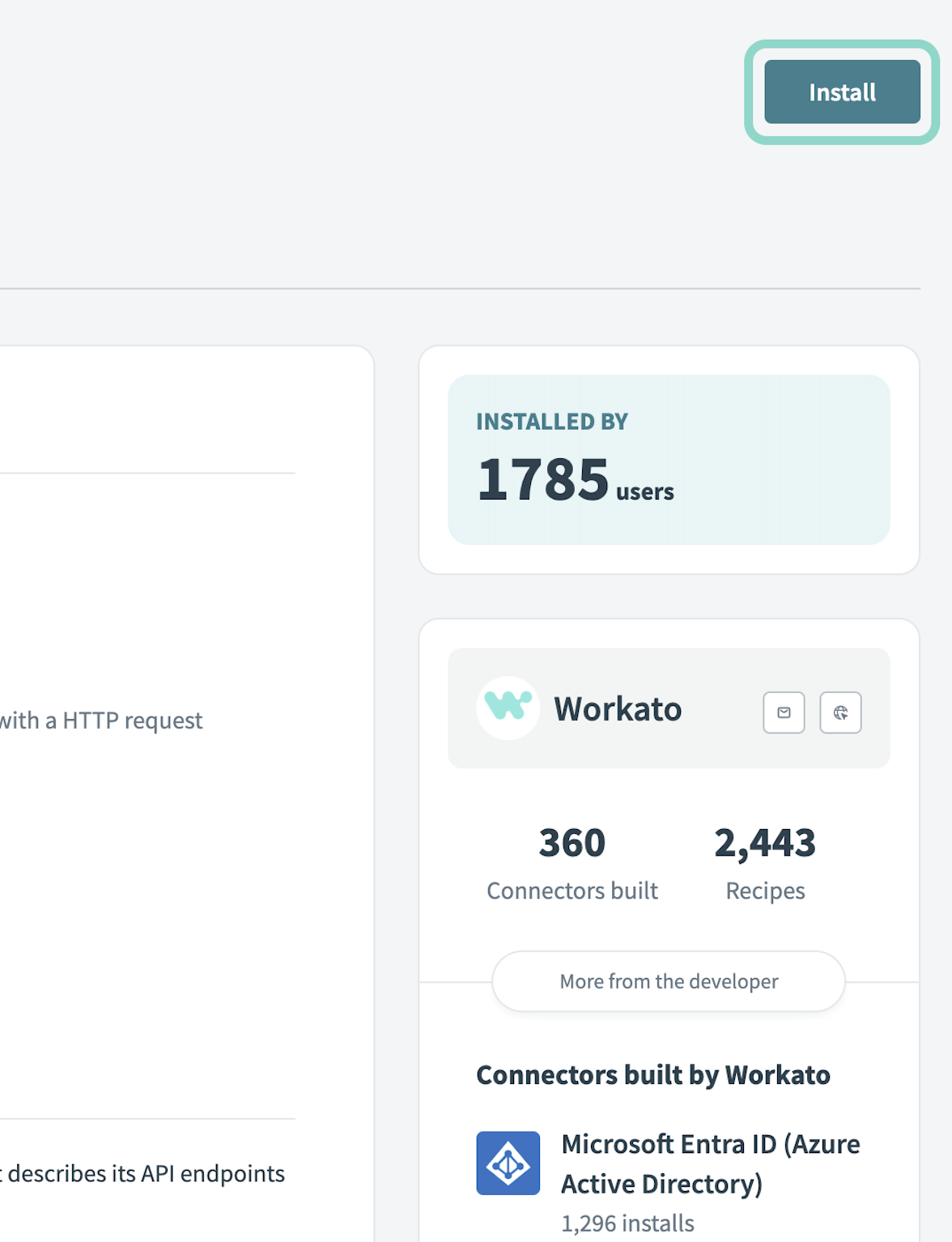 Click Install
Select Release connector. Alternatively, select Review code to review and modify the connector code before releasing it to the workspace.
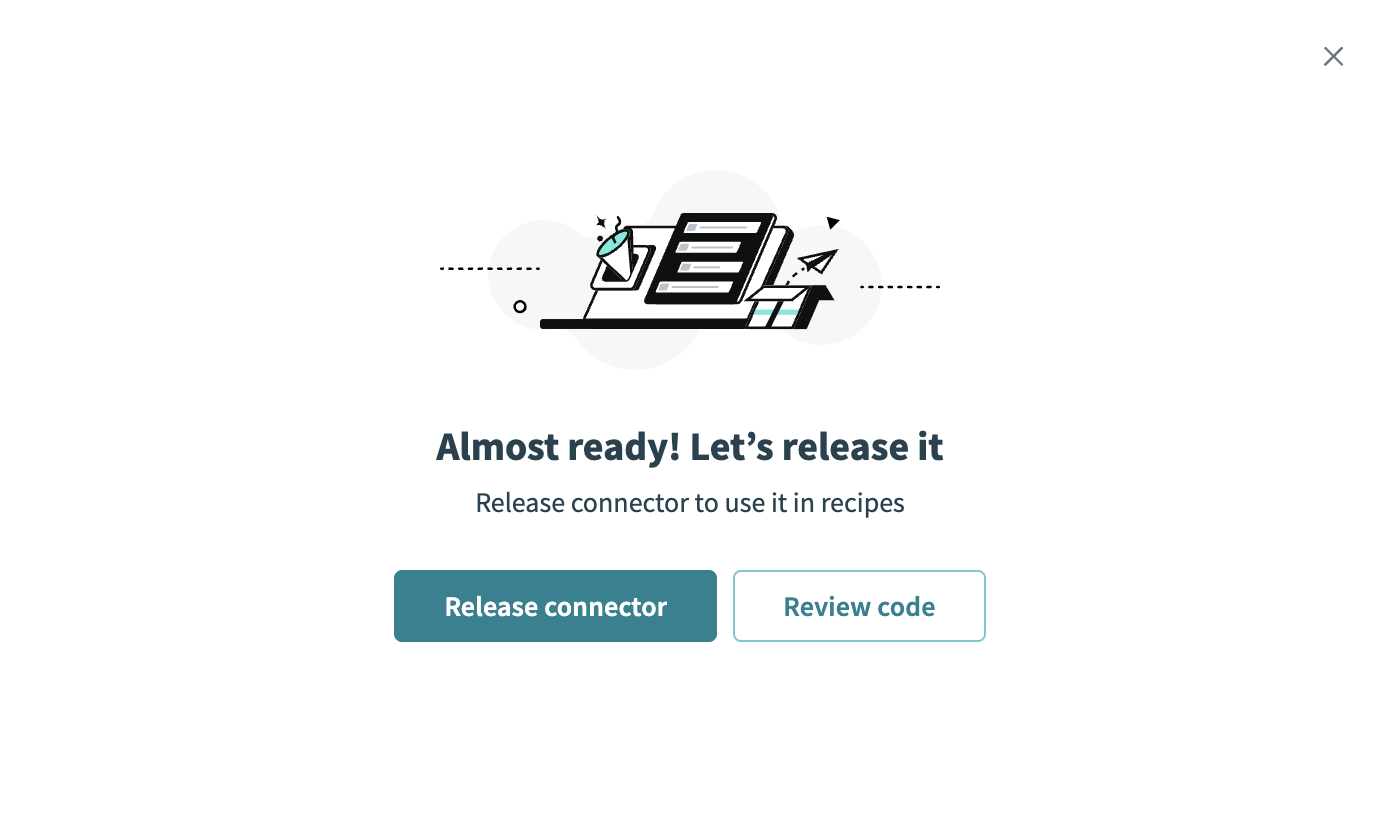 Release the connector
Summarize any changes you made to the connector, then click Release to allow workspace collaborators to use the connector in recipes.
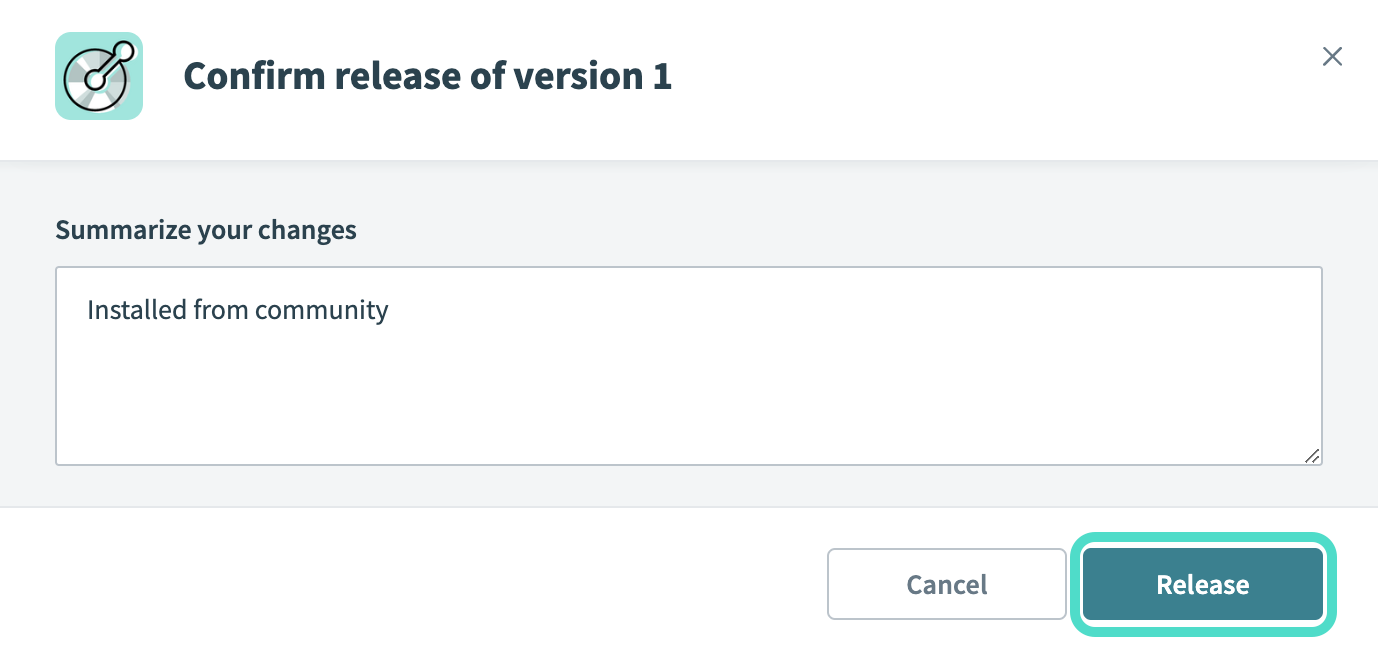 The Confirm release dialog
OAuth 2.0 authentication
Use OAuth 2.0 to create a public integration that accesses multiple Notion workspaces.
View OAuth 2.0 authentication steps
Complete the following steps to set up your Notion connection using OAuth 2.0:
Enter a Connection name that identifies which Notion instance Workato is connected to.
Select OAuth (Public integration) in the Authentication field.
Enter the Client ID and Client secret for your Notion integration. Refer to Notion's Public integration auth flow setup guide to generate these credentials.
Click Connect to complete the setup.
API key authentication
Use an API key for authentication to create an internal integration accessible only in a specific Notion workspace.
View API key authentication steps
Complete the following steps to set up your Notion connection using an API key:
Enter a Connection name that identifies which Notion instance Workato is connected to.
Select API Key (Internal integration) in the Authentication field.
Enter your Notion integration's Integration Token. Refer to Notion's Internal integration auth flow setup guide to generate this token.
Click Connect to complete the setup.
How to use Notion Pages MCP server tools
Refer to the following sections for detailed information on available tools:
search_pages tool
The search_pages tool searches for Notion pages by keyword and returns a list of pages that match the query text across your accessible Notion workspace. Your LLM uses this tool to find a Notion page by name, topic, or keywords.
Try asking:
Find my project planning page in Notion.Search for pages about API documentation.Look for the team onboarding guide.Find pages related to the product roadmap.
get_page tool
The get_page tool retrieves metadata and properties for a Notion page including page identifier, title, parent reference, archived status, and created/updated timestamps. Your LLM uses this tool to find details about a specific page, such as its title, location, metadata, or current status, or to confirm page identity before performing follow-on actions.
Try asking:
Show me the metadata for the API documentation page.Get the details for this project planning page.What's the parent page of the onboarding guide?Is this page archived or active?
get_page_content tool
The get_page_content tool retrieves the block content of a Notion page, with pagination for long pages. Your LLM uses this tool to read or review the contents of a specific Notion page. Your LLM retrieves content incrementally for long pages.
Try asking:
Read the content of the team onboarding page.Show me what's in the API documentation.Get the full contents of the project requirements page.What does the troubleshooting guide say?
create_page tool
The create_page tool creates a new Notion page under a specified parent. Your LLM uses this tool to create a new page in Notion, either as a standalone page or as a child of an existing page or database entry.
Try asking:
Create a new page for meeting notes under the Team folder.Make a new project planning page in the workspace.Create a child page under the API documentation for authentication.Add a new page to the Product section for the feature spec.
update_page tool
The update_page tool updates metadata and properties for an existing Notion page. Your LLM uses this tool to modify page properties, update metadata, or change page attributes.
Try asking:
Update the status property on this project page to 'In Progress'.Change the owner of the requirements page to Sarah.Update the due date property to next Friday.Modify the priority tag on this page to 'High'.
set_page_archived_status tool
The set_page_archived_status tool archives or restores a Notion page by updating its archived status. Your LLM uses this tool to archive, unarchive, retire, restore, or reactivate a page.
Try asking:
Archive the old roadmap page.Restore the archived meeting notes from last quarter.Retire the deprecated product specification page.Unarchive the Q3 planning document.
list_page_children tool
The list_page_children tool retrieves the direct child pages under a Notion page that you specify. Your LLM uses this tool to see what pages are nested under another page, explore related documentation, or navigate through the page hierarchy.
Try asking:
What pages are under the Product Documentation page?Show me the child pages of the Team Wiki.List the subpages under the API documentation.What's nested under the Project Planning page?
append_page_blocks tool
The append_page_blocks tool appends new content blocks to a Notion page. Your LLM uses this tool to add new content to an existing page, such as notes, sections, bullets, or code snippets.
Try asking:
Add a new section to the troubleshooting guide about timeout errors.Append these meeting notes to the project page.Add a bullet list of action items to the planning page.Insert a code snippet at the end of the API documentation.
update_text_block tool
The update_text_block tool updates the text content of a supported block on a Notion page. Your LLM uses this tool to edit or correct the text of a specific block within a page.
Try asking:
Update the heading text in the introduction block.Fix the typo in the second paragraph.Change the text in the first bullet point.Edit the description in the overview section.
delete_block tool
The delete_block tool deletes a single block subtree from a Notion page. Your LLM uses this tool only when you explicitly ask to remove specific page content. Try asking:
Delete the outdated section from this page.Remove the old timeline block from the roadmap.Delete the third bullet point in the list.Remove the deprecated warning section.
list_open_comments tool
The list_open_comments tool retrieves open (unresolved) comment threads for a Notion page. Your LLM uses this tool to review feedback, see comments, or understand discussion context on a page.
Try asking:
Show me the open comments on the requirements page.What feedback is pending on this document?List the unresolved comments on the API spec.What discussions are active on this page?
add_comment tool
The add_comment tool adds a new page-level comment or replies to an existing discussion on a Notion page. Your LLM uses this tool to leave feedback, ask questions, or participate in discussions on a page.
Try asking:
Add a comment asking about the timeline on this page.Leave feedback on the requirements document about the scope.Reply to the open discussion about the API design.Comment on this page to flag the outdated information.
Getting started
View and manage your MCP server tools in the Overview page Tools section. Tool management provides the following capabilities:
TOOLS MUST BE STARTED
Your LLM can only access active tools in your MCP server connector.
Last updated: