Trello MCP server
The Trello MCP server enables LLMs to interact with Trello workspaces on behalf of users for task management and project tracking through natural conversation. It provides tools to discover boards and lists, retrieve and filter cards, read full card details, create and update cards, post comments, update checklist items, and create boards without requiring direct interaction with the Trello interface.
Uses
Use the Trello MCP server when you plan to perform the following actions:
- Check which cards are assigned to you or your team, filtered by assignee, due date, or label.
- Review cards that are overdue or due soon across one or more boards.
- Read full card details including description, checklist progress, and attachment metadata.
- Create one or more cards from a task list or meeting notes.
- Move cards between lists to reflect workflow progression.
- Update card titles, descriptions, or due dates.
- Post comments on cards as status updates or progress notes.
- Mark checklist items complete or incomplete to track task progress.
- Create a new Trello board as a starting point for a project.
Example prompts
Use the following example prompts to invoke Trello MCP server tools:
What cards are assigned to me on the Marketing board?Show me everything that's due this week across my boards.Create cards for these action items from today's meeting: update the roadmap, schedule the design review, and send the stakeholder update.Move the 'Update homepage copy' card to the 'Done' list.Give me the full details on the 'API integration' card, including the checklist.Add a comment to the 'Q3 planning' card saying 'Draft sent to stakeholders for review.'Mark the 'Write unit tests' checklist item on the 'Backend refactor' card as complete.What cards are overdue on the 'Sprint 12' board?Give me a workload summary for the Product board. How many cards are in each list and who's assigned?Create a new board called 'Q4 Initiatives'.
Trello MCP server tools
The Trello MCP server provides the following tools:
| Tool | Description |
|---|---|
| list_boards | Retrieves all Trello boards accessible to the authenticated user. Supports pagination. |
| list_lists | Retrieves all lists on a specified Trello board, returning list IDs and names. |
| list_cards | Retrieves cards on a board or list with optional server-side filtering and pagination. |
| get_card_details | Retrieves full card details including description, checklists, and attachment metadata. |
| create_card | Creates a new card in a specified list. Requires user approval. Not idempotent. |
| update_card | Modifies card fields or moves a card to a different list. Requires user approval. Idempotent. |
| create_board | Creates a new empty Trello board in the user's workspace. Requires user approval. Not idempotent. |
| add_comment | Posts a new comment on a specified card. Requires user approval. Not idempotent. |
| update_checklist_item | Marks a checklist item within a card as complete or incomplete. Requires user approval. Idempotent. |
Install the Trello MCP server
Complete the following steps to install a prebuilt MCP server to your project:
Sign in to your Workato account.
Go to AI Hub > MCP servers.
Click + Create MCP server.
Go to the Start with pre-built MCP Servers using your connected apps section and select the prebuilt MCP server you plan to use.
Click Use this server.
Provide a name for your MCP server in the Server name field.
Use the Location drop-down menu to select the project for the MCP server.
Go to the Connections section and connect to your app account.
Select the connection type you plan to use for the MCP server template.
- User's connection: MCP server tools perform actions based on the identity and permissions of the user who connects to the application. Users authenticate with their own credentials to execute the skill.
- Your connection: This option uses the connection established by the recipe builder and follows the same principles as normal app connections.
 Select your connection type
VERIFIED USER ACCESS AUTHENTICATION REQUIREMENTS
Only app connections that use OAuth 2.0 authorization code grant are available for user's connection. Refer to Verified user access for more information.
Complete the app-specific connection setup steps in the following section.
Trello connection setup
View Trello connection setup steps
Complete the following steps to set up your Trello connection in Workato:
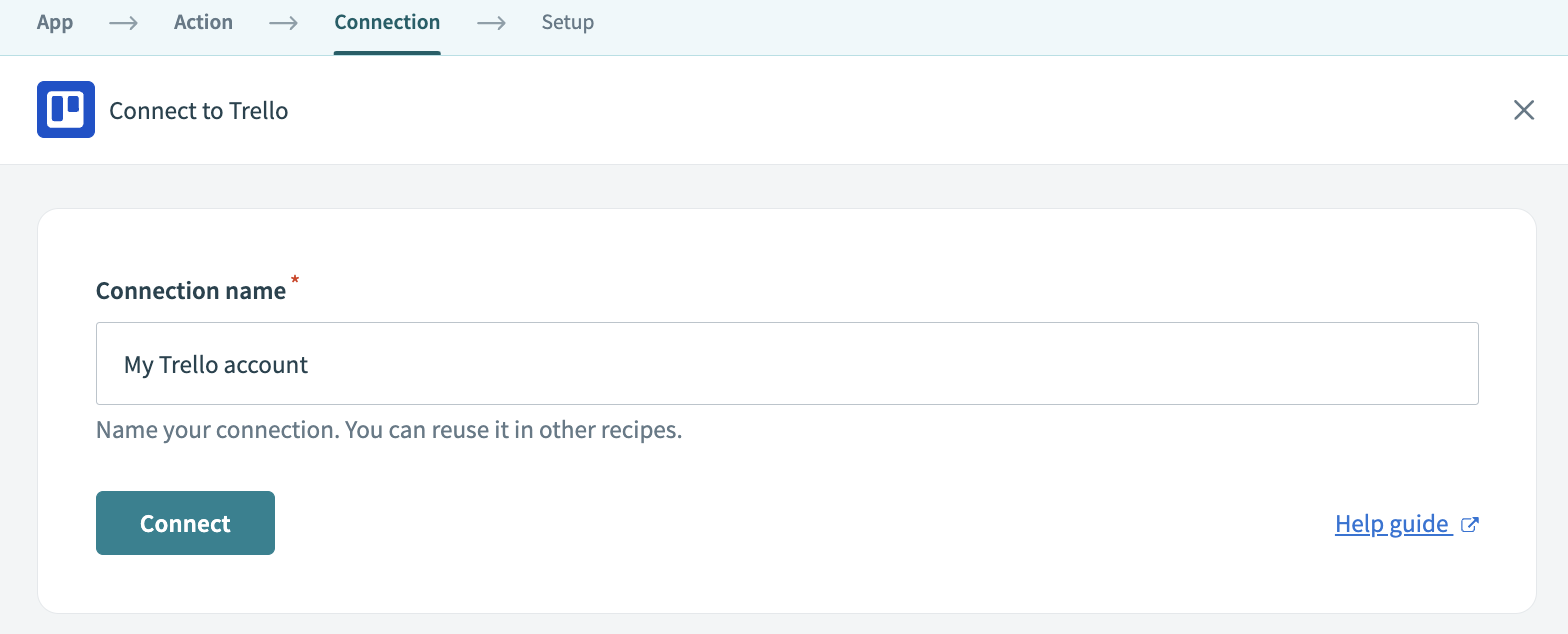
Provide a Connection name that identifies which Trello instance Workato is connected to.
Optional. Use the Custom OAuth profile drop-down menu to select a custom OAuth profile for your connection.
Sign in to the account you plan to connect to.
Click Allow to provide Workato with permissions and complete the connection.
How to use Trello MCP server tools
Refer to the following sections for detailed information on available tools:
list_boards tool
The list_boards tool retrieves all Trello boards accessible to the authenticated user, with pagination support. Your LLM uses this tool as the root discovery step whenever a board ID is needed.
Try asking:
Show me all my Trello boards.Which board should I use for the Q3 launch project?What boards do I have access to in Trello?List my active boards — I want to pick one to review.
list_lists tool
The list_lists tool retrieves information about all lists on a specified Trello board. Your LLM uses this tool to obtain list IDs for write operations such as creating or moving a card.
Try asking:
What lists are on the Product Roadmap board?Show me the columns on the Sprint 12 board before I move a card.Which lists are available on the Marketing board?I want to create a card — what lists can I choose from on the Dev board?
list_cards tool
The list_cards tool retrieves cards on a specified board or list with optional server-side filtering and pagination. Your LLM uses this tool to find cards assigned to a person, cards due within a date range, cards with a specific label, or all cards on a board or list. This tool uses server-side filters to reduce token usage and improve reliability.
Try asking:
What cards are assigned to me on the Design board?Show me all cards due before Friday on the Sprint 12 board.List all cards labeled 'urgent' on the Marketing board.What's in the In Progress list on the Backend board?
get_card_details tool
The get_card_details tool retrieves full card details, including description, checklists, and attachment metadata. Your LLM uses this tool when a user wants to review a specific card in depth, check checklist completion, or look up attachment links. Retrieving checklist information from this tool is a prerequisite to using the update_checklist_item tool.
Try asking:
Give me the full details on the 'Homepage redesign' card.What's the checklist progress on the 'API migration' card?Are there any attachments on the 'Brand guidelines' card?Walk me through everything on the 'Q4 planning' card before our meeting.
create_card tool
The create_card tool creates a new card in a specified list. Your LLM uses this tool to capture action items, tasks, or notes as Trello cards, either one at a time or in batches. The tool always shows a preview and requests user approval before creating a card.
Try asking:
Create a card called 'Follow up with legal' in the Backlog list on the Contracts board.Add these three action items from today's meeting as cards in the To Do list.Capture 'Write release notes' as a card on the Sprint 13 board.Create a card for the homepage bug with due date end of next week.
update_card tool
The update_card tool modifies card fields or moves a card to a different list. Your LLM uses this tool to update a card's title, description, or due date, or to move a card between lists to reflect progress.
Try asking:
Move the 'Write API docs' card to the Done list.Update the due date on the 'Homepage redesign' card to next Monday.Change the title of the 'Fix login bug' card to 'Fix OAuth login timeout bug'.
create_board tool
The create_board tool creates a new empty Trello board in the user's workspace. Your LLM uses this tool when a user wants to start a new project board. The board is created empty, and the user must add lists manually in the Trello UI afterward.
Try asking:
Create a new Trello board called 'Q4 Initiatives'.I need a new board for the rebrand project — can you set one up?Create a board called 'Customer Feedback Tracker'.Set up a new board called '2026 Roadmap Planning'.
add_comment tool
The add_comment tool posts a comment on a specified card as the authenticated user. Your LLM uses this tool to log status updates, notes, or decisions on a card. Your LLM always asks for approval before posting a comment.
COMMENT LIMITATIONS
The Trello MCP server can't read comments back. Open a card directly in Trello to review its comment history.
Try asking:
Add a comment to the 'Homepage redesign' card: 'Mockups approved by stakeholders, moving to dev.'Post a status update on the 'Q3 planning' card saying the draft is ready for review.Leave a note on the 'API migration' card: 'Blocked — waiting on security sign-off.'Comment on the 'Release prep' card that testing is complete.
update_checklist_item tool
The update_checklist_item tool marks a checklist item within a card as complete or incomplete. Your LLM uses this tool after calling get_card_details to retrieve the correct checklist item ID, then applies the state change with user approval. This tool cannot create or delete checklist items; it can only toggle their completion state.
Try asking:
Mark the 'Write unit tests' checklist item on the 'Backend refactor' card as done.Check off 'Send invites' on the 'Event planning' card checklist.Uncheck the 'Deploy to staging' item on the 'Release v2.1' card — we need to redo it.
Getting started
View and manage your MCP server tools in the Overview page Tools section. Tool management provides the following capabilities:
TOOLS MUST BE STARTED
Your LLM can only access active tools in your MCP server connector.
Last updated: