X Social Listening and Research MCP server
The X (formerly Twitter) Social Listening and Research MCP server enables LLMs to interact with X for social listening, brand monitoring, competitive intelligence, and content research workflows through natural conversation. It provides tools to monitor brand mentions, track competitors, compare metrics, explore trending topics, and research accounts without requiring direct interaction with the X interface.
Uses
Use the X Social Listening and Research MCP server to perform the following actions:
- Search for tweets by keywords, hashtags, mentions, or phrases
- Retrieve specific tweets with full metadata
- Read conversation threads and reply chains
- Look up user profiles and verify accounts
- View recent tweets from specific accounts
- Discover accounts related to topics or industries
- Compare engagement metrics across multiple tweets
- Monitor brand mentions and competitor activity
- Research trending topics and conversations
Example prompts
Use the following example prompts to invoke X Social Listening and Research MCP server tools:
Search for recent tweets mentioning our product.Get the details for this specific tweet.Show me the full thread for this conversation.Look up the @acme profile.What has @competitor been posting recently?Find X accounts that post about AI automation.Compare engagement metrics for these five tweets.Monitor mentions of our brand from the past week.
X Social Listening and Research MCP server tools
The X Social Listening and Research MCP server provides the following tools:
| Tool | Description |
|---|---|
| search_tweets | Searches public tweets matching a keyword, hashtag, mention, or phrase. |
| get_tweet | Retrieves a single tweet with full metadata by tweet ID or URL. |
| get_tweet_thread | Retrieves the full conversation thread for a tweet you specify. |
| get_user_profile | Retrieves the public profile of an X account by handle or user ID. |
| get_user_recent_tweets | Retrieves the most recent public tweets posted by an X account you specify. |
| search_users | Searches for X accounts matching a name, keyword, or topic description. |
| batch_get_tweet_metrics | Retrieves engagement metrics for a batch of tweet IDs in a single call. |
Install the X Social Listening and Research MCP server
Complete the following steps to install a prebuilt MCP server to your project:
Sign in to your Workato account.
Go to AI Hub > MCP servers.
Click + Create MCP server.
Go to the Start with pre-built MCP Servers using your connected apps section and select the prebuilt MCP server you plan to use.
Click Use this server.
Provide a name for your MCP server in the Server name field.
Use the Location drop-down menu to select the project for the MCP server.
Go to the Connections section and connect to your app account.
Select the connection type you plan to use for the MCP server template.
- User's connection: MCP server tools perform actions based on the identity and permissions of the user who connects to the application. Users authenticate with their own credentials to execute the skill.
- Your connection: This option uses the connection established by the recipe builder and follows the same principles as normal app connections.
 Select your connection type
VERIFIED USER ACCESS AUTHENTICATION REQUIREMENTS
Only app connections that use OAuth 2.0 authorization code grant are available for user's connection. Refer to Verified user access for more information.
Complete the app-specific connection setup steps in the following section.
X connection setup
View X connection setup steps
The X connector uses OAuth 1.0a authentication.
Complete the following steps to connect to X in Workato with 1.0a authentication:
Generate a consumer key and secret
View generate a consumer key and secret steps
Complete the following steps to generate a consumer key and secret in X:
Sign in to the X Developer Console.
Click Apps > Create App.
Enter an Application Name.
Select an Environment.
Click Create New Client Application.
Copy and save the Consumer Key and Secret Key for use in Workato.
SAVE YOUR CREDENTIALS
The credentials only display once. If you lose them, you must generate new ones.
Generate an access token and secret
View generate an access token and secret steps
Complete the following steps to generate an access token and secret in X:
Sign in to the X Developer Console.
Click Apps.
Click on the app you created in the preceding steps.
Under OAuth 1.0 Keys, click Generate for Access Token.
Copy and save the Access Token and Access Token Secret for use in Workato.
SAVE YOUR CREDENTIALS
The credentials only display once. If you lose them, you must generate new ones.
Connect to X with OAuth 1.0a
View connect to X with OAuth 1.0a steps
Complete the following steps to connect to X in Workato:
Click Create > Connection.
Search for X and select it as your app.
Enter a name for your connection in the Connection name field.
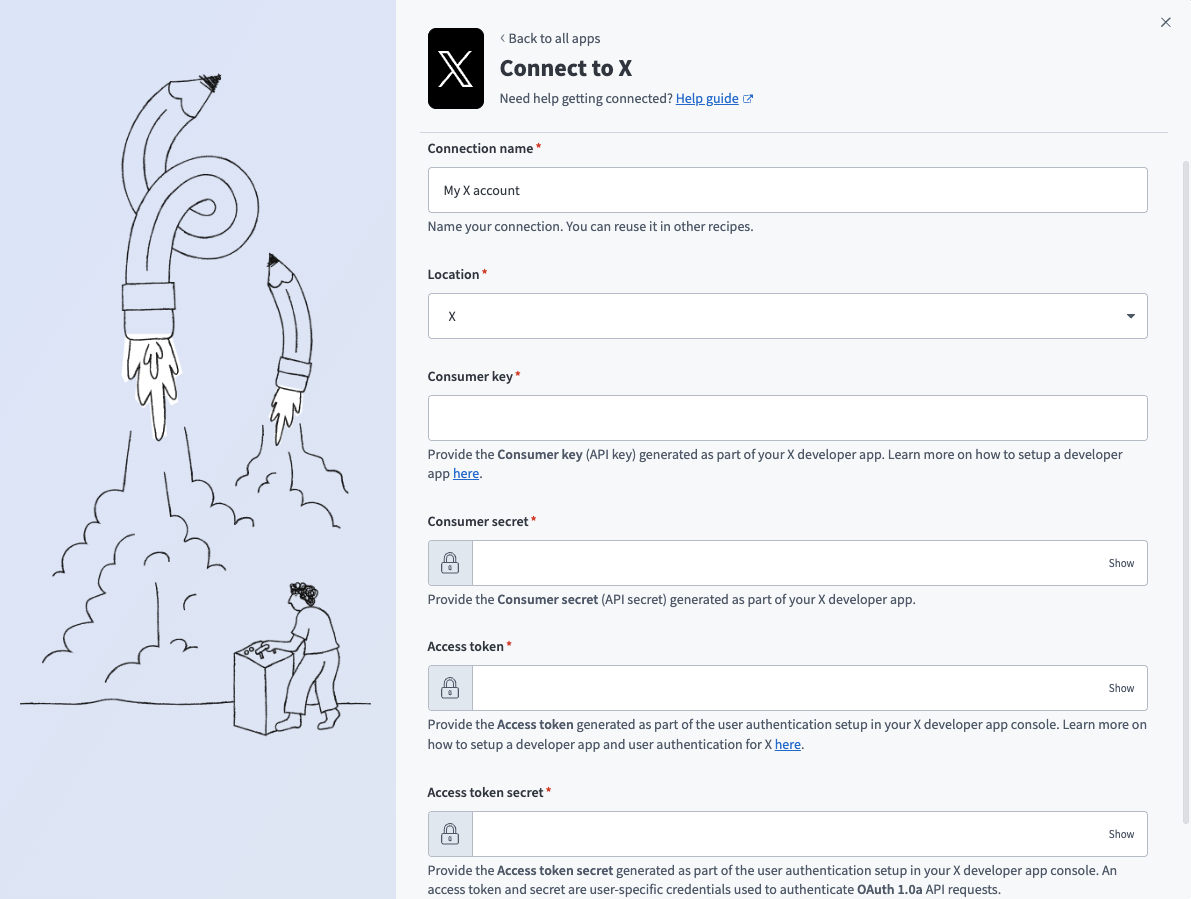 X connection setup
Use the Location drop-down menu to select the project where you plan to store the connection.
Enter the Consumer key and Consumer secret.
Enter the Access token and Access token secret.
Click Connect.
How to use X Social Listening and Research MCP server tools
Refer to the following sections for detailed information on available tools:
search_tweets tool
The search_tweets tool searches public tweets matching a keyword, hashtag, mention, or phrase. Your LLM uses this tool to find tweets about specific topics, monitor brand mentions, track hashtags, or discover conversations.
Try asking:
Search for recent tweets mentioning our product.Find tweets about #AI automation from the past week.Look for tweets mentioning @acme.Search for conversations about low-code platforms.
get_tweet tool
The get_tweet tool retrieves a single tweet with full metadata by tweet ID. Your LLM uses this tool when you provide a specific tweet ID or URL to retrieve full details of a particular tweet, or to follow up after a search to get complete metadata on a specific result.
Try asking:
Get the details for tweet ID 1234567890.Show me the full metadata for this tweet.Retrieve the engagement metrics for this specific tweet.Get complete information about tweet 123456.
get_tweet_thread tool
The get_tweet_thread tool retrieves the full conversation thread for a tweet you specify. Your LLM uses this tool to understand the full context of a conversation, read a thread, see replies to a specific tweet, or to understand the full exchange when a search result appears to be part of a larger discussion.
Try asking:
Show me the full thread for this tweet.Read the entire conversation thread.Get all the replies in this X thread.Show me the complete discussion starting from this tweet.
get_user_profile tool
The get_user_profile tool retrieves the public profile of an X account by handle or user ID. Your LLM uses this tool to look up an X account, find information about a specific @handle, understand an account's reach and focus area, or verify an account.
Try asking:
Look up the @acme X profile.Get information about @competitor's account.What's the follower count for @brandaccount?Verify the profile for @influencer.
get_user_recent_tweets tool
The get_user_recent_tweets tool retrieves the most recent public tweets posted by an X account you specify. Your LLM uses this tool to see what a specific account has been posting recently, review an account's content, or to understand a competitor's recent messaging.
Try asking:
What has @competitor been posting recently?Show me @acme's recent tweets.Get the latest posts from @brandaccount.Review what @influencer has tweeted this week.
search_users tool
The search_users tool searches for X accounts matching a name, keyword, or topic description. Your LLM uses this tool to find accounts related to a topic, industry, or keyword rather than looking up a known handle, or for influencer discovery and finding brand accounts.
Try asking:
Find X accounts that post about AI automation.Search for accounts focused on B2B SaaS.Discover influencers in the marketing technology space.Find brand accounts related to customer success.
batch_get_tweet_metrics tool
The batch_get_tweet_metrics tool retrieves engagement metrics for a batch of tweet IDs in a single call. Your LLM uses this tool only when comparing or ranking engagement across 5 or more tweets where the tweet content has already been retrieved and only metrics are needed.
Try asking:
Compare engagement metrics for these five tweets.Which of these tweets performed best?Get the metrics for this batch of tweet IDs.Rank these tweets by engagement.
Getting started
View and manage your MCP server tools in the Overview page Tools section. Tool management provides the following capabilities:
TOOLS MUST BE STARTED
Your LLM can only access active tools in your MCP server connector.
Last updated: