Zendesk Knowledge Base MCP server
The Zendesk Knowledge Base MCP server enables LLMs to interact with Zendesk Guide knowledge base content through natural conversation. It provides tools to search, retrieve, navigate, create, and update articles without requiring direct interaction with the Zendesk Guide interface.
Uses
Use the Zendesk Knowledge Base MCP server to perform the following actions:
- Search knowledge base articles using keywords and filters
- Retrieve full content and metadata of articles
- List knowledge base categories to understand top-level organization
- Explore sections within categories
- List articles within sections
- Discover available article labels for metadata updates
- Create new draft knowledge base articles
- Update content and metadata of existing articles
- Navigate knowledge base hierarchy to understand structure
- Document newly resolved issues as draft articles
- Update outdated or incomplete articles
Example prompts
Use the following example prompts to invoke Zendesk Knowledge Base MCP server tools:
Find knowledge base articles about password reset.Show me the full content of article 8983028.What categories are in the knowledge base?List sections in the Billing category.Show me articles in the Authentication section.What labels are available for articles?Create a draft article documenting how to fix the login timeout issue.Update this article to include the new troubleshooting steps.Find documentation about API rate limits.Explore what articles exist in the Technical Support category.
Zendesk Knowledge Base MCP server tools
The Zendesk Knowledge Base MCP server provides the following tools:
| Tool | Description |
|---|---|
| search_articles | Searches knowledge base articles using keywords and optional filters. |
| get_article | Retrieves the full content and metadata of a knowledge base article. |
| list_categories | Lists all knowledge base categories. |
| list_sections | Lists sections within a category you specify. |
| list_articles_in_section | Lists articles within a section you specify. |
| list_article_labels | Lists available article labels for metadata updates. |
| create_article | Creates a new draft knowledge base article. |
| update_article | Updates content and metadata of an existing knowledge base article. |
Install the Zendesk Knowledge Base MCP server
Complete the following steps to install a prebuilt MCP server to your project:
Sign in to your Workato account.
Go to AI Hub > MCP servers.
Click + Create MCP server.
Go to the Start with pre-built MCP Servers using your connected apps section and select the prebuilt MCP server you plan to use.
Click Use this server.
Provide a name for your MCP server in the Server name field.
Use the Location drop-down menu to select the project for the MCP server.
Go to the Connections section and connect to your app account.
Select the connection type you plan to use for the MCP server template.
- User's connection: MCP server tools perform actions based on the identity and permissions of the user who connects to the application. Users authenticate with their own credentials to execute the skill.
- Your connection: This option uses the connection established by the recipe builder and follows the same principles as normal app connections.
 Select your connection type
VERIFIED USER ACCESS AUTHENTICATION REQUIREMENTS
Only app connections that use OAuth 2.0 authorization code grant are available for user's connection. Refer to Verified user access for more information.
Complete the app-specific connection setup steps in the following section.
Zendesk connection setup
View Zendesk connection setup steps
The Zendesk connector uses OAuth 2.0 authentication.
DEPRECATED AUTHENTICATION METHODS
Effective March 31, 2026, you can no longer create new Zendesk connections using Basic authentication or Custom OAuth profiles. This change is required by Zendesk Developer Terms.
Existing connections using these authentication methods will continue to work until December 31, 2026. On this date, Zendesk connections still using Basic authentication or a Custom OAuth profile will be terminated, and recipes relying on these connections will stop functioning.
Complete the following steps to connect to Zendesk in Workato:
Click Create > Connection or press C twice.
Search for Zendesk and select it as your app.
Enter a name for your connection in the Connection name field.
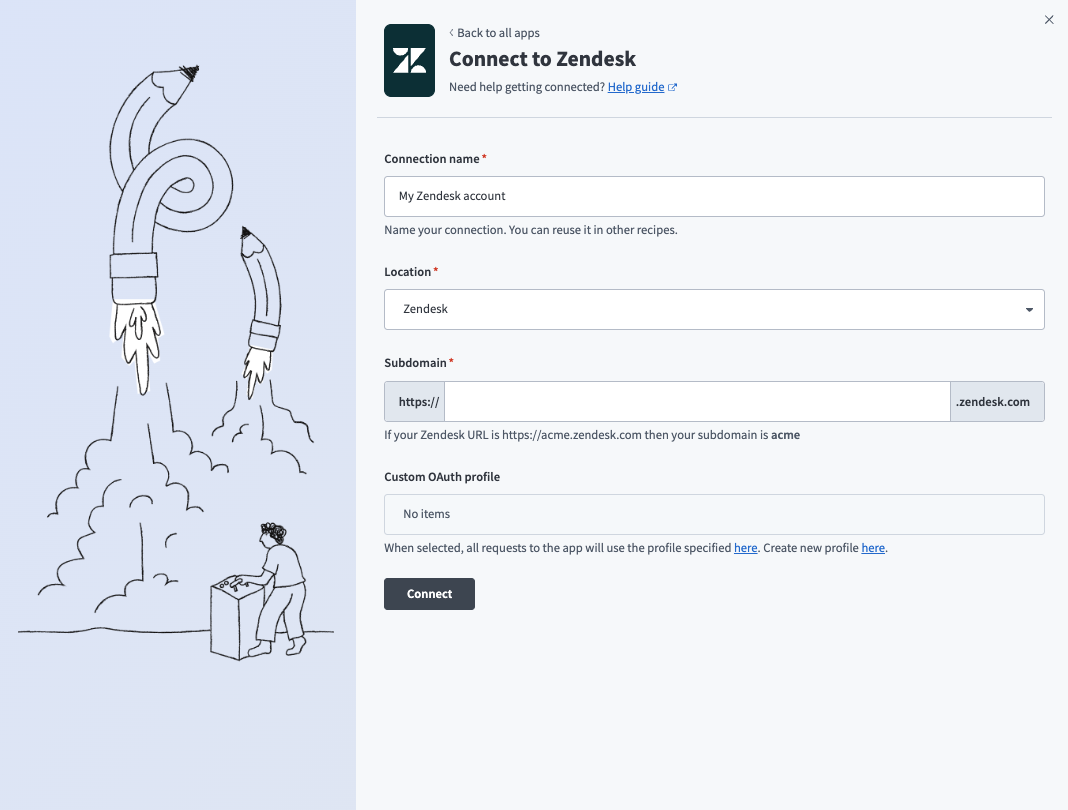 Connect to Zendesk with OAuth 2.0
Use the Location drop-down menu to select the project where you plan to store the connection.
Enter your Zendesk subdomain in the Subdomain field. For example, your subdomain is acme if your Zendesk URL is https://acme.zendesk.com.
Click Connect.
Sign in to Zendesk using your credentials to authorize Workato.
Project property configuration
The Zendesk Knowledge Base MCP server supports the following project-level properties to control behavior and defaults:
| Project-level property | Description |
|---|---|
section_id | Restricts operations, such as search and retrieval, to a specific Zendesk section. |
category_id | Restricts operations to a specific Zendesk category. |
max_article_content_size | Limits the maximum size of article content returned. Defaults to 50,000. |
default_result_limit | Sets the default number of results returned by the search tool when no limit is specified by the user or tool. Defaults to 30. |
default_user_segment_id | Specifies the default user segment applied when creating new articles. |
default_permission_group_id | Defines the default permission group assigned to newly created articles. |
default_article_locale | Determines the default language or locale for newly created articles. Defaults to en-us. |
View project-level property configuration steps
Complete the following steps to configure your project-level properties:
Sign in to your Workato account and go to Projects.
Go to the project that contains your MCP server.
Click the Settings tab.
 Click the Settings tab.
Select Project properties.
Go to the project property you plan to update and click the Edit (pencil) icon.
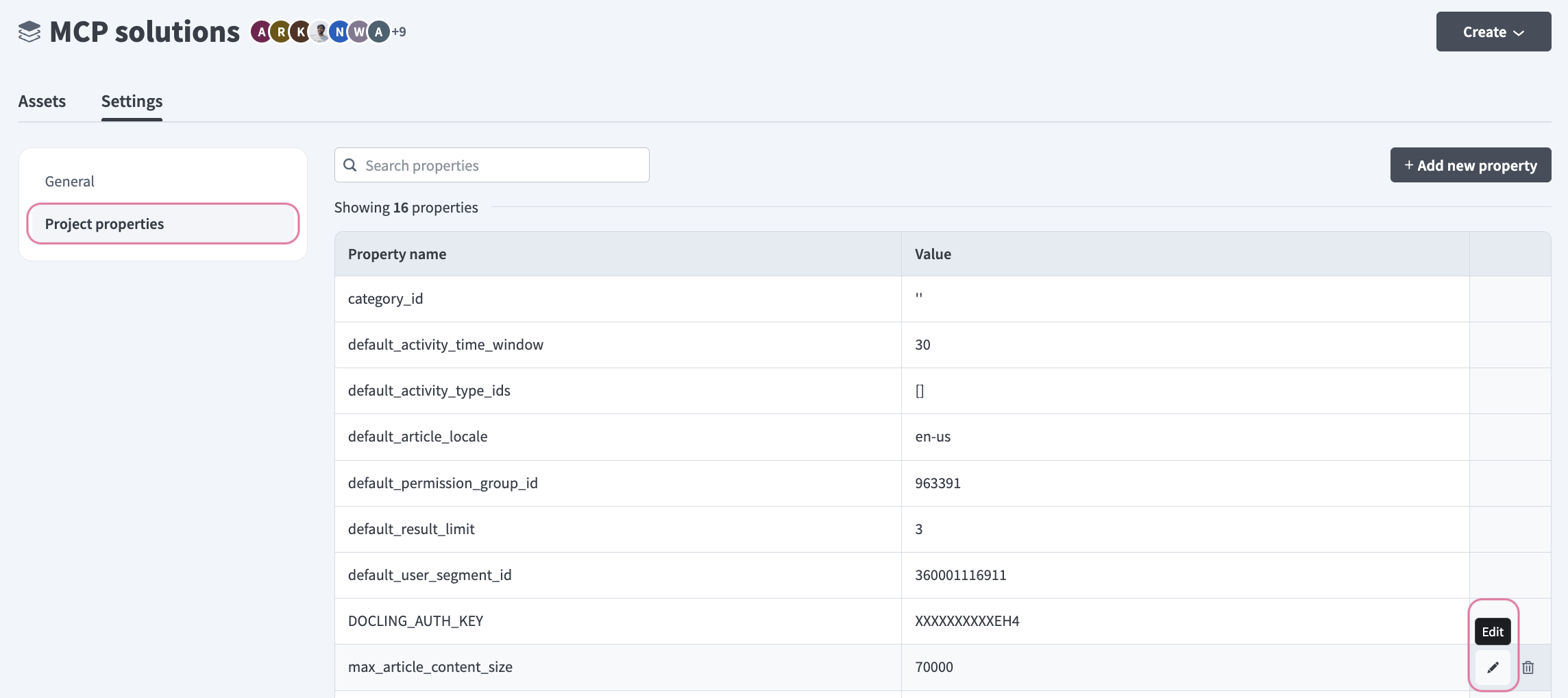 Click the Edit (pencil) icon.
Go to the Value field and make your changes. For example, set max_article_content_size to 70000 or default_result_limit to 15.
How to use Zendesk Knowledge Base MCP server tools
Refer to the following sections for detailed information on available tools:
search_articles tool
The search_articles tool searches knowledge base articles using keywords and optional filters. Your LLM uses this tool to find documentation, help articles, or information related to a topic.
Try asking:
Find knowledge base articles about password reset.Search for documentation on API authentication.Look for articles about billing errors.Find help articles containing 'SSO timeout'.
get_article tool
The get_article tool retrieves the full content and metadata of a knowledge base article. Your LLM uses this tool to read or review a specific article in detail.
Try asking:
Show me the full content of article 803812.Get the complete text of the password reset article.Read article 67890 in detail.What does the API rate limits article say?
list_categories tool
The list_categories tool lists all knowledge base categories. Your LLM uses this tool to understand the top-level organization of the knowledge base.
Try asking:
What categories are in the knowledge base?Show me all KB categories.List the top-level organization of documentation.What are the main knowledge base sections?
list_sections tool
The list_sections tool lists sections within a category you specify. Your LLM uses this tool after identifying a category to explore its sections.
Try asking:
List sections in the Billing category.Show me sections under Technical Support.What sections exist in the Authentication category?Explore sections within Getting Started.
list_articles_in_section tool
The list_articles_in_section tool lists articles within a section you specify. Your LLM uses this tool to explore articles within a known section.
Try asking:
Show me articles in the Authentication section.List all articles under Password Management.What articles are in the API Documentation section?Display articles in the Troubleshooting section.
list_article_labels tool
The list_article_labels tool lists available article labels for metadata updates. Your LLM uses this tool to discover valid label values before updating article labels.
Try asking:
What labels are available for articles?Show me the list of article tags.What metadata labels can I use?List valid labels for knowledge base articles.
create_article tool
The create_article tool creates a new draft knowledge base article. Your LLM uses this tool to document a new issue or create a new knowledge base article.
Try asking:
Create a draft article documenting how to fix the login timeout issue.Make a new KB article about the SSO configuration process.Document this resolution as a draft article.Create a knowledge base article for the API rate limit error.
update_article tool
The update_article tool updates content and metadata of an existing knowledge base article. Your LLM uses this tool to modify an existing article.
Try asking:
Update this article to include the new troubleshooting steps.Revise article 12345 with the corrected information.Add the latest workaround to the API timeout article.Update the password reset article with new screenshots.
Getting started
View and manage your MCP server tools in the Overview page Tools section. Tool management provides the following capabilities:
TOOLS MUST BE STARTED
Your LLM can only access active tools in your MCP server connector.
Last updated: