Zendesk Ticket Management MCP server
The Zendesk Ticket Management MCP server enables LLMs to manage and explore Zendesk Support tickets across their full lifecycle through natural conversation. It provides tools to find, create, and update support tickets, manage queues, and monitor SLAs without requiring direct interaction with the Zendesk interface.
Uses
Use the Zendesk MCP server to perform the following actions:
- Search for tickets using keywords or structured filters
- Retrieve full details for specific tickets
- View conversation history and comments on tickets
- Retrieve information about ticket requesters and agents
- List tickets in your personal queue or team queues
- Find unassigned tickets for triage
- Monitor overdue tickets and SLA compliance
- Check when tickets entered specific statuses
- Create new support tickets
- Update ticket fields such as status, priority, and assignee
- Add public replies or internal notes to tickets
Example prompts
Use the following example prompts to invoke Zendesk Ticket Management MCP server tools:
What's the status of ticket #12345?Show me the conversation on ticket #789.Find tickets about login failures.List my open tickets.What tickets are unassigned?Which tickets are overdue?When was ticket #4560 solved?Create a ticket for Acme Corp about their billing issue.Set ticket #7892 to high priority.Reply to the customer on ticket #1432 with the solution.
Zendesk MCP server tools
The Zendesk MCP server provides the following tools:
| Tool | Description |
|---|---|
| get_ticket | Retrieves full details for a Zendesk ticket by ticket ID. |
| get_user | Retrieves basic profile information for a Zendesk user by user ID. |
| list_ticket_comments | Retrieves conversation comments for a Zendesk ticket. |
| search_tickets | Searches Zendesk tickets using keyword queries. |
| list_tickets | Lists Zendesk tickets using structured filters. |
| list_my_tickets | Lists tickets assigned to the authenticated user. |
| list_unassigned_tickets | Lists Zendesk tickets without an assigned agent. |
| list_overdue_tickets | Lists tickets that are overdue or approaching SLA deadlines. |
| get_ticket_status_transition_timestamp | Retrieves the timestamp when a ticket most recently entered a status you specify. |
| create_ticket | Creates a new Zendesk support ticket. |
| update_ticket | Updates fields on an existing Zendesk ticket. |
| add_ticket_comment | Adds a public reply or internal note to a Zendesk ticket. |
Install the Zendesk MCP server
Complete the following steps to install a prebuilt MCP server to your project:
Sign in to your Workato account.
Go to AI Hub > MCP servers.
Click + Create MCP server.
Go to the Start with pre-built MCP Servers using your connected apps section and select the prebuilt MCP server you plan to use.
Click Use this server.
Provide a name for your MCP server in the Server name field.
Use the Location drop-down menu to select the project for the MCP server.
Go to the Connections section and connect to your app account.
Select the connection type you plan to use for the MCP server template.
- User's connection: MCP server tools perform actions based on the identity and permissions of the user who connects to the application. Users authenticate with their own credentials to execute the skill.
- Your connection: This option uses the connection established by the recipe builder and follows the same principles as normal app connections.
 Select your connection type
VERIFIED USER ACCESS AUTHENTICATION REQUIREMENTS
Only app connections that use OAuth 2.0 authorization code grant are available for user's connection. Refer to Verified user access for more information.
Complete the app-specific connection setup steps in the following section.
Zendesk connection setup
View Zendesk connection setup steps
The Zendesk connector uses OAuth 2.0 authentication.
DEPRECATED AUTHENTICATION METHODS
Effective March 31, 2026, you can no longer create new Zendesk connections using Basic authentication or Custom OAuth profiles. This change is required by Zendesk Developer Terms.
Existing connections using these authentication methods will continue to work until December 31, 2026. On this date, Zendesk connections still using Basic authentication or a Custom OAuth profile will be terminated, and recipes relying on these connections will stop functioning.
Complete the following steps to connect to Zendesk in Workato:
Click Create > Connection or press C twice.
Search for Zendesk and select it as your app.
Enter a name for your connection in the Connection name field.
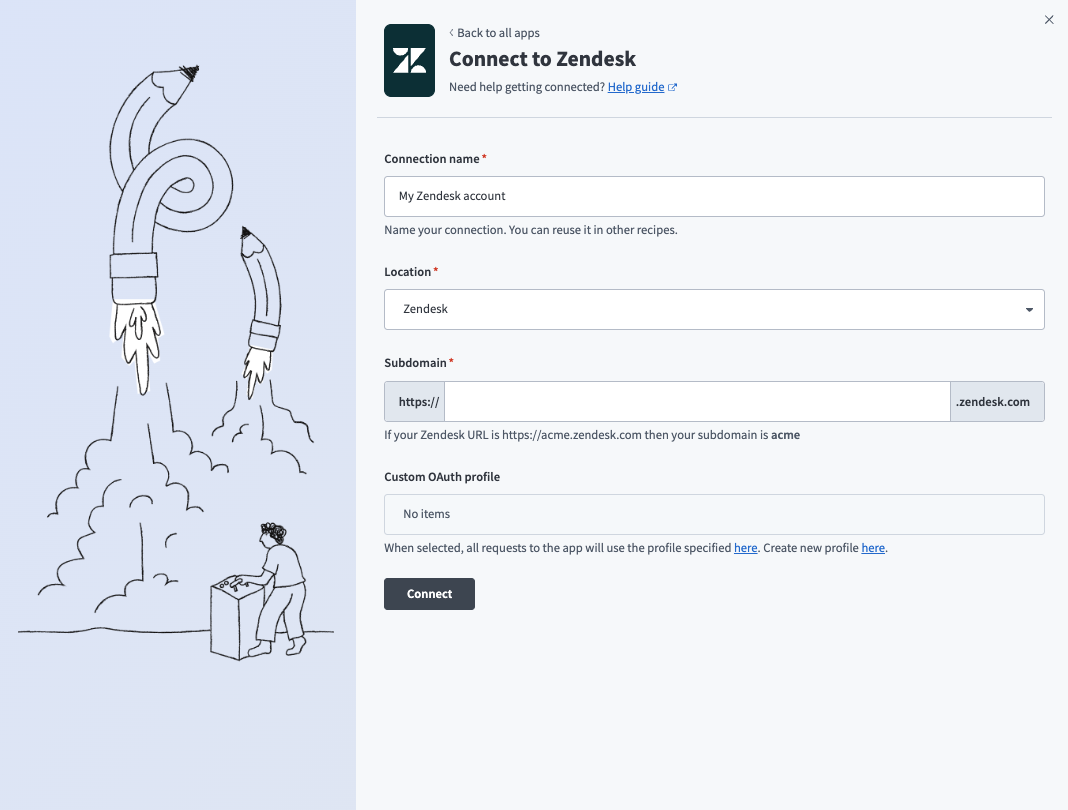 Connect to Zendesk with OAuth 2.0
Use the Location drop-down menu to select the project where you plan to store the connection.
Enter your Zendesk subdomain in the Subdomain field. For example, your subdomain is acme if your Zendesk URL is https://acme.zendesk.com.
Click Connect.
Sign in to Zendesk using your credentials to authorize Workato.
Project property configuration
You must configure the ZENDESK_SLA_VIEW for your Zendesk Ticket Management MCP server at the project level. ZENDESK_SLA_VIEW is used for the list_overdue_tickets tool. You can configure this setting to operate in deterministic or efficient mode. Deterministic mode scans for SLA-breached tickets while efficient mode scans for SLA-nearing tickets. Zendesk admins must configure Zendesk View IDs for SLA-breached or SLA-nearing tickets. The list_overdue_tickets tool queries the View IDs directly when you set the project property in Workato and View IDs are configured and accessible in Zendesk.
The list_overdue_tickets tool scans unsolved tickets using Search API with SLA sideloading and filters results by SLA metrics if you don't set the ZENDESK_SLA_VIEW project property. This fallback is bounded by page and record caps and may return partial results in large accounts.
Complete the following steps to configure your SLA view:
View Project property configuration steps
Sign in to your Workato account and go to Projects.
Go to the project that contains your MCP server.
Click the Settings tab.
 Click the Settings tab.
Select Project properties.
Go to the ZENDESK_SLA_VIEW property and click the Edit (pencil) icon.
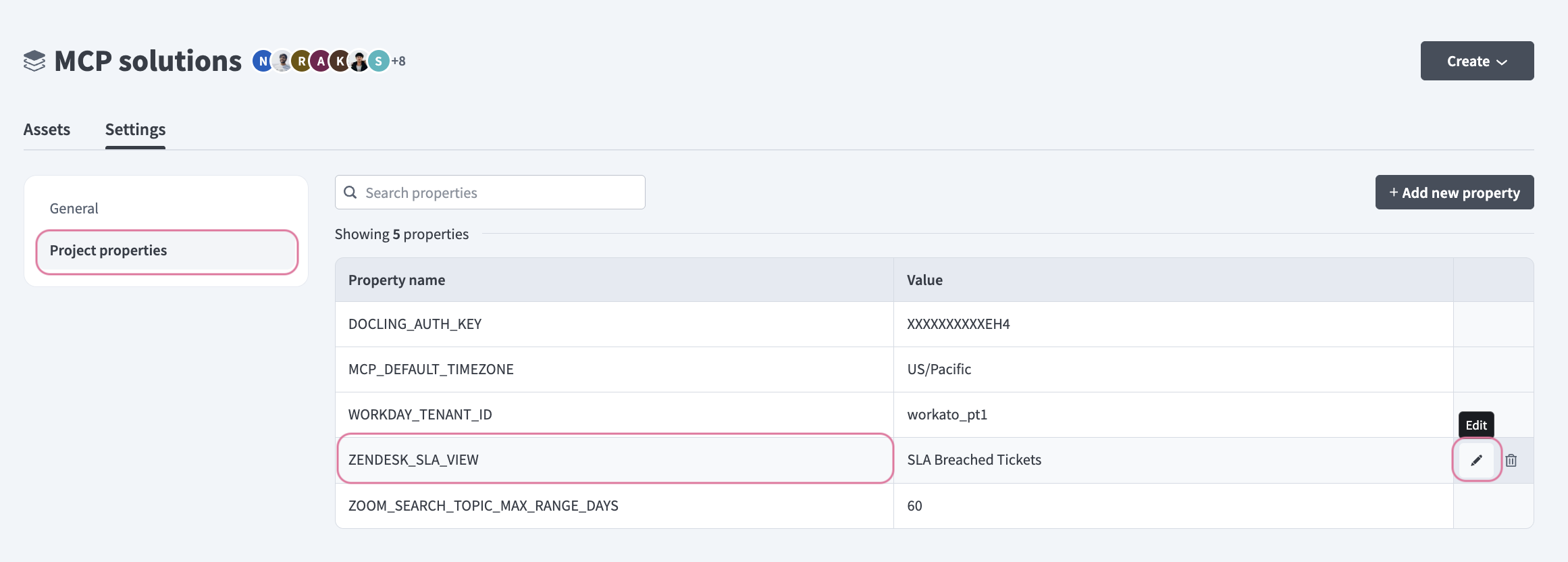 Click the Edit (pencil) icon.
Go to the Value field and enter your Zendesk SLA view. For example, SLA-Breached Tickets or SLA-nearing tickets.
How to use Zendesk MCP server tools
Refer to the following sections for detailed information on available tools:
get_ticket tool
The get_ticket tool retrieves full details for a Zendesk ticket by ticket ID. Your LLM uses this tool to retrieve details for a ticket ID you provide.
Try asking:
What's the status of ticket #4234?Get the details for ticket 7890.Show me ticket #4561.Tell me about ticket 1432.
get_user tool
The get_user tool retrieves basic profile information for a Zendesk user by user ID. Your LLM uses this tool to provide information about a ticket requester or agent, or when additional user context is required after retrieving a ticket.
Try asking:
Who is the requester for this ticket?What organization is this customer part of?Get information about the agent assigned to this ticket.Tell me about user 9876.
list_ticket_comments tool
The list_ticket_comments tool retrieves conversation comments for a Zendesk ticket. Your LLM uses this tool to view replies, notes, or conversation history, or when deeper context is required after retrieving a ticket.
Try asking:
Show me the conversation on ticket #7890.What replies are on ticket #4562?Get the comment history for this ticket.What notes are on ticket #4325?
search_tickets tool
The search_tickets tool searches Zendesk tickets using keyword queries. Your LLM uses this tool to search with keywords, phrases, or error descriptions to find relevant tickets.
Try asking:
Find tickets about login failures.Search for tickets mentioning SSO timeout.Look for tickets about billing errors.Find tickets containing 'password reset'.
list_tickets tool
The list_tickets tool lists Zendesk tickets using structured filters. Your LLM uses this tool when you specify structured attributes such as status, assignee, group, or tags.
Try asking:
Show me open tickets for Acme Corp.List high-priority tickets assigned to Mei.Get all pending tickets from this week.Show me tickets tagged with 'billing'.
list_my_tickets tool
The list_my_tickets tool lists Zendesk tickets assigned to you. Your LLM uses this tool to view your work queue or check what tickets are assigned to you.
Try asking:
What's in my queue?Show me my open tickets.What tickets are assigned to me?What should I work on next?
list_unassigned_tickets tool
The list_unassigned_tickets tool lists Zendesk tickets without an assigned agent. Your LLM uses this tool to view unassigned tickets for triage or to identify work that needs to be picked up.
Try asking:
What tickets are unassigned?Show me tickets that need to be picked up.What's in the triage queue?What tickets haven't been assigned yet?
list_overdue_tickets tool
The list_overdue_tickets tool lists tickets that are overdue or approaching SLA deadlines. Your LLM uses this tool to monitor SLA compliance or identify at-risk tickets.
Try asking:
Which tickets are overdue?Show me tickets approaching SLA deadlines.What tickets are at risk?What needs immediate attention for SLA compliance?
get_ticket_status_transition_timestamp tool
The get_ticket_status_transition_timestamp tool retrieves the timestamp when a ticket most recently entered a status you specify. Your LLM uses this tool to find when a ticket entered a specific lifecycle state, such as when it was solved.
Try asking:
When was ticket #4561 solved?When did this ticket move to pending?What time was ticket #7890 closed?When did ticket #4324 enter the open status?
create_ticket tool
The create_ticket tool creates a new Zendesk support ticket. Your LLM uses this tool to create a new ticket from customer communications or reported issues.
Try asking:
Create a ticket for Acme Corp about their billing issue.File a bug report for the login timeout.Create a ticket for [email protected] about password reset.Log a new support ticket for the API error.
update_ticket tool
The update_ticket tool updates fields on an existing Zendesk ticket, including status, priority, assignee, and custom fields. Your LLM uses this tool to modify ticket attributes, reassign work, or update status as issues progress.
Try asking:
Set ticket #7890 to high priority.Assign ticket #4561 to Marco.Close ticket #4324.Change the status of ticket #7890 to pending.
add_ticket_comment tool
The add_ticket_comment tool adds a public reply or internal note to a Zendesk ticket. Your LLM uses this tool to reply to customers or add internal notes. Your LLM confirms whether the comment should be public or internal before invoking the tool.
Try asking:
Reply to the customer on ticket #4324 with the solution.Add an internal note to ticket #4561 about the troubleshooting steps.Post a public update to ticket #7890.Add a private note saying we're waiting on engineering.
Getting started
View and manage your MCP server tools in the Overview page Tools section. Tool management provides the following capabilities:
TOOLS MUST BE STARTED
Your LLM can only access active tools in your MCP server connector.
Last updated: