Customize login experience
You can customize the login experience for your end users by configuring your organization's branding and colors. These settings apply to the Workato Identity login page, authorization page, and browser tabs.
Complete the following steps to customize your login experience:
Sign in to your Workato account.
Go to Workspace admin. The Access control page displays by default.
Click Login experience in the sidebar.
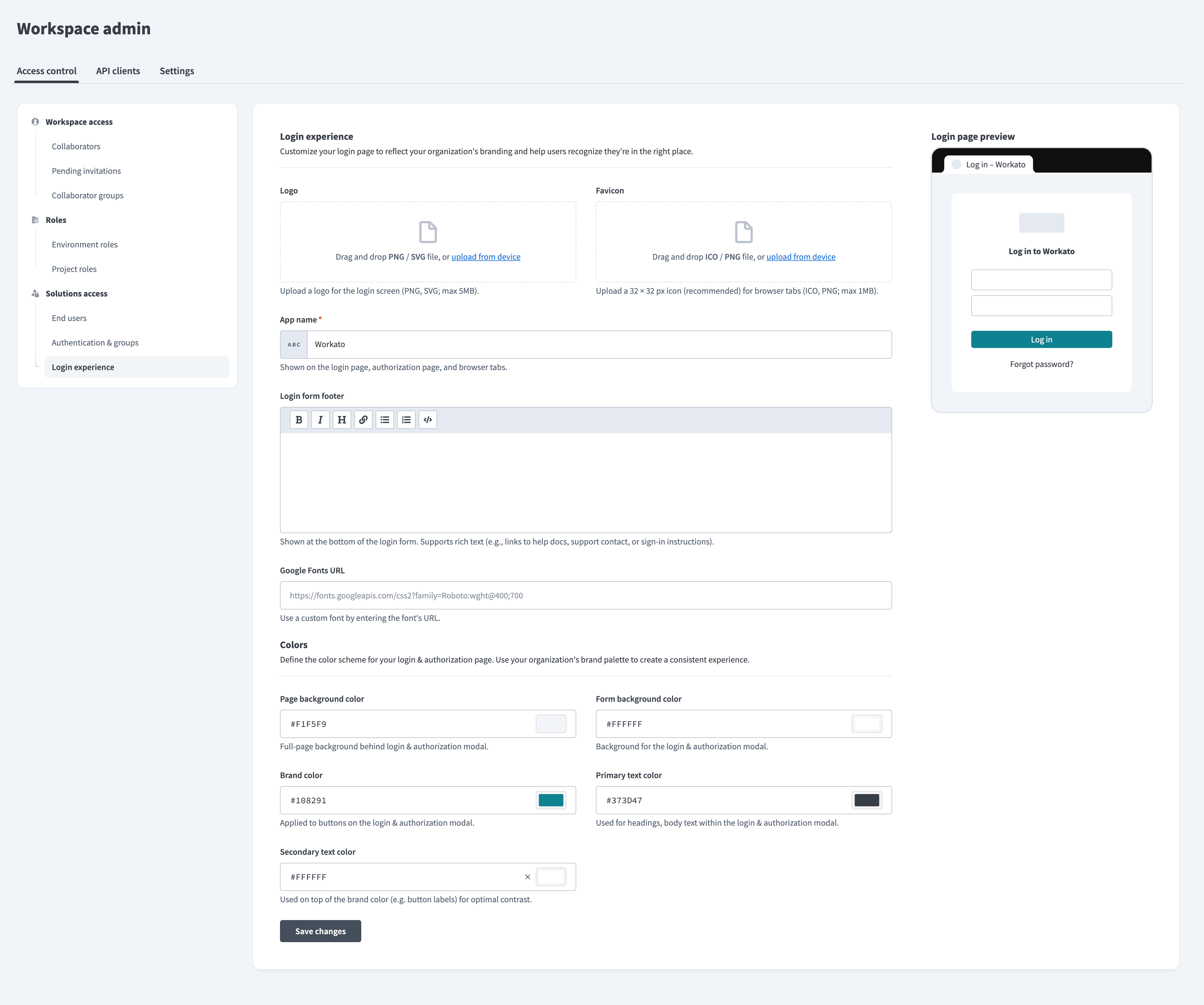 Default login experience settings
Go to the Logo section and drag or upload a logo. Accepts PNG or SVG files up to 5MB.
Go to the Favicon section and drag or upload a favicon. Accepts ICO or PNG files up to 1MB. A 32×32px image is recommended.
Enter a name for your app in the App name field. This is the name that displays on the login page, authorization page, and browser tabs.
Go to the Login form footer section and provide footer information, such as text or links.
Go to the Google Fonts URL field and enter the font URL to use a custom font.
Go to the Page background color field and enter the color hex code or click the color box to enter RGB values. This value is applied to the full-page background behind the login and authorization modal. Defaults to #F1F5F9.
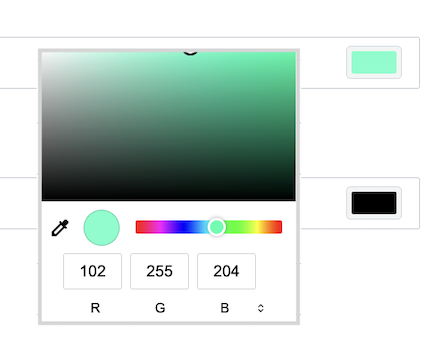 Enter the color hex code or click the color box to enter RBG values
Go to the Form background color field and enter the color hex code or click the color box to enter RGB values. This value is applied to the login and authorization modal background. Defaults to #FFFFFF.
Go to the Brand color field and enter the color hex code or click the color box to enter RGB values. This value is applied to buttons on the login and authorization modal. Defaults to #108291.
Go to the Primary text color field and enter the color hex code or click the color box to enter RGB values. This value is applied to headings and body text within the login and authorization modal. Defaults to #373D47.
Go to the Secondary text color field and enter the color hex code or click the color box to enter RGB values. This value is paired with your primary text color for optimal contrast, such as the Log in button text. Defaults to #FFFFFF.
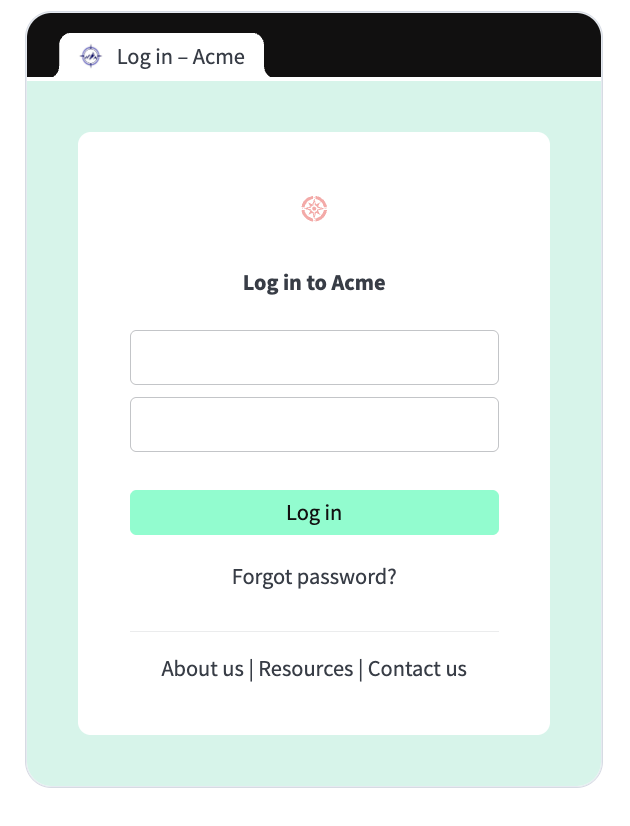 Customized login experience
Click Save changes.
Last updated: