Configure OIDC
Configure OpenID Connect (OIDC) to enable authentication and profile retrieval for agents, MCP servers, and other agentic apps.
Prerequisite
You must configure complete the following requirements before you can create an OIDC profile:
- Configure an OIDC server in your identity provider (IdP)
Okta OIDC server configuration example
Complete the following steps to configure an OIDC server in Okta:
Go to Security > API and click Add Authorization Server.
Define the name, audience, and provide a useful description.
Create the server.
Copy and store the Discovery URL for later use.
Create an OIDC profile
An OIDC profile stores the connection details for an OIDC server in your IdP, including how Workato retrieves the IdP's public keys and which audience values it accepts. Workato uses these details to validate the tokens on incoming requests and to retrieve the caller's profile information. An OIDC profile enables authorization for workspaces and AI agents.
Complete the following steps to create an OIDC profile:
Sign in to your Workato account.
Go to Workspace admin. The Access control page displays.
Go to the Solutions access section and click OpenID Connect profiles.
Click Create OIDC profile.
Enter a name for the OIDC profile in the Name field.
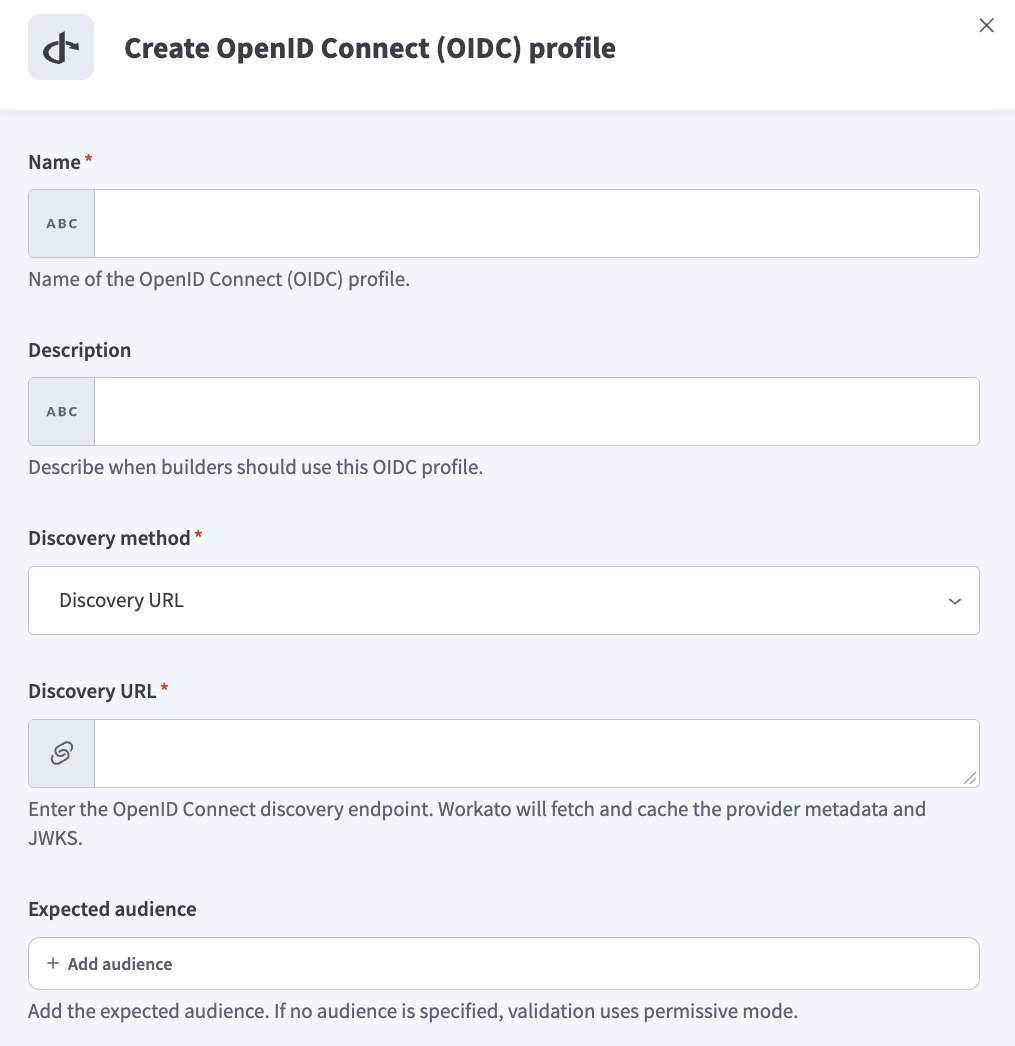 Create an OIDC profile
Use the Discovery method drop-down menu to select the method your IdP uses:
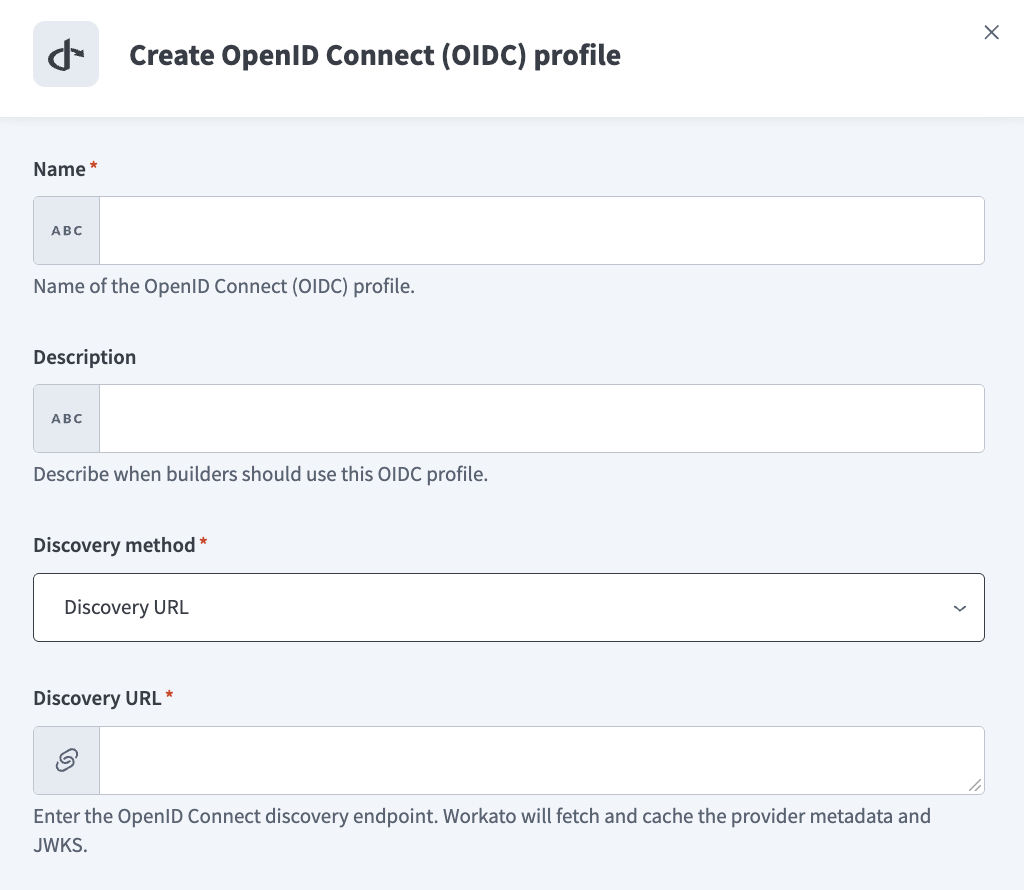 Enter the OIDC discovery endpoint
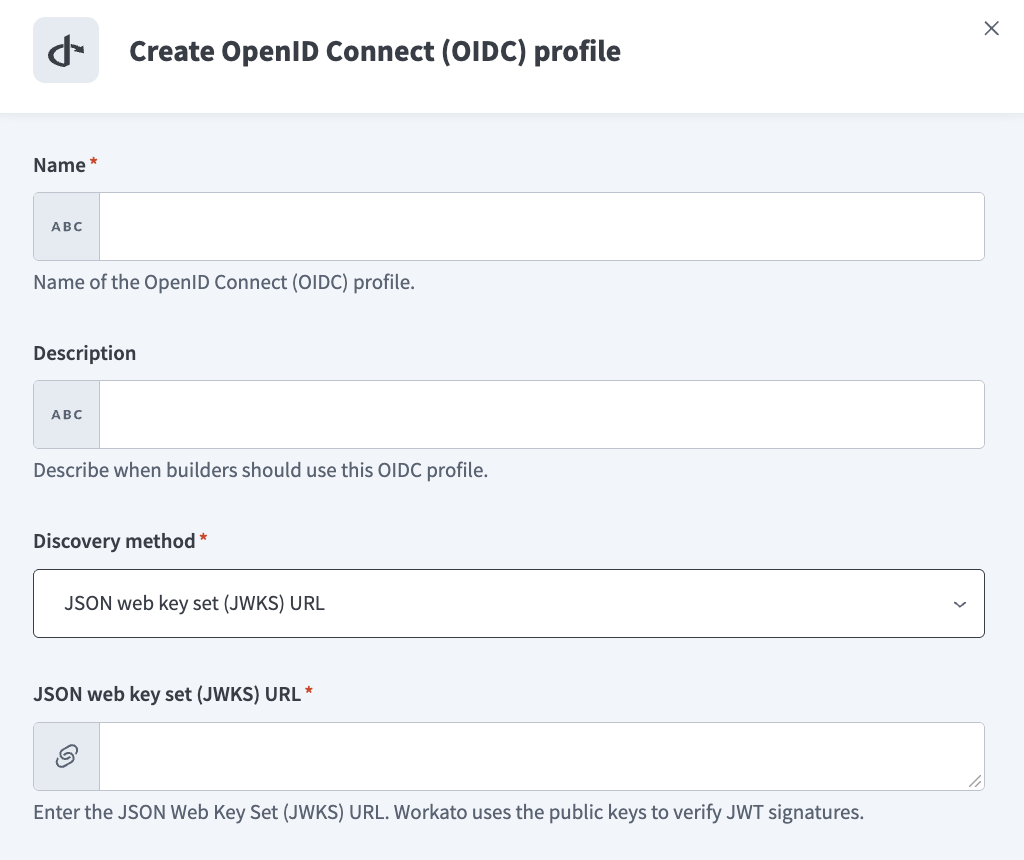 Enter the JSON web key set (JWKS) URL
Click + Add audience to add the audience value. This confirms that a token was issued specifically for Workato. For example: api://workato-mcp. Validation uses permissive mode if no audience is specified.
Click Create profile.
Add OIDC authentication
You must create an OIDC profile before you can configure OIDC authentication.
Assigning an OIDC profile to an environment makes that profile available to the assets in the environment. Assets, such as MCP servers can then use the profile to authenticate and authorize incoming requests.
You can assign multiple OIDC profiles to a single environment. Asset builders choose which of the assigned profiles an individual asset uses.
Complete the following steps to add OIDC authentication to your OIDC profile:
Go to Workspace admin. The Access control page displays.
Go to Authentication & Groups in the sidebar.
Select the environment you plan to configure. The environment End-user group page displays by default.
ENVIRONMENT AVAILABILITY
Workspaces without Environments provisioned only have one environment available.
Select the Authentication tab.
Ensure that the OpenID Connect authentication toggle is enabled.
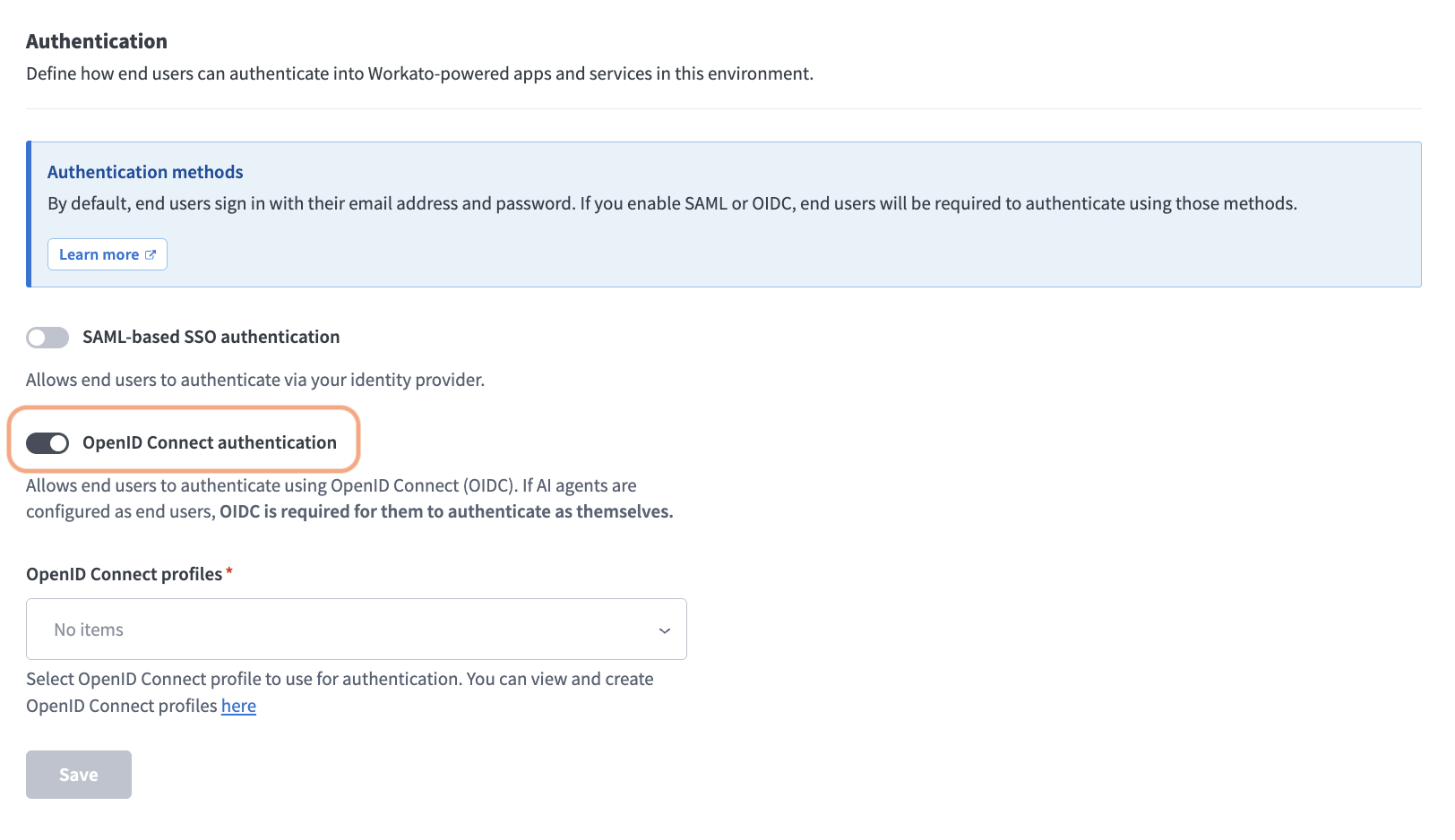 Enable the OpenID Connect authentication toggle
Use the OpenID Connect profile drop-down menu to select the OIDC profile you plan to use. You can select multiple OIDC profiles.
Click Save.
Last updated: