Set value
Set value actions set the value of a page component or variable, either as the primary action or as a follow-up after another action.
Compatible components and data
You can configure a Set value action on any component that supports component actions. Refer to Compatible components for the list of components and trigger events.
Set value can target any component type except Text block, Divider, Container, Button, Image, and Table components.
You can set the value for components or variables using the following data, accessible in the data tree:
- User
- Request
- Variables
- Page components
Set a page component or variable value
Complete the following steps to configure a Set value action:
INFO
Use the Follow up action drop-down instead of Action when configuring Set value as a follow-up to another action.
Select a component compatible with Set value actions, such as a page, drop-down, table, button, or file.
Go to the Action panel.
Use the Action drop-down menu to select Set value.
Go to the Elements to set section and use the Element drop-down menu to select an element, such as a page component or variable.
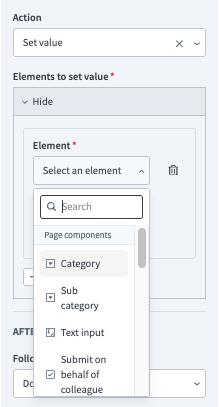 Select element
Use the Page data modal to map data into the Value field. Alternatively, enter the value directly.
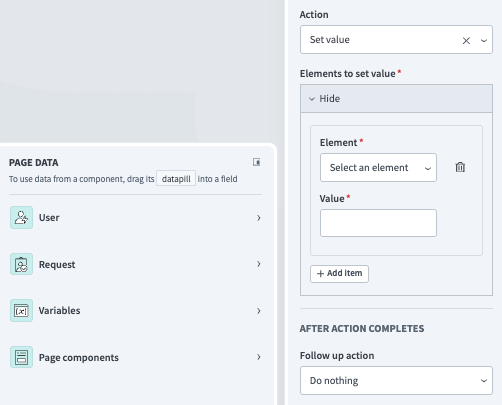 Set a component or variable's value
Click Save.
Last updated: