Save data to table action
Specific page components enable you to save workflow request data to your Workflow app's primary data table.
Compatible components
| Component | Trigger event |
|---|---|
| Button | Button click |
Configure a Save data to table action
Complete the following steps to configure a Save data to table action on button click:
Select a Button component.
Go to the Action panel. The Trigger event, Button is clicked is pre-selected.
Use the Action drop-down to select Save data to table.
Optional. Use Additional data for table columns to save extra data to the table row alongside the submitted page fields. Click + Add column, then map a page variable or static value to a data table column.
Use the Redirect to drop-down menu to choose where to redirect the user after saving data to the table.
Click Save.
LIMITATIONS
The Column drop-down menu for Additional data for table columns only lists compatible data table columns. You can't map the same column more than once. If a mapped page variable has no value when the user submits, the column saves as empty and doesn't block submission. Static values must match the target column's data type, or the mapping shows a validation error.
Your configuration should look as follows:
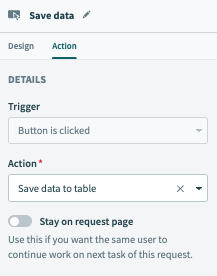 Save data to table on button click
Last updated: