コネクターをコミュニティライブラリにアップロードする
他のユーザーと共有する予定がある場合は、コネクターをコミュニティライブラリにアップロードできます。
必要な権限
コミュニティライブラリにコネクターをアップロードするには、Connector SDKへのフルアクセス権が必要です。必要な権限がない場合は、コネクターをコミュニティライブラリにアップロードできるよう、ワークスペース管理者にお問い合わせください。
コネクターをコミュニティライブラリに共有するには、次の手順を実行します:
ツール > Connector SDKに移動します。
共有する予定のコネクターを選択します。
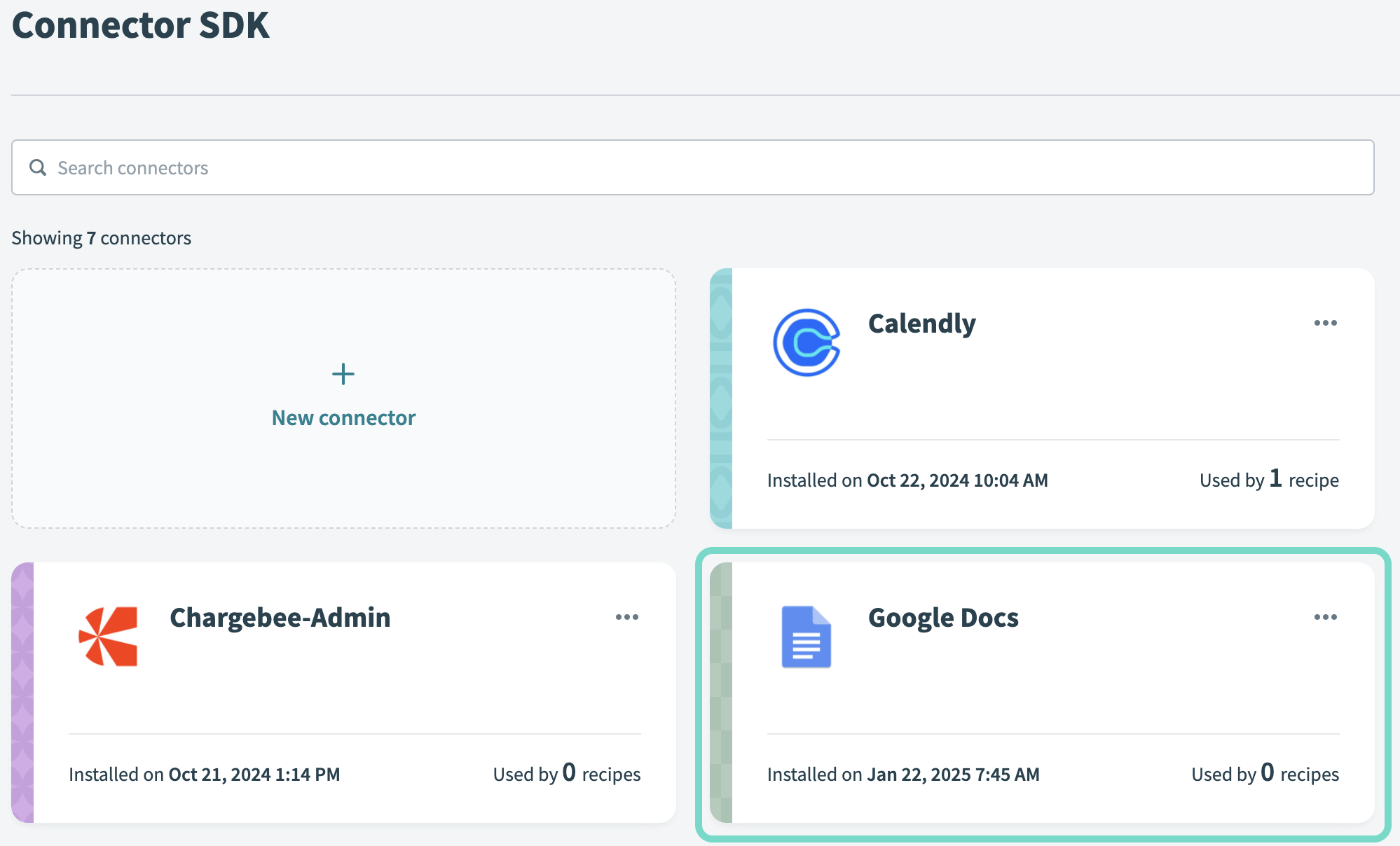 アップロードする予定のコネクターをクリック
共有タブに移動し、バージョンを共有をクリックします。
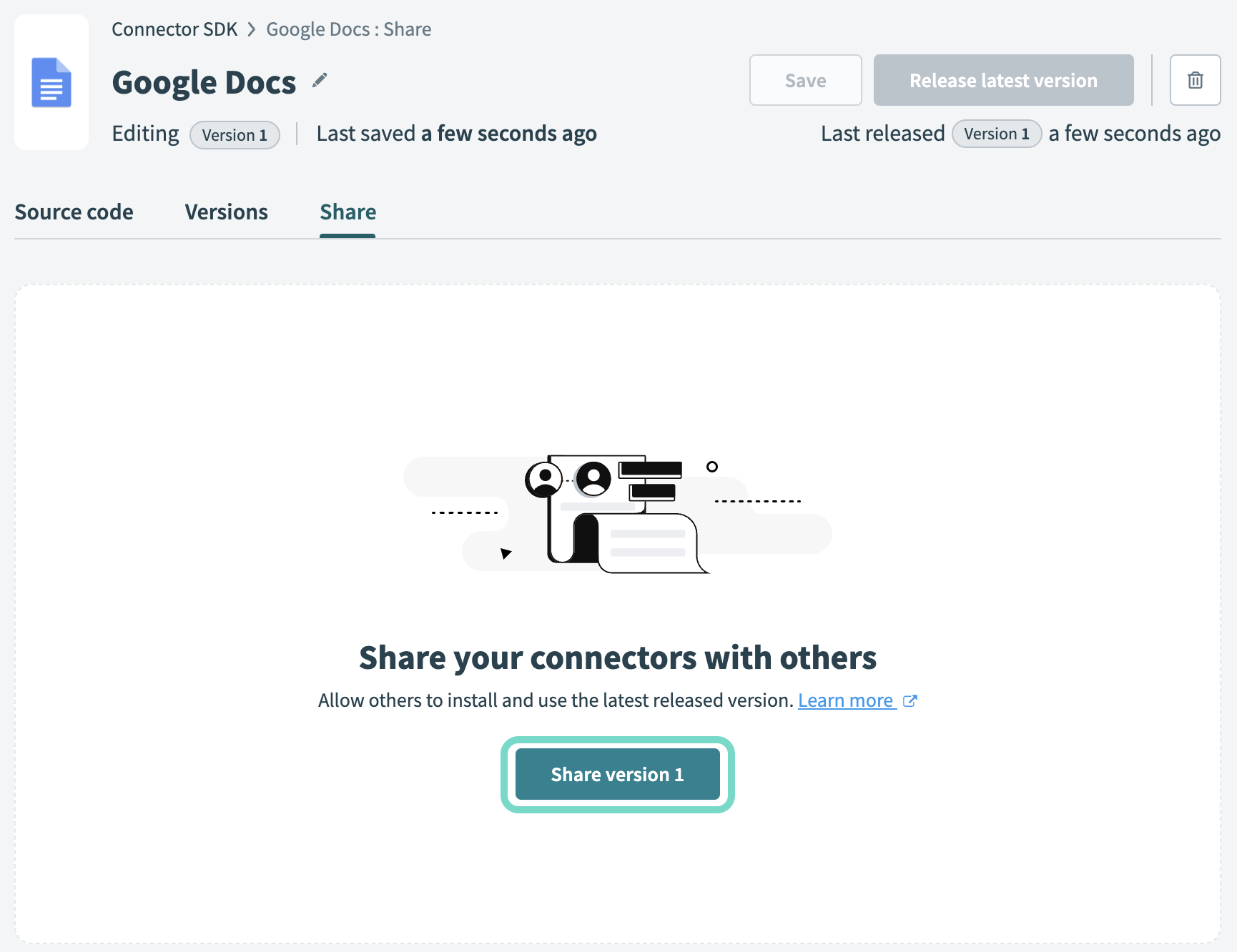 バージョンを共有をクリック
任意。クローズドソースコネクターを公開する予定の場合は、ソースコードを非表示にするボタンをクリックします。これにより、コネクターコードが他のユーザーに表示されたり編集されたりしなくなります。コネクターを非公開にしない限り、公開後にこの設定を変更することはできません。
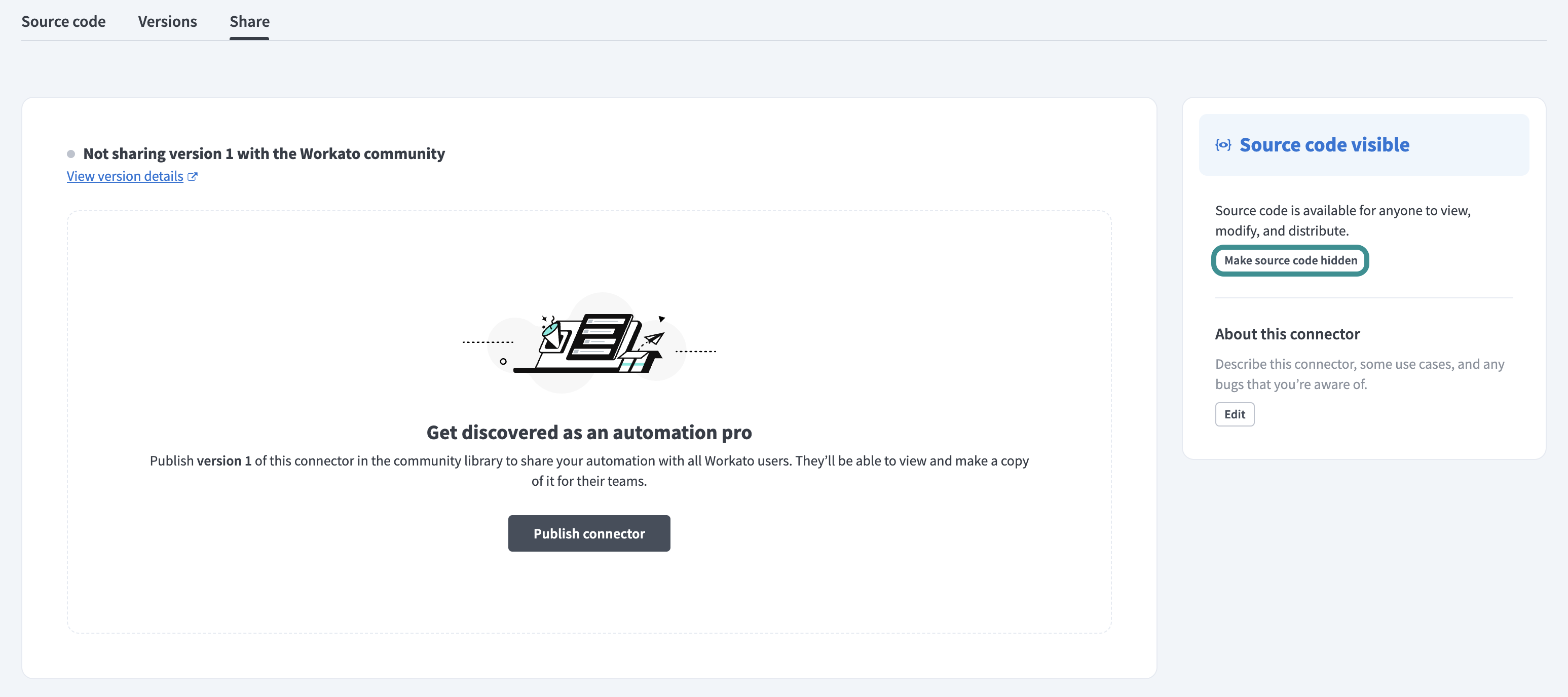 ソースコードを非表示にすることを選択
コネクターの説明で編集をクリックし、サポートメール、ドキュメントリンク、ヘルプセンターなど、ユーザーがサポートに問い合わせる明確な方法が説明に含まれていることを確認します。サポートの連絡先情報がない提出は、レビュー中に却下される可能性があります。
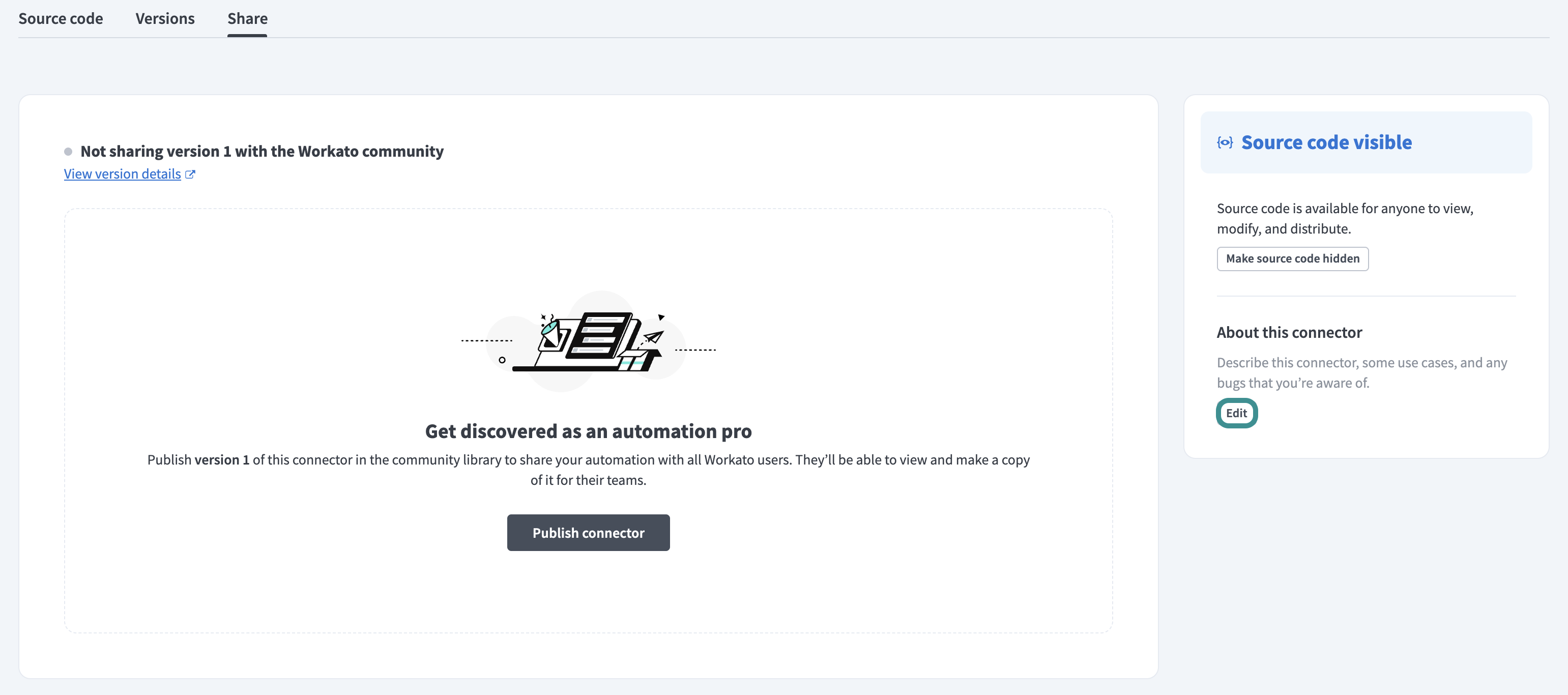 コネクターの説明を編集
コネクターを公開をクリックして、コミュニティライブラリに掲載ダイアログを開きます。
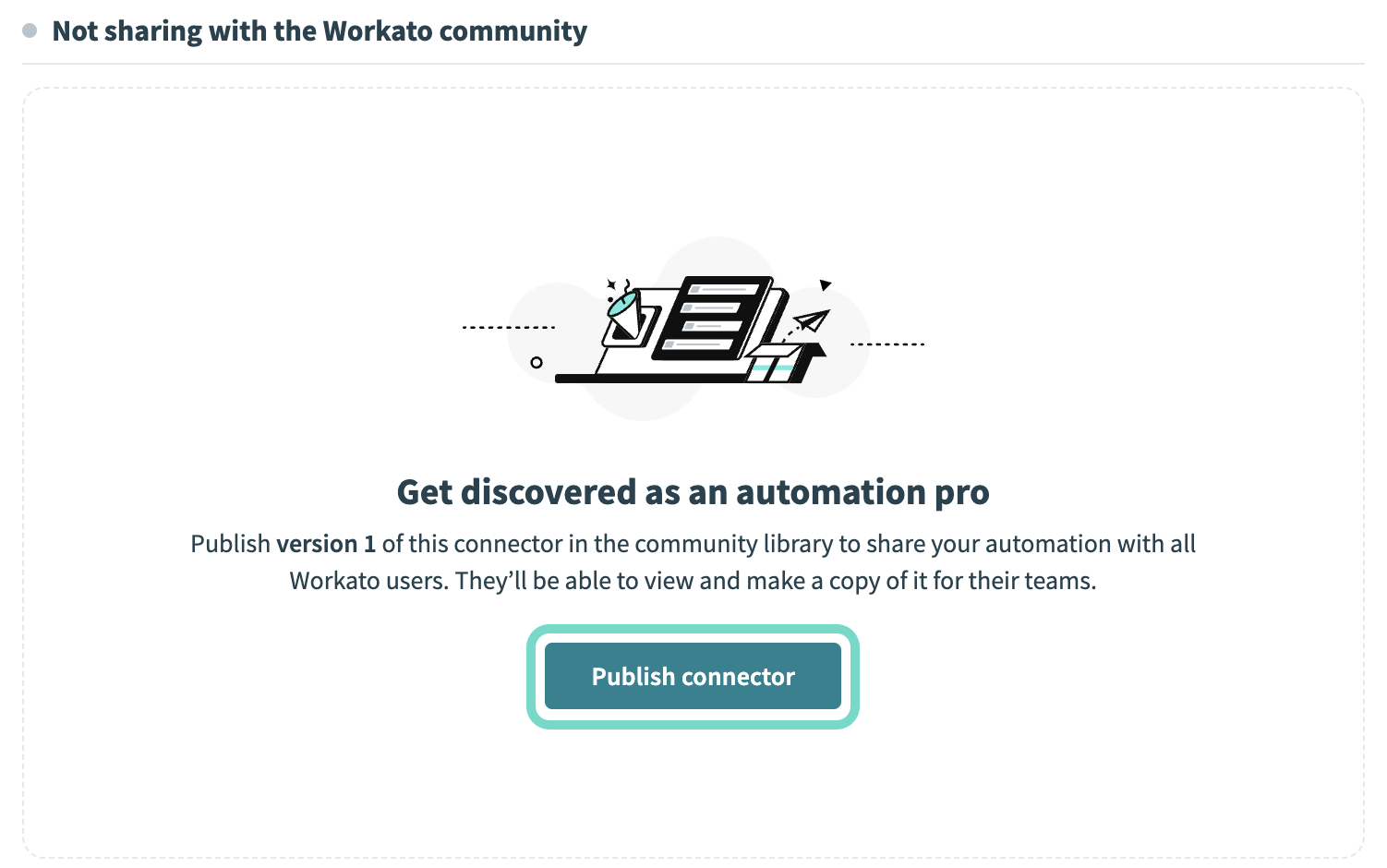 コネクターを公開をクリック
アプリ名を入力します。このフィールドでは大文字と小文字が区別されます。
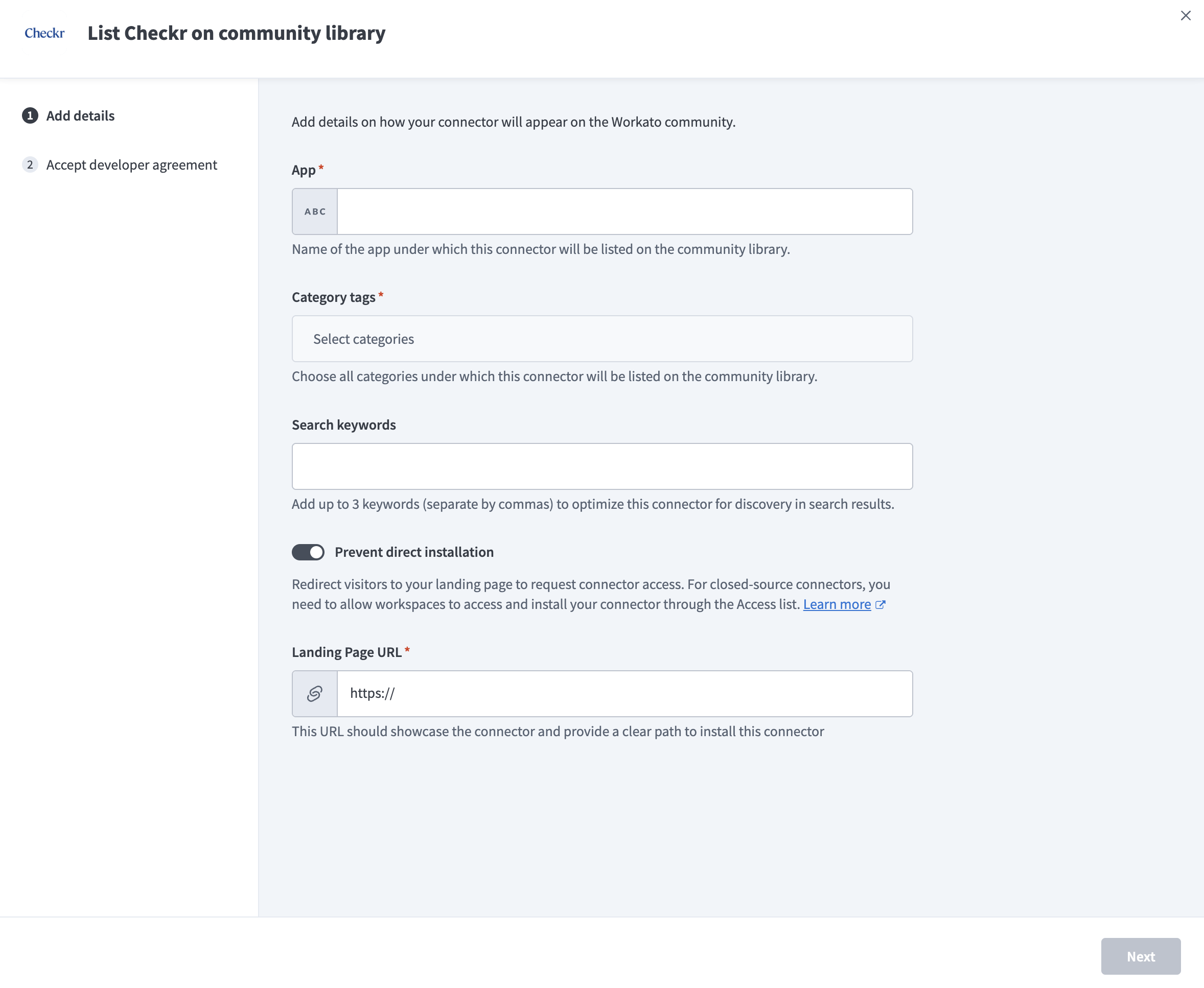 詳細を追加セクション
カテゴリタグドロップダウンメニューで関連するタグを選択します。
最大3つの検索キーワードをカンマで区切って入力します。
任意。アクセスをリクエストするランディングページに訪問者をリダイレクトする予定の場合は、直接インストールを防止トグルをクリックします。
このオプションを有効にすると、次のようになります:
- エンドユーザーは、コミュニティ掲載からコネクターを直接インストールできません。
- ユーザーは、非公開の共有リンクを通じてのみコネクターをインストールできます。リンクを取得するには、コネクターの共有タブのリンクを使用して非公開で共有セクションに移動します。ユーザーにアクセス権を付与する方法については、リンクでコネクターを共有を参照してください。
- ランディングページURLと明確なパスを指定する必要があります。
このトグルを有効にしない場合、どのワークスペースでもコミュニティ掲載からコネクターを直接インストールできます。クローズドソースコネクターはソースコードを非表示にしますが、インストールは制限しません。
直接インストールを防止を有効にした場合は、ランディングページURLを指定します。リンク先のページでは、コネクターを紹介し、コネクターの非公開の共有リンクを取得する方法について明確なパスを示す必要があります。
Workato開発者契約を読み、チェックボックスをクリックして利用規約に同意します。
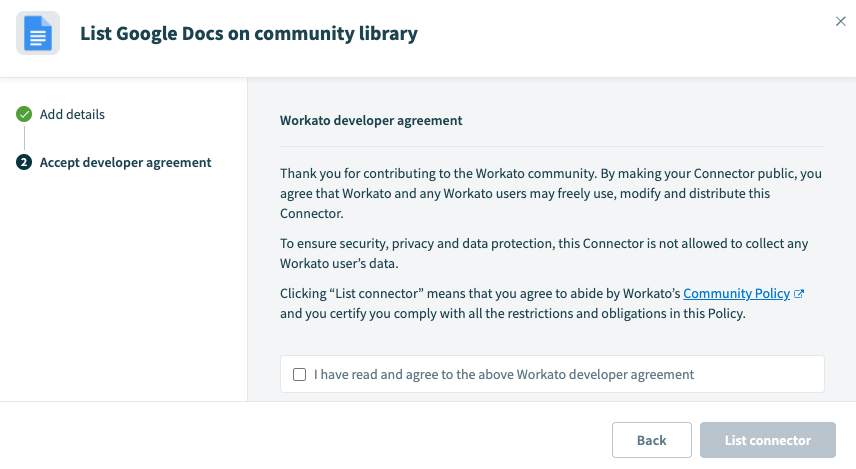 Workato開発者契約を読む
コネクターを掲載をクリックして、レビューのためにコネクターを提出します。
コネクターのレビューが完了すると、Workatoからコミュニティプロファイルのメールアドレスに通知されます。
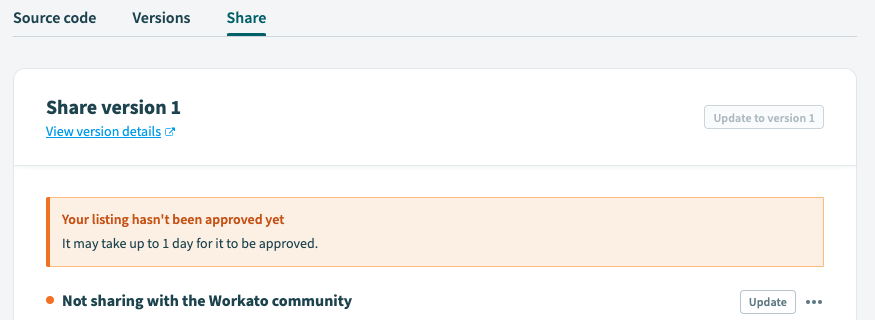 コネクターのステータスを監視
最終更新日: