MCP server access and configuration
Use the following sections to access and configure your MCP servers:
Access MCP servers
You can access and manage your MCP servers and retrieve your MCP URL in the AI Hub. You must authenticate your account to access MCP servers. Refer to MCP access methods for more information.
Complete the following steps to access your MCP servers:
Sign in to your Workato account.
Go to AI Hub and click the MCP Servers tab. A list of your existing MCP servers displays.
Click the MCP server card you plan to view. The MCP server displays the following information:
- Description
- Installation link
- Tools available on the MCP server, such as
Tasks CreateandCRM Get Company Properties - The MCP remote URL
Optional. Go to the Developer MCP Token section and click Copy.
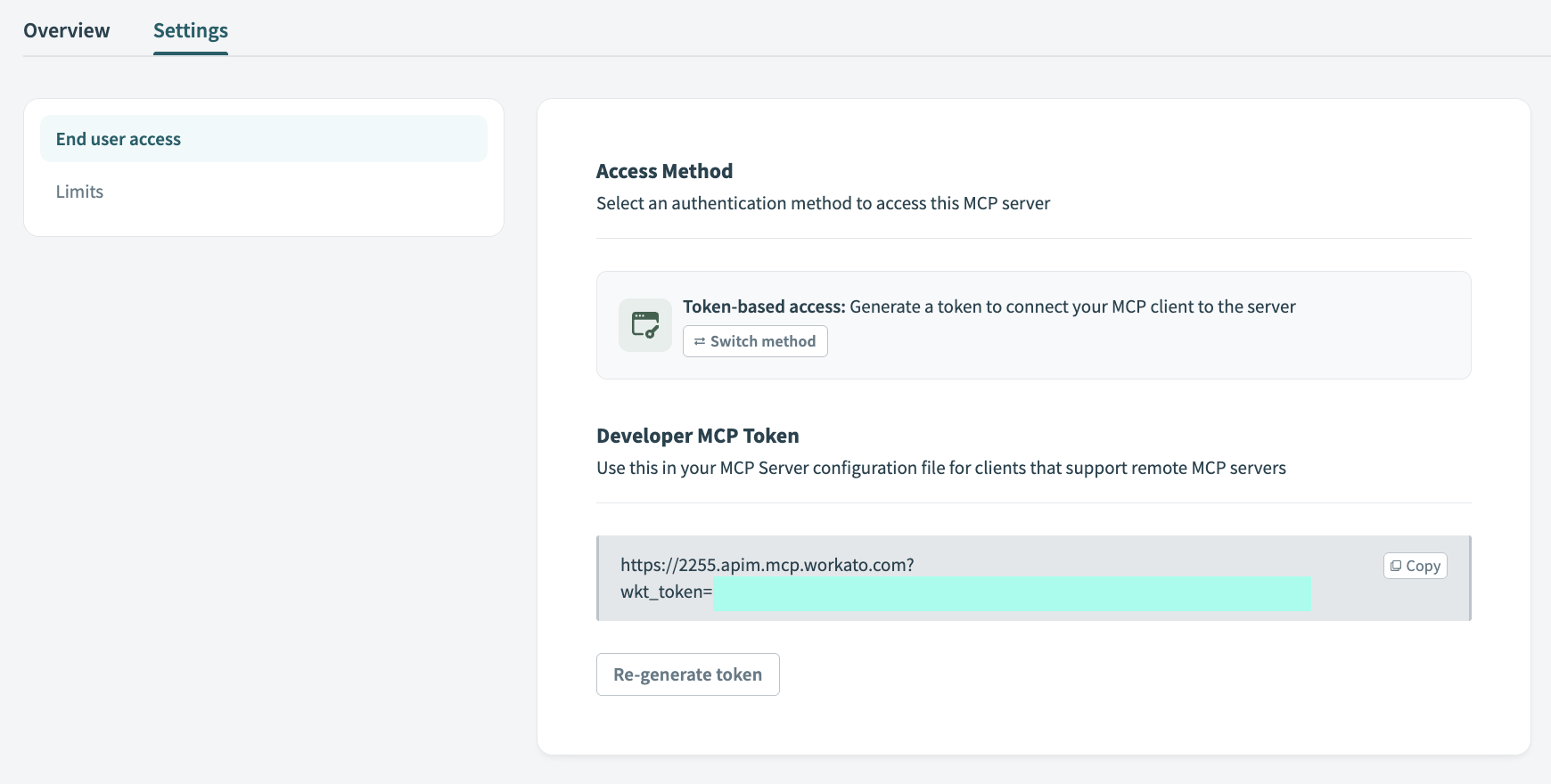 Copy the MCP URL
View MCP server logs
MCP server logs are stored in the Workato Logging Service. Logs include the request IP address, the ID of the user who made the request, and the MCP server creation timestamp.
Complete the following steps to access your MCP server logs:
Sign in to Workato.
Go to Tools > Logs.
Click the Log type filter, select MCP server, and click Apply to display only MCP server logs.
Limits
You can add custom rate limits, usage quotas, and IP restrictions to your MCP server.
Rate limits control how quickly requests can be made, acting as a throttling mechanism to prevent bursts of traffic. For example:
Hourly throttling
- Time interval:
1 hour - Tool calls:
5,000 - Result: The MCP server accepts up to 5,000 tool calls per hour across all users. This prevents sudden spikes that could overwhelm your backend systems.
Usage quota controls the total cumulative consumption over a period of time, restricting the capacity limit to manage overall resource consumption. For example:
Monthly usage quota
- Time interval:
1 month - Tool calls:
1,000,000 - Result: Your MCP server has a monthly usage quota of 1 million tool calls. All requests are blocked until the monthly quota resets after this limit is reached.
Configure MCP server limits
Complete the following steps to add rate limiting, usage quotas, and IP restrictions to your MCP server:
Sign in to Workato.
Go to AI Hub and click the MCP Servers tab. A list of your existing MCP servers displays.
Select the MCP server where you plan to add limits. The MCP server Overview tab displays by default.
Click the Settings tab.
Click Limits in the sidebar.
Go to the Rate limit section and use the Time interval drop-down menu to specify the throttle limit for everyone using this MCP server.
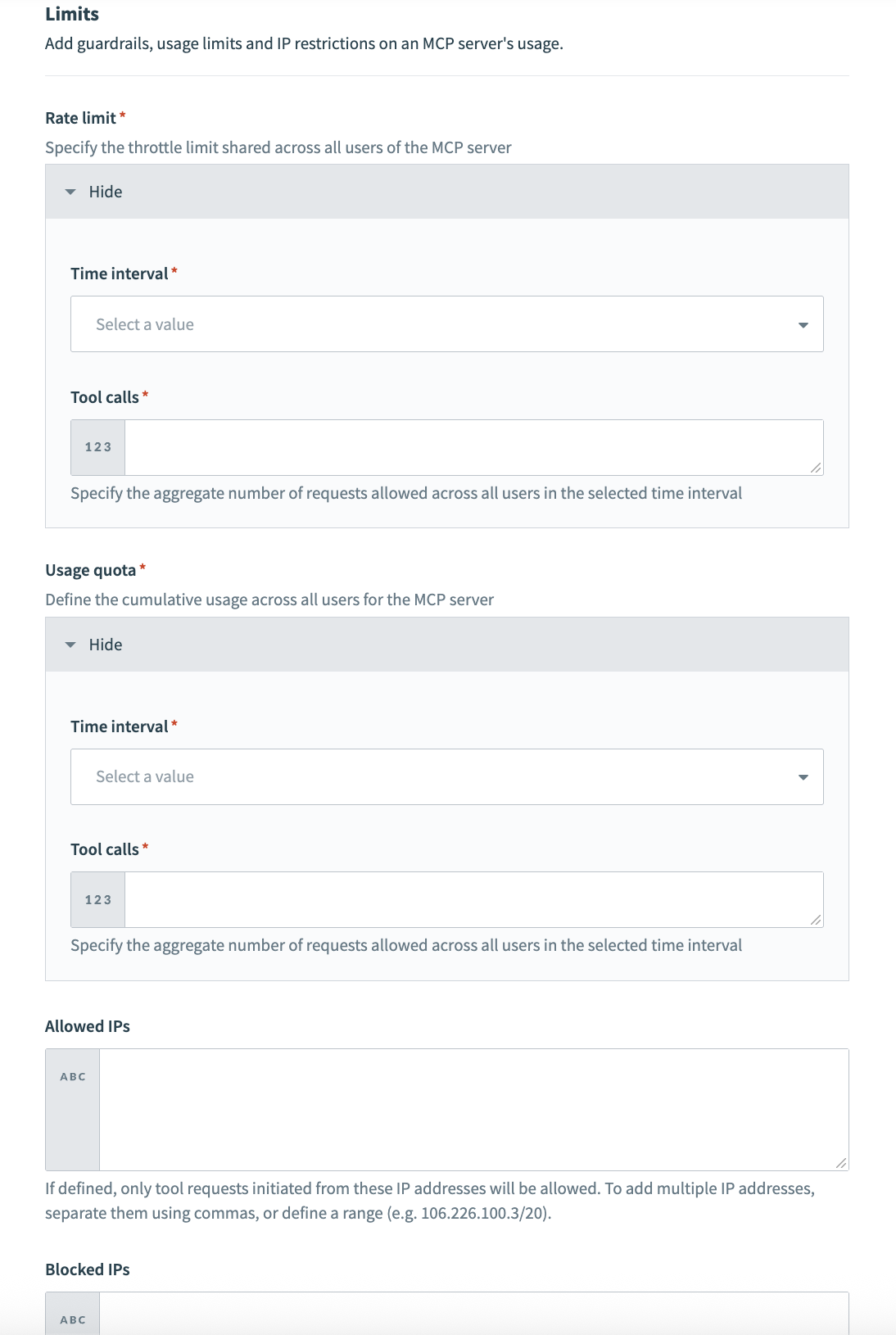 MCP server limits
Enter a value in the Rate limit section Tool calls field to specify the aggregate number of requests allowed for all users in the selected time interval.
Go to the Usage quota section and use the Time interval drop-down menu to specify the cumulative usage limit for everyone using this MCP server.
Enter a value in the Usage quota section Tool calls field to specify the aggregate number of requests allowed for all users in the selected time interval.
Optional. Go to the Allowed IPs field and add the IP addresses you plan to provide with access to the MCP server. Separate multiple IP addresses with commas. Only tool requests initiated from these IP addresses are allowed.
Optional. Go to the Blocked IPs field and add the IP addresses that you plan to block from using the MCP server. Blocked IP addresses take precedence over allowed IP addresses.
Click Save.
Custom domains
Workato MCP servers don't support custom API platform domains. You must use the default Workato domain format for all MCP server URLs.
Examples:
- ✅ Supported:
app.workato.com/mcp - ❌ Not supported:
https://it-api.people.ai/mcp
You can access Developer API endpoints through a custom domain, such as https://it-api.people.ai when calling them directly. However, MCP server integrations require the Workato default domain shown in AI Hub > MCP servers > User access.
Last updated: