MCP server access and configuration
Use the following sections to access and configure your MCP servers:
Access MCP servers
You can access and manage your MCP servers and retrieve your MCP URL in the AI Hub. You must authenticate your account to access MCP servers. Refer to MCP access methods for more information.
Complete the following steps to access your MCP servers:
Sign in to your Workato account.
Go to AI Hub > Enterprise MCP > Custom servers. A list of your existing MCP servers displays.
Click the MCP server card you plan to view. The MCP server displays the following information:
- Description
- Installation link
- Tools available on the MCP server, such as
Tasks CreateandCRM Get Company Properties - The MCP remote URL
Optional. Click the Dashboard tab to view the dashboard for this MCP server.
Optional. Click the Settings tab to view access method information and the Developer MCP Token section.
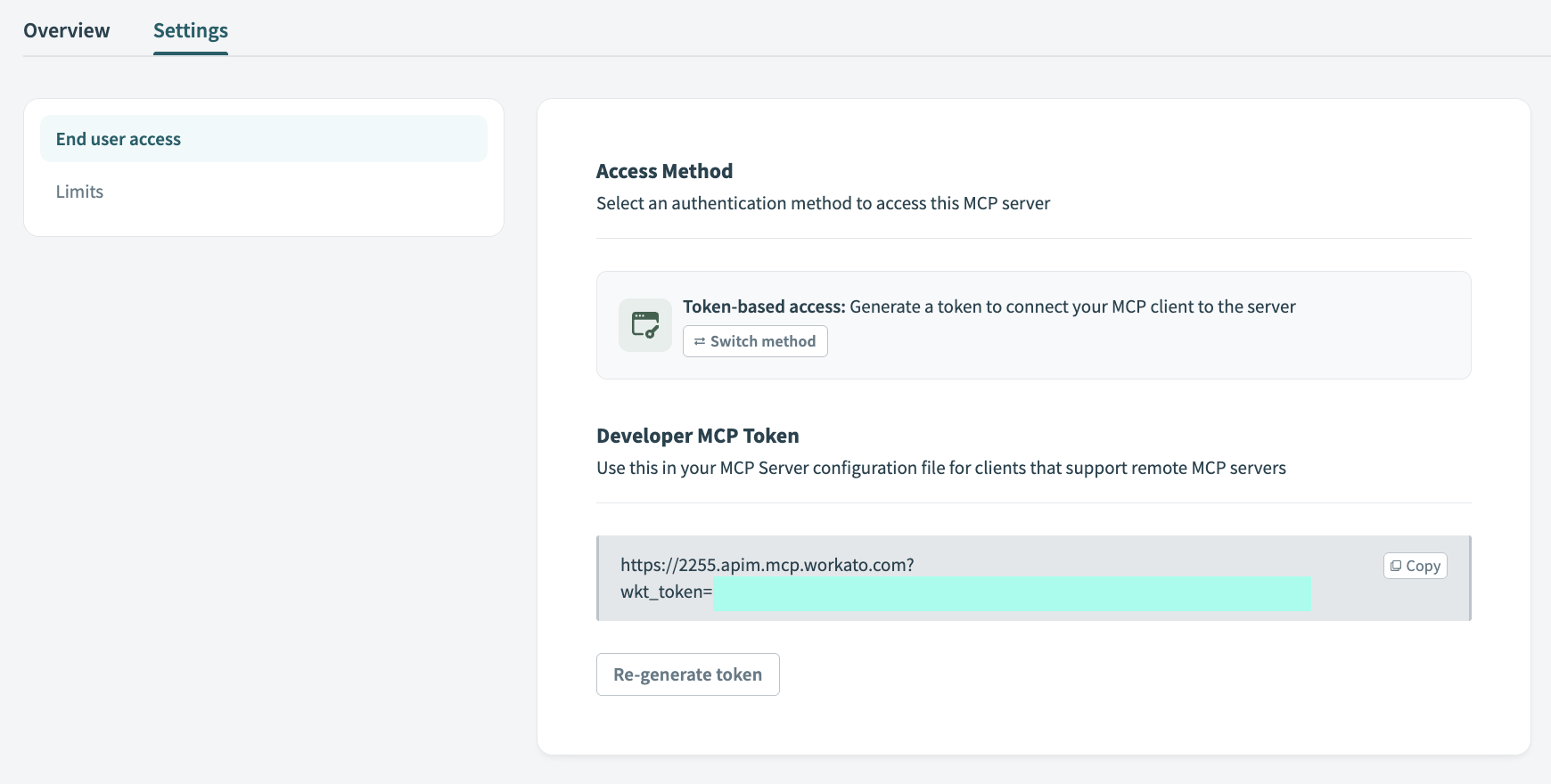 Copy the MCP URL
MCP server-level dashboards
Each MCP server has its own dashboard. Metrics on the dashboard are limited to the MCP server you select. Refer to the MCP servers dashboard if you plan to view metrics for all MCP servers.
Dashboard metrics help you understand how effectively your MCP server is performing, whether tools are being used as expected, and how users are engaging with them. This enables you to monitor the MCP server at a granular level so that degraded server health and errors don't go undetected. You can review key performance information, including Overview metrics, Tool calls metrics, and Estimated token usage metrics.
View an MCP server-level dashboard
Complete the following steps to access an MCP server-level dashboard:
Sign in to your Workato account.
Go to AI Hub > Enterprise MCP.
Click the MCP server card you plan to view.
Select the Dashboard tab.
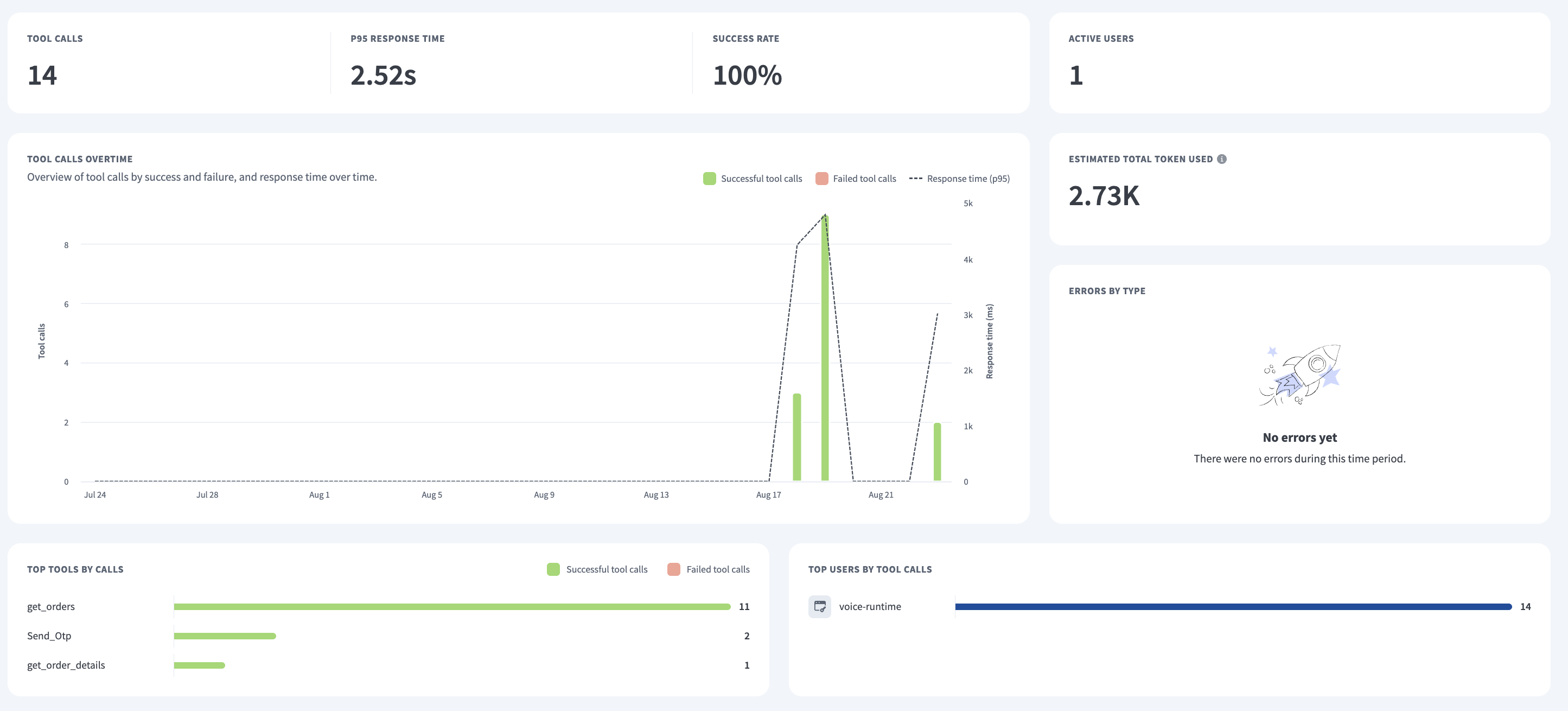 MCP server-level dashboard
View MCP server logs
MCP server logs are stored in the Workato Logging Service. Logs include the request IP address, the ID of the user who made the request, and the MCP server creation timestamp.
Complete the following steps to access your MCP server logs:
Sign in to Workato.
Go to Tools > Logs.
Click the Log type filter, select MCP server, and click Apply to display only MCP server logs.
Quotas
No rate limits or usage quotas are enforced on requests to your MCP server by default. You can add custom rate limits, usage quotas, and IP restrictions to your MCP server.
Rate limits cap how quickly requests can be made, acting as a throttling mechanism to prevent bursts of traffic. For example:
Hourly throttling
- Time interval:
1 hour - Tool calls:
5,000 - Result: The MCP server accepts up to 5,000 tool calls per hour across all users. This prevents sudden spikes that could overwhelm your backend systems.
Usage quota controls the total cumulative consumption over a period of time, restricting the capacity quota to manage overall resource consumption. For example:
Monthly usage quota
- Time interval:
1 month - Tool calls:
1,000,000 - Result: Your MCP server has a monthly usage quota of 1 million tool calls. All requests are blocked until the monthly quota resets.
Platform quotas. The following quotas apply to every MCP server and can't be changed from the MCP server settings:
| Description | Quota | Notes |
|---|---|---|
| Maximum number of access tokens created for a single MCP Server (API key) | 50 | NA |
| Maximum entries per IP allowlist or blocklist | 500 | Applies to the allowed-IP and blocked-IP lists independently. |
| Rate limit for refreshing the tool list from an upstream MCP server | 1 request per 60 seconds | NA |
| Synchronous tool-execution timeout. After this window elapses, the call detaches and continues in the background. | 30 seconds | Not configurable. |
| Total tool-execution timeout, including any background continuation after the synchronous phase. | 300 seconds | Set in the recipe settings. Requests that exceed this timeout don't return a response to the MCP client. |
Dynamic client registration (DCR) quotas. Dynamic client registration (DCR) requests, made by MCP clients to register with the Workato MCP server, are subject to the following rate quotas:
| Description | Quota |
|---|---|
| Hourly rate limit for DCR requests per workspace in the US Data Center | 100,000 requests per hour |
| Daily rate limit for DCR requests per workspace in the US Data Center | 400,000 requests per day |
| Weekly rate limit for DCR requests per workspace in the US Data Center | 500,000 requests per week |
Configure MCP server quotas
Complete the following steps to add rate limiting, usage quotas, and IP restrictions to your MCP server:
Sign in to Workato.
Go to AI Hub > Enterprise MCP > Custom servers. A list of your existing MCP servers displays.
Select the MCP server where you plan to add quotas.
Click the Settings tab.
Click Limits in the sidebar.
Go to the Rate limit section and use the Time interval drop-down menu to specify the throttle quota for everyone using this MCP server.
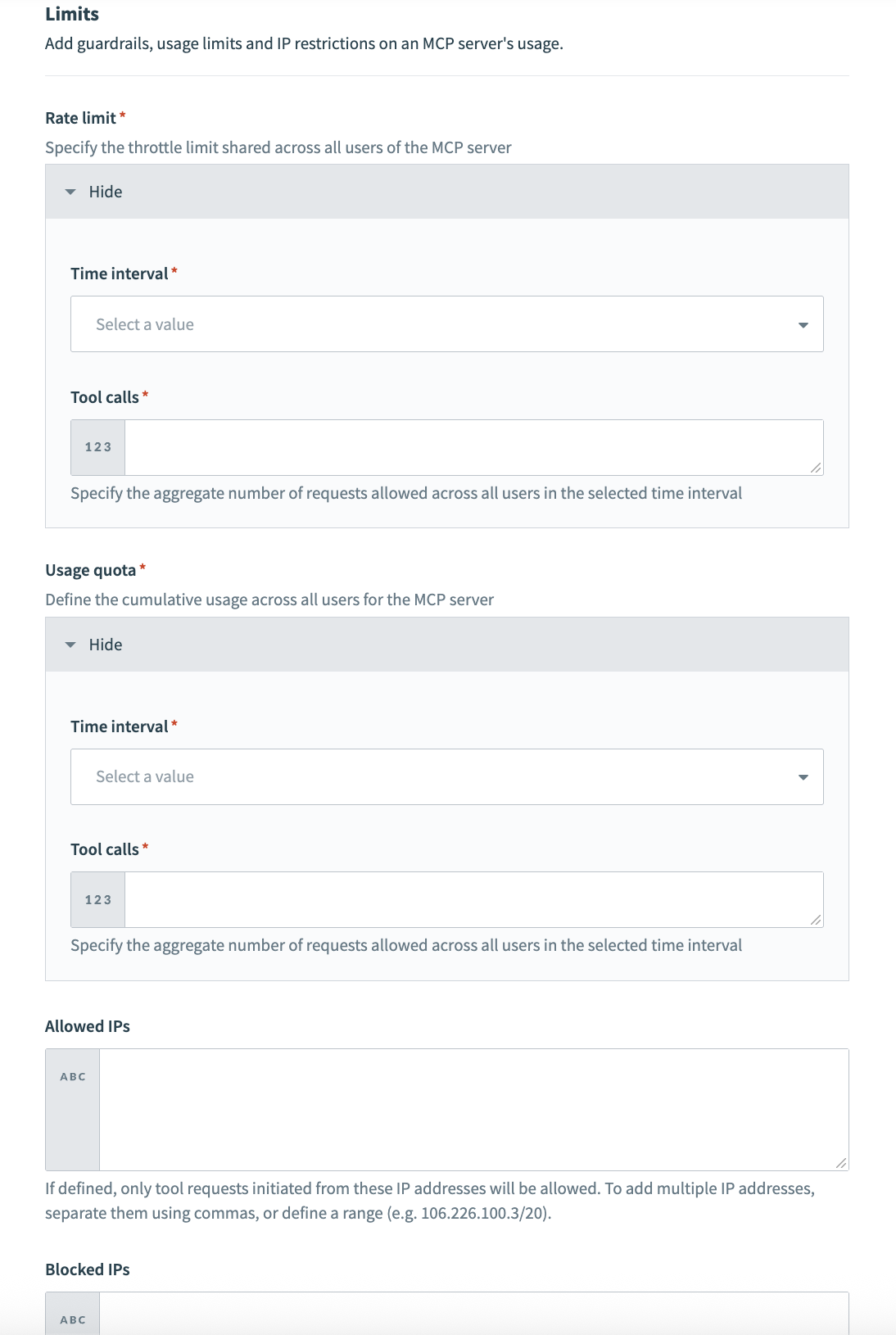 MCP server limits
Enter a value in the Rate limit section Tool calls field to specify the aggregate number of requests allowed for all users in the selected time interval.
Go to the Usage limit section and use the Time interval drop-down menu to specify the cumulative usage quota for everyone using this MCP server.
Enter a value in the Usage limit section Tool calls field to specify the aggregate number of requests allowed for all users in the selected time interval.
Optional. Go to the Allowed IPs field and add the IP addresses you plan to provide with access to the MCP server. Separate multiple IP addresses with commas. Only tool requests initiated from these IP addresses are allowed. Each list holds up to 500 entries, and the same quota applies to the Blocked IPs list.
Optional. Go to the Blocked IPs field and add the IP addresses that you plan to block from using the MCP server. Blocked IP addresses take precedence over allowed IP addresses.
Click Save.
Custom domains
Workato MCP servers don't support custom API platform domains. You must use the default Workato domain format for all MCP server URLs.
Examples:
- ✅ Supported:
app.workato.com/mcp - ❌ Not supported:
https://it-api.people.ai/mcp
You can access Developer API endpoints through a custom domain, such as https://it-api.people.ai when calling them directly. However, MCP server integrations require the Workato default domain shown on the Details tab of your MCP server. Go to AI Hub > Enterprise MCP > Custom servers and select the MCP server.
Last updated: