# Salesforce - New Outbound message trigger (real-time)
This trigger monitors Salesforce in real-time for new Outbound messages.
RECOMMENDED FOR SALESFORCE FLOWS
Workato recommends this trigger for complex Salesforce flows. This trigger allows for flexibility and control of the Outbound Messages sent to Workato and can easily incorporate into the design of pre-existing workflow automations.
# Prerequisites
You must configure a new outbound message in Salesforce before you can use this trigger. Select any fields you plan to use in your recipe during the configuration of the Outbound Message. You are likely to encounter runtime errors if you select a field in Workato but not in the configuration of the Outbound Message. Refer to the Outbound messages section for more information.
# Always on
The New Outbound message trigger works similarly to a webhook trigger. Ensure that the recipe is always turned on when you expect to receive events, as this trigger doesn't guarantee delivery through backup polling. The recipe cannot receive events when it is stopped. It may miss events if the recipe is stopped for more than 24 hours.
# Outbound messages
Salesforce automatically attempts to re-send failed outbound messages for up to 24 hours after the failure. The retries occur at exponentially increasing intervals, with a maximum delay of 2 hours between attempts. Refer to the Salesforce Outbound Message Actions (opens new window) documentation for more information.
AUDIT TRAILS
You can't build an audit trail using outbound messages. While each message typically delivers at least once, they can also deliver more than once.
Additionally, messages might not deliver if delivery cannot be done within 24 hours. The source object can also change after a notification is sent but before it is delivered. In this case, the endpoint only receives the latest data, not any intermediate changes.
Complete the following steps to view existing outbound messages in the Salesforce user interface:
Go to Setup.
Search for and select Outbound Messages in the Quick Find box.
Complete one of the following actions:
- Click New Outbound Message to define a new outbound message.
- Click View Message Delivery Status to track the status of an outbound message.
- Select an existing outbound message to view details about it or view workflow rules and approval processes that use it.
# Input
| Input fields | Description |
|---|---|
| Object | Select the Salesforce object the flow applies to. |
| Outbound message name | Enter a unique outbound message name. Workato generates an endpoint URL in the collapsible HELP section based on the Object you select and Outbound message name you enter. Use this endpoint URL to set up the Salesforce outbound message. |
| Fields to send | Select fields to retrieve from the outbound message. |
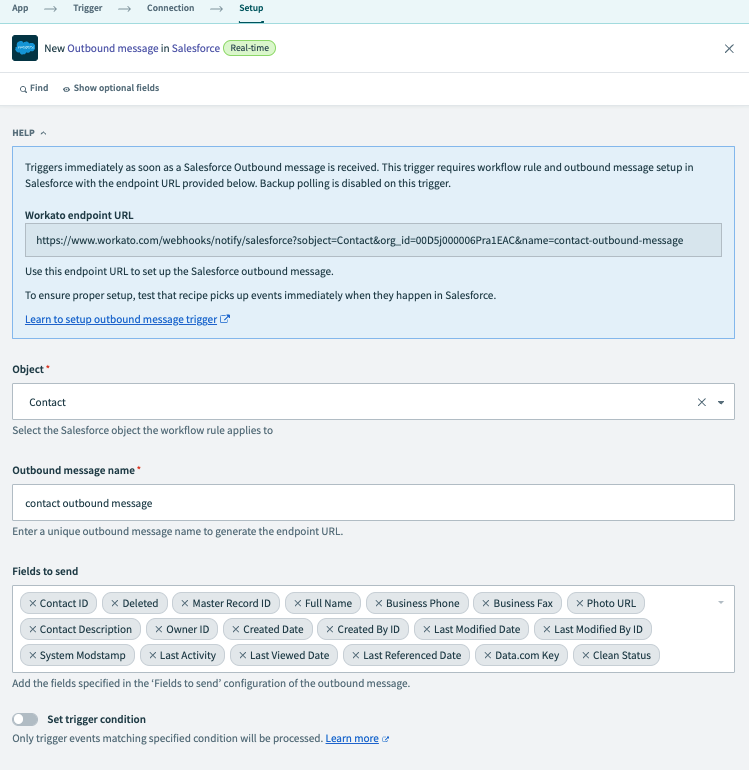 Outbound message in Workato setup
# Output
| Output fields | Description |
|---|---|
| Outbound message ID | The Salesforce ID of the outbound message. |
Additional outputs load dynamically based on your selected Object. Refer to Salesforce's Overview of Salesforce Objects and Fields (opens new window) guide for more information on available objects and fields.
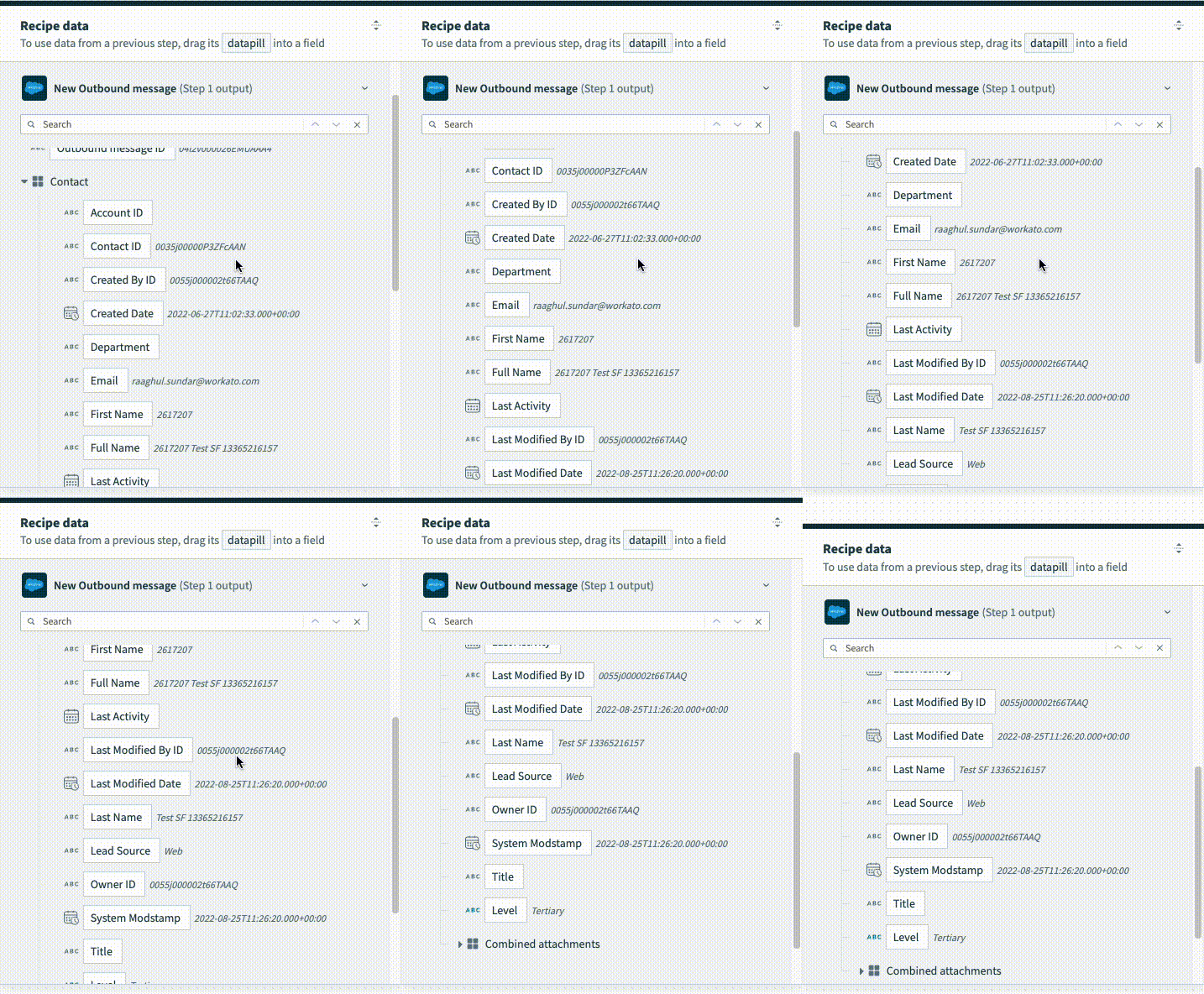 New Outbound message final output
Last updated: 1/15/2026, 9:39:15 PM