App Events conversations
App Events provides two modes. Continue Conversation mode lets users resume a conversation thread with a genie and New Conversation mode lets users start a fresh conversation with a genie.
Continue conversation
Continue conversation enables users to receive the new event information in the same thread where they originally interacted with the genie to maintain full conversational context. You must map the Conversation ID to a Data table with a skill that then passes the Conversation ID back to the genie to use this mode.
Use Continue conversation when:
- The event updates an item a user initiated through the genie, such as a ticket they created or a request they submitted.
- A user expects to receive updates in the same conversation window or thread where they started the interaction.
- Conversational context from the original session is relevant to how the user responds to the update.
Continue conversation with Conversation ID mapping
Create a Data table to store conversation IDs.
Create a Data table to store conversation IDs
This step creates a Data table to persist the genie's conversation ID against the third-party app identifier, such as a Jira ticket ID or a Telegram message ID. This allows the genie to retain context across multiple messages related to the event.
Go to the project where you plan to store your data table and click Create > Data table or press C+T.
Enter a name for your Data table in the Table name field.
Use the Location drop-down menu to select the project to store your Data table.
Click Start building.
Add a column with a label to store the external business ID. For example: telegram-id
Add a second column with the label genie-conversation-id to store the genie's conversation ID.
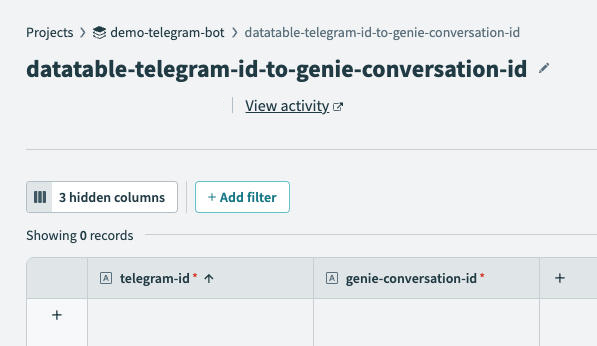 Add columns to your data table
Add a third column with the label email for the requester's email address.
Add a fourth column with the label Created at for the timestamp of the beginning of the conversation.
Click Save.
Add the Conversation ID to the recipe.
Add the Conversation ID to the recipe
This step adds a Workato Data tables Search records action that allows the recipe to refer to the Data table to determine if the external business ID, such as Telegram or Jira has a corresponding Conversation ID in the data table. An existing Conversation ID indicates that there's a previous conversation which the genie can refer to.
Return to the recipe editor and click + Add step.
Select Action in app, search for Workato Data Tables, and select it as your app.
Select the Search records action.
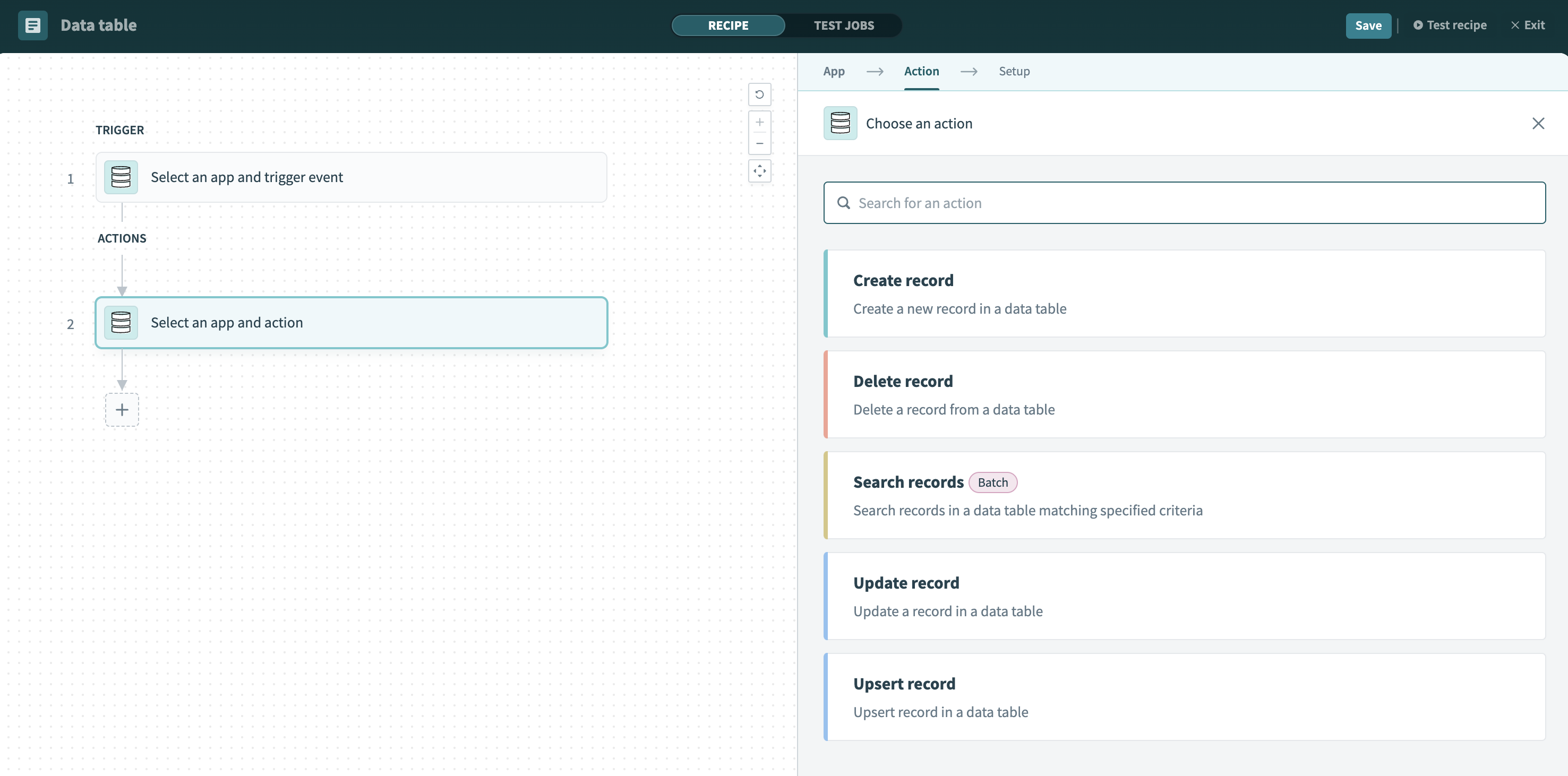 Select the Search records action
Use the Data table drop-down menu to select your newly created data table.
Go to the Filter section and click Add filter.
Use the Column name drop-down menu to select external business ID you configured in the preceding steps.
Use the Operand drop-down menu to select equals.
Map the IDStep 1 datapill to the Value field.
Click + Add step in the recipe editor.
Select Action in app, search for Workato Data Tables, and select it as your app.
Select the Upsert record action.
Use the Data table drop-down menu to select the data table you created in the preceding steps.
Use the Primary key drop-down menu to select the ID you configured in the preceding steps.
Go to the Record fields section and map the IDStep 1 datapill to the ID field you created in the preceding steps.
Map the Workato Genie Conversation IDStep 3 datapill to the genie-conversation-id field.
Click Save.
NO MATCHING CONVERSATION ID FOUND
Workato recommends that you design your recipe to either fall back to New Conversation mode or log and skip if no matching Conversation ID is found.
New conversation
New conversation starts a fresh genie conversation with a user receiving a new message in their chat interface with no prior context.
Use New conversation when:
- The event doesn't have a prior genie conversation associated with it.
- A user needs to be informed of an event that happened entirely outside of any prior interaction.
- The genie needs to initiate a new task with the user from scratch.
Last updated: