How License Genie works
This page explains how the License Genie approval and downgrade processes work, and describes the project's folder structure.
How approvals work
The scheduler creates entries in the License Optimization Events data table (in Runtime Data) on a cadence you configure. The approval workflow triggers for each new entry. The workflow includes two skills: single user approval for individual requests, and bulk approval for processing multiple escalated requests at once. Both skills require explicit user confirmation before License Genie can take any action.
 License Genie approval workflow
Single user approval
Single user approval handles a license optimization request for an individual user:
- Approving reclaims the license.
- Rejecting escalates the request to their manager, if manager approval is enabled; otherwise it escalates to an admin.
- If both manager and admin approval are disabled, the user's decision is final.
If user approval is disabled entirely, License Genie skips this step and applies the configured default action.
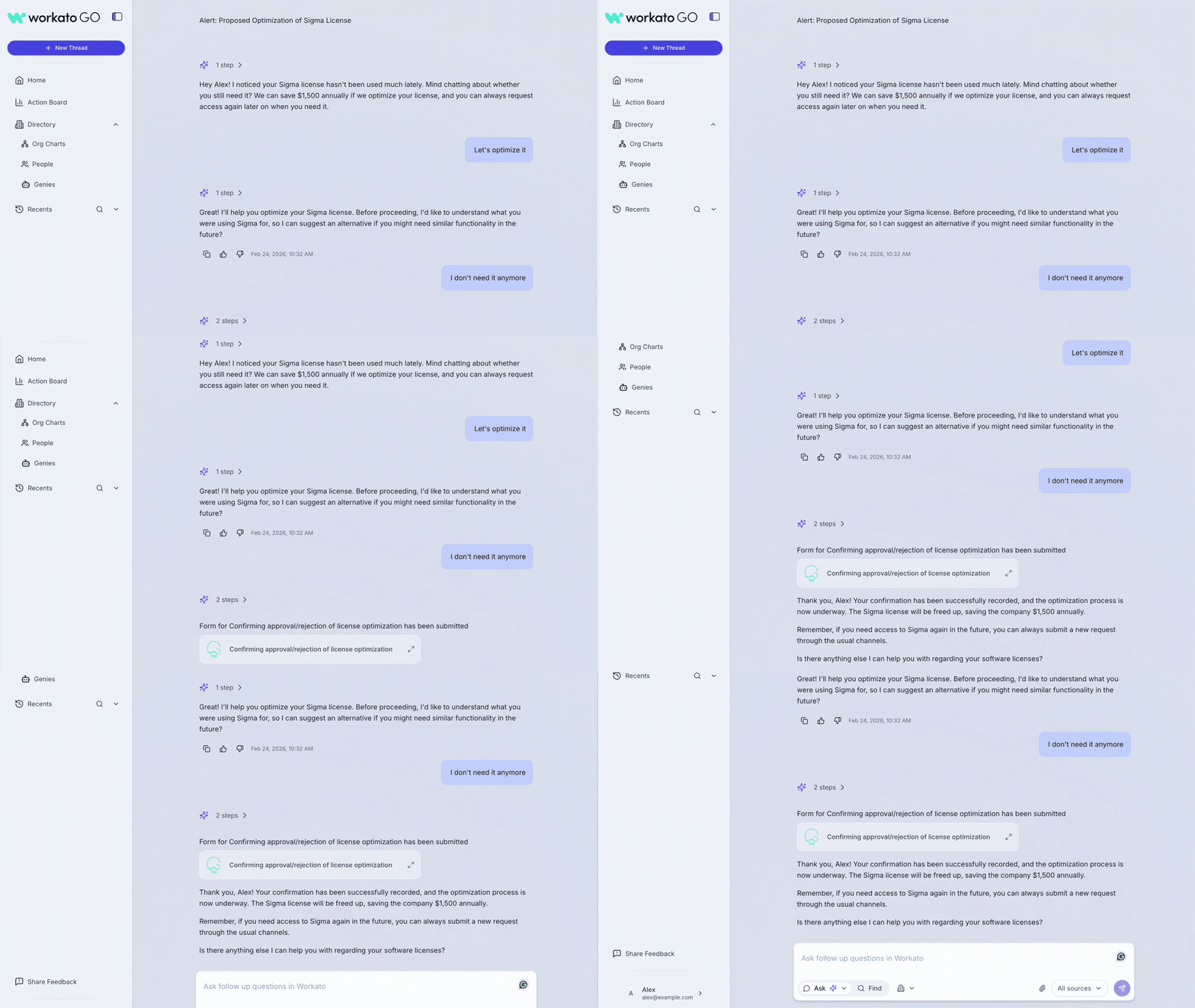 Approving a license optimization request
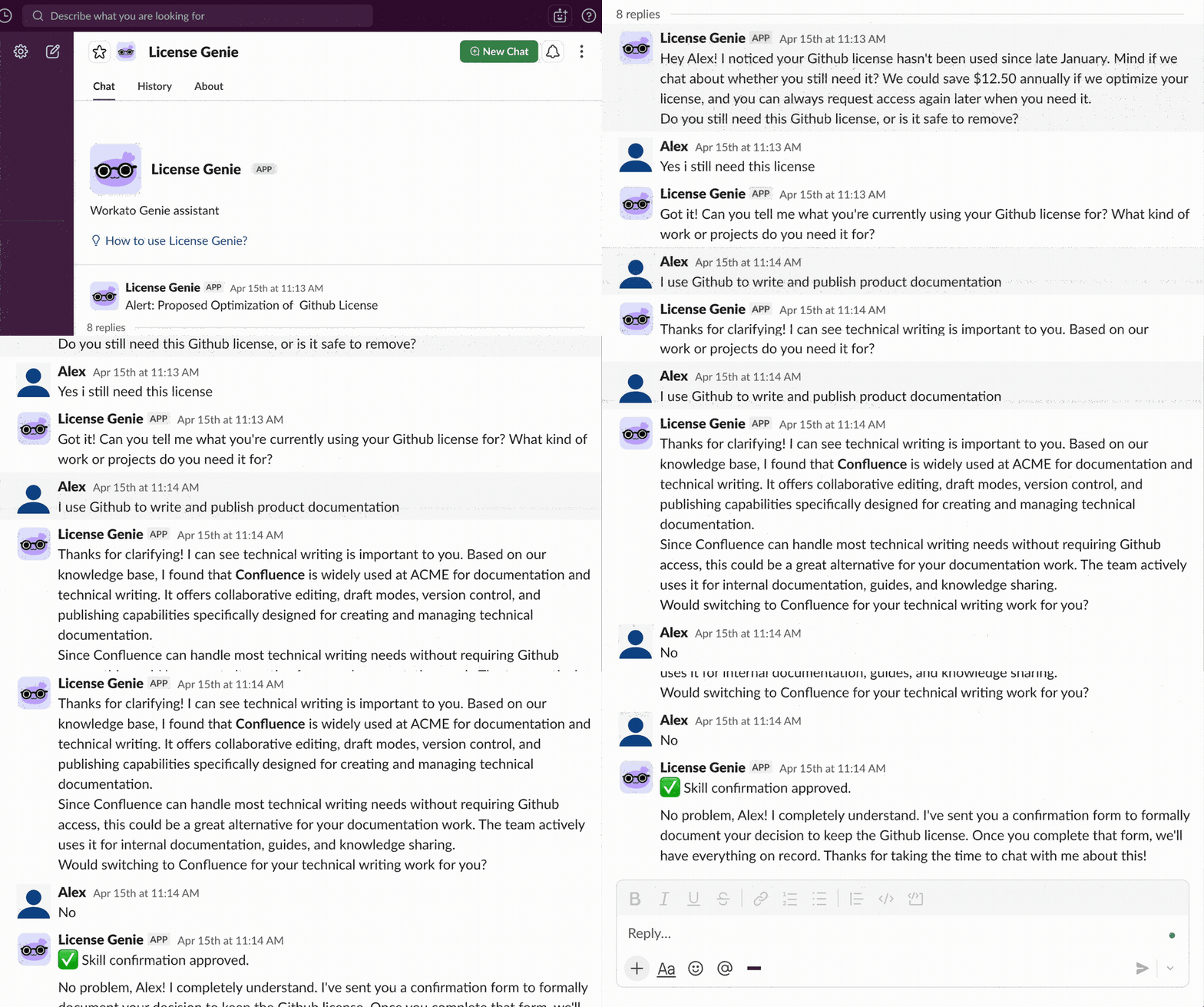 Rejecting a license optimization request
Bulk approval
Bulk approval lets managers or admins handle all escalated requests in a single interaction rather than one at a time. A manager receives all pending approvals for their direct reports at once.
Both skills use the License Optimization Approvals data table (in Runtime Data) as a shared audit trail, tracking status, assignee, event ID, and rejection reasons across every decision.
How downgrades work
The downgrade process follows four stages: detection, recommendation, approval, and execution.
Detection
License Genie periodically analyzes usage data for licensed users in an application. It compares each user's activity against their current license tier to identify users who aren't using their full license.
Recommendation
License Genie evaluates each detected user against the Application License Inventory and License Optimization Events data tables, which together provide available tiers, their hierarchy, and SSO group IDs. License Genie produces a list of eligible downgrade options for each user, showing the tiers available below the one currently assigned to them. FUNC | License Downgrade Recommendation Engine determines the appropriate target tier based on the configured hierarchy and rank.
Approval
Each recommendation enters the approval workflow described in How approvals work. Execution begins after an approver confirms the downgrade.
Execution
After approval, License Genie updates the user's license assignment by modifying their SSO group membership. It removes the user from the current tier group and adds them to the approved target tier group. Both group IDs are sourced from the Application License Inventory and License Optimization Events data tables. For apps that support provisioning through their own API without SSO, License Genie uses that path instead.
Folder structure
The License Genie project is organized into the following top-level folders:
- Config: Connections and metadata required to run License Genie.
- Core: Foundational skills maintained by Workato. You can't modify or clone these skills.
- Extensions: Additional app skills and functions maintained by Workato and updated during release cycles. You can use these as-is or as a reference when you build custom integrations.
- Custom Extensions: Custom assets that you maintain. Clone Extension assets into this folder before you modify them. Assets in this folder remain intact across upgrades.
- Runtime Data: Data tables that store the data License Genie generates during runtime.
View folder structure
Agentic | License Genie
├── Config
│   ├── Connections
│   └── Metadata
├── Core
│   ├── Approval Workflow
│   │   └── Functions
│   ├── Apps to Optimize
│   │   ├── Gong
│   │   ├── Microsoft Entra ID
│   │   ├── Okta
│   │   ├── Salesforce
│   │   └── Zoom
│   ├── Functions
│   ├── Reports
│   ├── Scheduler
│   ├── User Feedback
│   └── User Memory
├── Custom Extensions
│   └── Apps to Optimize
│       └── [App Name]
├── Extensions
│   ├── App Events
│   ├── Apps to Optimize
│   │   ├── Concur
│   │   ├── Coupa
│   │   ├── Manual
│   │   └── Outreach
│   ├── Contract License Data
│   ├── Entra ID License Data
│   ├── Functions
│   ├── Knowledge Ingestion
│   └── Salesforce License Data
└── Runtime Data
Working with Extensions and Custom Extensions
You can activate Extension skills and add them to License Genie as-is. You can also clone them into Custom Extensions to customize them or build support for apps that aren't available in the Extensions folder.
Customizations in Custom Extensions are isolated from platform updates and remain intact across upgrades. You can't clone or modify core skills.
Last updated: