Set up License Genie
Use this guide to install and configure License Genie in your workspace.
Prerequisites
Complete the following before beginning setup:
- Confirm that the Genie Installer is already installed in your workspace. Contact your Workato account team to complete this one-time setup if it isn’t already installed.
- Connect either Okta or Microsoft Entra ID as your identity provider; don't use both at once. Entra ID requires a P1 or P2 license.
- If you plan to enable manager approval, ensure each user's manager can be looked up in Okta, Microsoft Entra ID, or Workday.
- Gather license inventory data for each app, either as contract PDFs for automated extraction or for manual entry.
- For each license tier per app, identify the SSO group ID and define a rank order. License Genie uses this hierarchy to determine downgrade targets.
- Collect admin email addresses for each app you plan to optimize.
- Choose a notification channel for user-facing messages: Slack, Microsoft Teams, or Workato GO.
- Identify users to exclude from optimization runs, such as admins, executives, and key stakeholders.
Install License Genie
Complete the following steps to install the required packages for License Genie:
Go to Agentic | Installer > Templates > FUNC | [SAMPLE] 3. Install Genie Module.
Click Edit recipe, then do the following:
Refresh the recipe to load the latest available packages.
In Step 2, select the latest version of Agentic | License Genie from the Genie Module drop-down menu. Set Get Dependencies to false.
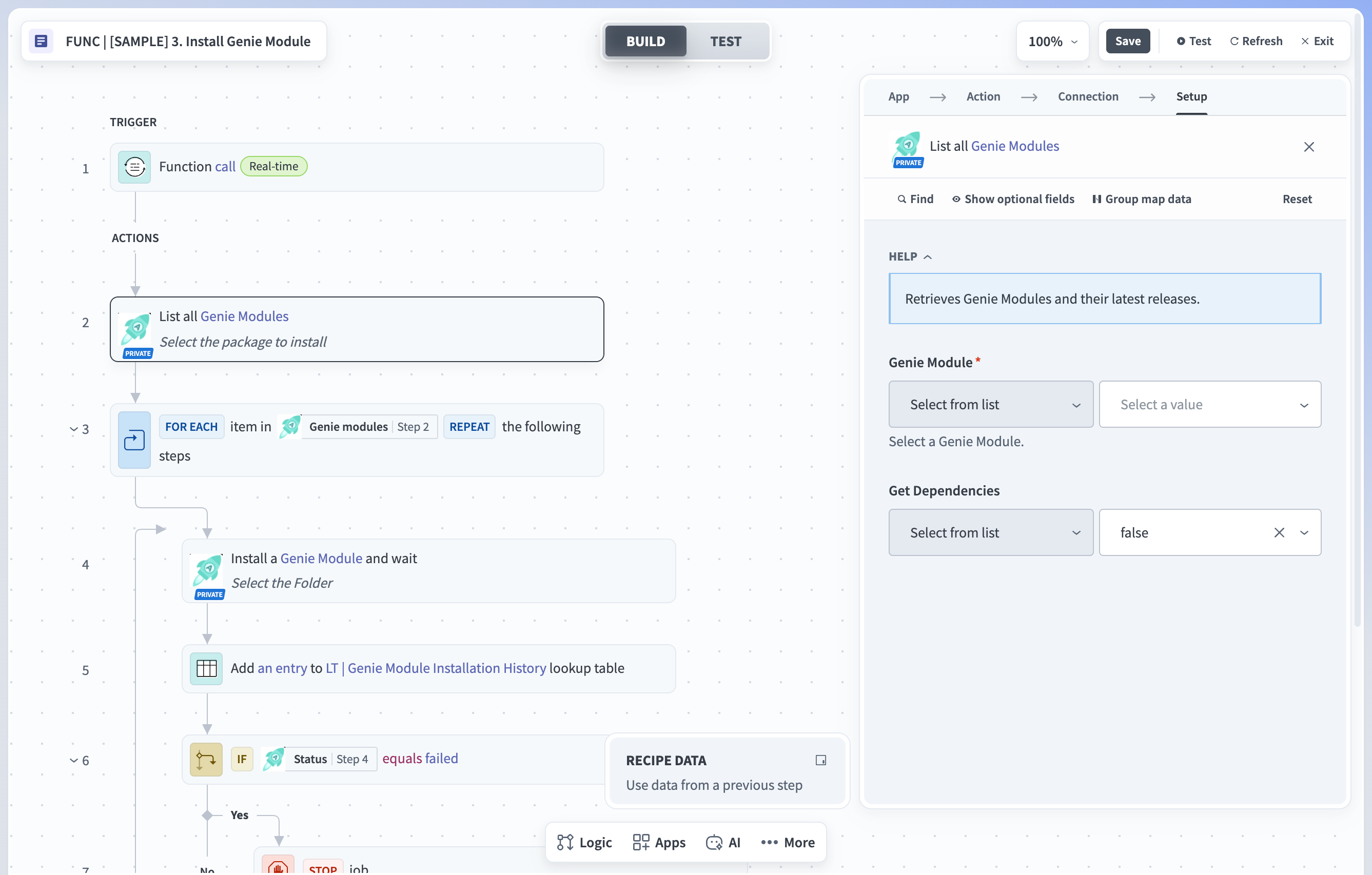 Select the latest version of the genie module
MODULE NOT VISIBLE
If Agentic | License Genie doesn't appear in the drop-down menu, your workspace may not have been granted access. Contact your Workato account team and repeat this step once access is confirmed.
In Step 4, set the Folder field based on your install type:
- Fresh install: Leave the field empty. If you see an x icon next to the Folder field, click it to clear the cached value before running the job.
- Upgrade: Select the existing Agentic | License Genie project. This preserves your existing configuration.
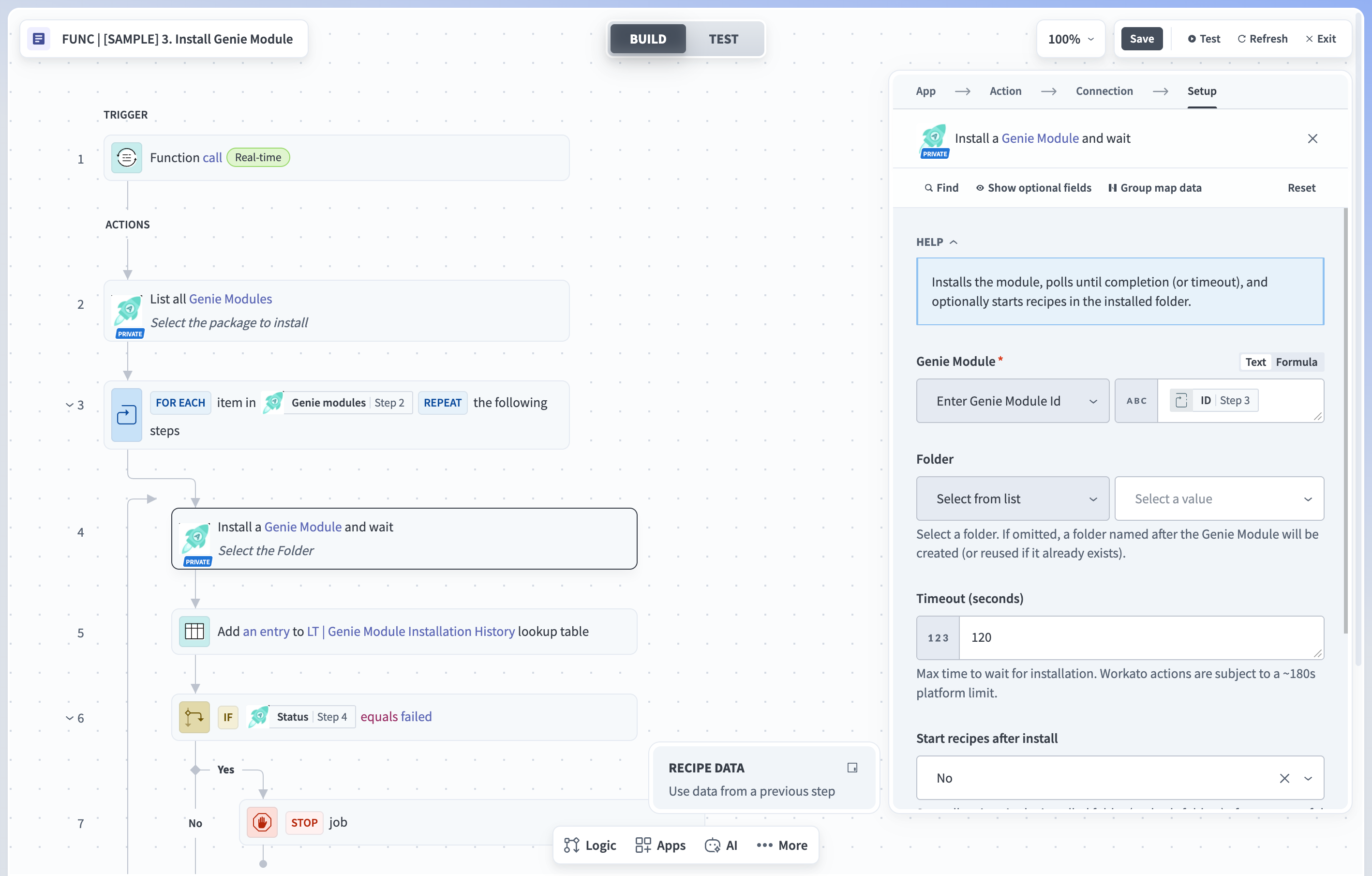 Select the folder to install License Genie
Click Test recipe and wait for it to complete. Confirm that the output of Step 4 in the recipe shows a success status.
Confirm that Agentic | License Genie now appears in your workspace's projects list.
Configure connections
Complete the following steps to configure connections:
Review the requirements for each app you plan to use and complete any that apply. Each app is labeled Core or Extensions to indicate where its skills live in the project. Only Core apps include downgrade logic.
Coupa (Extensions)
Follow the Coupa connector documentation and grant the following OAuth scopes:
Core.user.readCore.user.writeCore.expense.readOpenidProfileEmailcore.common.write
Gong (Core)
- Ensure that read/write scopes are added to your Gong permission profile.
- Open Gong, go to Admin Center > Provisioning, and confirm your identity provider (Okta or Microsoft Entra ID) is selected and groups are configured for your organization.
- Enable the following OAuth scopes:
api:stats:user-actionsapi:stats:interactionapi:logs:readapi:calls:read:basicapi:users:readapi:stats:scorecardsapi:permission-profile:readapi:stats:user-actions:detailedapi:settings:scorecards:readapi:workspaces:read
MANUAL EXECUTION REQUIRED
If your organization doesn't use Okta or Microsoft Entra ID, License Genie can recommend license downgrades but can't execute them. Downgrades must be completed manually in Gong, as Gong doesn't support provisioning through its API.
Microsoft Entra ID (Core)
- Requires a P1/P2 license.
- Enable Reports and Audit logs permissions in the Azure Portal.
- Audit log availability varies by license. Refer to the Microsoft data retention reference for more information.
Okta (Core)
- The OAuth client or API token must be created by a Super Administrator or Organization Administrator.
- Enable the following scopes if using OAuth:
okta.groups.readokta.groups.manageokta.users.readokta.apps.readokta.apps.manageokta.logs.read
Outreach (Extensions)
Follow the Outreach connector documentation and grant the following permissions:
users.allmailings.all
Salesforce (Core)
- Enable logging in Salesforce so that usage metrics are recorded. Grant the following permissions:
API EnabledView Event Log FilesView All UsersView Setup and Configuration
- Enable Event Monitoring. Go to Setup > Event Manager and enable both Streaming and Storage for the following event types:
LightningUriEventUriEventApiEventReportEvent
SAP Concur (Extensions)
Follow the SAP Concur connector documentation. No additional setup is required.
Workday
Follow the Workday connector documentation. Workday isn't an app to optimize. Connect it only if you selected Workday as your manager-lookup source in Prerequisites.
Zoom (Core)
- Enable the following granular OAuth scopes in your Zoom app:
report:read:list_users:adminreport:read:list_meeting_participants:adminuser:update:user:adminuser:read:user:admin
- The connected Zoom account must also have access to Usage Reports and User Management in its Zoom role settings.
Go to Agentic | License Genie > Config > Connections.
Set up a connection for each app you plan to use. In the Connections folder, each connection name starts with CON | LOPT (License Optimization) — configure the one for each app you use:
- CON | LOPT | Coupa
- CON | LOPT | Entra ID
- CON | LOPT | Gong
- CON | LOPT | License Genie Slack (connect to your Slack workspace when you set up the Slack chat interface)
- CON | LOPT | Okta
- CON | LOPT | Outreach
- CON | LOPT | Salesforce
- CON | LOPT | SAP Concur
- CON | LOPT | Workday
- CON | LOPT | Zoom
Configure metadata
Complete the following steps to configure the data tables License Genie uses to identify licenses and schedule optimization:
Go to Agentic | License Genie > Config > Metadata.
Edit the License Genie Scheduler data table.
| Column name | Description | Example |
|---|---|---|
| Data Source | Enter the SSO platform that provisions this app (Okta or Entra ID); use the same provider you connected as your identity provider. | Okta |
| App Name | Enter the name of the application to optimize. | Gong |
| Active | Set to TRUE to include the app in optimization runs. | TRUE |
| Scheduling Cycle | Set the number of days between optimization runs for this app. The first run starts on the day you create the entry, and subsequent runs occur at the specified interval. For example, enter 54 to run the optimization every 54 days. | 54 |
| Underutilization Criteria | Describe the conditions that indicate a user is underutilizing the application. Use a concrete metric and time window so the genie can evaluate it consistently. | No logins in the last 60 days |
| Admin Email/Channel ID | Enter the admin's email address or notification channel for this application. Separate multiple emails with commas. | [email protected] |
| Processing Type | Enter Auto for automatic (API-based) processing or Manual for manual (CSV upload) processing. | Auto |
| IsDowngrade | Set to TRUE to have License Genie identify downgrade opportunities for this app, or FALSE to skip downgrade detection. | TRUE |
| IsDeprovision | Set to TRUE to have License Genie identify deprovisioning opportunities for this app, or FALSE to skip deprovisioning detection. | TRUE |
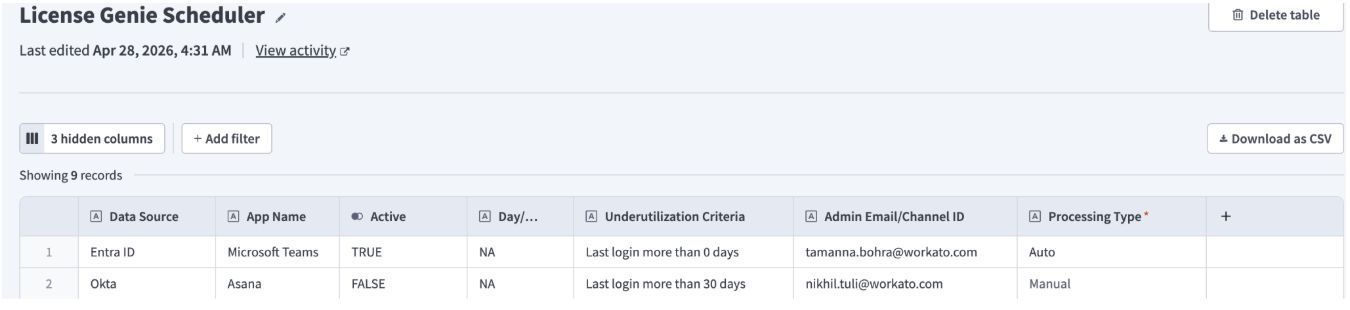 Configure the License Genie Scheduler data table
Edit the Application License Inventory data table. This table stores license details for each app and is used for downgrade recommendations.
If you're using the contract data extraction feature, the values in the first table below are populated automatically when you upload your contracts; configure only the values in the second table. If you're not using contract data extraction, configure all entries in both tables manually.
License and contract details:
| Column name | Description | Example |
|---|---|---|
| App Name | Enter the name of the application. Must match the name used by License Genie skills (Workato-built or custom). | Zoom |
| License Name | Enter the name of the license. | Zoom Basic |
| License Details | Enter additional details about the license. | Basic Zoom License Type 1 |
| Pricing Per Month | Enter the monthly price per user. | 0 |
| Pricing Details | Enter additional details about pricing. | Free Zoom License |
| Quantity | Enter the number of seats purchased under the license. | 1000 |
| Current Utilization | The number of seats currently in use. License Genie updates this automatically when it runs. | 100 |
| Start Date | Enter the contract start date. | 01/01/2026 |
| End Date | Enter the contract end date. | 12/31/2026 |
| isAdmin | Set to TRUE if this is an admin-level license. | FALSE |
SSO and ranking details (always configured manually):
| Column name | Description | Example |
|---|---|---|
| Data Source | Enter the provisioning or SSO app for the organization. Use the same value across all entries for a given app: Okta, Entra ID, or leave blank. | Okta |
| License Hierarchy/Rank | Assign a rank to each license tier. Rank 1 is the highest tier, typically the most expensive or feature-rich; lower-ranked tiers are downgrade targets. | 1 |
| SSO Group/App ID | Enter the SSO group ID for this license tier. Used for deprovisioning and downgrades. Each license tier should have its own SSO group so downgrades can be applied cleanly. | 00g1a2b3c4 |
CRITICAL COLUMNS
These three columns control how License Genie applies downgrades and deprovisioning. Verify each value carefully before saving an entry.
Optional. Edit the License Optimization Exclusion List data table to exclude specific users from optimization for an application.
| Column name | Description | Example |
|---|---|---|
| Application | Enter the name of the application this exclusion applies to. If SSO is used for optimization, use the format [SSO]|[App]. | Okta|Gong |
| Enter the email address of the user to exclude. | [email protected] | |
| Optimization Allowed | Set to FALSE to exclude this user from optimization for the specified application. | FALSE |
Go to Agentic | License Genie > Extensions > Entra ID License Data and start REC | Entra ID Service Plan Registry Sync if it isn't already started. This recipe populates the Entra ID Service Plan Registry table with SKU plan names and app name mappings. License Genie uses the table to identify which license to revoke during Entra ID optimization.
MICROSOFT ENTRA ID ONLY
This step is only required if you are using Microsoft Entra ID.
If you plan to use Salesforce for optimization, ensure your Salesforce connection is set up correctly first. Then go to Agentic | License Genie > Extensions > Salesforce License Data and activate REC | Salesforce License Permission Registry Sync to populate the Salesforce Permission Registry table. This step is required at least once for Salesforce optimization. Leave the recipe running if your Salesforce permissions change regularly. Otherwise, a single run is sufficient.
Configure project properties
Complete the following steps to configure project properties:
Go to Agentic | License Genie > Settings > Project properties.
Edit the following project properties:
| Property | Description |
|---|---|
| Approval.Admin.Enabled | Set to TRUE to enable admin approval or FALSE to disable it. |
| Approval.Manager.Enabled | Set to TRUE to enable manager approval or FALSE to disable it. |
| Approval.ReminderFrequency.Days | Set the number of days between approval reminder notifications. For example, 3. |
| Approval.TimedOutDefaultAction | Set the default action when all configured approvals time out. Accepts Approved or Rejected. |
| Approval.TimeOut.Days | Set the number of days after which the approval workflow times out. For example, 7. |
| Approval.User.Enabled | Set to TRUE to enable end user approval or FALSE to disable it. |
Go to Agentic | License Genie > Settings > Project access and add the collaborators that need access to this project. This should include admins and developers working on custom extensions. End users whose licenses are being optimized don't need project access.
Configure License Genie
Your project includes two genies: License Genie Slack, which has the Slack chat interface preselected, and License Genie, which lets you select any chat interface. Use License Genie Slack if Slack is your notification channel; use License Genie for Microsoft Teams or Workato GO.
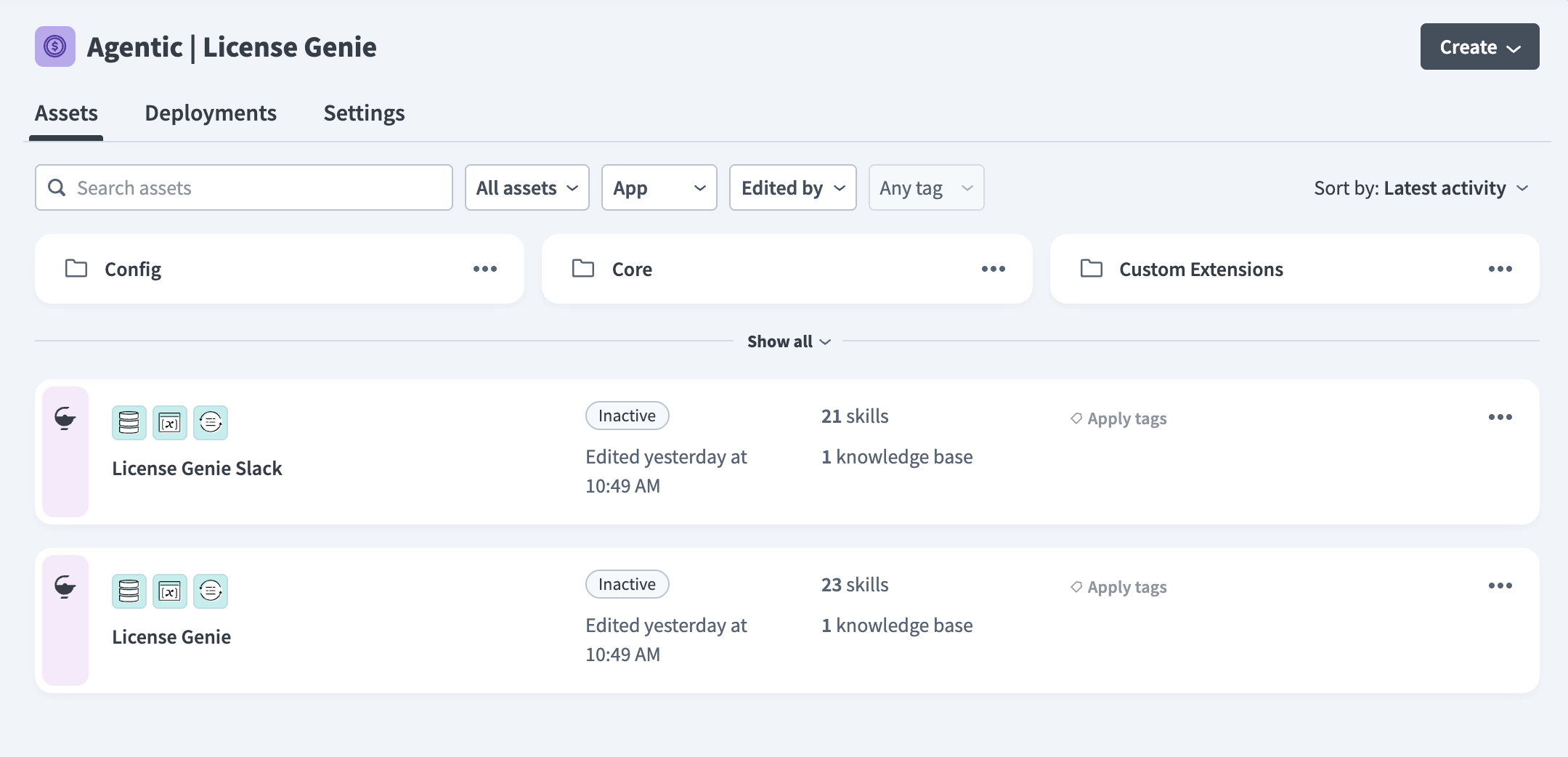 The two genies included in the License Genie project
Complete the following steps to configure License Genie:
Go to Agentic | License Genie, select the genie for your notification channel, and click Edit.
Select your AI model. If you chose the genie that allows any chat interface, also select a chat interface. Don't change the genie description.
If you chose the genie that allows any chat interface, update the notification trigger to point to it. Go to Agentic | License Genie > Extensions > App Events and edit FUNC | User Notification & Genie Trigger [App Event]. In the Step 2 setup, select License Genie (Agentic | License Genie) from the drop-down menu.
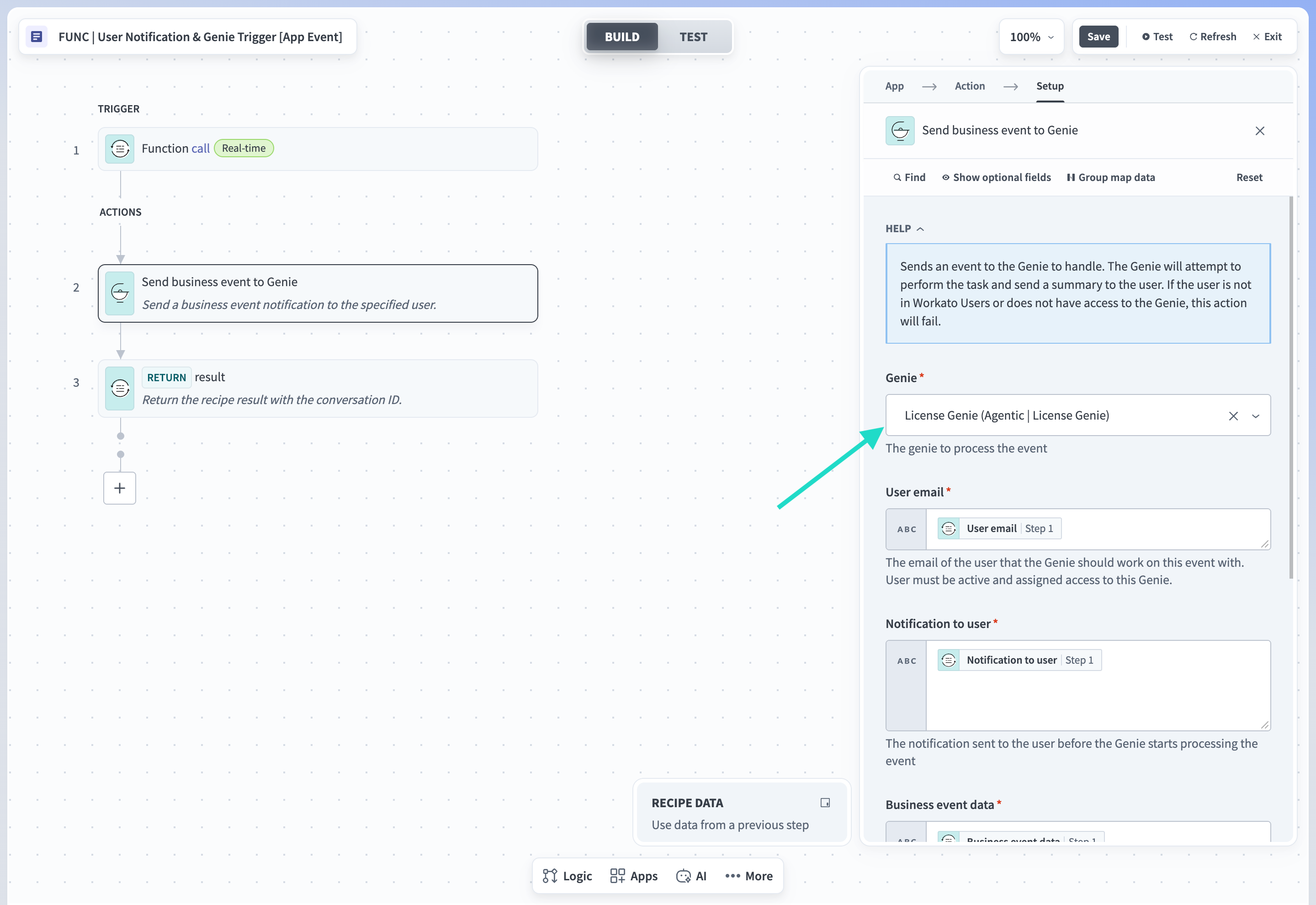 Select License Genie in the Step 2 Genie drop-down menu
CHECK THE SELECTED GENIE
This trigger is initially set to License Genie Slack (Agentic | License Genie). Make sure you select License Genie (Agentic | License Genie) instead. The two names are similar but are different genies.
If you chose the genie that allows any chat interface, also redirect its user-memory search. Go to Agentic | License Genie > Core > User Memory and edit Search User Memory. In Step 8, select License Genie (Agentic | License Genie) from the drop-down menu instead of License Genie Slack (Agentic | License Genie), which is selected by default.
Go to the Enterprise skills section and confirm the following skills are started. For any that aren't, click the skill name, then click Start recipe:
| Skill | Location |
|---|---|
| Request Bulk Approval for Escalated Requests | Core > Approval Workflow |
| Capture User Feedback | Core > User Feedback |
| Optimization Status Update | Extensions > Apps to Optimize > Manual |
| Request User Approval | Core > Approval Workflow |
| Review New User Identified for Optimization | Core > Reports |
| Get License Optimization Report | Core > Reports |
Activate any additional skills for the apps and capabilities you want this genie to use.
Go to Agentic | License Genie > Core.
Click the Assets filter, select Recipes, and start any recipes in the Core folder that aren't already started.
Return to Agentic | License Genie and select the genie you configured.
Click Start genie.
SETUP COMPLETE
License Genie is now configured. Use Activate and test to confirm it's working, or Extend License Genie to add more apps and build custom skills.
Extend License Genie
You can extend License Genie to optimize apps beyond the built-in set or to add usage data manually. This section is optional.
The Core folder holds the genie's optimization logic and is read-only. You extend the genie through the other two folders, without changing its default behavior. To add capabilities, use the Extensions folder to activate provided assets, such as additional apps and functions. To build new skills, use the Custom Extensions folder.
Extensions
Complete the steps that apply to activate additional apps and features:
Go to Agentic | License Genie > Extensions > Apps to Optimize to see the available apps, such as SAP Concur, Coupa, and Outreach. Each app's folder contains the skills and functions for optimizing that app. Set up the connection for any app you plan to use in Configure connections.
CORE SKILLS ONLY
Only skills in the Core folder are set up for downgrade logic. Skills in Extensions aren't configured for downgrades.
Open the folder for each app you plan to use, click the skill name, and click Start recipe. Then add the skill to License Genie.
For apps without a direct API integration, upload usage data manually. Use the following template:
Identifier,Identifier type,Application ID,User Email,Field Name,Field value,Field type,Reasoning,Current SSO Group,Recommended actionUser Email and Field value are required. All other columns are optional.
To upload a file, start a chat with License Genie and provide the application name along with the completed template. The genie runs the New Usage Data File Uploaded for Apps skill, which adds the data to the data table.
To make your existing inventory data available to the genie, go to Agentic | License Genie > Extensions > Knowledge Ingestion and activate Store Application License Inventory in Knowledge Base. Then add the Application License Inventory knowledge base to License Genie. This doesn't create records in the Application License Inventory data table.
If manager approval is enabled, configure the FUNC | Get manager details function so License Genie can route approvals to managers.
Go to Agentic | License Genie > Extensions > Functions and select FUNC | Get manager details.
Clone the function inside the Custom Extensions folder.
Open the cloned function and connect it to your organization's provisioning app.
Unskip the steps for your provisioning app. All other steps are skipped by default.
| Provisioning app | Action |
|---|---|
| Okta | Unskip steps 3–9 |
| Microsoft Entra ID | Unskip steps 10–13 |
| Workday | Unskip steps 14–19 |
Map the manager email datapill to the data field in the final return step. The function then passes the manager's email address automatically to the next step of the recipe.
CUSTOM PROVISIONING APPS
This function may need additional configuration if your provisioning app isn't listed above. Refer to your app's connector documentation for more information.
Custom extensions
Complete the following steps to build a custom skill:
Go to Agentic | License Genie > Custom Extensions > [App Name]. Templates for new apps are already configured.
Rename the folder and skill to match the app name.
Add the skill to License Genie.
Activate and test
Complete the following steps to confirm your setup.
WORKATO GO EXAMPLE
These steps use Workato GO as an example. If you configured the Slack or Microsoft Teams chat interface, access License Genie through that interface instead. The verification step is the same: send a message and check the genie's reply.
Go to Manage > Workato GO admin > Subdomain and copy your subdomain URL.
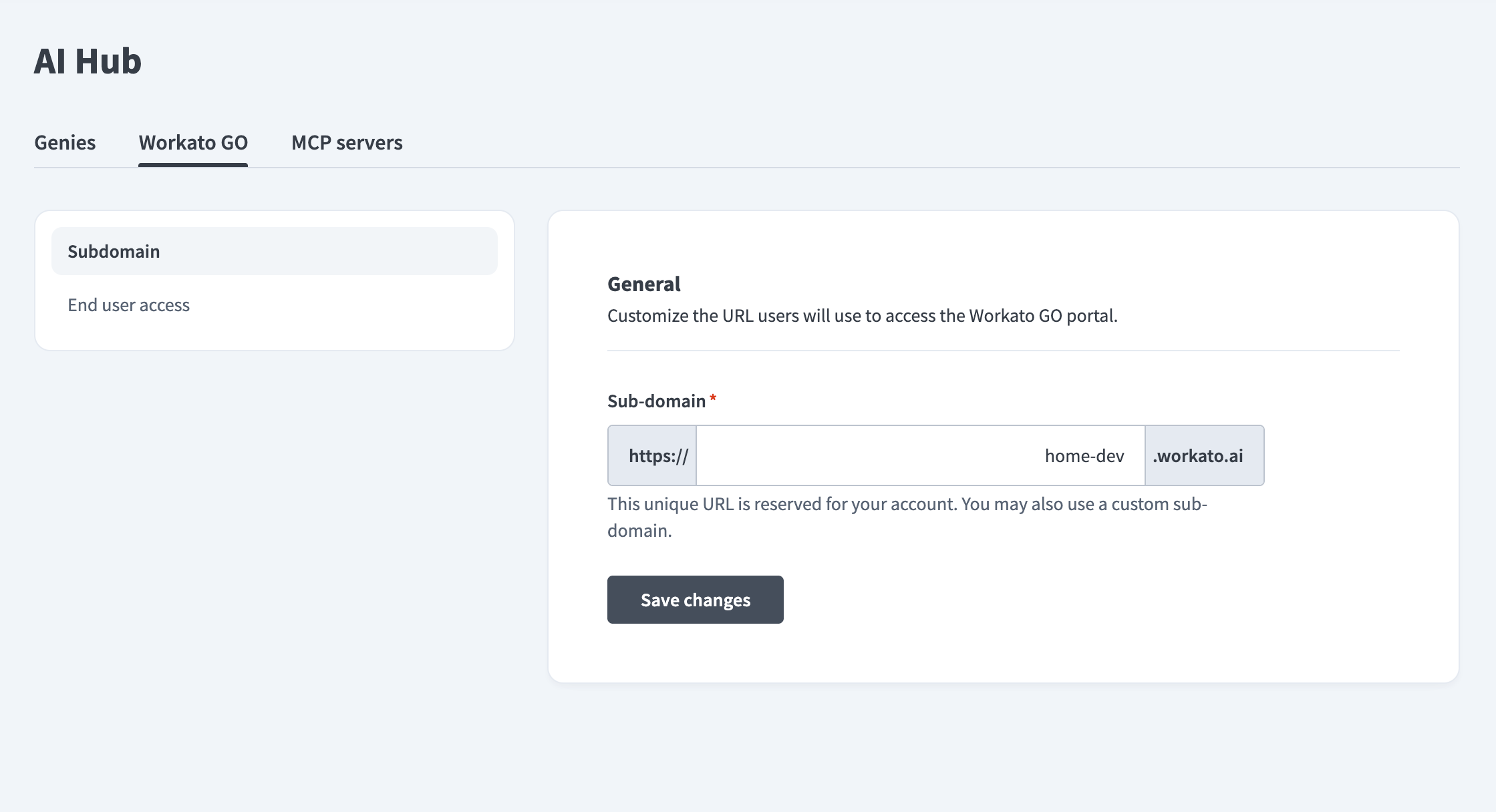 Workato GO subdomain URL
Open the URL and log in with your Workato Identity credentials.
Click the Ask field and select License Genie from the drop-down menu. Alternatively, select Genies in the sidebar and select License Genie.
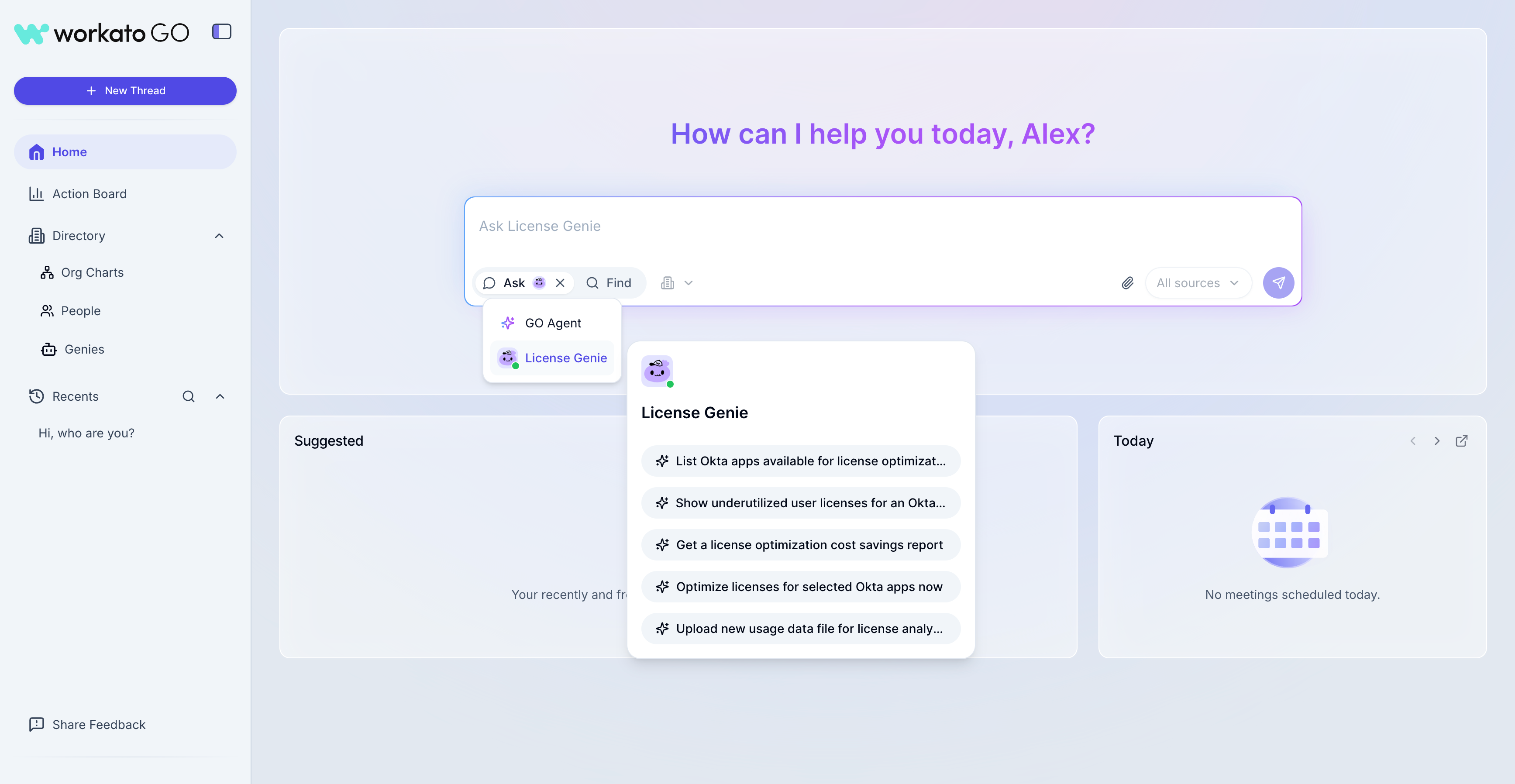 Select License Genie from the Ask drop-down menu
Enter Who are you? in the chat. License Genie greets you by name, confirms its name, and describes its role.
Last updated: