Dynamic client registration
Dynamic client registration (DCR) enables Workato to programmatically register API clients with an identity provider (IdP), such as Okta, on behalf of your API consumers. This eliminates the need for API Platform Admins to manually register each client in the IdP and distribute OAuth 2.0 credentials individually.
DCR is a standard protocol defined in RFC 7591 and the OpenID Connect Dynamic Client Registration specification. It allows Workato to send a registration request to your IdP on behalf of the API consumer, and receive a client_id and client_secret in return.
After you configure a DCR provider, you can reuse that configuration across multiple API clients. API consumers assigned to a DCR-enabled client can generate their own credentials in the Developer Portal without waiting for manual provisioning.
Prerequisites
Ensure you have the following before you begin using DCR:
- You have an active Workato workspace with the API platform enabled.
- You have API Platform Admin privileges.
- You have an Okta account with permissions to register OAuth 2.0 clients. DCR supports Okta as the identity provider at this time.
- You have an active HTTP connection configured to authenticate with your IdP, or you plan to create one during setup. Supported auth types include no-auth, query, basic, header, and OAuth 2.0 (client credentials).
- You have created and defined the required scopes in your IdP.
Add a DCR provider
Complete the following steps to add a DCR provider to your API platform.
Go to Platform > API platform > Settings > Developer Portal > Dynamic client registration in the API platform.
Click Add provider.
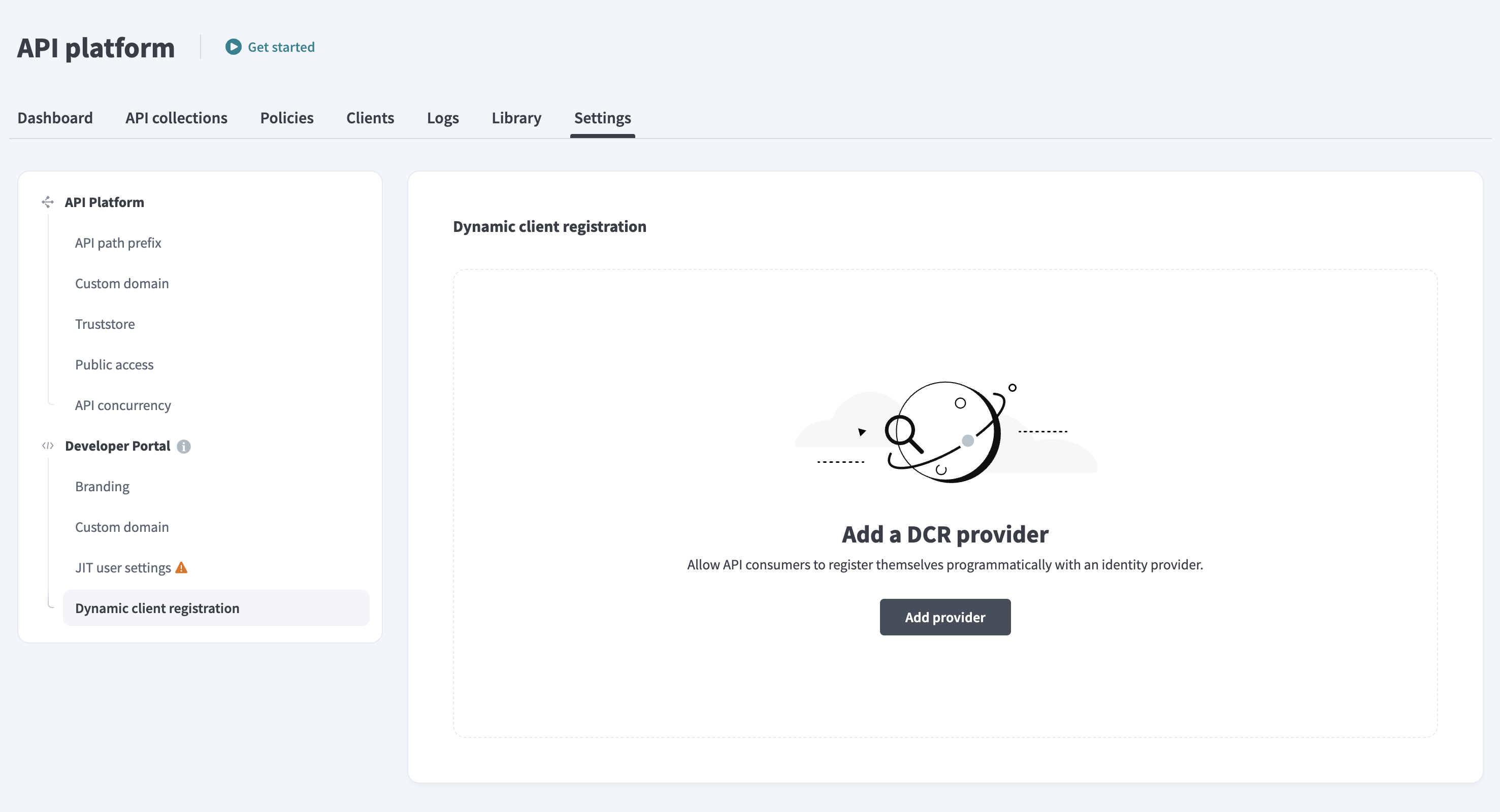 Add a DCR provider
Select the HTTP connection that Workato uses to authenticate with your DCR provider. This connection handles requests to and from your IdP's registration endpoint.
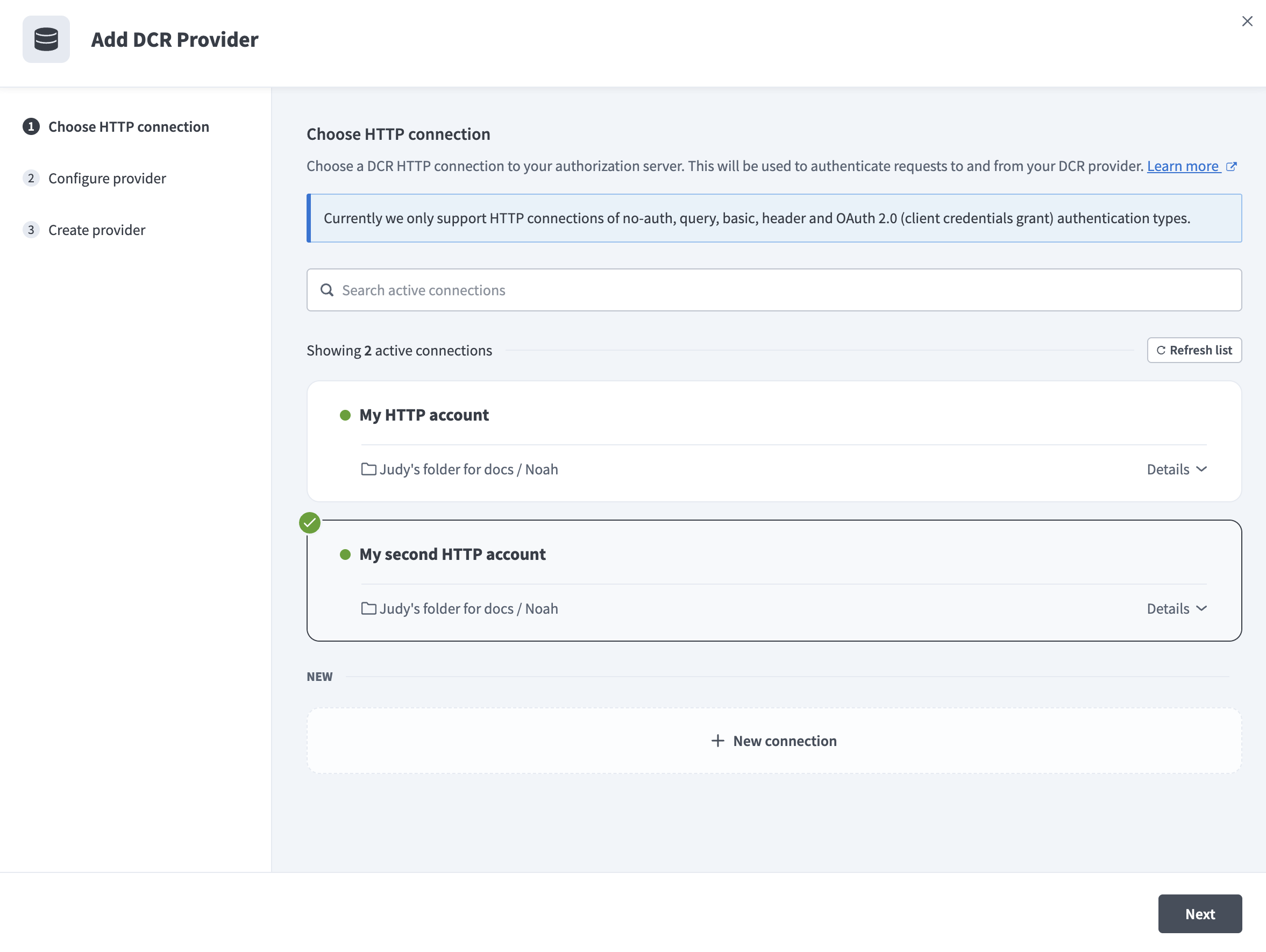 Select a connection
You can search for an existing connection, or click + New connection to create one.
Workato validates the selected connection to confirm that it supports DCR. A loading indicator appears while the validation runs. If the connection supports DCR, you can proceed to the next step. If the connection doesn't support DCR, an error hint displays and you must select a different connection before you can continue.
Click Next to proceed to the Configure provider step.
Enter a unique, descriptive name in the Provider name field.
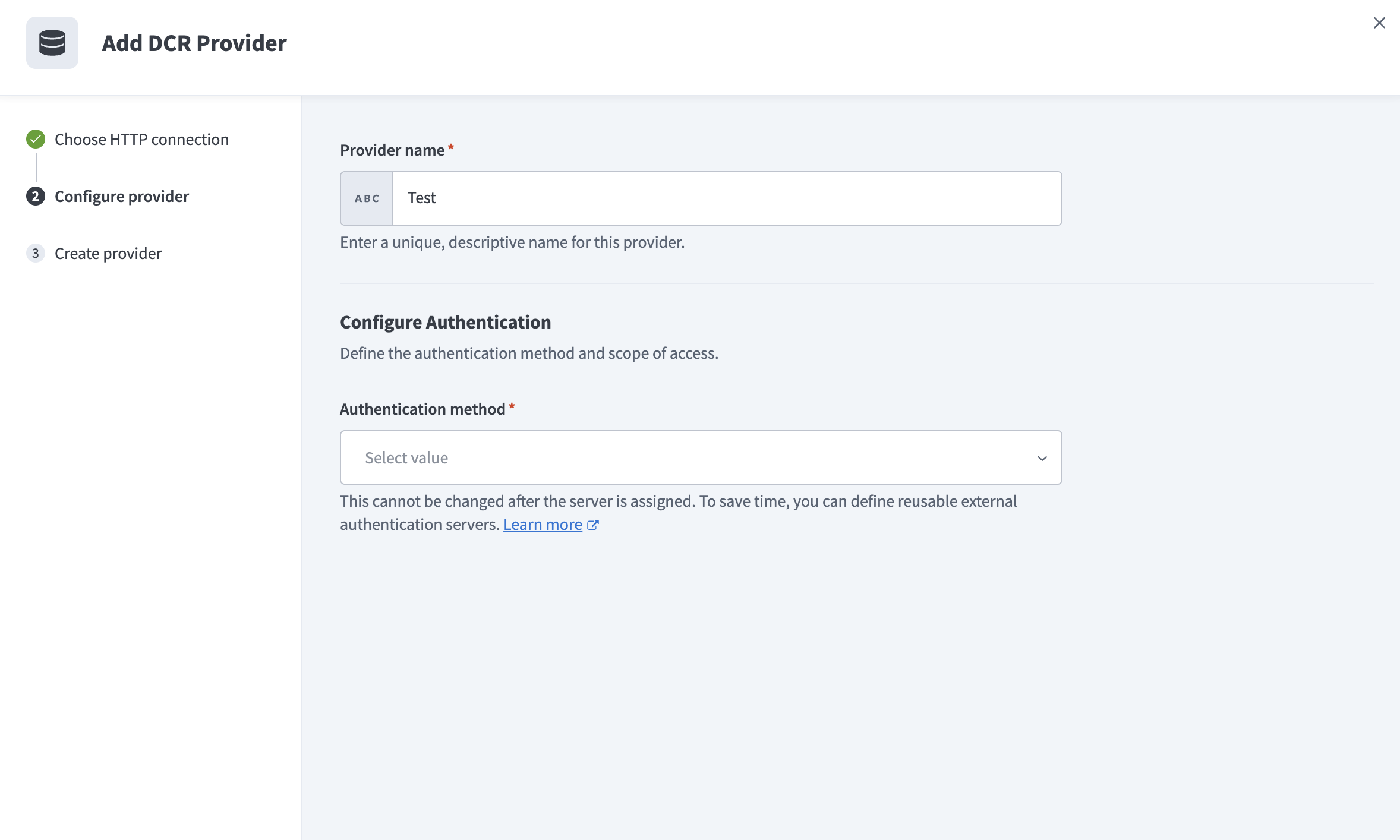 Configure provider
Use the Authentication method drop-down menu to select the authentication method for this provider. You can choose from the following options:
The remaining configuration steps depend on the authentication method you select.
PERMANENT CONFIGURATION
You can't change the authentication method after the server is assigned. You can define reusable external authentication servers to save time.
OpenID Connect
Complete the following steps to finish configuring a DCR provider with OpenID Connect.
Configure the optional Advanced encryption settings to enrich your JSON Web Token (JWT) with claims. Workato checks for any claim information you add in this section when authenticating a JWT.
Use the Reserved claims to enforce drop-down menu to select one or more claims. A JWT must contain all claims you add in this field to be authenticated.
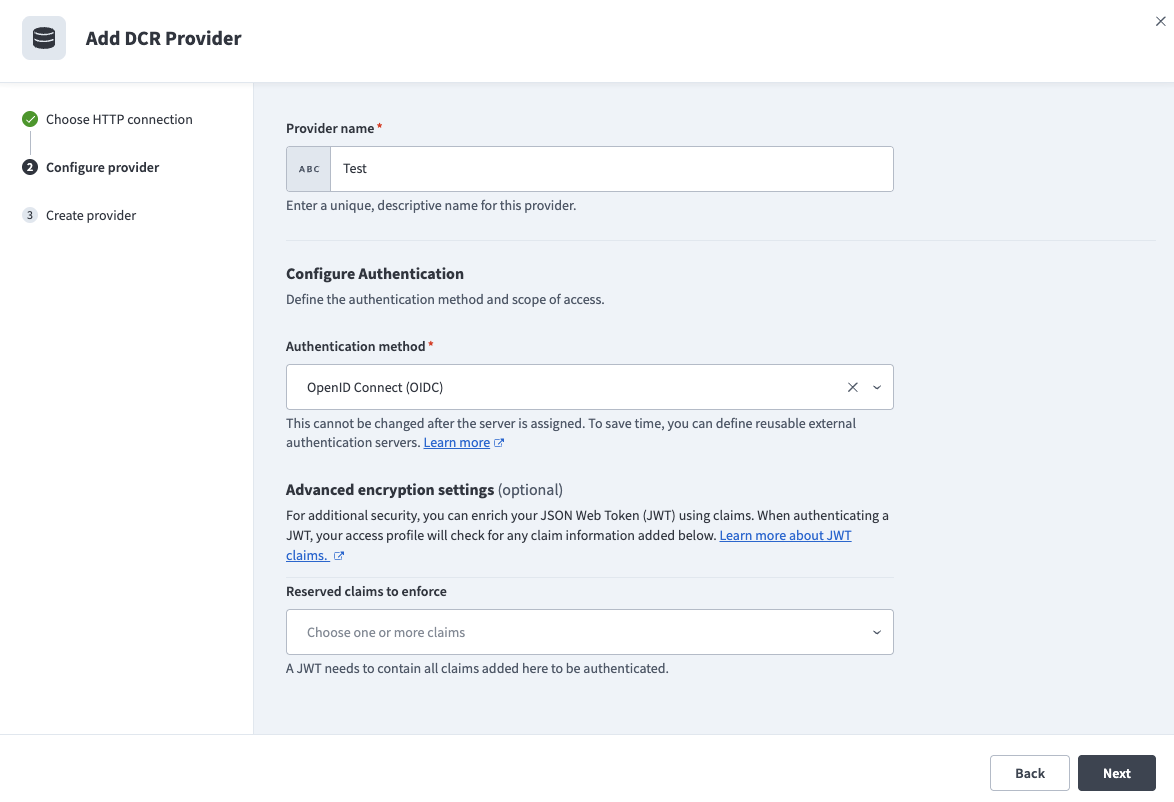 Configure advanced encryption settings
Click Next. Workato attempts to create the provider.
A success message confirms that the provider was created. The new provider appears on the Dynamic client registration providers page with its authentication method and creation details.
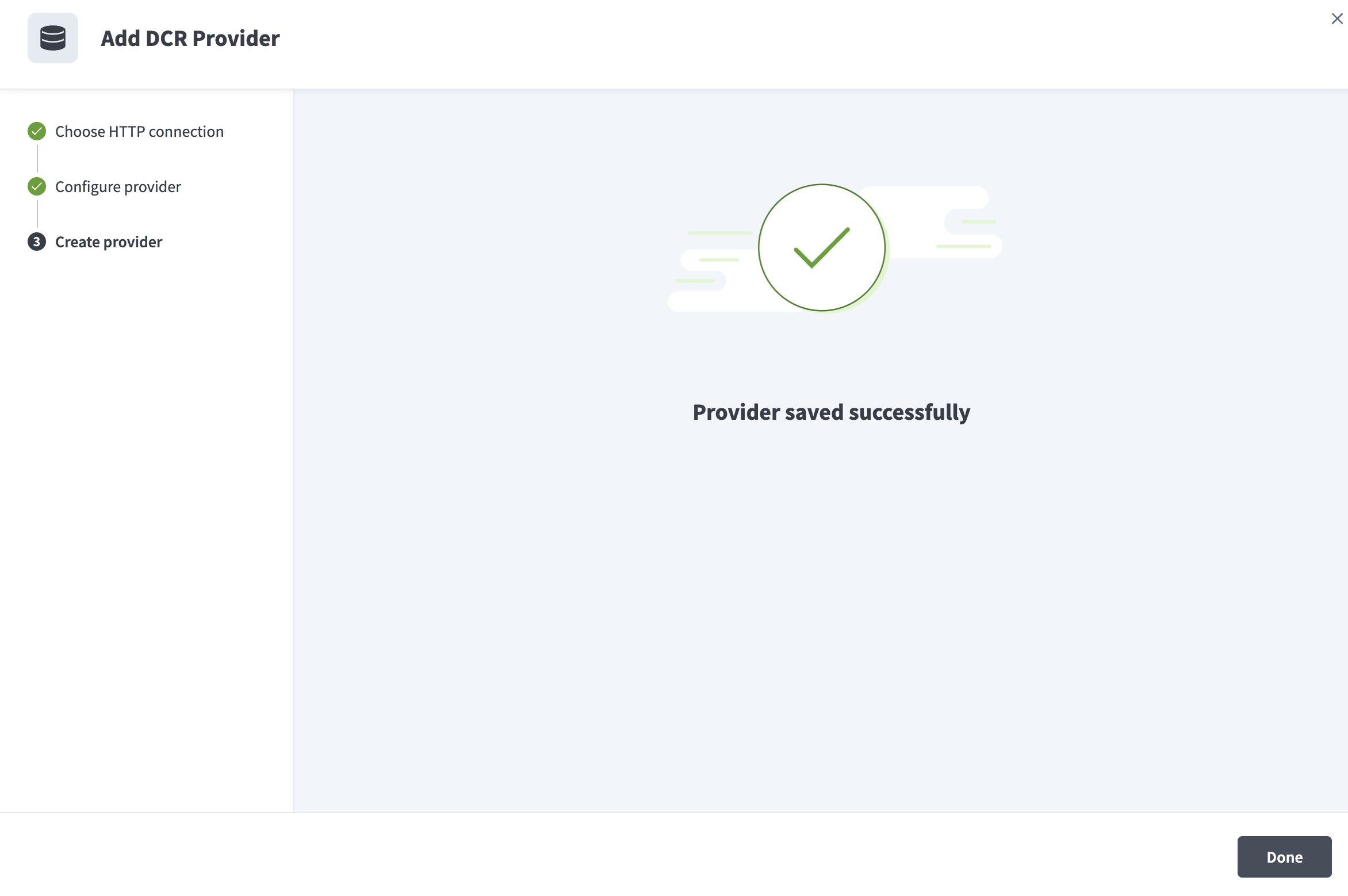 Provider saved successfully
An error message displays if the provider fails to create. Click Back to review and edit your configuration, or close the dialog to exit.
OAuth 2.0 token introspection
Complete the following steps to finish configuring a DCR provider with OAuth2 Token Introspection 2.0. This method requires additional steps to configure an introspection HTTP connection and endpoint.
Click Next to proceed to the Choose Introspection HTTP connection step.
Select the HTTP connection that Workato uses to authenticate requests to your token introspection endpoint. You can search for an existing active connection, or click + New connection to create one.
Click Next to proceed to the Set introspection endpoint step.
Enter the relative path to the introspection endpoint in the Endpoint path field. For example, oauth2/introspect.
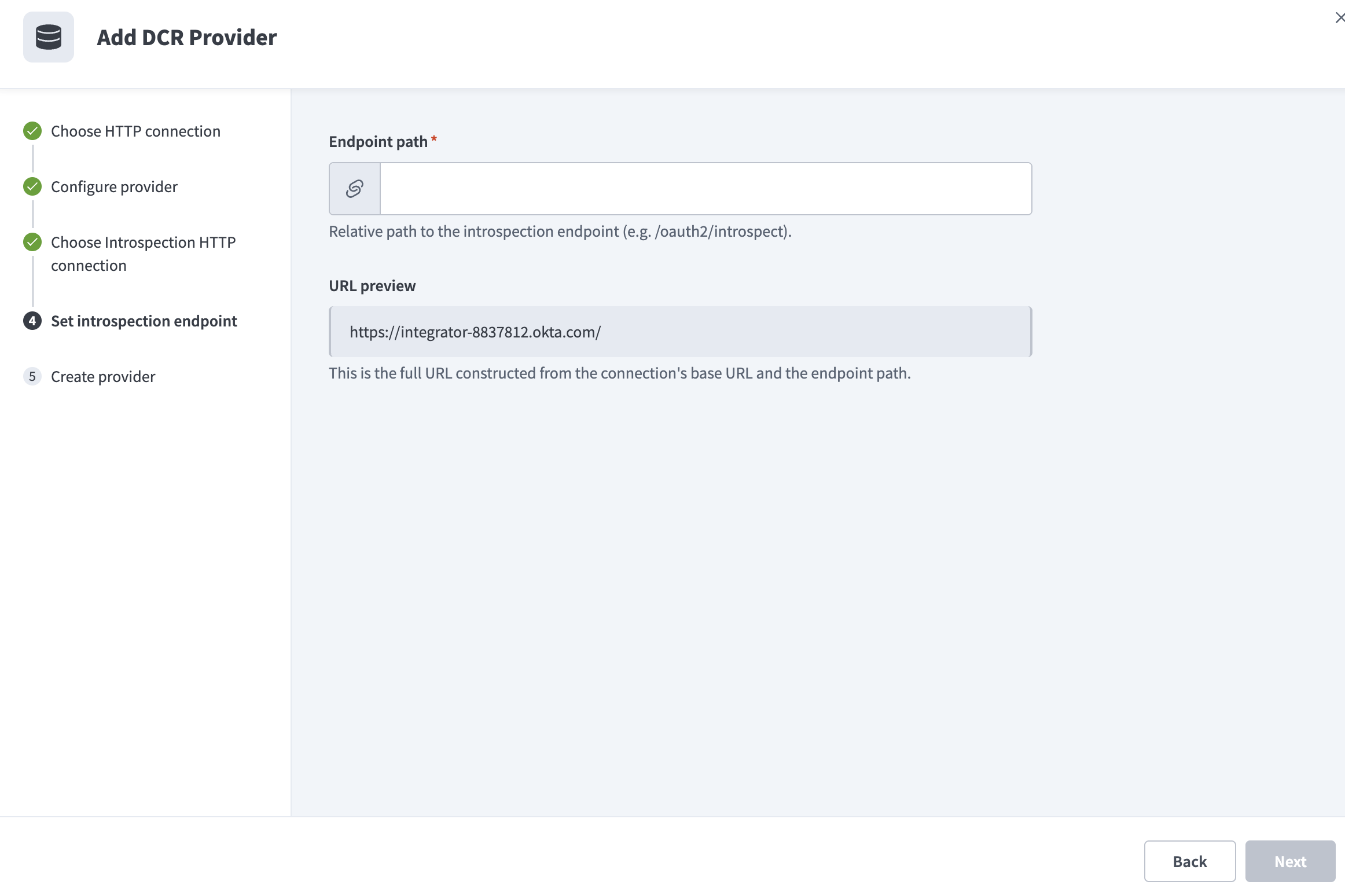 Set introspection endpoint
The URL preview field displays the full URL constructed from the connection's base URL and the endpoint path you provide.
Click Next. Workato attempts to create the provider.
A success message confirms that the provider was created. The new provider appears on the Dynamic client registration providers page with its authentication method and creation details.
An error message displays if the provider fails to create. Click Back to review and edit your configuration, or close the dialog to exit.
Edit a DCR provider
You can update the HTTP connection, scopes, and other configuration settings for an existing DCR provider. You can't change the authentication method after the provider is created.
EDITING AN ACTIVE PROVIDER
The server you are editing may be currently in use. Changes to the provider configuration might affect downstream API consumers.
Go to Platform > API platform > Settings > Dynamic client registration in the API platform.
Locate the provider you plan to edit and click the ... (more options) icon on the provider card.
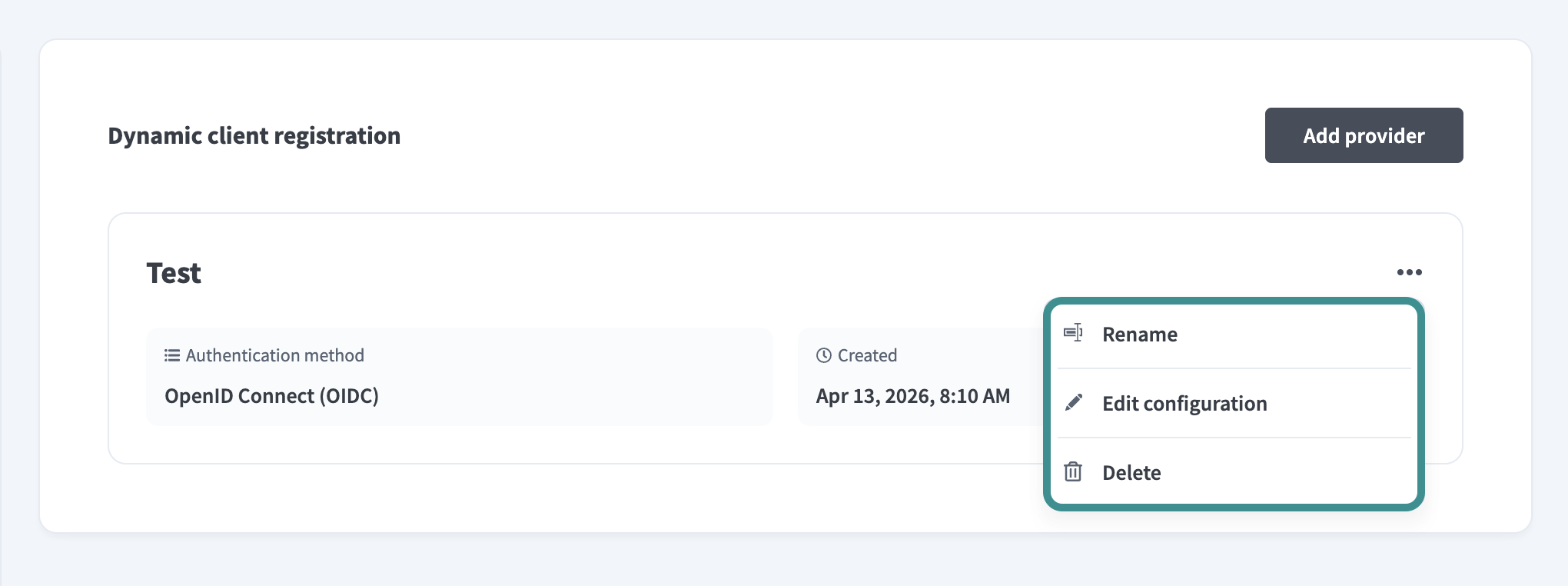 Edit DCR provider
Select one of the following options:
- Rename to update the provider name.
- Edit configuration to modify the HTTP connection, scopes, or other settings.
- Delete to remove the provider. Deleting a provider may disrupt API consumers who rely on it for credential generation.
Assign a DCR provider to a client
After you configure a DCR provider, you can assign it to an API client during client creation. Assigning a DCR provider allows you to reuse your IdP connection and scope configuration instead of setting up each client individually. The DCR provider option is available when you select OpenID Connect or OAuth Token Introspection 2.0 as the authentication method for a new client.
Refer to Create an API client with DCR for detailed steps.
Limitations
Review the following limitations before you configure DCR:
- DCR supports Okta as the identity provider. Support for additional providers isn't available at this time.
- You can't change the authentication method after you create the provider. Select the correct method during initial configuration.
Last updated: