Allure TestOps
Allure TestOps is a test management platform by Qameta Software that provides end-to-end test management capabilities, including test case management, test plan creation, launch execution, and result tracking. The Allure TestOps connector enables you to create, search, update, and delete projects, test cases, test plans, launches, and test results, and to retrieve and search custom fields and their values.
Install Allure TestOps from the community library
Complete the following steps to install the Allure TestOps connector from the community library:
Open the recipe editor and search for a connector. Alternatively, you can search for a connector in the community library.
 Search for community connectors in the recipe editor
Select the community connector you plan to install.
Click Install to install the connector from the community library.
 Click Install
Select Release connector. Alternatively, select Review code to review and modify the connector code before releasing it to the workspace.
 Release the connector
Summarize any changes you made to the connector, then click Release to allow workspace collaborators to use the connector in recipes.
 The Confirm release dialog
Connection setup
The Allure TestOps connector uses Bearer token authentication.
Allure TestOps setup
Complete the following steps to set up an instance URL and an API token to establish a connection to Allure TestOps in Workato:
Sign in to your Allure TestOps account.
Click the profile icon to open your profile settings.
Go to API Tokens and click Generate a token.
Copy and securely store the token for use in Workato.
Connect to Allure TestOps using Bearer token authentication
Complete the following steps to connect to Allure TestOps in Workato:
Click Create > Connection or press C twice.
Search for and select Allure TestOps as your connection on the New connection page.
Provide a name for your connection in the Connection name field.
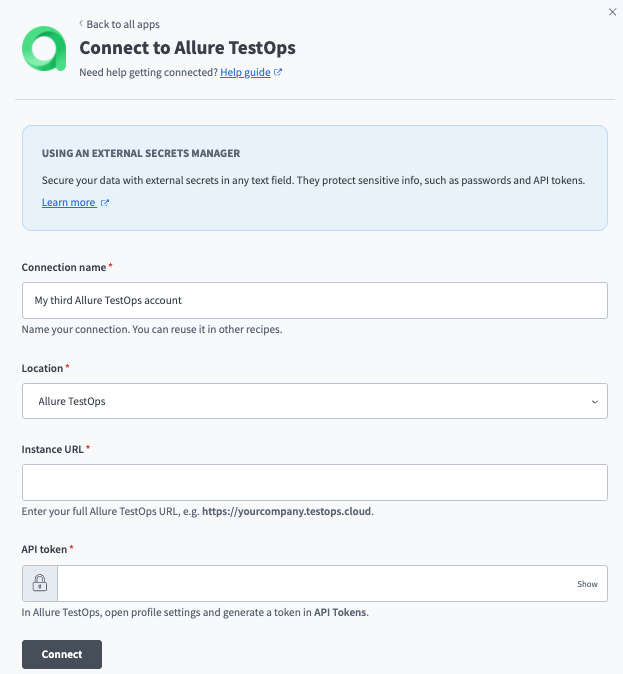 Create an Allure TestOps connection.
Use the Location drop-down menu to select the project where you plan to store the connection.
Enter your full Allure TestOps URL in the Instance URL field, for example https://yourcompany.testops.cloud.
Enter the API token you generated in Allure TestOps.
Click Connect.
Last updated: