Databricks
Databricks is an enterprise-grade platform that provides tools that enable you to build, deploy, share, and maintain data solutions at scale. The Databricks connector allows you to fetch data from Databricks and send it to other applications such as Amplitude, Netsuite, and more.
Connection setup
The Databricks connector supports the following authentication types:
USERNAME/PASSWORD AUTHENTICATION DEPRECATED
As of July 2024, basic username/password authentication for Databricks is deprecated. Refer to the Databricks End of life for Databricks-managed passwords documentation for more information.
OAuth 2.0 (Service Principal) authentication
You must generate the following values from Databricks to use this authentication method:
- Client ID
- Secret
Databricks setup for OAuth 2.0 (Service Principal) authentication
You must create a service principal to generate a client ID and secret.
Create a service principal
Complete the following steps to create a service principal in Databricks:
As an account admin, log in to the Account console.
Click Users & groups.
Click the Service principals tab.
Click Add service principal.
Enter a name in the New service principal display name field.
Click Add service principal.
Click the Credentials & secrets tab.
Click Generate secret under the OAuth secrets section.
Enter the number of days in the Lifetime (days) field.
Click Generate.
Copy and save the Secret and Client ID for use in Workato.
SAVE YOUR CREDENTIALS
The secret is only displayed once. If you lose it, you must create a new one.
Connect to Databricks with OAuth 2.0 (Service Principal) authentication
Complete the following steps to set up an OAuth 2.0 (Service Principal) authentication connection to Databricks in Workato:
Click Create > Connection.
Search for Databricks and select it as your app.
Enter a name for your connection in the Connection name field.
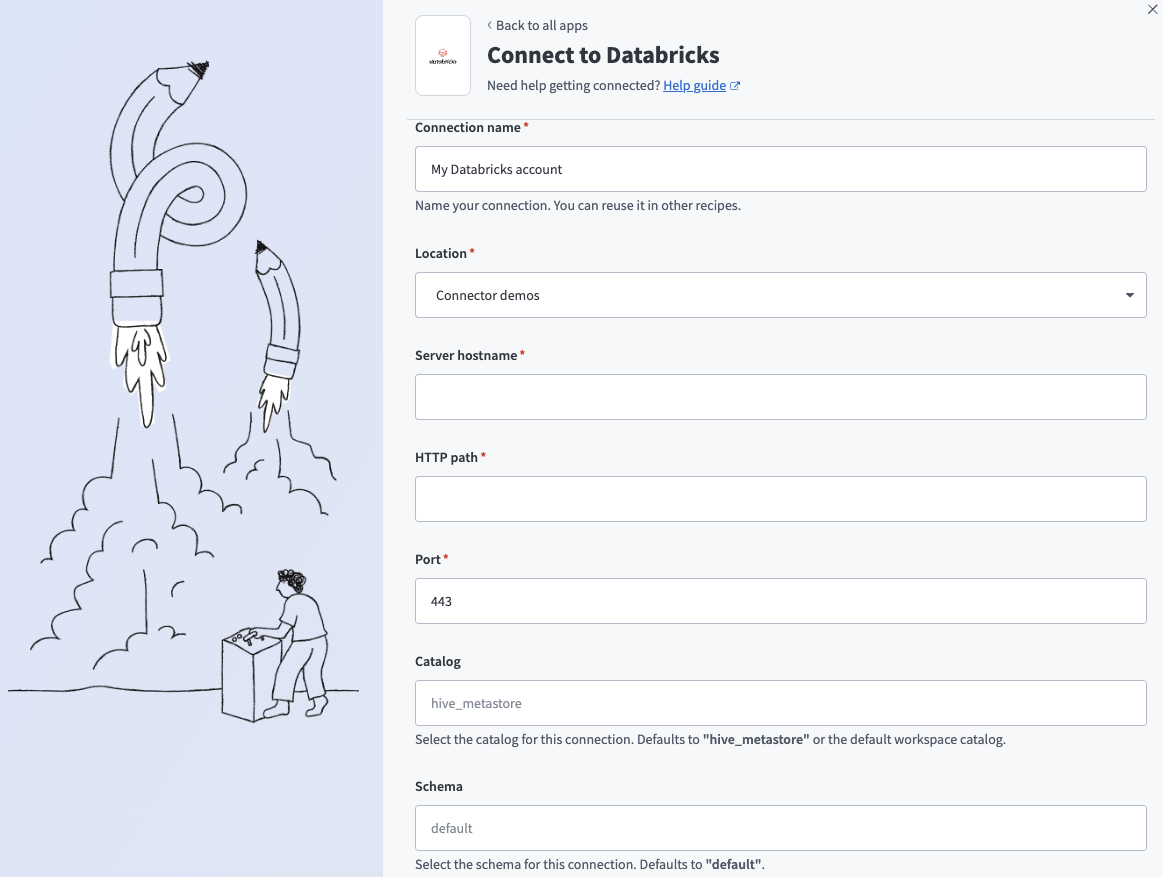 Connect to Databricks
Use the Location drop-down menu to select the project where you plan to store the connection.
Enter the name of your server in the Server hostname field. For example, example.cloud.databricks.com.
Enter the HTTP path. For example, sql/protocolv1/o/3957355953478232/0710-102114-bfnouzcv.
Enter the Port your server uses. The default is 443.
CONNECTION DETAILS
Refer to the Databricks Get connection details for a Databricks compute resource documentation for information on how to retrieve connection details such as Server hostname, HTTP path, and Port.
Optional. Use the Catalog drop-down menu to select the catalog you plan to use for this connection. The default value is hive_metastore.
Optional. Use the Schema drop-down menu to select the schema you plan to use for this connection. The default value is default.
Optional. Use the Database timezone drop-down menu to select the timezone you plan to use. Workato uses this to convert timestamps during reads and writes.
Use the Authentication type drop-down menu to select OAuth 2.0 (Service Principal).
Use the Account type drop-down menu to select the account type you plan to use.
Enter your Client ID and Client secret. Refer to Create a service principal for more information.
Optional. Select one or more Scope values from the drop-down menu. Workato uses the sql scope by default if none are selected.
Click Connect.
Personal access token authentication
You must generate the following value from Databricks to use this authentication method:
- Personal access token
Databricks setup for personal access token authentication
Generate a personal access token from a Databricks workspace.
Generate a personal access token
Complete the following steps to create a personal access token in Databricks:
In your Databricks workspace, click your username and select Settings.
Click Developer.
Click Manage next to Access tokens.
Click Generate new token.
Enter a comment in the Comment field.
Enter the number of days in the Lifetime (days) field.
Select a Scope.
Select scopes from the API scope(s) drop-down menu.
Click Generate.
Copy and save the token for use in Workato.
SAVE YOUR CREDENTIALS
The token is only displayed once. If you lose it, you must create a new one.
Connect to Databricks with personal access token authentication
Complete the following steps to set up a personal access token authentication connection to Databricks in Workato:
Click Create > Connection.
Search for Databricks and select it as your app.
Enter a name for your connection in the Connection name field.
Connect to Databricks
Use the Location drop-down menu to select the project where you plan to store the connection.
Enter the name of your server in the Server hostname field. For example, example.cloud.databricks.com.
Enter the HTTP path. For example, sql/protocolv1/o/3957355953478232/0710-102114-bfnouzcv.
Enter the Port your server uses. The default is 443.
CONNECTION DETAILS
Refer to the Databricks Get connection details for a Databricks compute resource documentation for information on how to retrieve connection details such as Server hostname, HTTP path, and Port.
Optional. Use the Catalog drop-down menu to select the catalog you plan to use for this connection. The default value is hive_metastore.
Optional. Use the Schema drop-down menu to select the schema you plan to use for this connection. The default value is default.
Optional. Use the Database timezone drop-down menu to select the timezone you plan to use. Workato uses this to convert timestamps during reads and writes.
Use the Authentication type drop-down menu to select Personal Access Token.
Enter your Personal Access Token. Refer to Generate a personal access token for more information.
Click Connect.
Last updated: