HL7 HTTP
HL7 HTTP, or Health Level Seven HTTP, is a set of international standards for the exchange, integration, sharing, and retrieval of electronic health information. This connector is the HTTP-based variant of the HL7 connector. This connector sends HL7 messages using HTTP.
Install HL7 from the community library
Complete the following steps to install the HL7 HTTP connector from the community library:
Open the recipe editor and search for a connector. Alternatively, you can search for a connector in the community library.
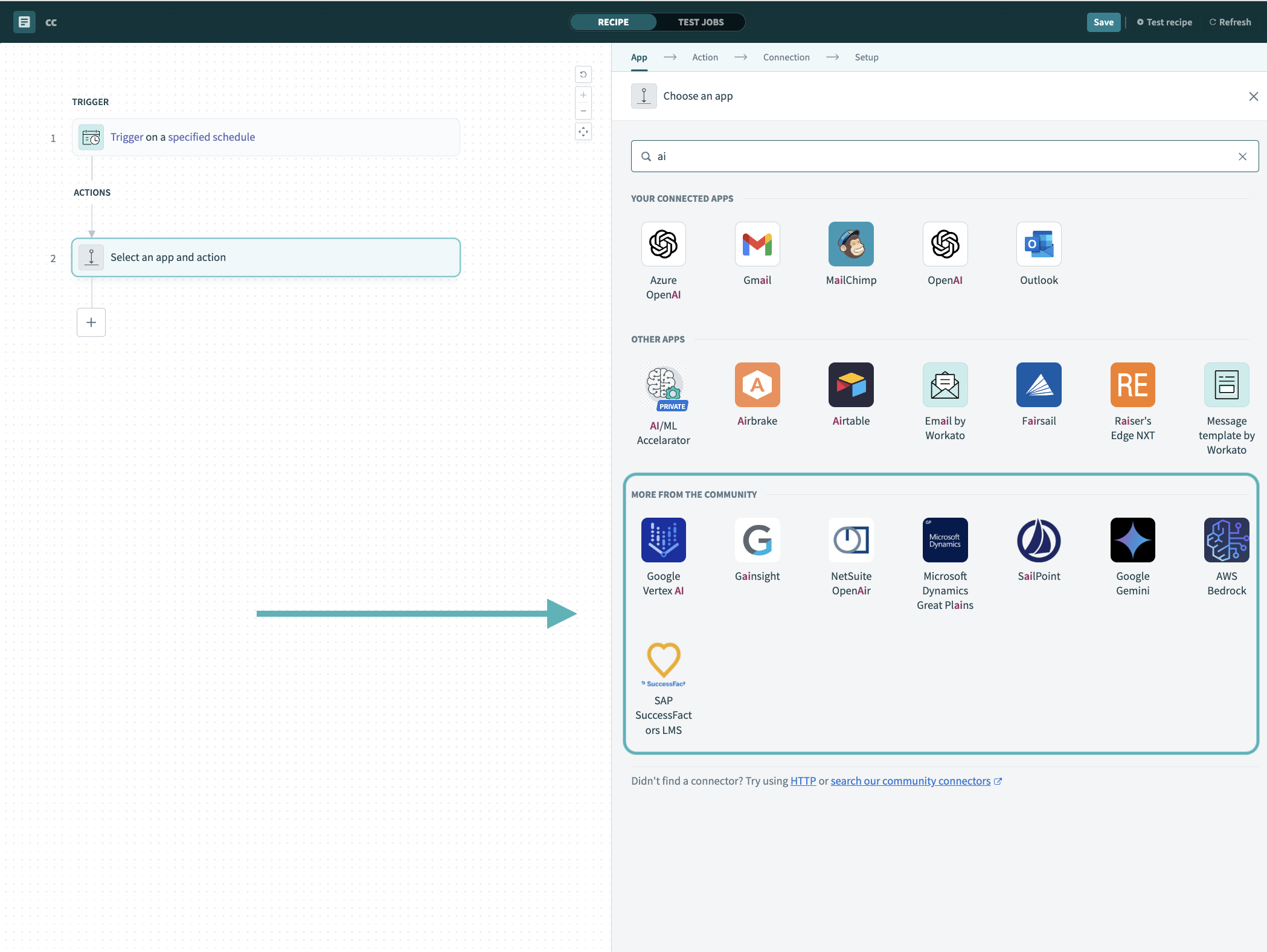 Search for community connectors in the recipe editor
Select the community connector you plan to install.
Click Install to install the connector from the community library.
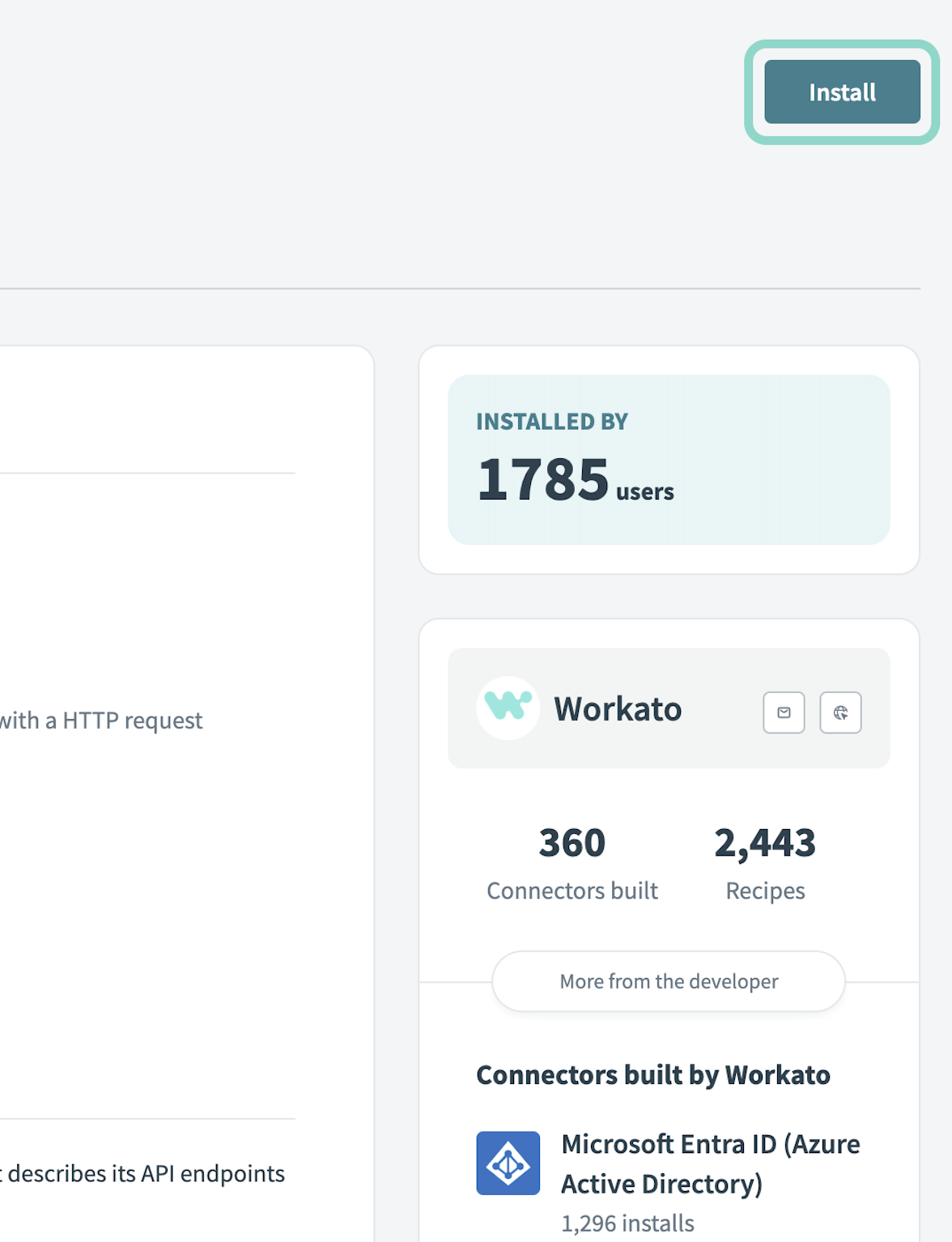 Click Install
Select Release connector. Alternatively, select Review code to review and modify the connector code before releasing it to the workspace.
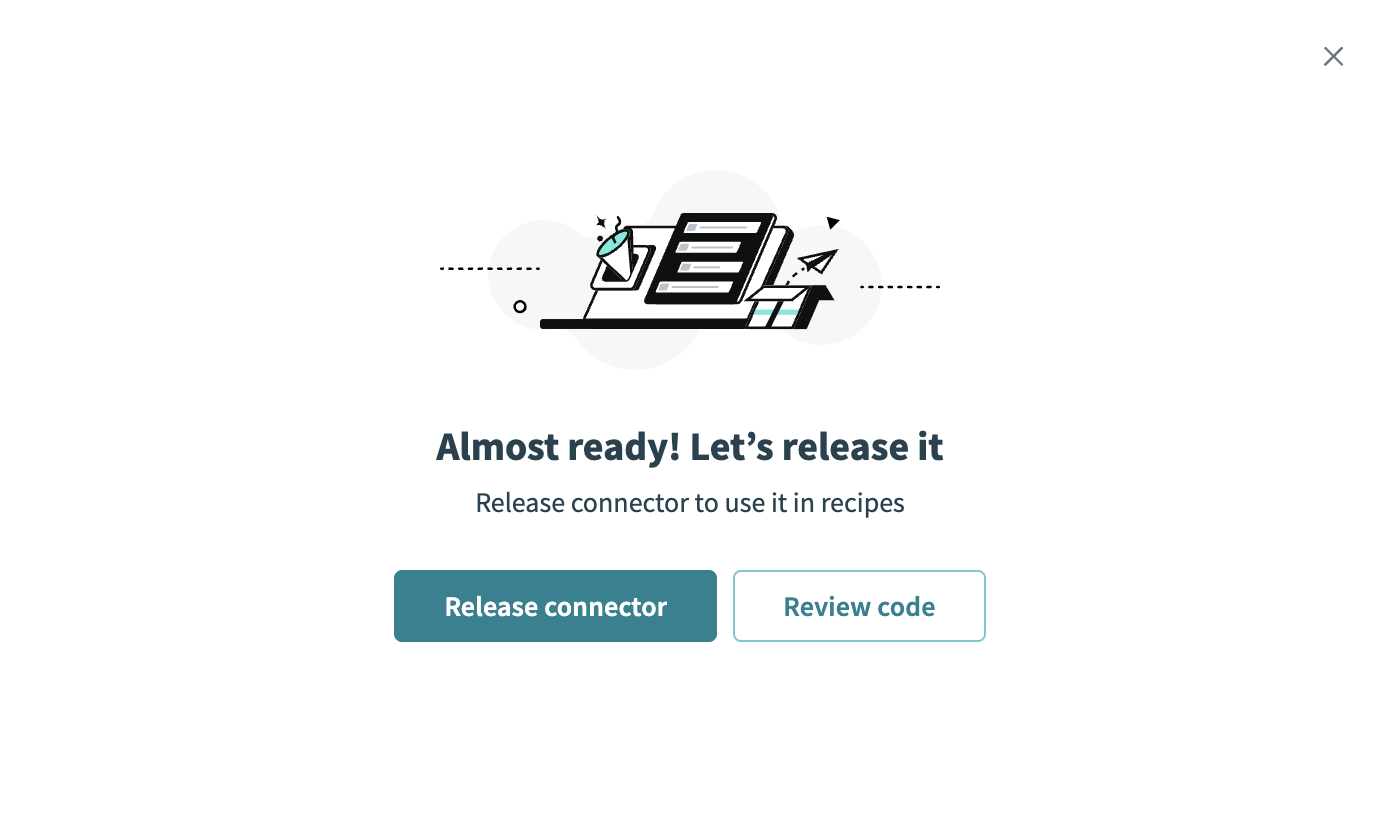 Release the connector
Summarize any changes you made to the connector, then click Release to allow workspace collaborators to use the connector in recipes.
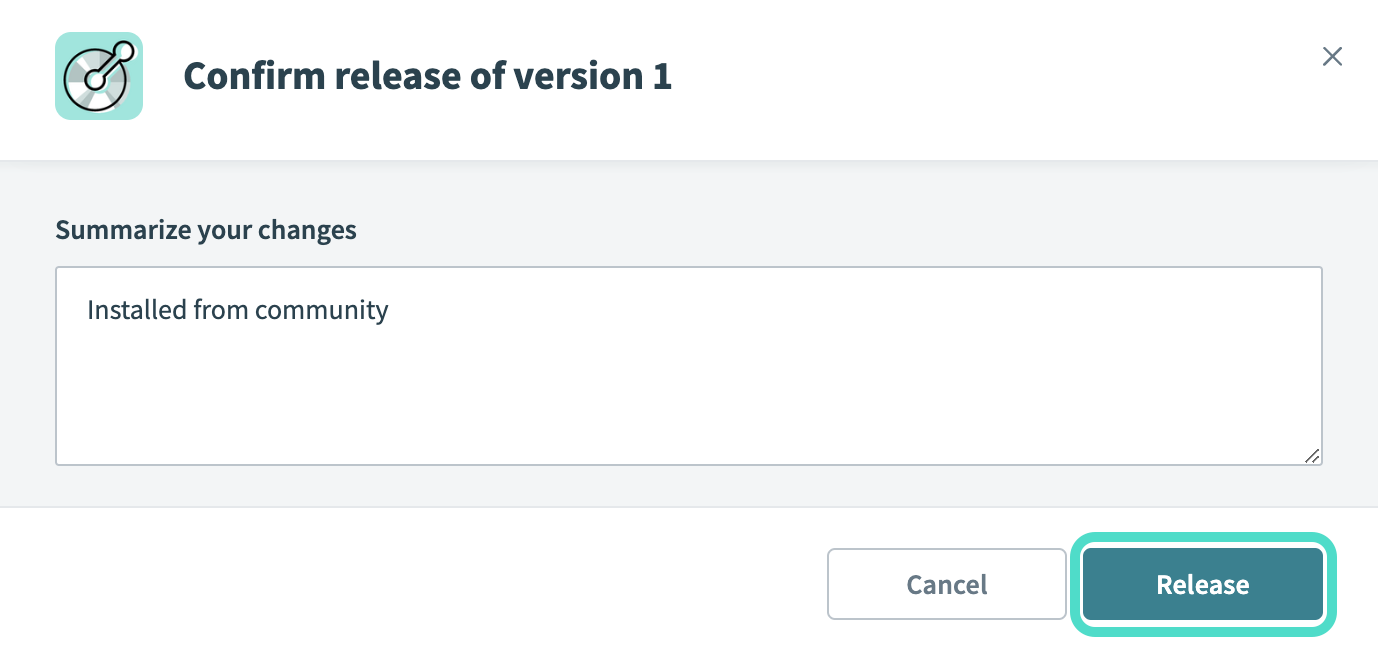 The Confirm release dialog
Connection setup
The HL7 HTTP connector uses HTTP authentication.
HL7 HTTP setup
Download the HL7 extension.
Extract the downloaded package to $OPA/ext, where $OPA refers to your OPA installation directory.
Configure where outbound HL7 HTTP traffic goes for the HL7 HTTP connection. The connector configuration takes precedence when set.
Connect to HL7 in Workato using HTTP
Complete the following steps to connect to HL7 HTTP in Workato:
Click Create > Connection.
Search for and select HL7 HTTP on the New connection page.
Enter a name for your connection in the Connection name field.
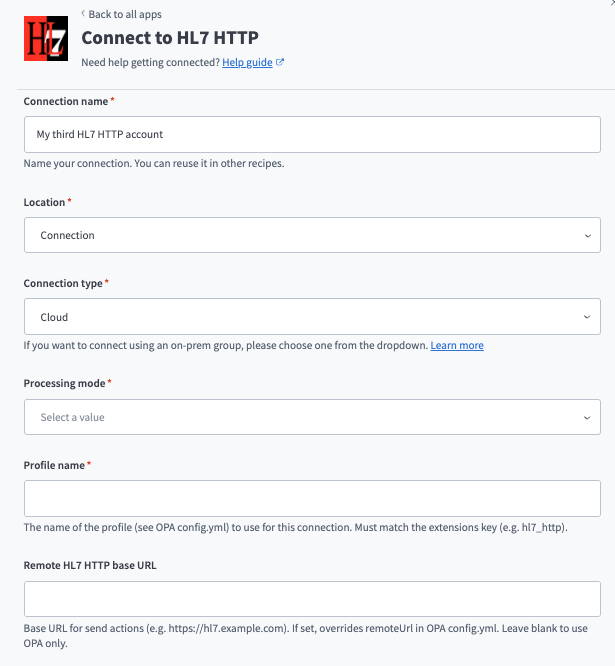 Set up your HL7 HTTP connection.
Use the Location drop-down menu to select the project where you plan to store the connection.
Use the Connection type drop-down menu to select the on-prem group where your HL7 extension is configured.
Use the Processing mode drop-down menu to select the HL7 processing ID you plan to use. Options include: Debugging, Production, and Training.
Provide your Profile name. The OPA profile must have a running HL7 listener to receive HL7 messages.
Enter the Remote HL7 HTTP base URL for send actions. Overrides remoteUrl in OPA config.yml if set. Leave blank to use OPA only.
Enter the Send path for HTTP POST. Overrides sendPath in OPA config.yml if set. Leave blank to use OPA only.
Enter custom HTTP Connection headers to send with every request.
Select Apply connection headers to all actions to include connection headers in every action request.
Click Connect.
Last updated: