SurveyMonkey
SurveyMonkey is a widely used online forms and survey software that allows users to easily design and send surveys and forms, as well as analyze the results.
API version
The SurveyMonkey connector uses SurveyMonkey REST API V3.
Supported editions and versions
The SurveyMonkey connector works with all SurveyMonkey plans. However, the Extract data capability is required to retrieve survey responses from SurveyMonkey when you use the Completed survey response trigger or the Send survey invite via email and wait for response action.
How to connect to SurveyMonkey on Workato
The SurveyMonkey connector uses OAuth2 authentication to authenticate with SurveyMonkey.
Complete the following steps to connect to SurveyMonkey in Workato:
Provide a Connection name that identifies which SurveyMonkey account Workato is connected to.
Use the Location drop-down menu to select the project or folder where you plan to store the connection.
Use the Datacenter drop-down menu to select the data center that hosts your SurveyMonkey account. Defaults to United States. You must use a custom OAuth profile to connect to a data center outside of the United States.
Optional. Use the Custom OAuth profile drop-down menu to select a custom OAuth profile for your connection. All requests to the app use the profile you specify here.
Click Connect to open the SurveyMonkey authorization window.
Sign in to SurveyMonkey with your account credentials. We recommend you use an admin account to avoid permission roadblocks.
Read the terms of service and click Authorize to complete the connection setup.
VIEW ANSWERS REQUIREMENT
Select view answers along with responses during authorization if you plan to use the Completed survey response trigger or the Send survey invite via email and wait for response action.
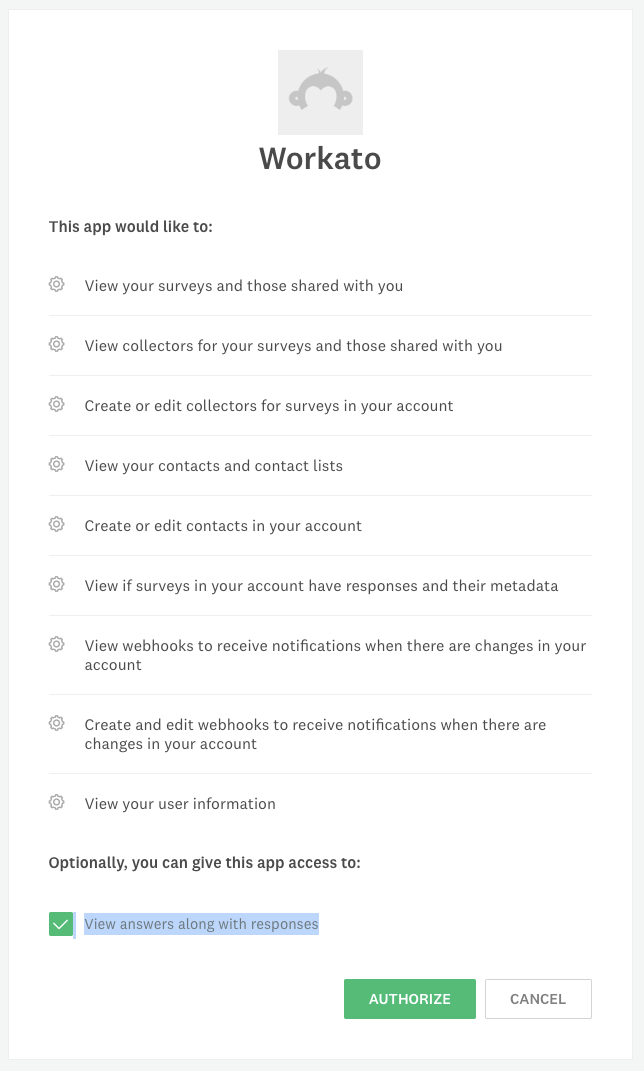 Authorize Workato to access your SurveyMonkey account.
How to unlink Workato on SurveyMonkey
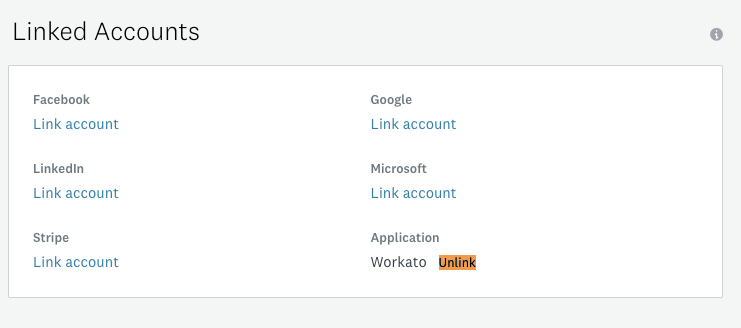
If you ever need to change your selections in the authorization page, you might have to unlink the current app in SurveyMonkey. Head over to your accounts page, where you will see the currently linked applications. Simply select Unlink to remove the connection.
Last updated: