Telegram
Telegram is a cloud-based instant messaging service. The Telegram connector uses the Telegram Bot API to let a Telegram bot send messages and automate interactions on your behalf.
Use the Telegram connector to:
- Send and update text messages, photos, documents, animations, stickers, locations, and venues in Telegram chats.
- Send messages with inline buttons or voice notes, and respond to button taps with callback query answers.
- Retrieve chat member and file information, and download files sent to your bot.
- Trigger recipes on new Telegram events, such as channel posts or messages.
You can also use custom actions to build a custom HTTP request to any Telegram Bot API endpoint. Refer to the Telegram Bot API documentation for endpoint details.
Install Telegram from the community library
Complete the following steps to install the Telegram connector from the community library:
Open the recipe editor and search for a connector. Alternatively, you can search for a connector in the community library.
 Search for community connectors in the recipe editor
Select the community connector you plan to install.
Click Install to install the connector from the community library.
 Click Install
Select Release connector. Alternatively, select Review code to review and modify the connector code before releasing it to the workspace.
 Release the connector
Summarize any changes you made to the connector, then click Release to allow workspace collaborators to use the connector in recipes.
 The Confirm release dialog
Connection setup
The Telegram connector uses API token authentication.
Telegram setup for API token authentication
Complete the following steps to create a Telegram bot and obtain its API token using the Telegram BotFather:
Open Telegram and start a chat with @BotFather.
Send the /newbot command.
Follow the prompt to provide a name for your bot.
Follow the prompt to provide a username for your bot. The username must be unique and end in bot, for example sample_workato_bot. The username can't be changed later.
Copy the API token. Store it securely because anyone with the token has full control over the bot.
BOT PERMISSIONS APPLY TO THE CONNECTION
This connector acts as your Telegram bot, so it can only do what that bot is allowed to do in Telegram. Add the bot to any chat, group, or channel you plan to automate, and grant it administrator rights if the actions you plan to use require them, such as posting to a channel.
Connect to Telegram using API token authentication
Complete the following steps to set up a Telegram connection in Workato:
Click Create > Connection or press C twice.
Search for Telegram and select it as your app.
Provide a name for your connection in the Connection name field.
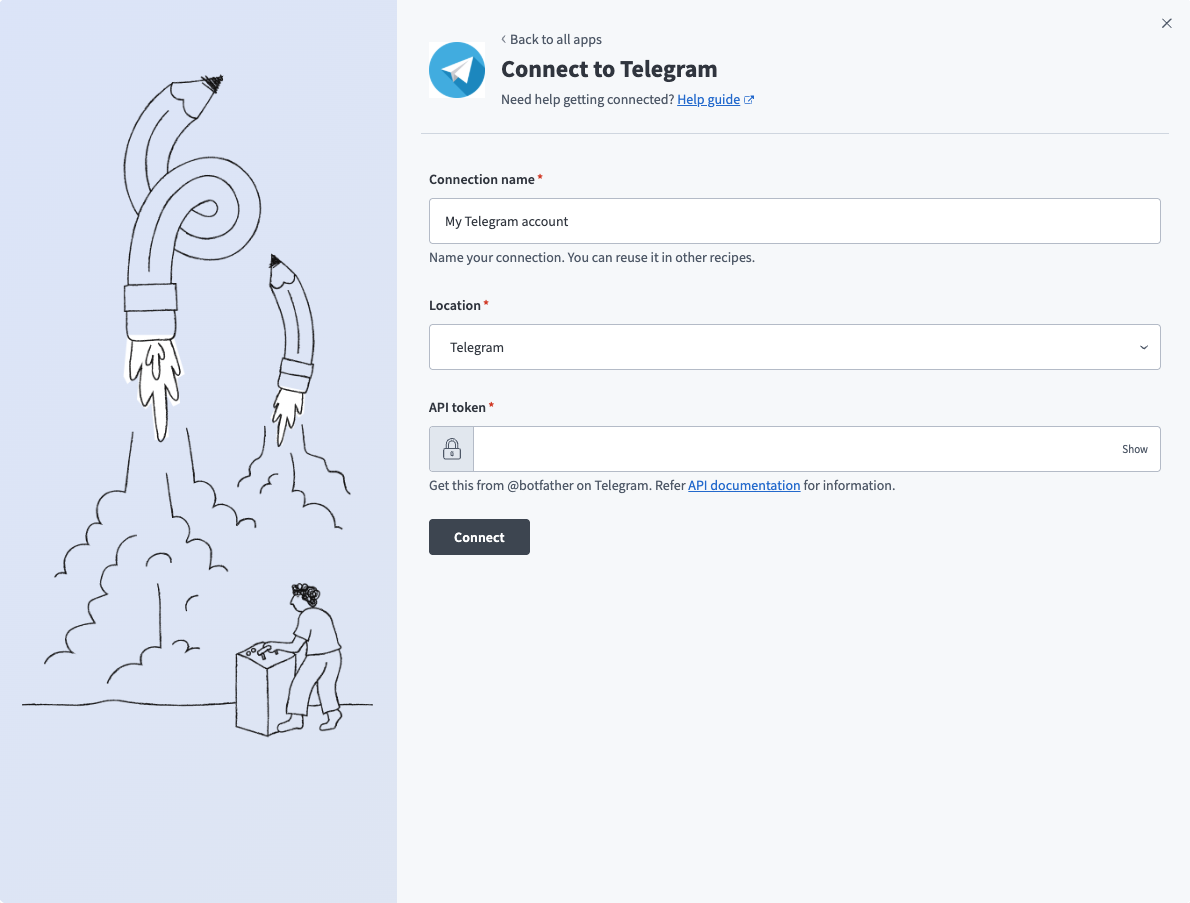 Telegram connection setup
Use the Location drop-down menu to select the project where you plan to store the connection.
Enter the API token. Refer to Telegram setup for API token authentication for more information.
Click Connect.
Last updated: