AIRO
AIRO is Workato's AI automation engineer that transforms intent into production-ready business solutions.
Meet AIRO: your teammate inside Workato
You simply describe the outcome you want to achieve, and AIRO understands your intent and designs the solution. It builds the automations, AI agents, Enterprise Skills, APIs, and MCP servers required, then helps you deploy, monitor, and continuously improve them. All of this happens without requiring you to learn Workato concepts, navigate multiple product pages, or manually stitch together workflows.
Behind every conversation is a team of specialized AI agents working together. Rather than acting as isolated assistants, they share context, coordinate their work, and understand your entire Workato environment, from the assets you're building to the jobs running in production. AIRO brings together the right expertise to help you achieve your outcome faster, whether you're creating something new, optimizing an existing workflow, or exploring your workspace.
AIRO is available throughout Workato and from MCP-compatible AI clients and development environments such as Claude Code and Cursor. Your conversation and context follow you wherever you work. Start with an idea, continue refining it from a project, inspect a production issue, or modify a recipe, all within the same conversation.
With AIRO, Workato becomes an AI-first platform that lets you focus on business outcomes while it handles the complexity of building, operating, and evolving enterprise automation.
How AIRO works
AIRO routes your request to specialized agents based on what you need.
- Questions and guidance: Dedicated knowledge agents handle troubleshooting, feature guidance, and analysis directly.
- Full build requests: The Solution Architect pipeline takes a PRD or natural language description through requirements analysis and asset planning, producing blueprints and built assets.
- Single asset builds: Ask AIRO to create a specific asset, such as a recipe, and it builds it directly without going through the full blueprint flow.
Enable AIRO in your workspace
Complete the following steps to enable AIRO in your workspace:
Go to Workspace admin > Settings > Workato AI.
Click Enable AIRO.
Click Enable AIRO again to confirm the changes.
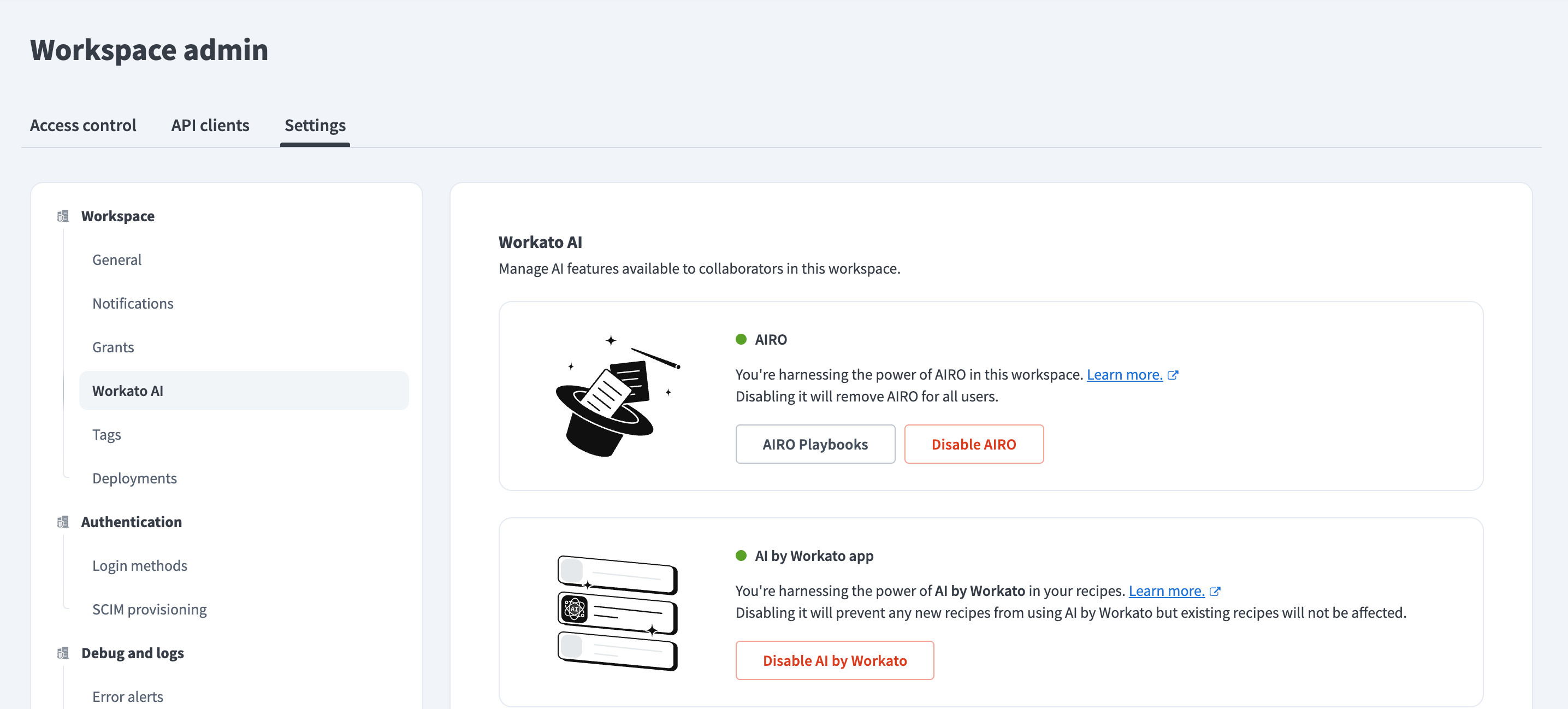 AIRO enabled — click Disable AIRO to turn it off
Your new homepage
AIRO is your new landing page; start chatting with AIRO, review urgent alerts, or resume building where you left off.
Your homepage shows recent work, quick-start options for new projects, and alerts about your integrations. These alerts surface incidents detected by Acumen in your production automations.
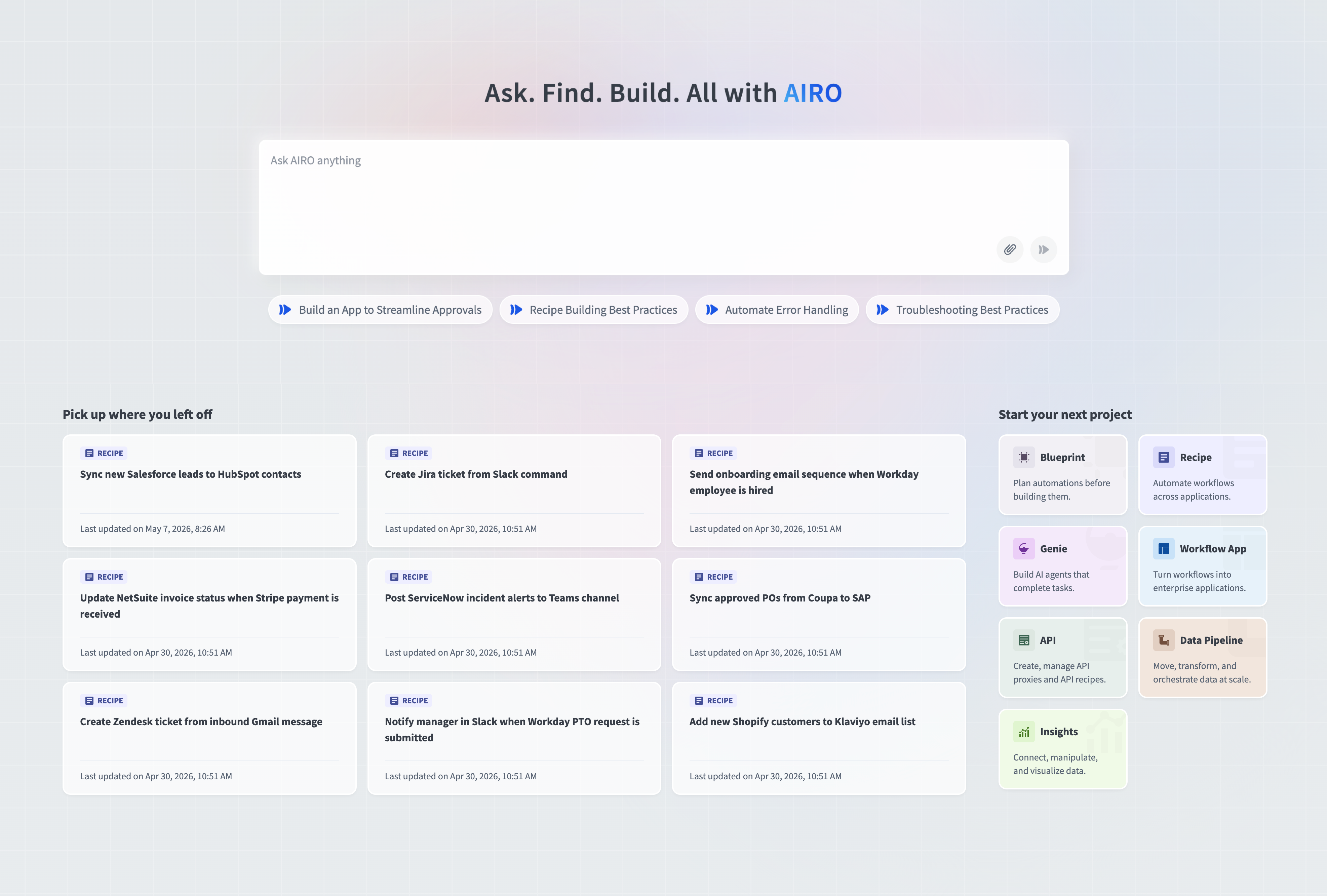 Homepage
Refer to Homepage for more information.
Chat with AIRO
Use AIRO's conversational interface to get help, build automations, and manage workflows from anywhere in the platform.
- Refer to Chat to learn how to start conversations and maintain context across pages.
- Refer to Manage chat history to organize multiple conversations and keep your AI interactions organized across different projects.
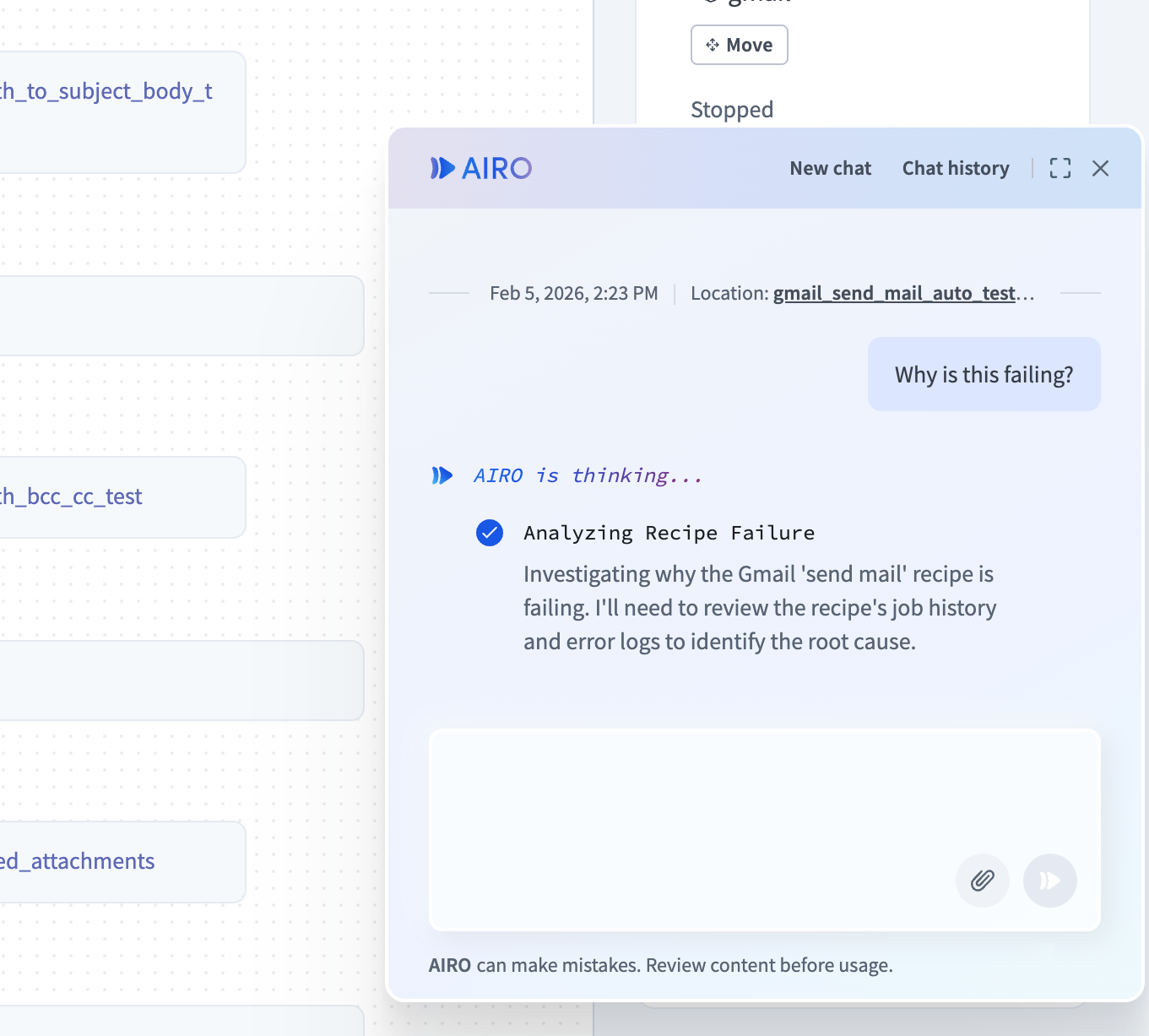 Chat with AIRO
What AIRO knows
AIRO uses knowledge sources from your organization, your workspace, and the Workato platform to give you accurate, relevant answers:
- Company-specific knowledge: AIRO uses playbooks you upload about your organization's policies, standards, and best practices to ensure that answers reflect your compliance, security, and operational requirements. Refer to AIRO Playbooks to upload and manage these playbooks.
- Workspace assets: AIRO accesses recipes, projects, connections, and other assets in your workspace to understand your automations and provide relevant suggestions.
- Workato documentation: AIRO references the Workato documentation to answer questions about features, connectors, and best practices.
- Product updates: AIRO stays current with the latest Workato features and changes through the platform changelog.
Refer to What AIRO knows for a full list of AIRO's knowledge sources.
Plan projects with blueprints
AIRO plans before it builds multi-step automations and complex projects. The Solution Architect pipeline turns your business requirements into a complete implementation plan called a blueprint. Provide a PRD or natural language description, and AIRO analyzes your requirements, identifies gaps, and produces the blueprint.
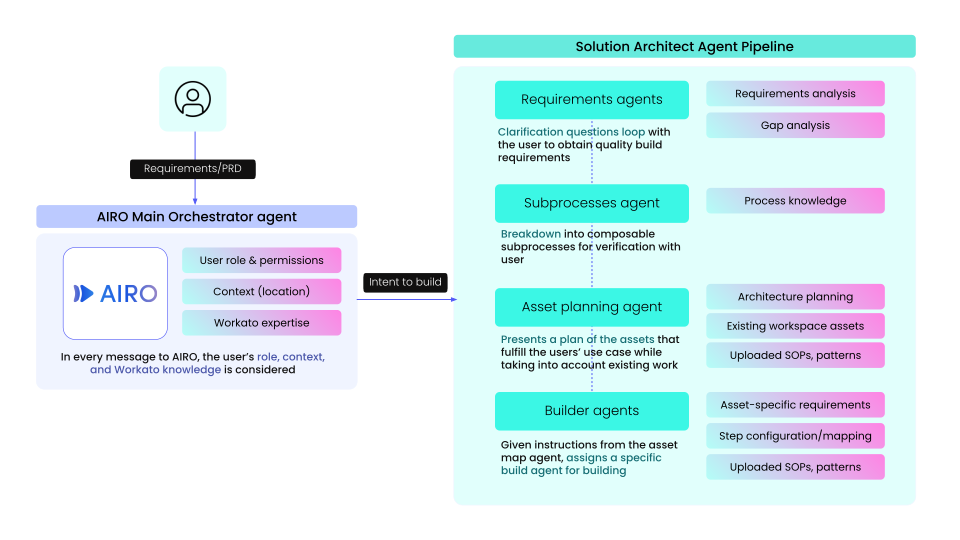 Solution Architect pipeline
The following tabs show how AIRO guides you through the process:
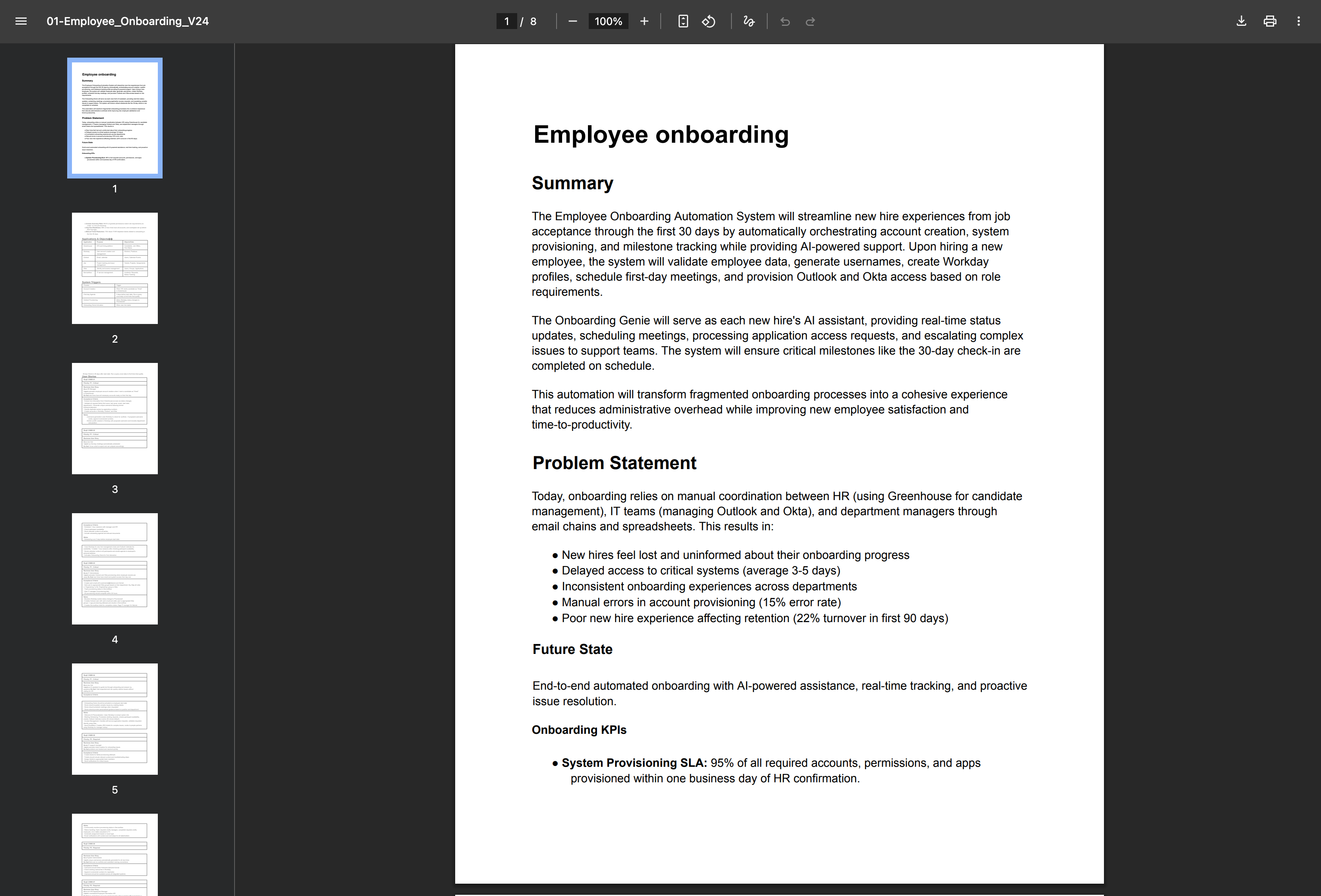 Define process
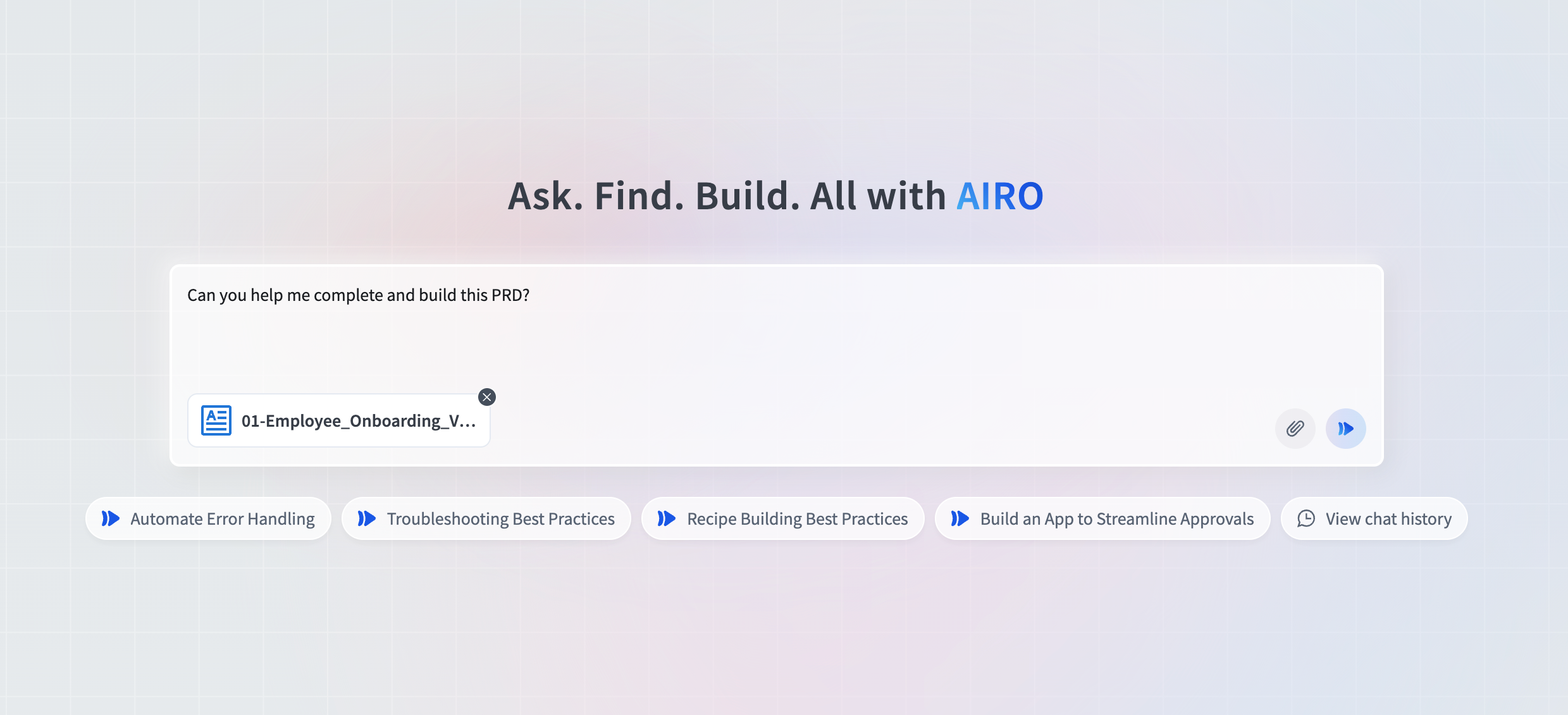 Provide your requirements
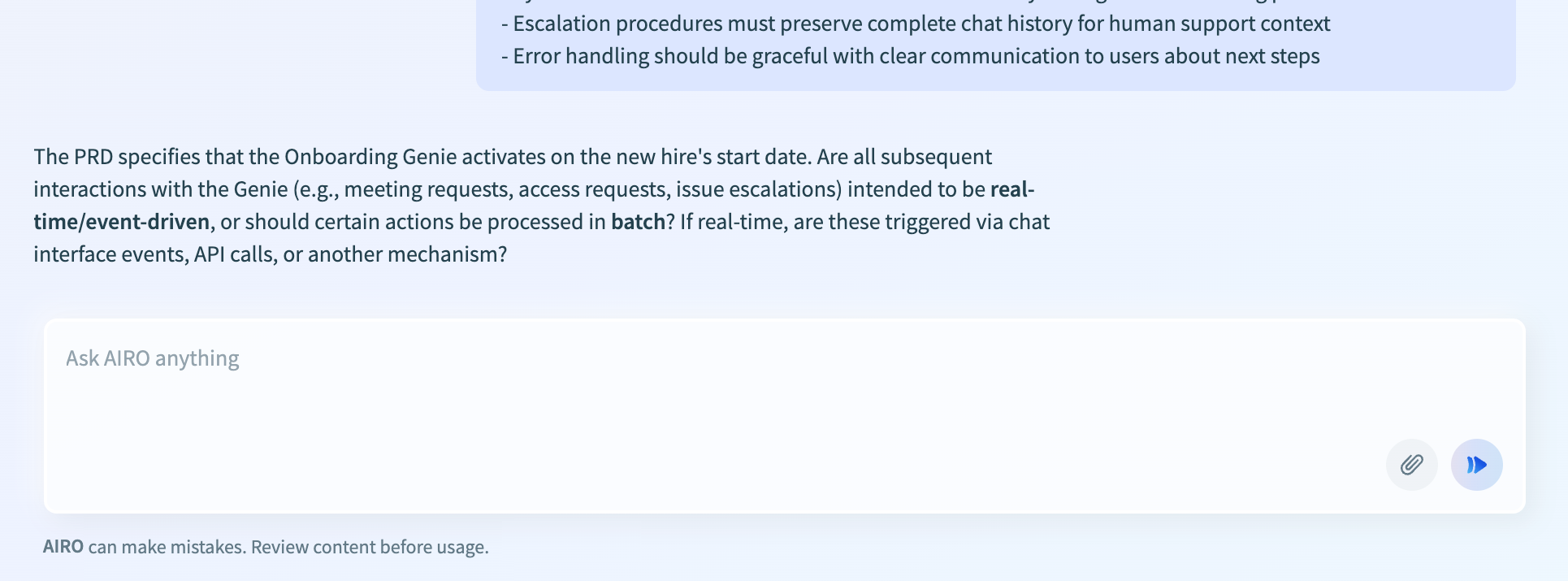 Complete your requirements with AIRO
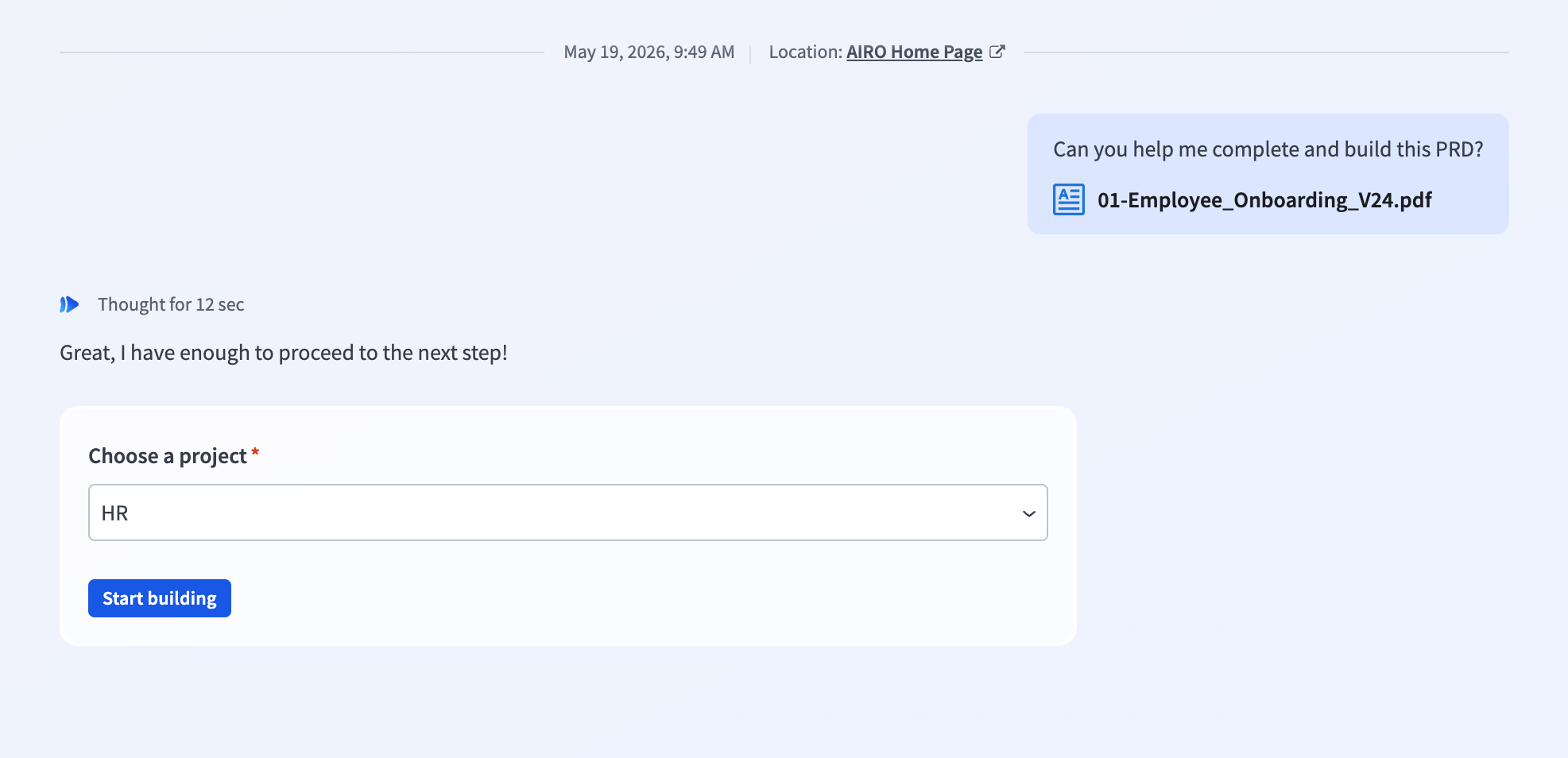 Choose the project to save your blueprint in
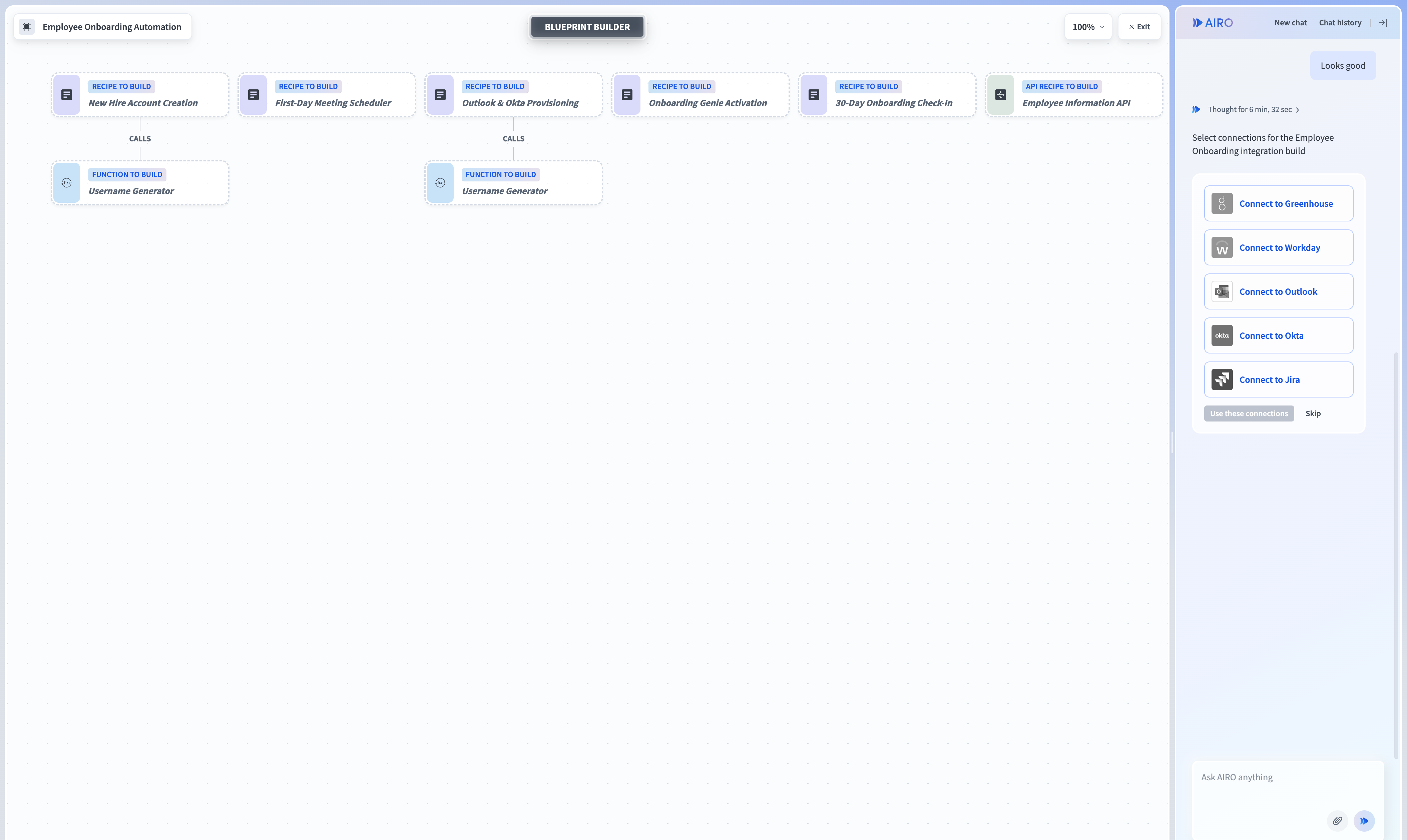 Review the generated blueprint
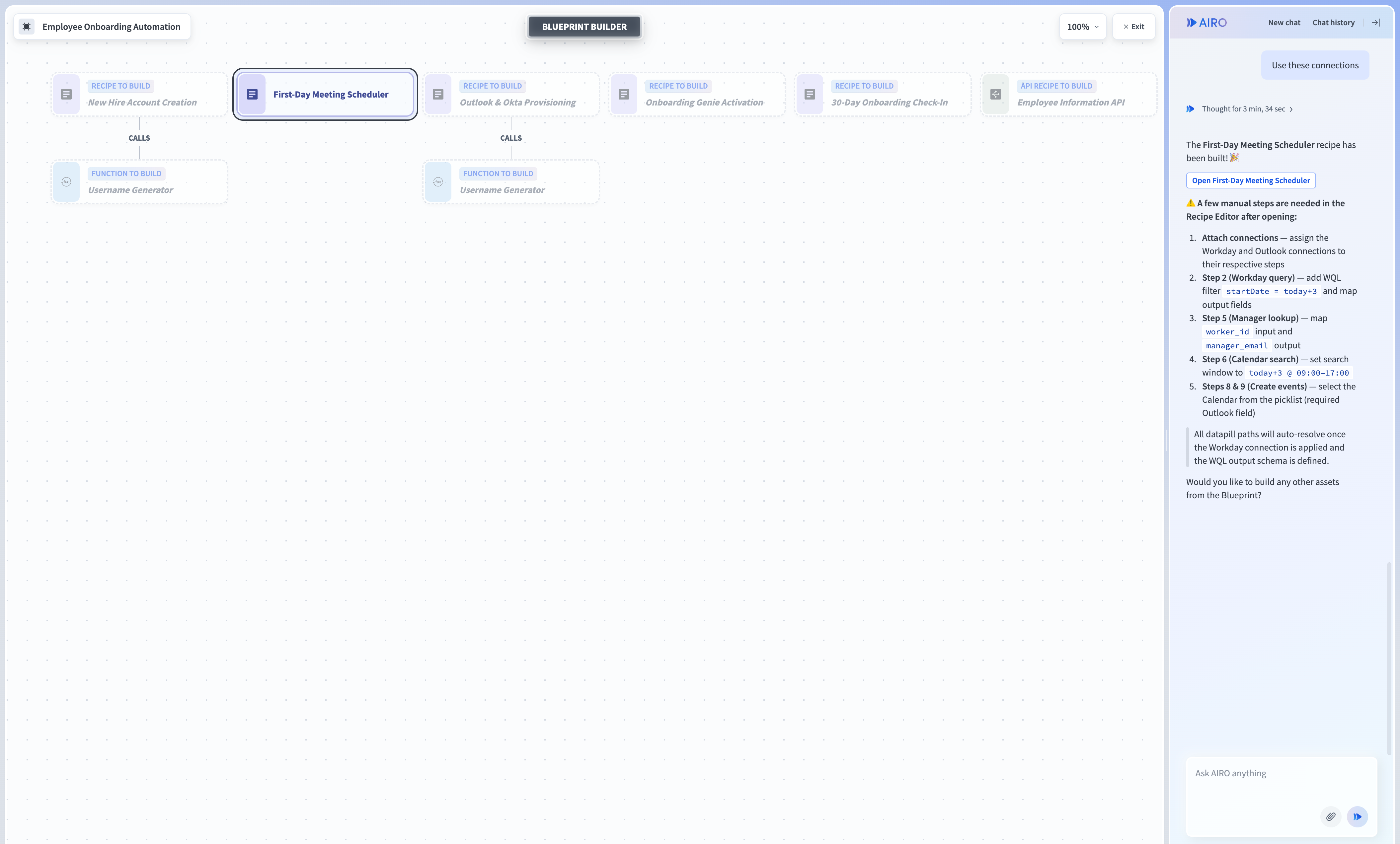 AIRO builds a skill
- Refer to Blueprints for an overview of this asset type.
- Refer to Create your first blueprint for a step-by-step walkthrough using an employee onboarding example.
- Refer to Edit your blueprint for how to keep refining a blueprint after AIRO generates it.
- Refer to Best practices for writing requirements for tips on giving AIRO the details it needs.
- Refer to Manage blueprints for organizing your blueprints.
Build assets with AIRO
When a request is simple, AIRO skips the blueprint flow and builds the asset directly in your workspace. Describe what you need in the chat and AIRO creates it.
- Refer to Create recipes with AIRO to build recipes from a chat description.
Use AIRO from external AI clients
The AIRO MCP server exposes your full Workato workspace to MCP-compatible AI clients such as Claude Code, Claude Desktop, and Cursor. Once connected, you can build recipes, manage Genies, query data, and administer workspace assets directly from your AI development environment using natural language.
Refer to AIRO MCP server for setup instructions and supported clients.
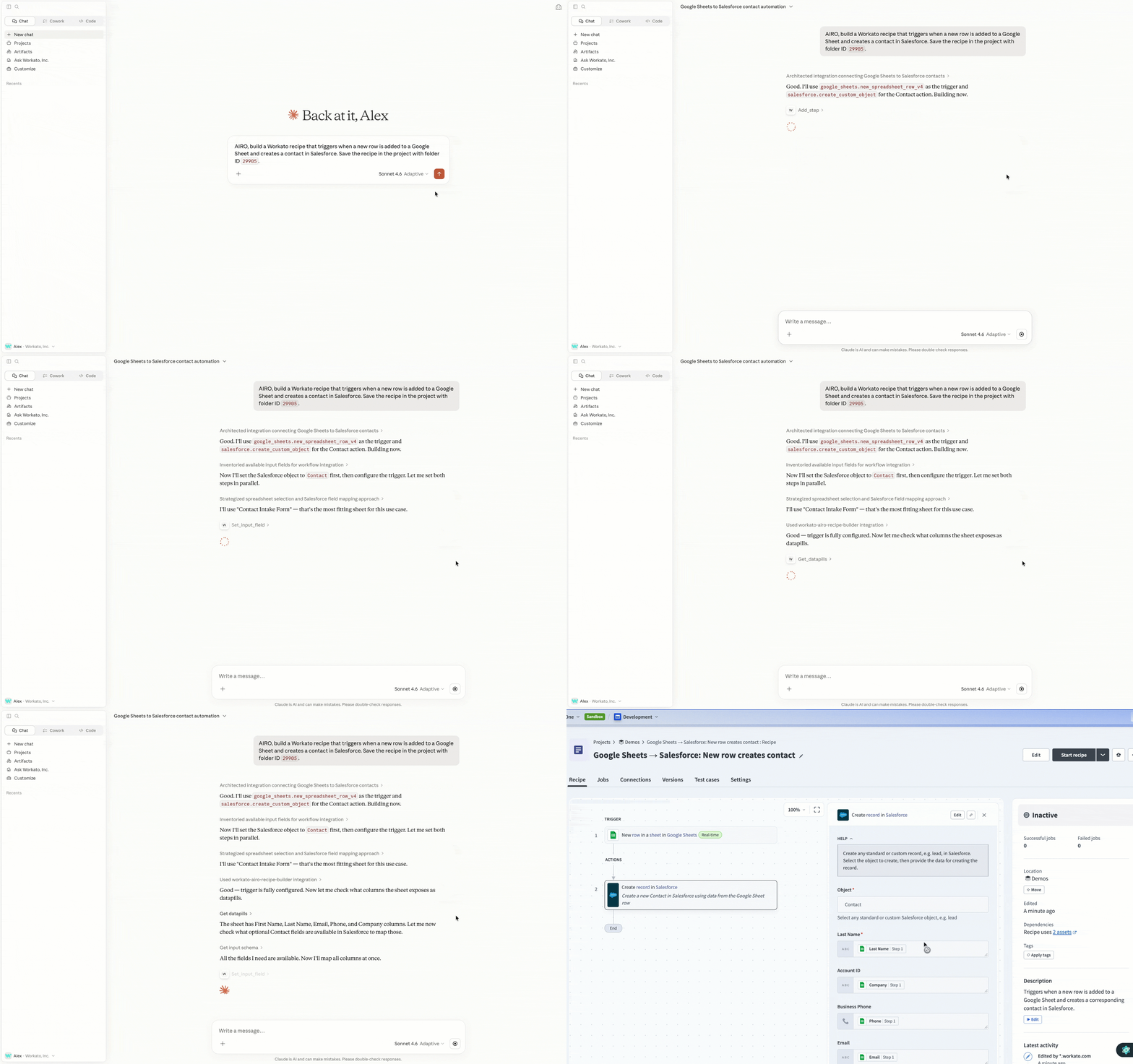 AIRO as an MCP server
Manage, monitor, and optimize with Acumen
Acumen is the part of AIRO that supports your automations after they go live, helping you manage, monitor, and optimize them in production. It extends AIRO's coverage across the full lifecycle instead of stopping at build.
Refer to Acumen to learn how it monitors your workspace, accelerates troubleshooting, and forecasts usage.
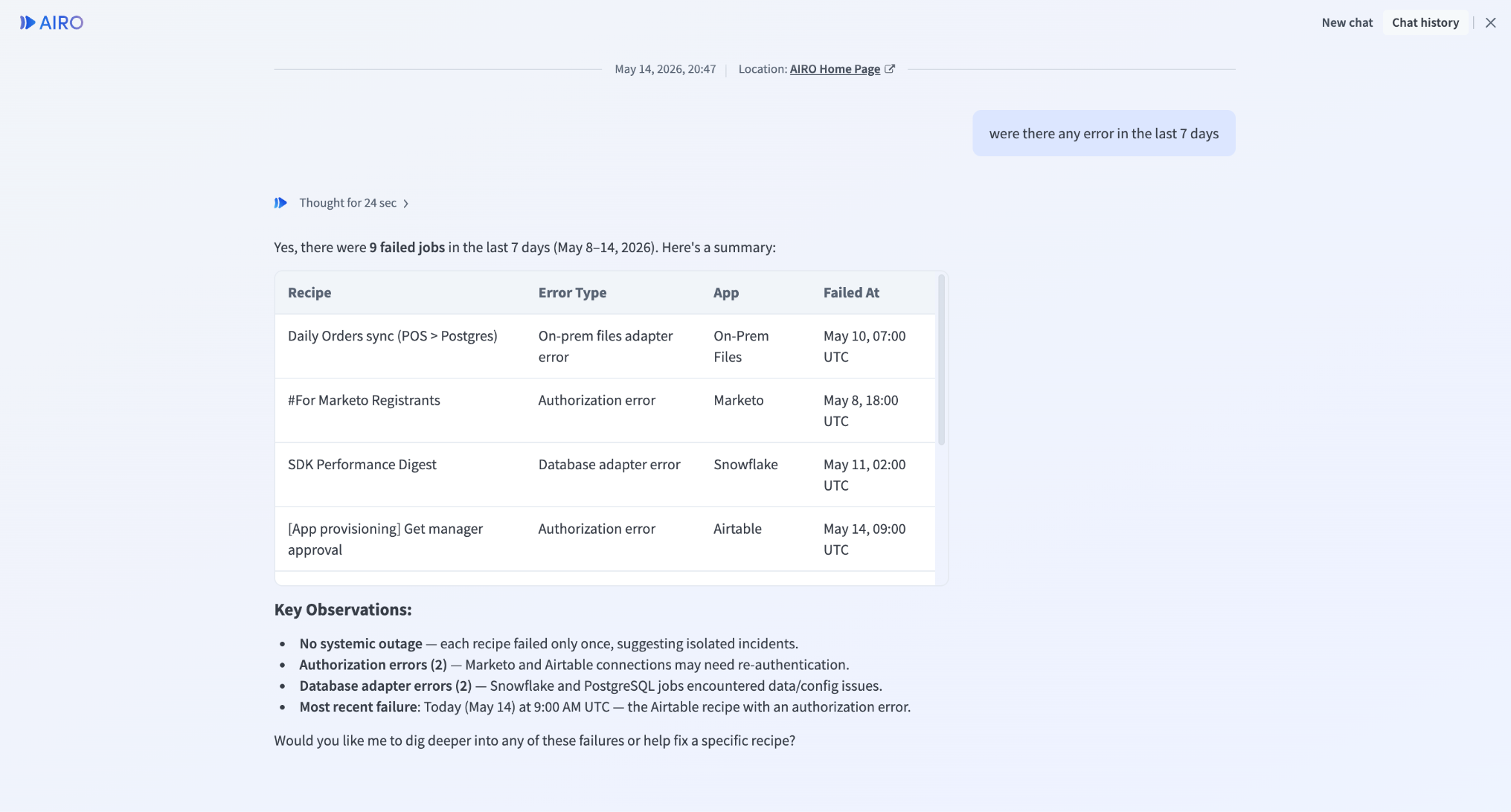 Manage, monitor, and optimize with Acumen
See AIRO in action
Browse examples of AIRO building automations from a single request.
- Refer to Declutter your inbox to sort a cluttered inbox into Slack alerts and labeled folders.
- Refer to Automate your to-do list to turn meeting notes into to-do items and a Slack rundown.
- Refer to Build a form-to-Slack alert to get notified in Slack the moment someone submits a form.
- Refer to Find unused assets to ask AIRO what's idle in your workspace.
Quotas
Each workspace has its own AIRO token budget per model, computed over a rolling 60-second window. When a workspace exceeds its budget, subsequent requests are throttled and users may see up to a 30-second delay in AIRO responses until the budget refreshes.Last updated: