Vercel
Vercel is a platform for building and deploying web applications. The Vercel connector manages deployments, runs deployment checks, assigns aliases, and starts recipes when deployment events occur.
Install Vercel from the community library
Complete the following steps to install the Vercel connector from the community library:
Open the recipe editor and search for a connector. Alternatively, you can search for a connector in the community library.
 Search for community connectors in the recipe editor
Select the community connector you plan to install.
Click Install to install the connector from the community library.
 Click Install
Select Release connector. Alternatively, select Review code to review and modify the connector code before releasing it to the workspace.
 Release the connector
Summarize any changes you made to the connector, then click Release to allow workspace collaborators to use the connector in recipes.
 The Confirm release dialog
Connection setup
The Vercel connector uses account token authentication. Workato sends the account token as a bearer token in the Authorization header.
Vercel setup
Complete the following steps to create an account token in Vercel:
Log in to the Vercel Dashboard.
Go to Account Settings > Tokens.
Click Create.
Enter a name for your token in the Name field.
Use the Scopes drop-down menu to select Full Account, Team / All Projects, or Project.
Select an expiration date in the Expiration field.
Click Create.
Copy and securely save your token for use in Workato.
Connect to Vercel using an account token
Complete the following steps to connect to Vercel in Workato:
Click Create > Connection.
Search for Vercel and select it as your app.
Enter a name for your connection in the Connection name field.
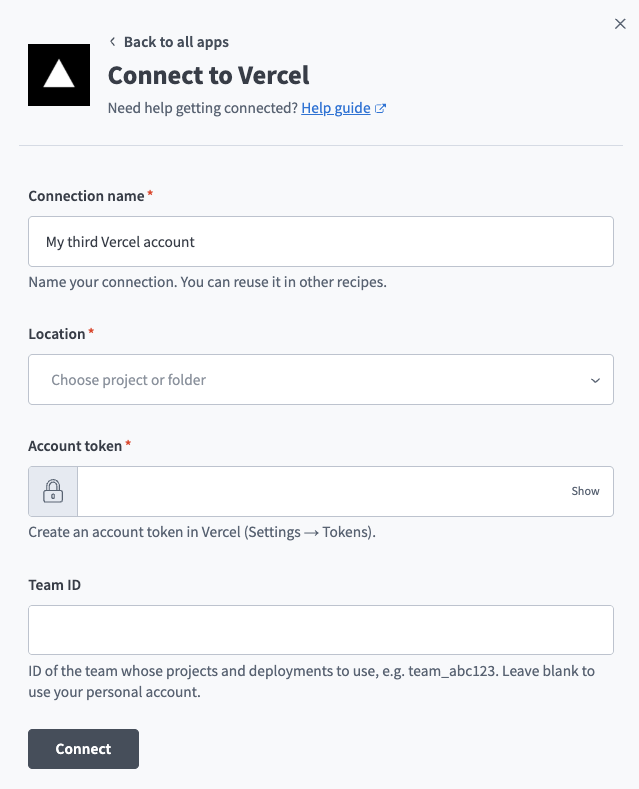 Create a Vercel connection in Workato.
Use the Location drop-down menu to select the project where you plan to store the connection.
Enter the account token you created in Vercel in the Account token field.
Optional. Enter your team ID in the Team ID field if your projects belong to a team. For example, team_abc123. Leave this field blank to use your personal account. When set, Workato sends the team ID as the teamId parameter on every request.
Click Connect.
Last updated: