WordPress
WordPress is an open-source web content management system with tools and plugins to help you manage your website. WordPress provides a customizable platform for publishing blogs, traditional websites, mailing lists, forums, media galleries, online stores, and more.
API version
The WordPress connector uses the WordPress REST API. Refer to the WordPress API documentation for more information.
Connection setup
Complete the following steps to connect to WordPress in Workato:
Click Create > Connection or press C twice.
Search for WordPress and select it as your app.
Enter a name for your connection in the Connection name field.
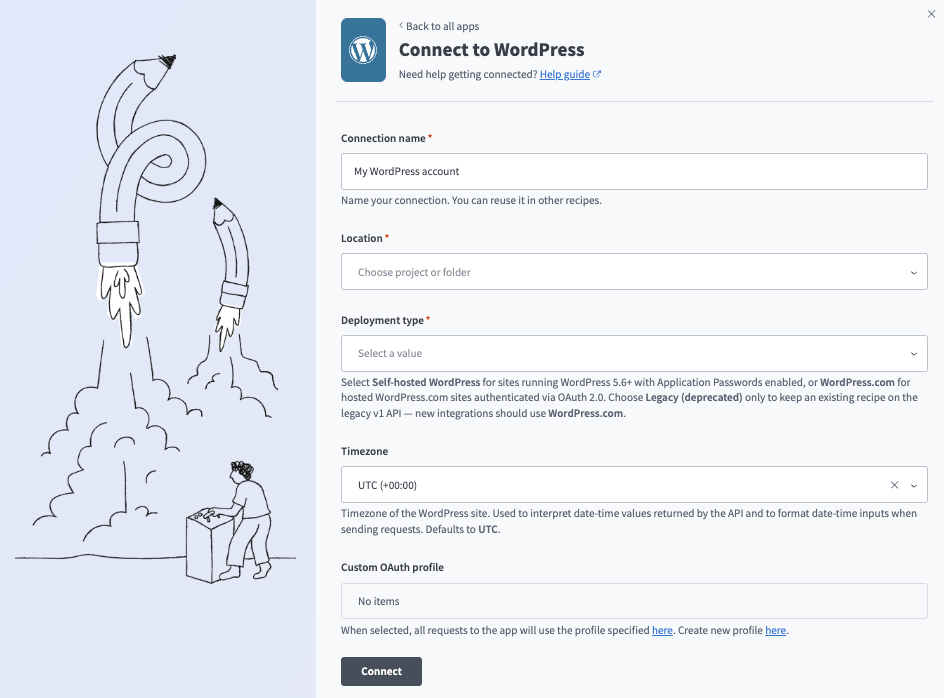 Create your connection
Use the Location drop-down menu to select the project where you plan to store the connection.
Use the Deployment type drop-down menu to select one of the following deployment types:
- WordPress.com: Hosted sites authenticated with OAuth 2.0.
- Self-hosted WordPress: Sites running WordPress 5.6+ with application passwords enabled.
- Legacy (deprecated): Only select this option to keep an existing recipe on the legacy v1 API. New integrations should use WordPress.com instead.
Optional. Use the Timezone drop-down menu to select the timezone of the WordPress site. Workato uses the timezone to interpret date-time values returned by the API and to format date-time inputs when sending requests. Defaults to UTC.
Complete the following steps if your Deployment type is Self-hosted WordPress:
Self-hosted WordPress steps
Enter the full URL of your WordPress site, including the scheme, in the Site URL field. For example, https://example.com. We strongly recommend https because application passwords transmit credentials with basic auth.
Enter the username to authenticate with in the Username field. Ensure the authentication user has at least an Editor or Administrator role.
Enter the password for the WordPress authentication user in the Application password field. Refer to the WordPress Creating an Application Password in wp-admin guide to create this value.
Optional. Use the Custom OAuth profile drop-down menu to select a custom OAuth profile to use for the connection.
Click Connect, then click Approve to grant Workato access if prompted.
Last updated: