Collaborators
Administrators can invite and manage collaborators who help govern workspaces within the Control plane. Control plane collaborators are separate from workspace collaborators. Linking a workspace to your Control plane doesn't automatically add collaborators within that workspace to the Control plane.
Invite a collaborator
Complete the following steps to invite a collaborator to your control plane:
Sign in to your Workato account.
Expand the workspaces menu.
Click Control plane. Control plane opens in a new tab by default.
Sign in using your Control plane credentials or SSO.
Go to Control plane settings > Collaborators.
Click + Invite collaborator. The Invite collaborator to control plane modal displays.
Provide a name in the Name field.
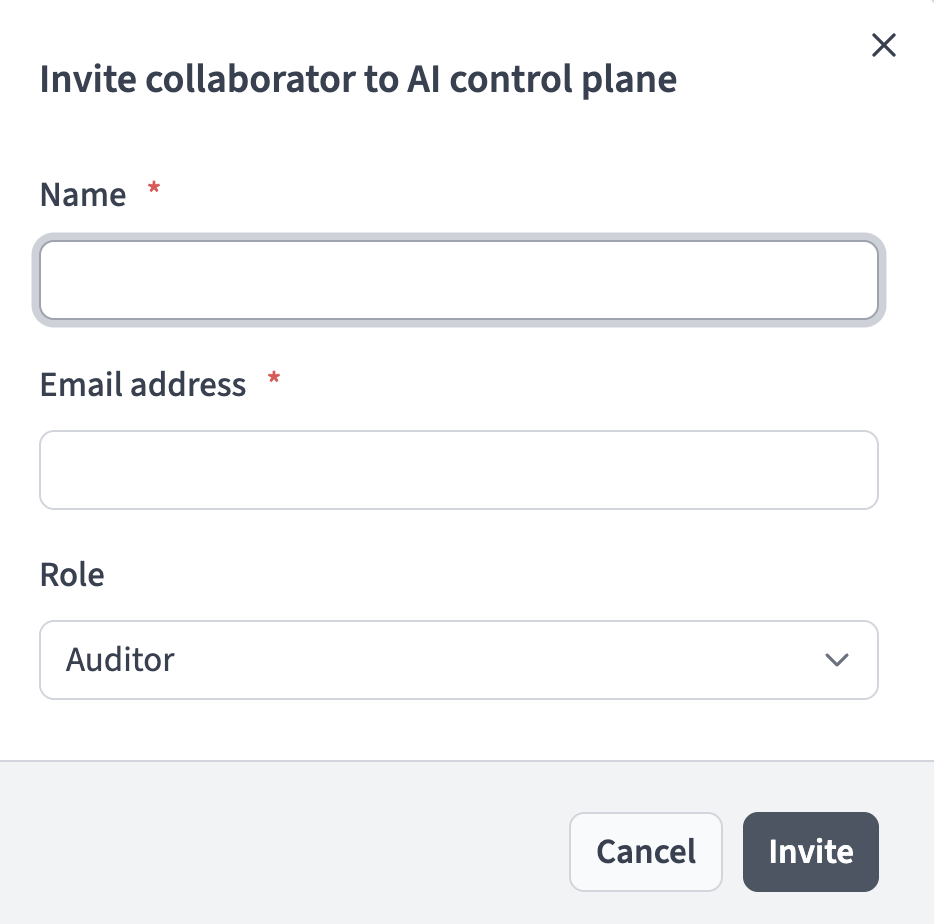 Invite a collaborator
Enter the email address in the Email address field.
Use the Role drop-down menu to select the role you plan to grant the collaborator.
Click Invite. The invited user is listed on the Collaborators page with an Invited label.
Resend a collaborator invitation
Complete the following steps to resend a collaborator invitation to your control plane:
Sign in to your Workato account.
Expand the workspaces menu.
Go to Enterprise controls and click Control plane.
Sign in using your Control plane credentials or SSO.
Go to Settings > Collaborators.
Click the ... (ellipsis) option menu of the invited user you plan to send another invitation.
Click Resend Invitation.
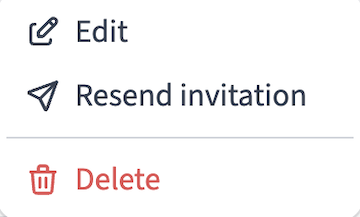 Click Resend Invitation
Edit a collaborator role
You can only edit a collaborator's role. You can't edit a collaborator's name or email address.
Complete the following steps to edit a collaborator's role:
Sign in to your Workato account.
Expand the workspaces menu.
Go to Enterprise controls and click Control plane.
Sign in using your Control plane credentials or SSO.
Go to Settings > Collaborators.
Click the ... (ellipsis) option menu of the user you plan to edit.
Click Edit.
Use the Role drop-down menu to select the role you plan to grant the collaborator.
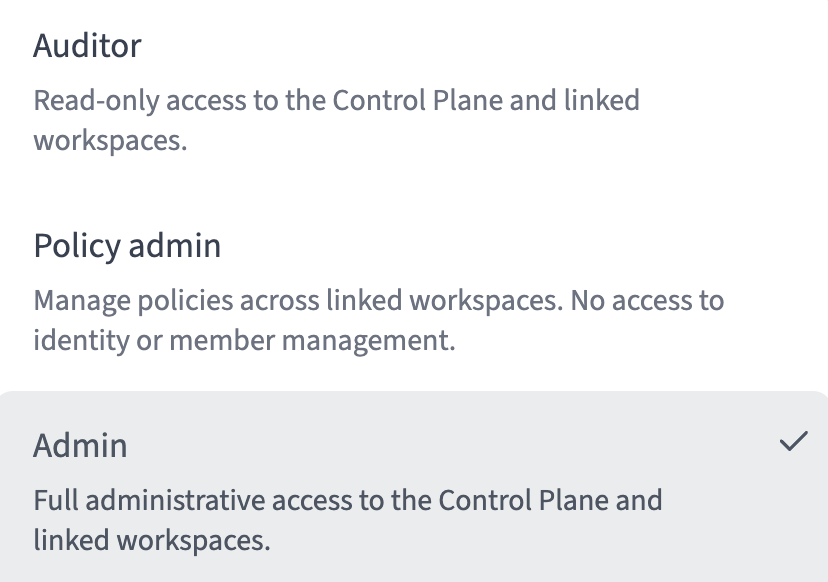 Collaborator roles
Click Save changes.
Remove a collaborator
Complete the following steps to remove a collaborator from your control plane:
Sign in to your Workato account.
Expand the workspaces menu.
Go to Enterprise controls and click Control plane.
Sign in using your Control plane credentials or SSO.
Go to Settings > Collaborators.
Click the ... (ellipsis) option menu of the user you plan to remove.
Click Remove.
Click Remove in the Remove collaborator? modal.
Accept a collaborator invitation
Complete the following steps to accept an invitation to a control plane:
Go to your email account.
Locate the email invitation in your inbox.
Click Get started in the body of the email to set up your control plane account.
Enter your name in the Name field.
Enter your email address in the Email address field.
Enter a password in the New password field.
Re-enter the password in the Confirm password field.
Click Continue.
Last updated: