Link workspaces
You must link workspaces to your Control plane to enable centralized identity governance. A workspace provides a single location for projects, Workato tools, such as data orchestration, event streams, and API platform, and other platform features, such as agents and MCP servers.
CONTROL PLANE ISN'T A WORKSPACE
Control plane isn't a workspace. Control plane doesn't provide the configuration or tools for teams to collaborate, build recipes, and deploy recipes for a department, level of business, or organization unit.
Link a workspace to Control plane
Complete the following steps to link a workspace to your Control plane:
Sign in to your Workato account.
Expand the workspaces menu.
Click Control plane.
Sign in using your Control plane credentials or SSO.
Go to Workspaces.
Click + Link new workspace.
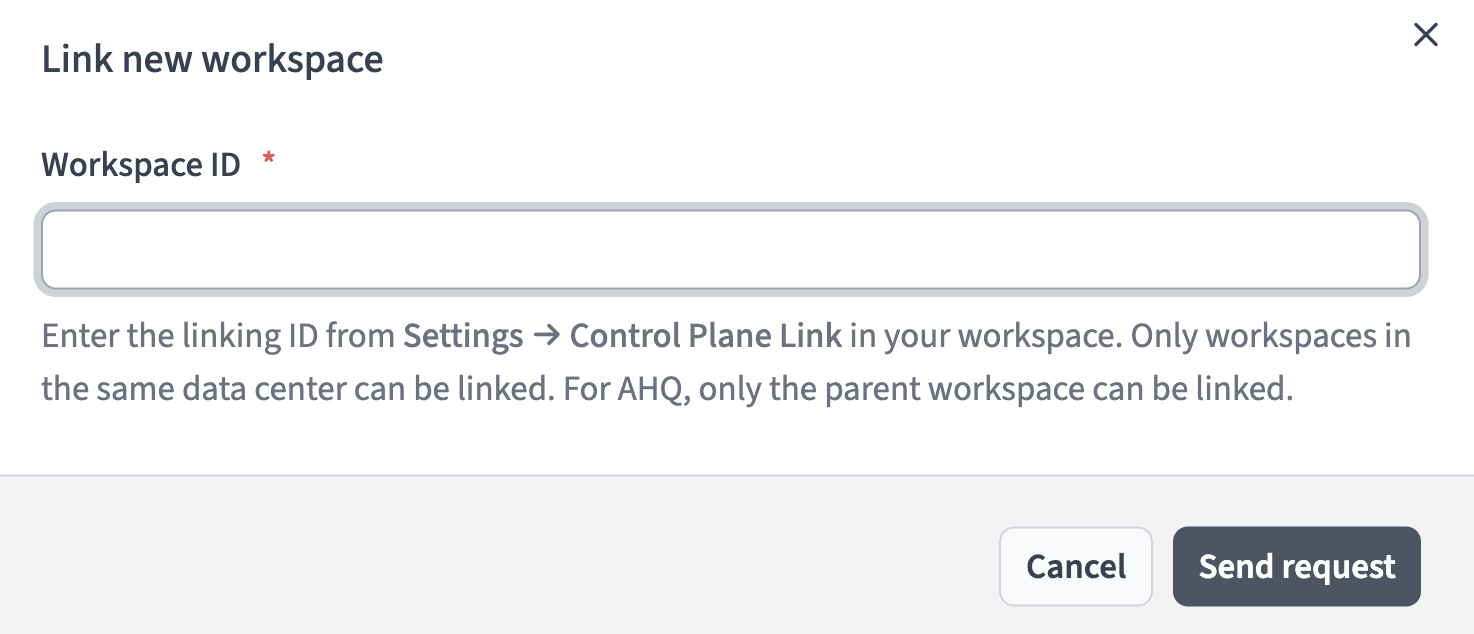 Click + Link new workspace
Enter the workspace linking ID in the Workspace linking ID modal.
Click Send request. The request is sent to the workspace owner for approval. The workspace is listed in your Workspaces with a Pending label. You can manage the workspace from the Control plane after the owner approves the request.
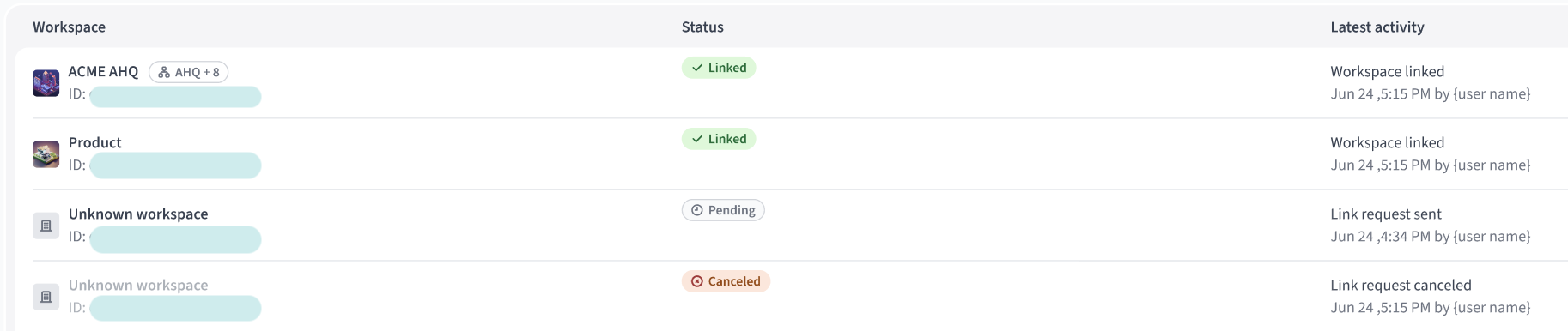 Workspaces
Resend link request
You can resend a Control plane link request for workspaces with the following labels:
- Pending
- Canceled
- Rejected
- Unlinked
Complete the following steps to resend a link request:
Sign in to your Workato account.
Expand the workspaces menu.
Click Control plane.
Sign in using your Control plane credentials or SSO.
Go to Workspaces.
Click the ... (ellipsis) option menu of the workspace you plan to send another request to.
Click Resend request.
Cancel link request
You can only cancel a link request on workspaces labeled as Pending in Control plane.
Complete the following steps to cancel a link request:
Sign in to your Workato account.
Expand the workspaces menu.
Click Control plane.
Sign in using your Control plane credentials or SSO.
Go to Workspaces.
Click the ... (ellipsis) option menu of the workspace where you plan to cancel your link request.
Click Cancel request.
Click Cancel request in the Cancel request? modal.
Unlink a workspace
Complete the following steps to unlink a workspace from your Control plane:
Sign in to your Workato account.
Expand the workspaces menu.
Click Control plane.
Sign in using your Control plane credentials or SSO.
Go to Workspaces.
Click the ... (ellipsis) option menu of the workspace you plan to unlink.
Click Unlink.
Click Unlink in the Unlink workspace? modal.
Accept an invitation to link a workspace
Complete the following steps to accept an invitation to link your workspace to a control plane:
Go to your email account associated with your workspace.
Locate the email invitation in your inbox.
Click View invitation in the body of the email.
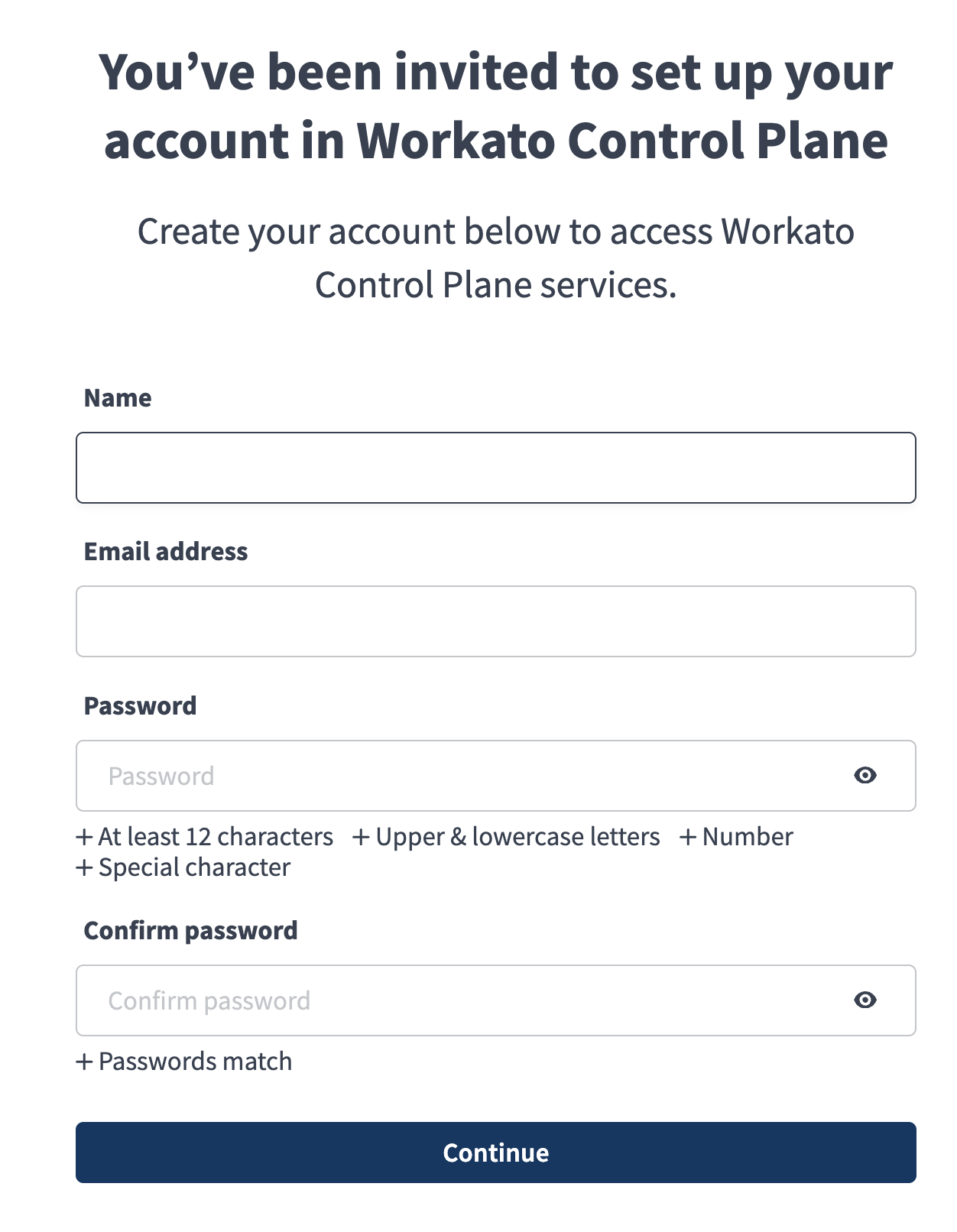 Control plane email invitation
Sign in to your Workato account when redirected to the login screen.
Go to Workspace admin > Settings > Control plane.
Click Accept.
Reject an invitation to link a workspace
Complete the following steps to reject an invitation to link your workspace to a control plane:
Go to your email account associated with your workspace.
Locate the email invitation in your inbox.
Click View invitation in the body of the email.
Sign in to your Workato account when redirected to the login screen.
Go to Workspace admin > Settings > Control plane.
Click Reject.
Last updated: