AI registry
AI registry provides a central place to discover, govern, and share the AI assets built across your organization.
AI registry includes the following asset types from workspaces linked to your Control plane:
- Agents: AI agents built in Agent Studio.
- MCP servers: MCP servers that expose tools to MCP-compatible clients and agents.
- AI model routes: Model Gateway routes that direct requests to AI models.
AI registry is organized into two areas:
- Asset catalog: Browse and filter assets by workspace, environment, and visibility. You can publish or unpublish assets through the registry to manage visibility.
- Registry access: Control how users and AI clients consume published assets. The User portal provides a web portal where users can find available assets. The Registry MCP provides an MCP endpoint that MCP-compatible clients and agents can connect to.
Asset catalog
The Asset catalog provides AI assets, including agents, MCP servers, and AI model routes for all workspaces linked to the Control plane.
The Asset catalog provides options to filter by workspace, environment, and visibility.
Access asset catalog
Complete the following steps to access the AI registry asset catalog:
Sign in to your Workato account.
Expand the workspaces menu.
Click Control plane.
Sign in using your Control plane credentials or SSO.
Click AI registry in the side navigation menu. The Asset catalog section displays options for Agents, MCP servers, and routes.
Optional. Select Agents, MCP servers, or routes and optionally filter by workspace, environment, and visibility.
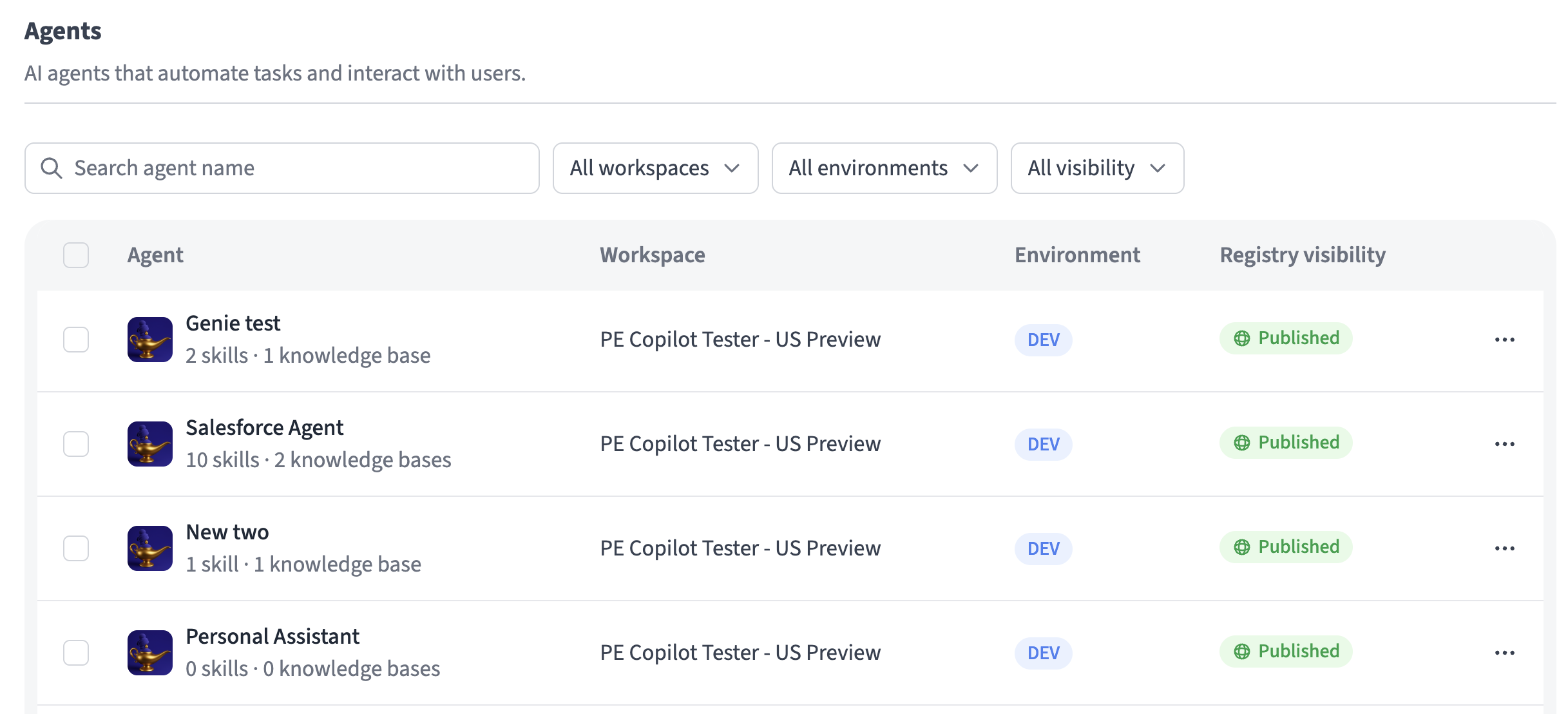 Agents registry
Asset visibility
You can manage asset visibility within the Control plane registry by publishing or unpublishing an asset from the registry.
Complete the following steps to publish or unpublish an asset from the registry:
Select Agents, MCP servers, or routes.
Optional. Filter the asset you select by workspace, environment, or visibility.
 Filter assets
Select the checkboxes for the published assets you plan to unpublish and click Unpublish all. Alternatively, select the checkboxes for the unpublished assets you plan to publish and click Publish all.
Registry access
Control plane AI registry provides access control through a User portal and Registry MCP. The User portal enables you to configure a portal name and URL for the Control plane AI registry. The Registry MCP enables you to connect MCP-compatible clients and agents to your registry.
Configure User portal settings
Complete the following steps to access the User portal settings:
Sign in to your Workato account.
Expand the workspaces menu.
Click Control plane.
Sign in using your Control plane credentials or SSO.
Click AI registry in the side navigation menu.
Click User portal.
Provide a name for the portal in the Portal name field. This is displayed as the header name in your portal.
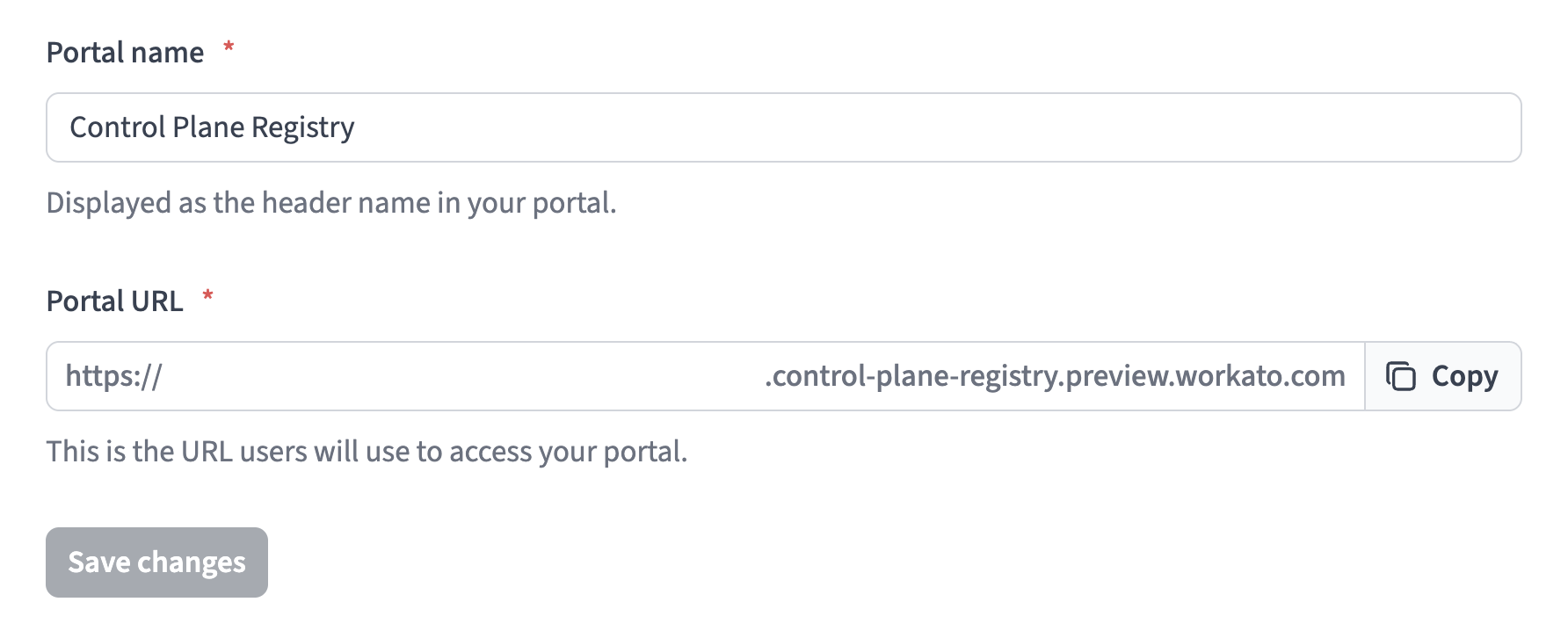 Configure User portal settings
Enter the URL you plan to use in the Portal URL field. This is the URL used to access your portal.
Click Save changes.
Access Registry MCP
Complete the following steps to access the Registry MCP:
Sign in to your Workato account.
Expand the workspaces menu.
Click Control plane.
Sign in using your Control plane credentials or SSO.
Click AI registry in the side navigation menu.
Click Registry MCP.
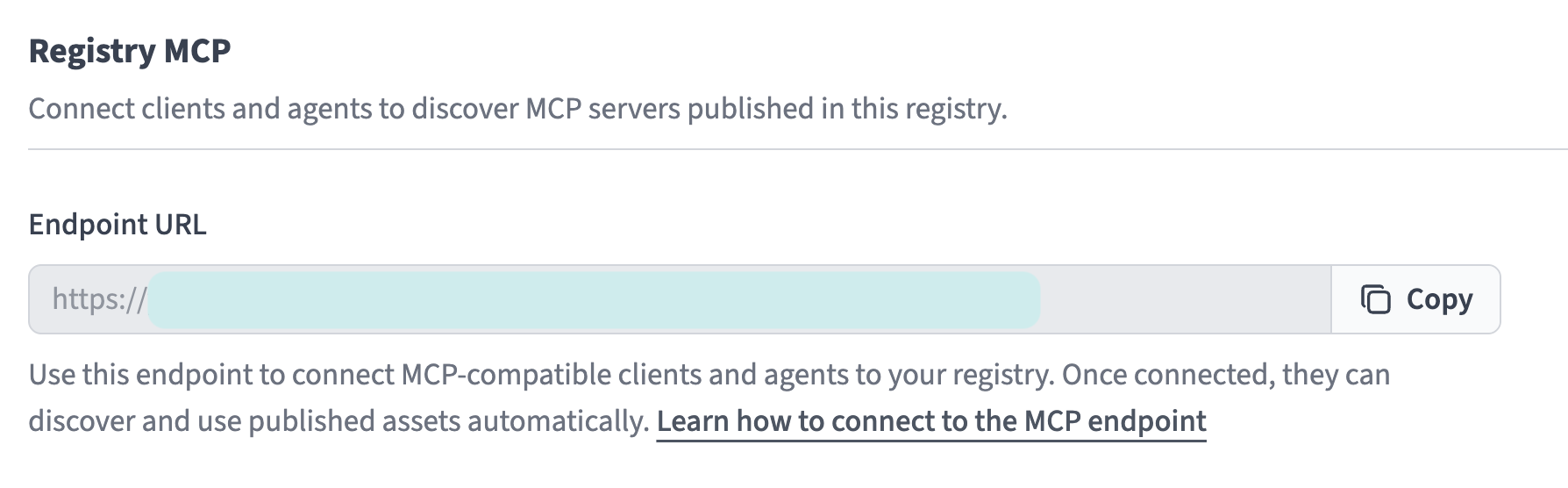 Click Registry MCP
Go to the MCP endpoint field and click Copy.
Last updated: