Cross-workspace sharing for Event Streams
Cross-workspace grants let a Workato workspace share specific Event streams topics with other workspaces in the same Automation HQ organization. A source workspace admin defines a grant that names the topics to share, the workspaces that receive the topics, and the access level for each topic. Target workspaces can then consume the shared topics in recipes without recreating the topic infrastructure locally.
Cross-workspace grants are designed for hub-and-spoke and centralized event-driven patterns. For example, a central integration hub that publishes order or employee-lifecycle events to regional or functional spoke workspaces.
You can also manage grants programmatically with the cross-workspace sharing API.
AVAILABILITY
Cross-workspace grants are available to Automation HQ customers. Source and target workspaces must belong to the same Automation HQ organization and the same data center. Sharing across data centers isn't supported.
How cross-workspace grants work
A cross-workspace grant is a one-directional asset-sharing relationship. The source workspace owns the topics and defines access. The target workspace consumes those topics in recipes. The following workspace-level actors are involved:
- The AHQ admin enables and disables cross-workspace sharing for the entire managed-workspaces organization. No grants can be created or used when sharing is disabled. Every managed workspace in the organization can grant access to any other workspace when sharing is enabled.
- The source workspace admin creates the grant. They choose which topics to share, which target workspaces receive access, and what each target workspace is allowed to do with each topic.
- The target workspace admin and recipe builders consume the shared topics. Shared topics appear automatically in the target workspace. No acceptance workflow is required.
ENVIRONMENT SCOPE
Grants apply per environment. A grant created in the source workspace's Development environment shares only that environment's topics, and only the matching Development environments in the target workspaces gain access.
Grant lifecycle
A grant moves through the following states:
- Active: The grant exists in the source workspace. Topics are visible and usable in the target workspaces.
- Updated: The source admin has added or removed topics, added or removed workspaces, or changed access levels. Changes propagate to target workspaces immediately. Active recipe connections continue to run. Updated permissions apply at the next connection attempt.
- Revoked: The source admin has deleted the grant. Topics are removed from target workspaces. Recipes that were using a revoked topic show errors at their next connection attempt. Runs that are already in progress complete.
There is no active or inactive toggle state for grants. You must delete the grant to pause sharing and recreate it when you plan to resume sharing.
Permissions model
Cross-workspace grants are controlled by the Cross-workspace sharing environment-level privilege. A collaborator with the Cross-workspace sharing privilege can manage grants for any topic in the workspace.
Permissions stack across grants. If a target workspace has a grant with publish access to a topic, that workspace can publish to the topic, regardless of other grant access definitions. Removing one grant only revokes access when no other grant on the same topic provides the same permission.
Access levels
Each topic in a grant carries an access level that controls what the target workspace can do with it:
- Subscribe: Allows the target workspace to consume messages from the topic in recipe triggers.
- Publish: Allows the target workspace to publish messages to the topic from recipe actions.
Access levels are assigned per topic, not per grant. One grant can include some topics with Subscribe access and others with Publish access, or both for the same topic.
Environment visibility
A source admin's environment role determines which environments they can view and configure on the grant management screens.
- A grant appears in the Grants list only when it includes at least one environment the admin can access. The environment tags on each grant card show only the environments the admin can access.
- Each grant card has highlighted environment badges when the environment has at least one topic and at least one workspace configured.
- The grant detail page displays only the environment sections the admin can access. Inaccessible environments are omitted.
DELETING GRANTS WITH RESTRICTED ENVIRONMENTS
Configurations in restricted environments are also removed when you delete a grant that includes environments you can't access. The confirmation dialog notes this but doesn't reveal which environments are affected. Confirm with another admin who has full environment access before deleting if you're not sure of the scope.
Prerequisites
Ensure the following before any workspace in your organization can use cross-workspace grants:
- Your organization uses Automation HQ. Non-AHQ customers can't use cross-workspace grants.
- The source and target workspaces are in the same data center.
- The AHQ admin has enabled cross-workspace grants for the organization. Refer to Enable cross-workspace grants.
- Admins who plan to create grants hold the Cross-workspace sharing privilege on the relevant environment.
- Create the Event streams topics in the source workspace before creating the grant. Topics must exist in each environment where you plan to share them.
ENABLEMENT REQUIRED
Contact your Workato Customer Success Manager (CSM) to request enablement for your organization if you don't see the option to enable cross-workspace grants in Automation HQ Settings.
Supported environments
Cross-workspace grants support every environment type.
Grants are environment-to-environment. A topic shared in the source workspace's Dev environment is accessible only in the matching Dev environment of each target workspace. Sharing across different environments isn't supported.
Roles and permissions
Three roles interact with the feature. Each role performs different actions, and procedures are organized by role.
Automation HQ admin
The AHQ admin controls the master toggle that enables or disables cross-workspace grants for the entire organization. The AHQ admin doesn't create individual grants. The AHQ admin performs the following:
- Enable cross-workspace grants for the managed-workspace organization.
- Disable cross-workspace grants when sharing should be turned off across all managed workspaces.
Source workspace admin
The source workspace admin owns the topics being shared and controls every aspect of the grant. They perform the following:
- Create a grant that specifies which workspaces receive access, which topics are shared, and what each target workspace can do with each topic.
- Edit a grant to add or remove topics, add or remove target workspaces, or change access levels.
- Delete a grant to revoke access.
- Promote the topic into the destination environment and confirm the grant shares it there before a target workspace promotes a recipe package that depends on shared topics.
Target workspace admin and recipe builders
The target workspace admin reviews incoming grants. Recipe builders consume the shared topics. They perform the following:
- Review incoming grants in workspace settings.
- Select shared topics in the recipe builder's Event streams connector to build triggers and actions.
Target workspaces don't need to accept incoming grants. Shared topics become available immediately when the source workspace admin saves the grant.
Enable cross-workspace grants
The AHQ admin enables cross-workspace grants from the Automation HQ settings. Every managed workspace in the organization can create grants for every other workspace when the setting is enabled.
Complete the following steps to enable cross-workspace grants:
Sign in to your Workato account and go to Automation HQ.
Select the Settings tab.
Select Cross-workspace grants from the side navigation.
Enable the Enable cross-workspace grants toggle.
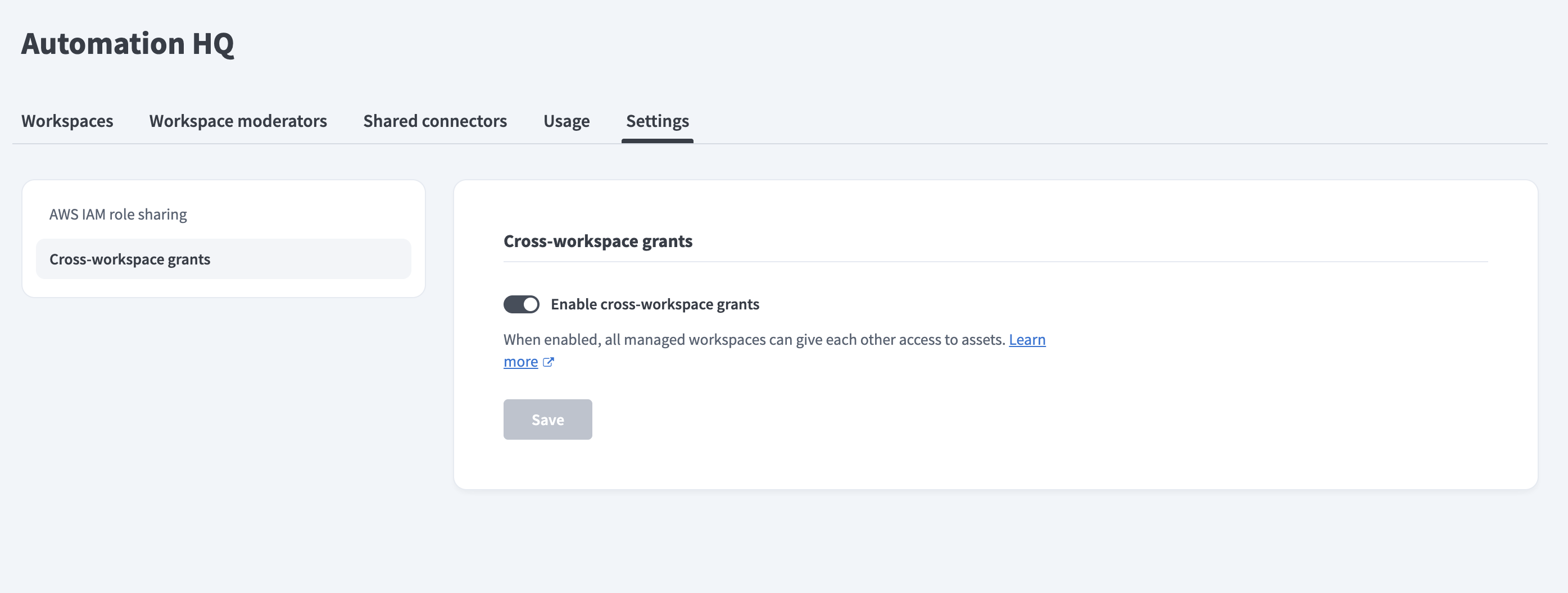 Enable cross-workspace grants
Click Save.
IMMEDIATE EFFECT
Changes take effect immediately. Managed workspaces in your organization can begin creating grants as soon as the toggle is enabled.
Disable cross-workspace grants for the organization
Disabling cross-workspace grants deletes every active grant across the organization, removes target workspaces' access to shared topics, and causes errors in recipes that depend on shared topics.
DELETION IS PERMANENT
You can't recover a deleted grant. You must recreate the grant to restore sharing.
Complete the following steps to disable cross-workspace grants:
Sign in to your Workato account and go to Automation HQ > Settings > Cross-workspace grants.
Disable the Enable cross-workspace grants toggle.
Click Save.
The Disable cross-workspace grants? dialog appears. The dialog lists the impact of disabling.
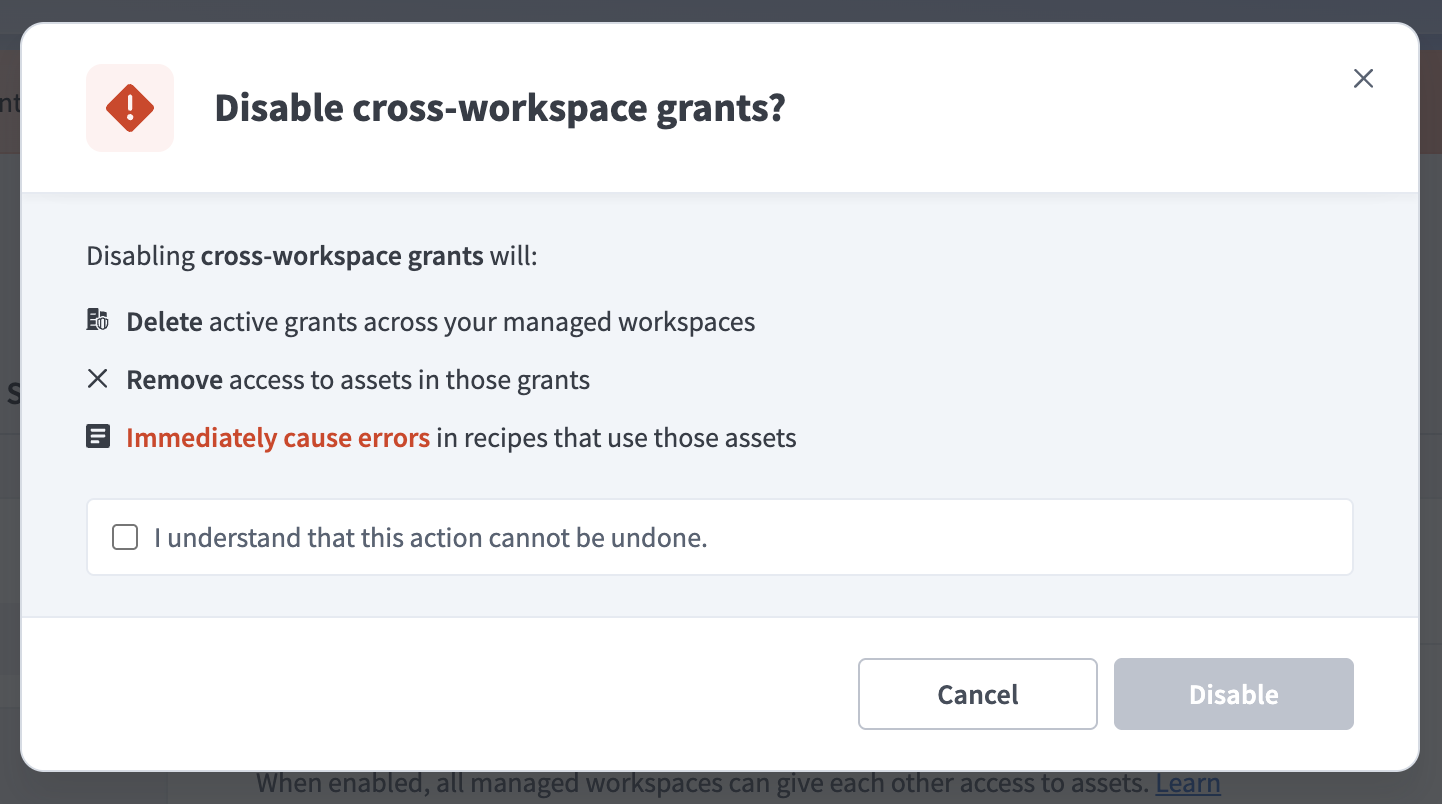 Disable cross-workspace grants
Select the I understand that this action cannot be undone checkbox.
Click Disable.
Create a grant
Source workspace admins create a grant to give other workspaces access to specific topics. A grant has separate configurations for each environment you select. You can configure multiple environments at once during creation, or create the grant first and configure additional environments later.
ENVIRONMENT SCOPE
A grant's environment configurations are independent. Topics added under DEV are accessible only to the DEV environments of the target workspaces. Topics added under PROD are accessible only to PROD. Add a topic under each environment's configuration in the grant to share it in multiple environments.
Complete the following steps to create a grant:
Sign in to your source workspace.
Go to Workspace admin > Settings > Grants and ensure the Grants tab is selected.
Click + Create grant.
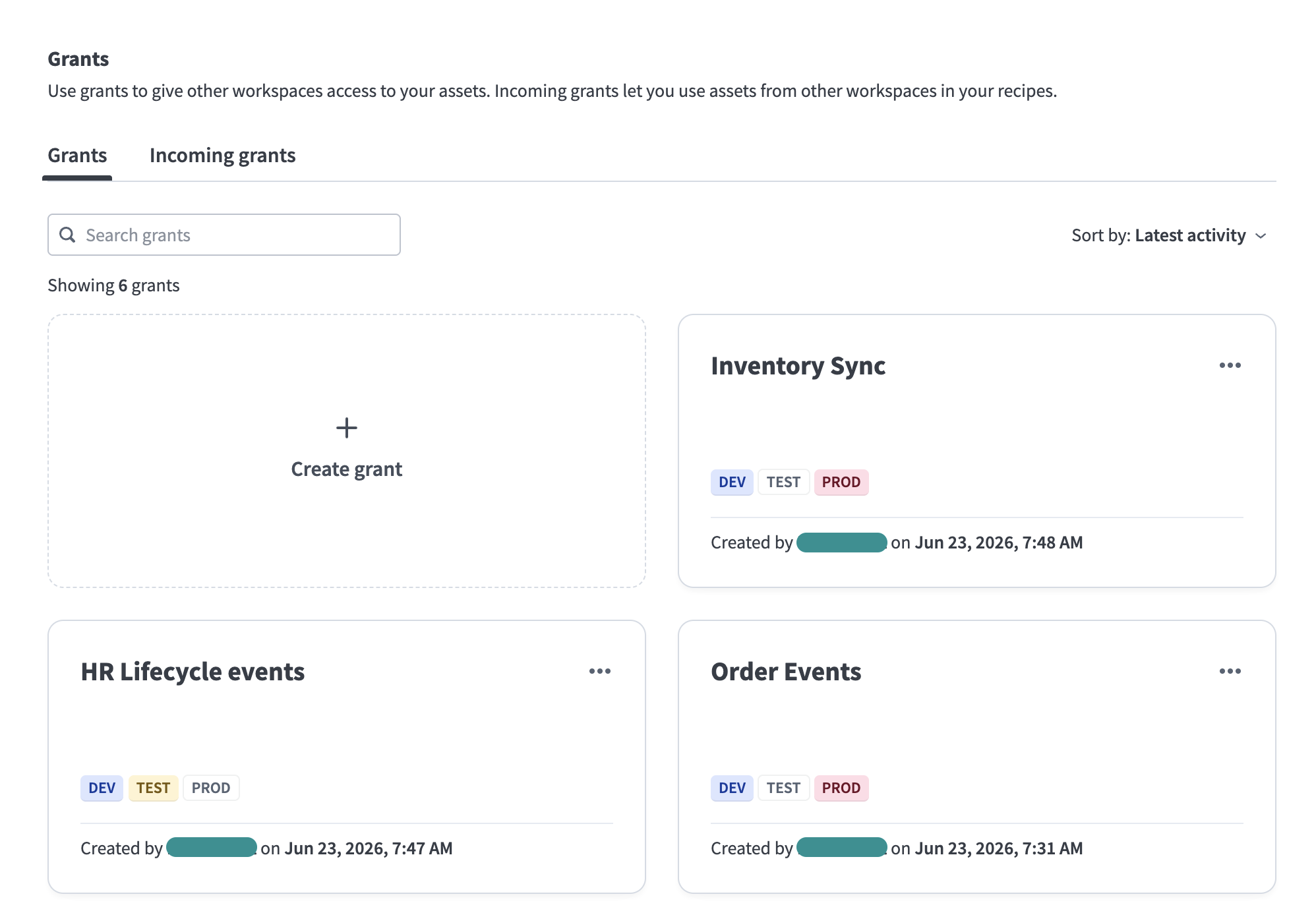 Create grant
Enter a value in the Grant name field.
Optional. Enter a value in the Description field. The description explains the purpose of the grant.
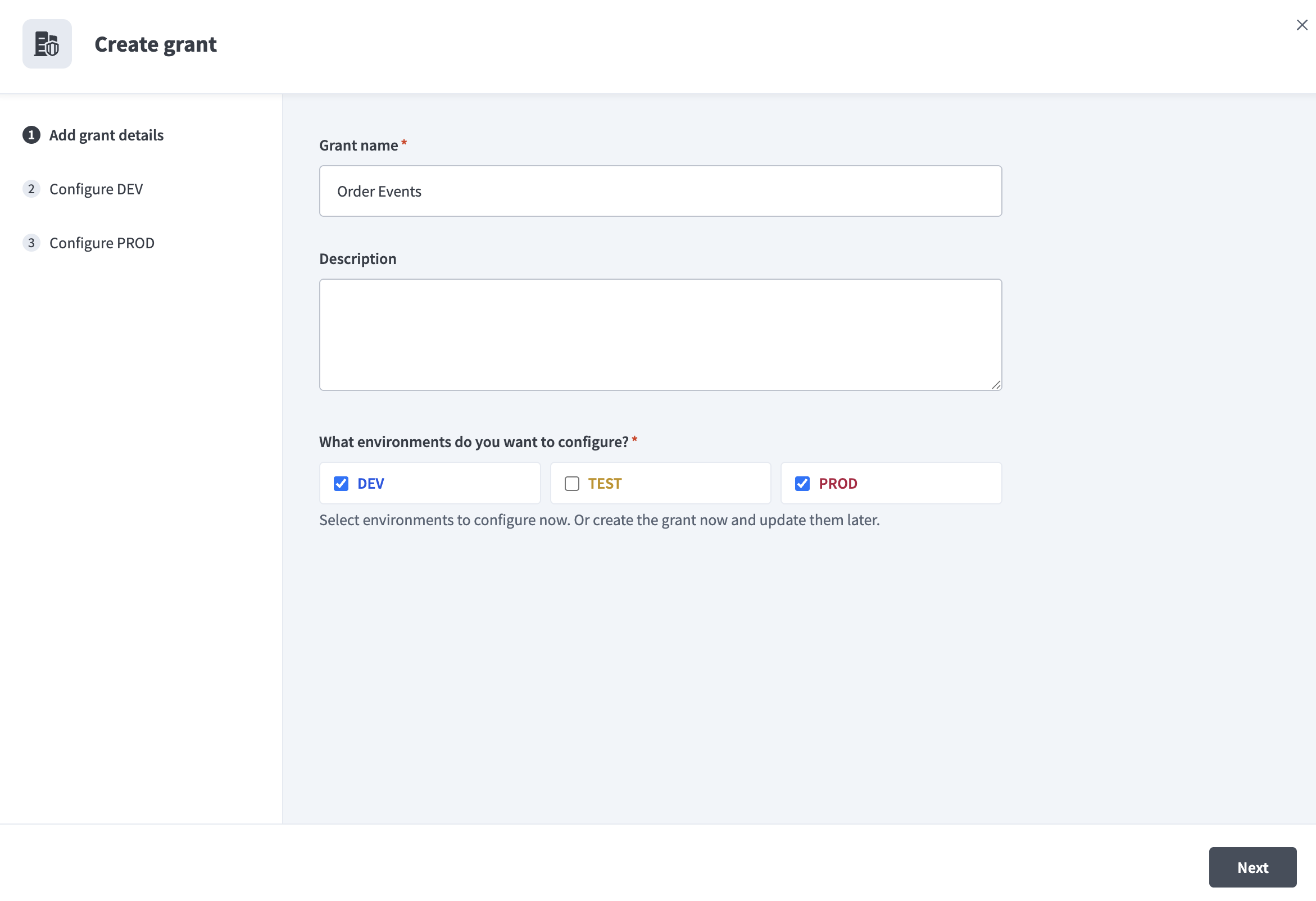 Add grant details
Select one or more of DEV, TEST, and PROD under What environments do you want to configure?.
CONFIGURE NOW OR LATER
You can select environments to configure now, or create the grant first and add environment configurations later. Grants without any environment configured don't share any topics yet.
Click Create grant. Each environment you selected appears as its own configuration step.
Configure the topics and workspaces for each environment:
Select one or more topics from the list on the Topics tab. Set Subscribe, Publish, or both for each selected topic.
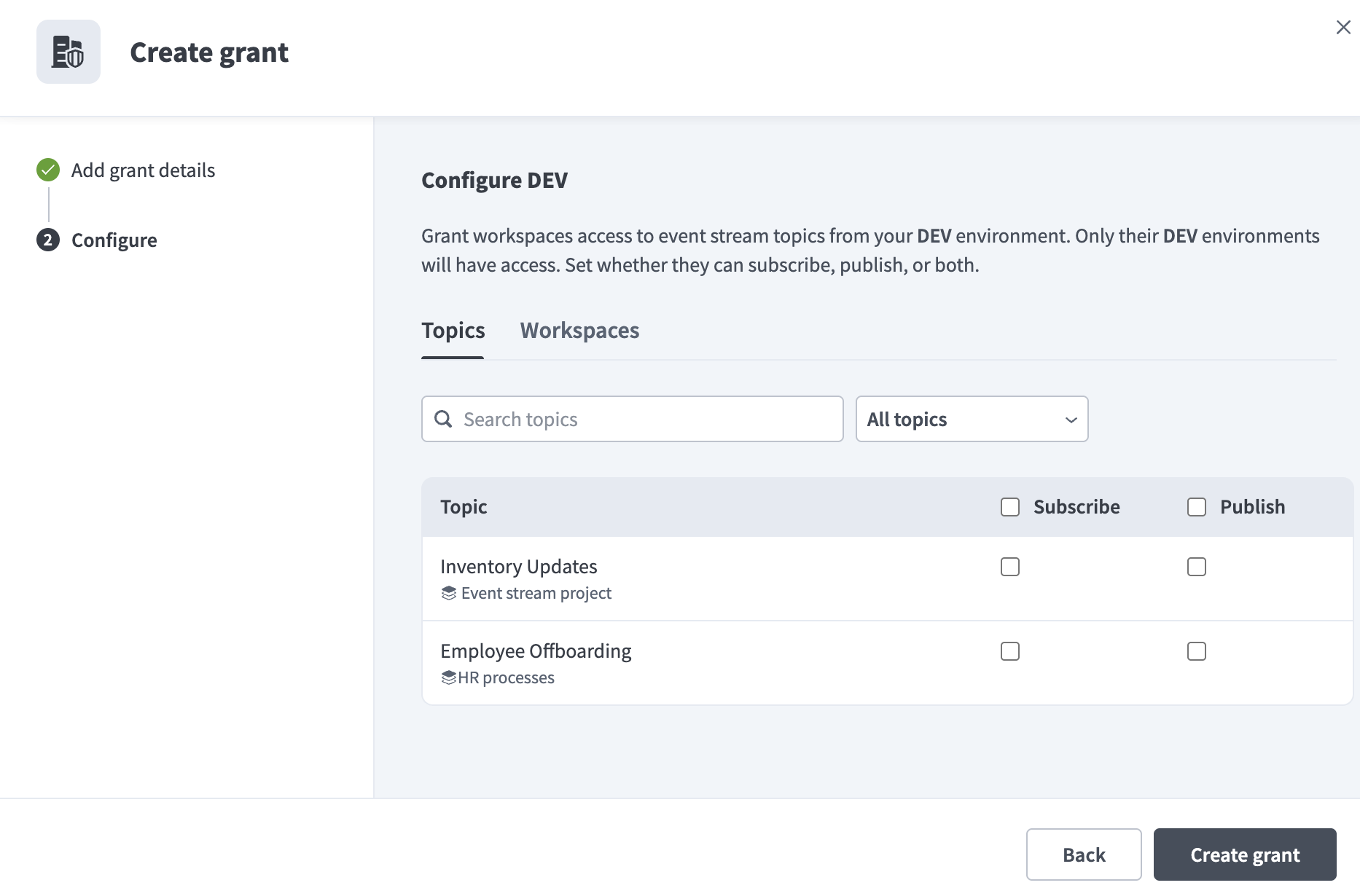 Configure topics for each environment
Switch to the Workspaces tab and select one or more target workspaces. You can use Select all to select every workspace at once.
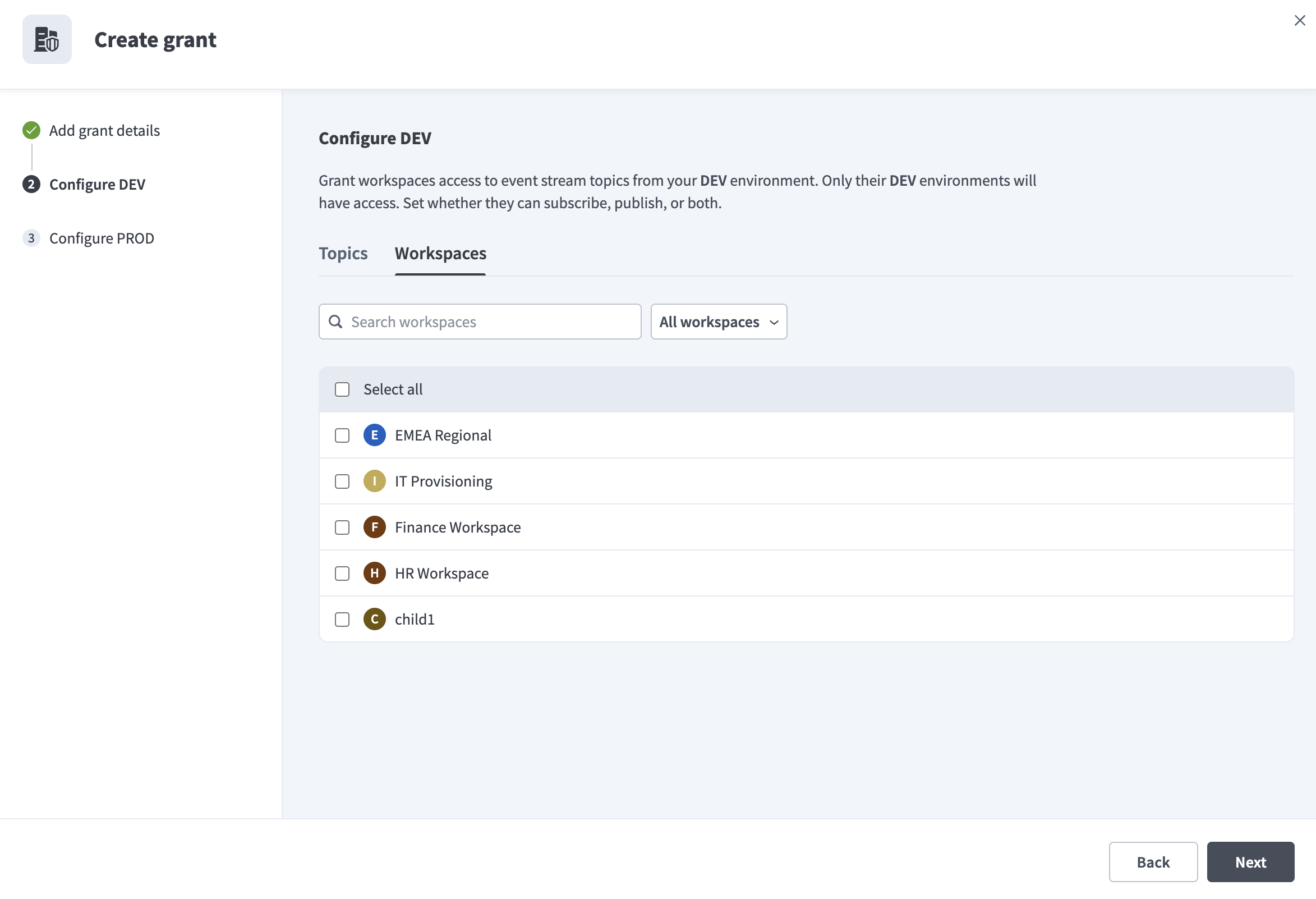 Configure workspaces for each environment
ENVIRONMENT-TO-ENVIRONMENT MATCHING
Only the matching environment in each target workspace gains access. Topics added to the DEV configuration are accessible only to the DEV environments of the target workspaces.
Click Next to move to the next environment's configuration.
Click Create grant to finish after you configure last environment. The topics become available in the target workspaces as soon as you finish the wizard.
Empty states
The topic step displays an empty state if the environment you are configuring doesn't have Event streams topics. Create topics in the source workspace first, then return to the grant to add them.
The workspace step displays a No workspaces available empty state if your organization has no other managed workspaces.
Edit a grant
Source workspace admins can modify an existing grant to adjust which topics it includes, which workspaces receive access, what access level applies to each topic, or the grant's name and description. Changes save when you click Save inside the dialog you are editing. There isn't a separate Save button on the grant detail page.
Complete the following steps to edit a grant:
Go to Workspace admin > Settings > Grants in your source workspace and ensure the Grants tab is selected.
Select the grant you plan to edit from the list.
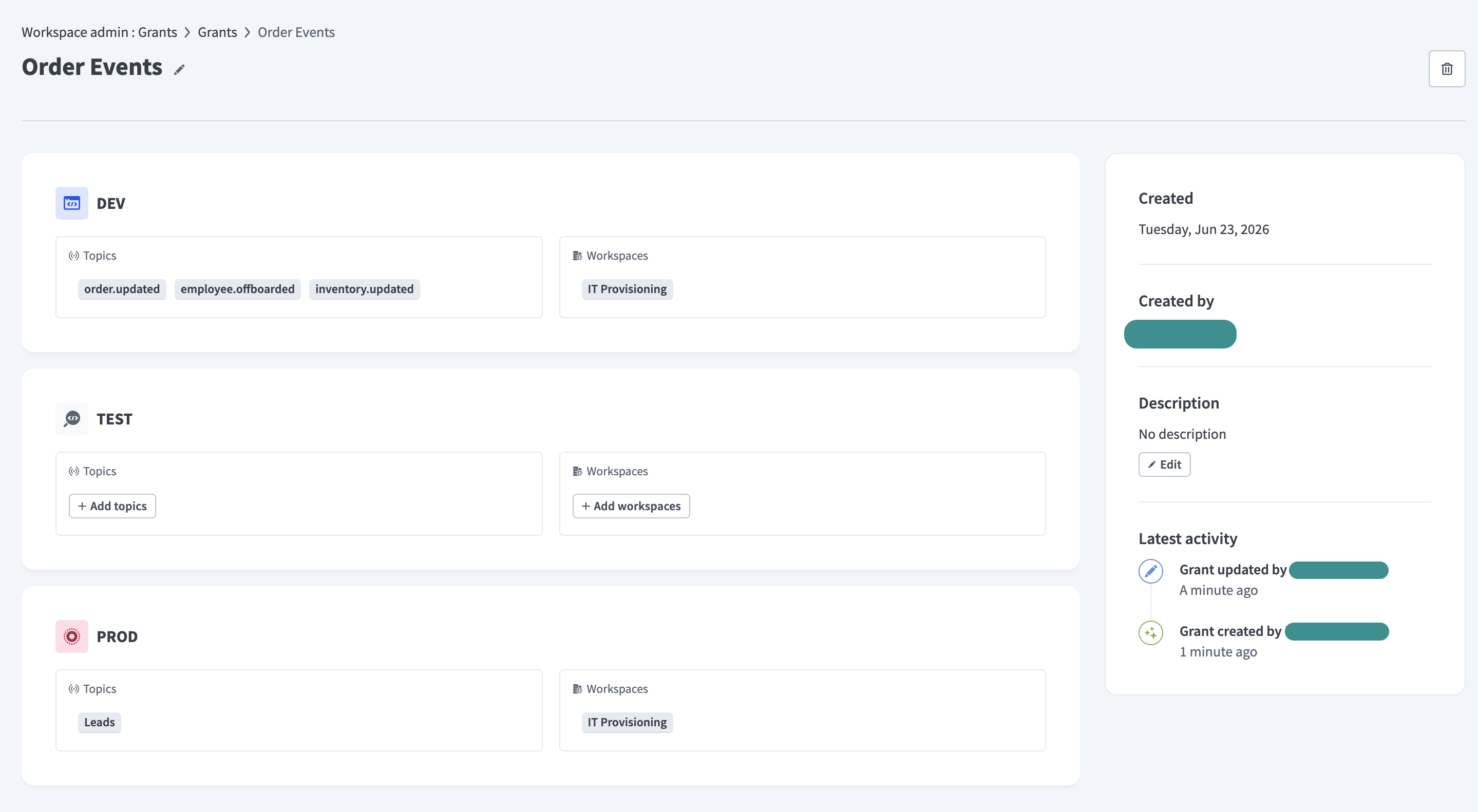 Edit grant
ACTIVE CONNECTIONS
Recipe connections that are already running continue to completion when you modify a grant. Updated permissions apply at the next connection attempt.
Update topics for an environment:
Locate the environment card you plan to update.
Open the Topics dialog and click Add topics if the Topics section doesn't have topics or click any of the existing topics if topics are already configured.
Select or deselect topics, and set Subscribe, Publish, or both for each topic.
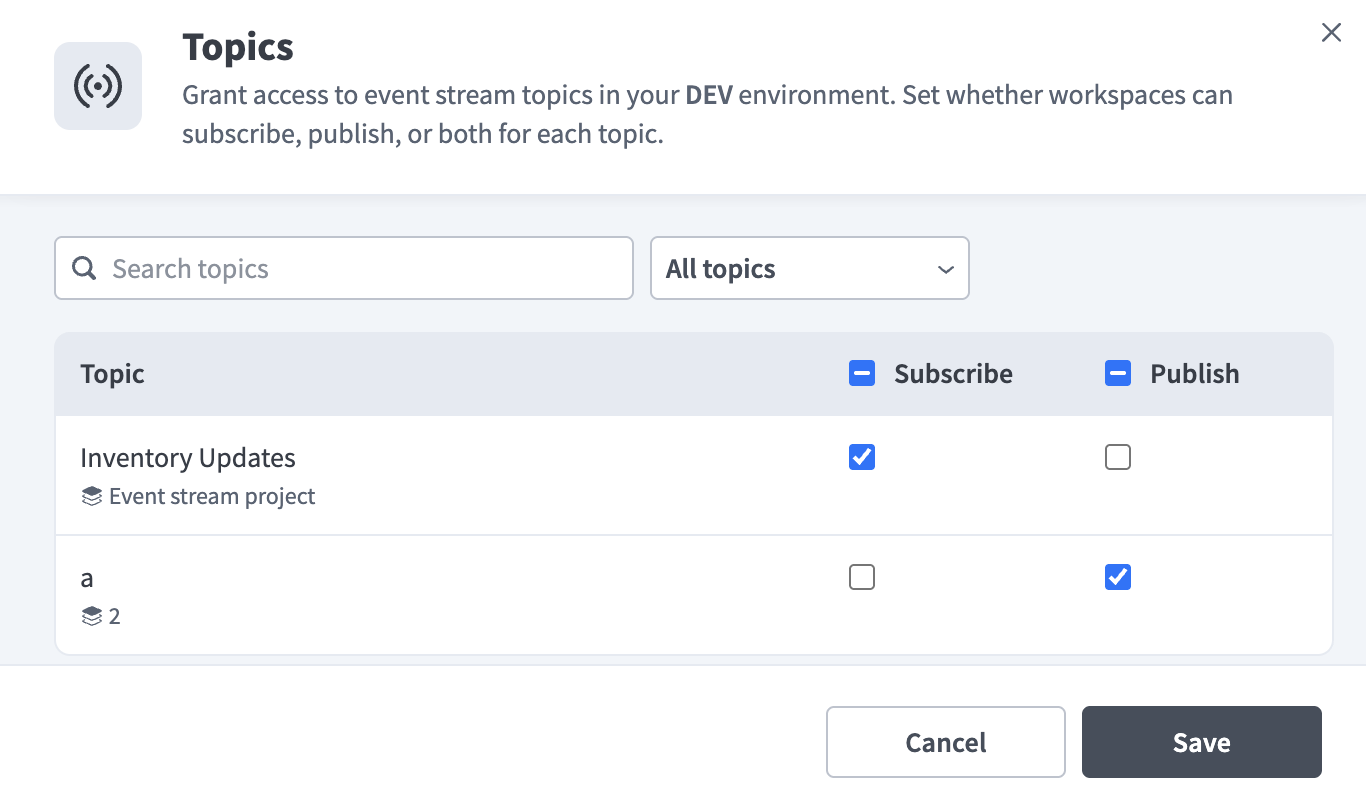 Edit topics
Click Save to apply the changes for that environment.
Update workspaces for an environment using the same pattern:
Open the Topics dialog and click Add topics if the Topics section doesn't have topics or click any of the existing topics if topics are already configured.
Select or deselect workspaces in the dialog.
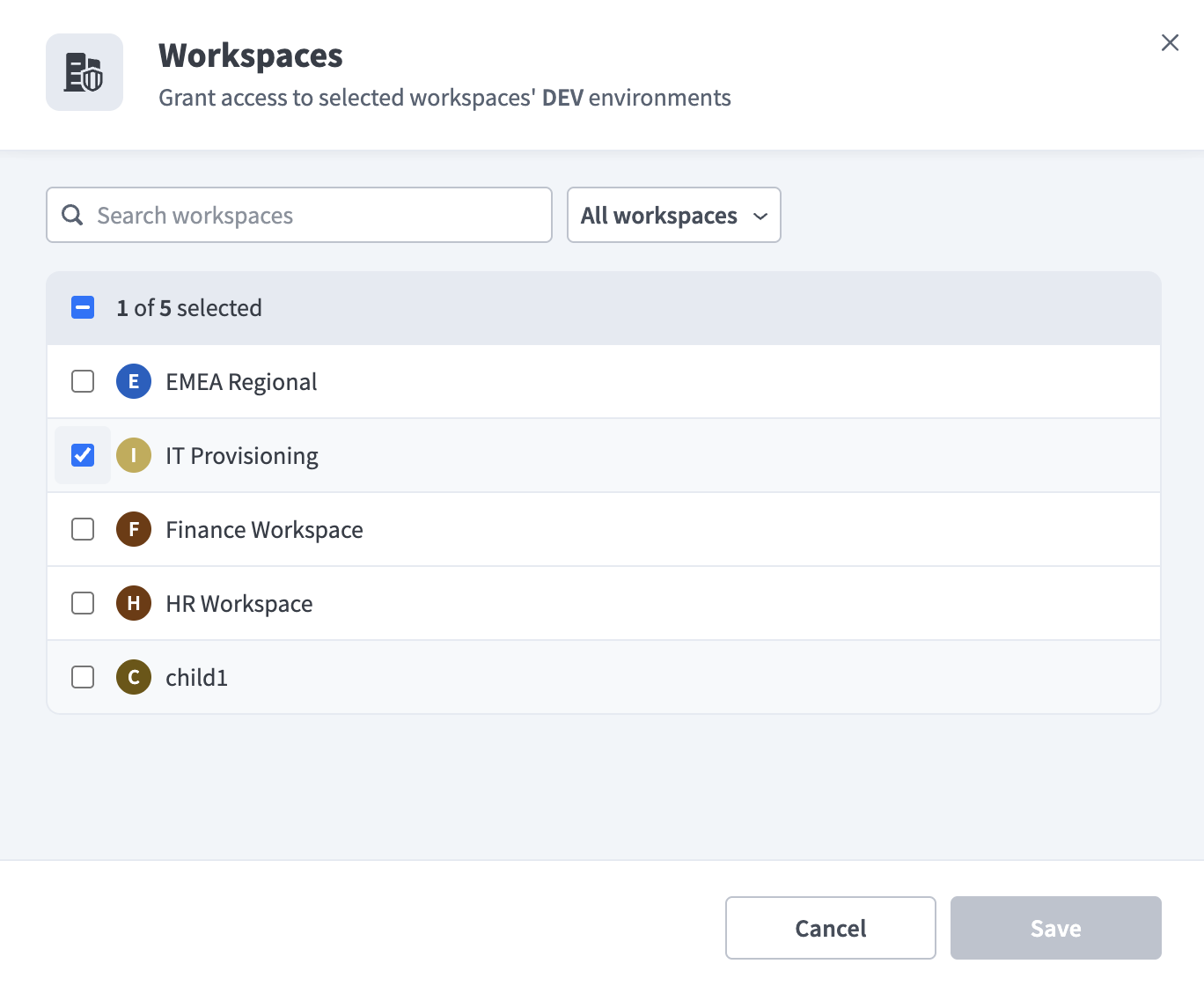 Edit workspaces
Click Save.
Optional. Update the grant's name or description:
Click the edit icon next to the grant name to rename the grant.
Locate the Description panel and click Edit to change the description.
Delete a grant
Deleting a grant removes all access for every target workspace listed in the grant. Topics are removed from target workspaces. Recipes that use those topics show errors at their next connection attempt. Runs that are already in progress complete.
DELETION IS PERMANENT
You can't recover a deleted grant. You must recreate the grant to restore sharing. The confirmation dialog notes that configurations beyond your visibility are also removed if the grant spans environments you don't have access to.
Complete the following steps to delete a grant:
Go to Workspace admin > Settings > Grants in your source workspace and ensure the Grants tab is selected.
Open the grant you plan to delete.
Click the ... (ellipses) menu on the grant's card and select Delete grant.
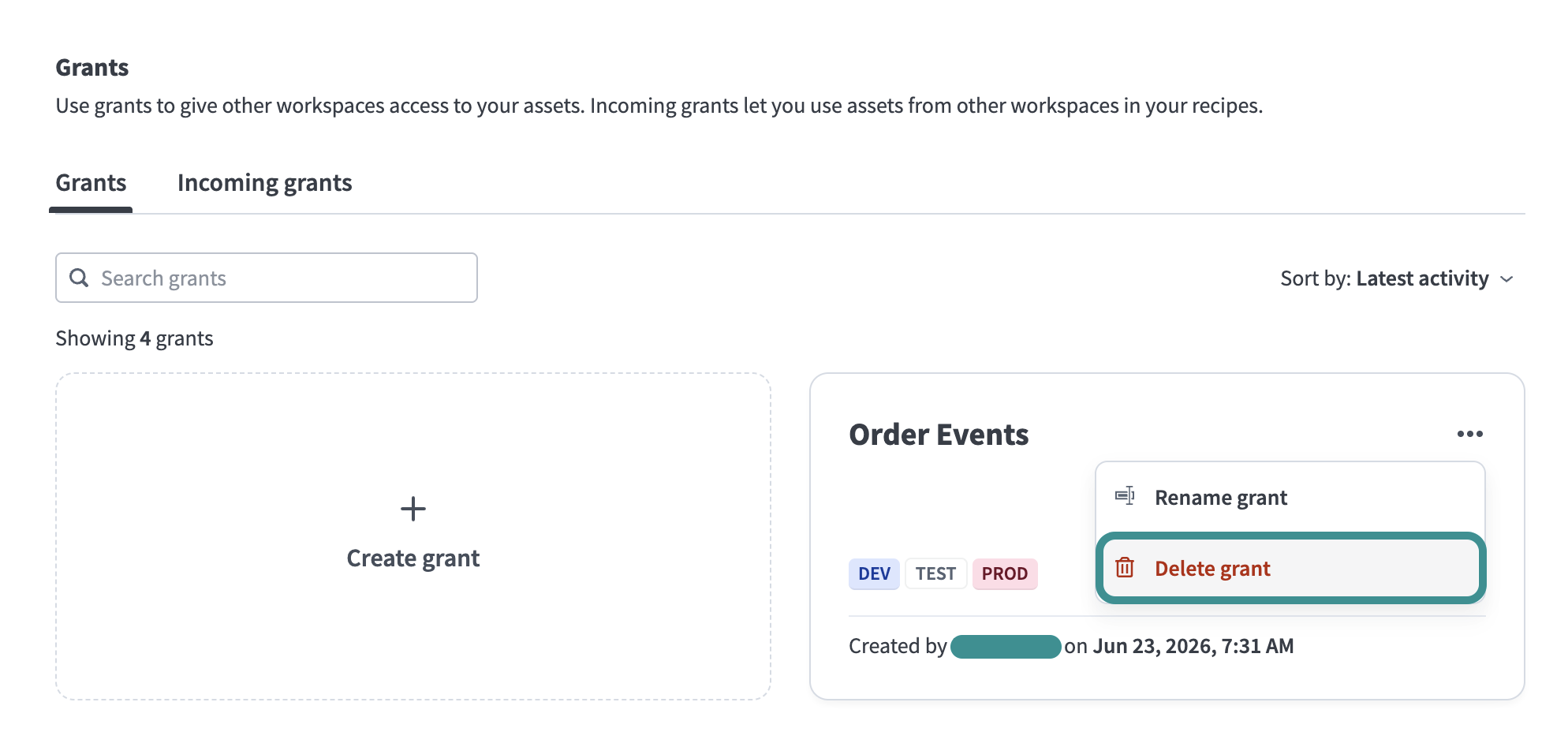 Delete grant
Confirm the deletion in the dialog that appears.
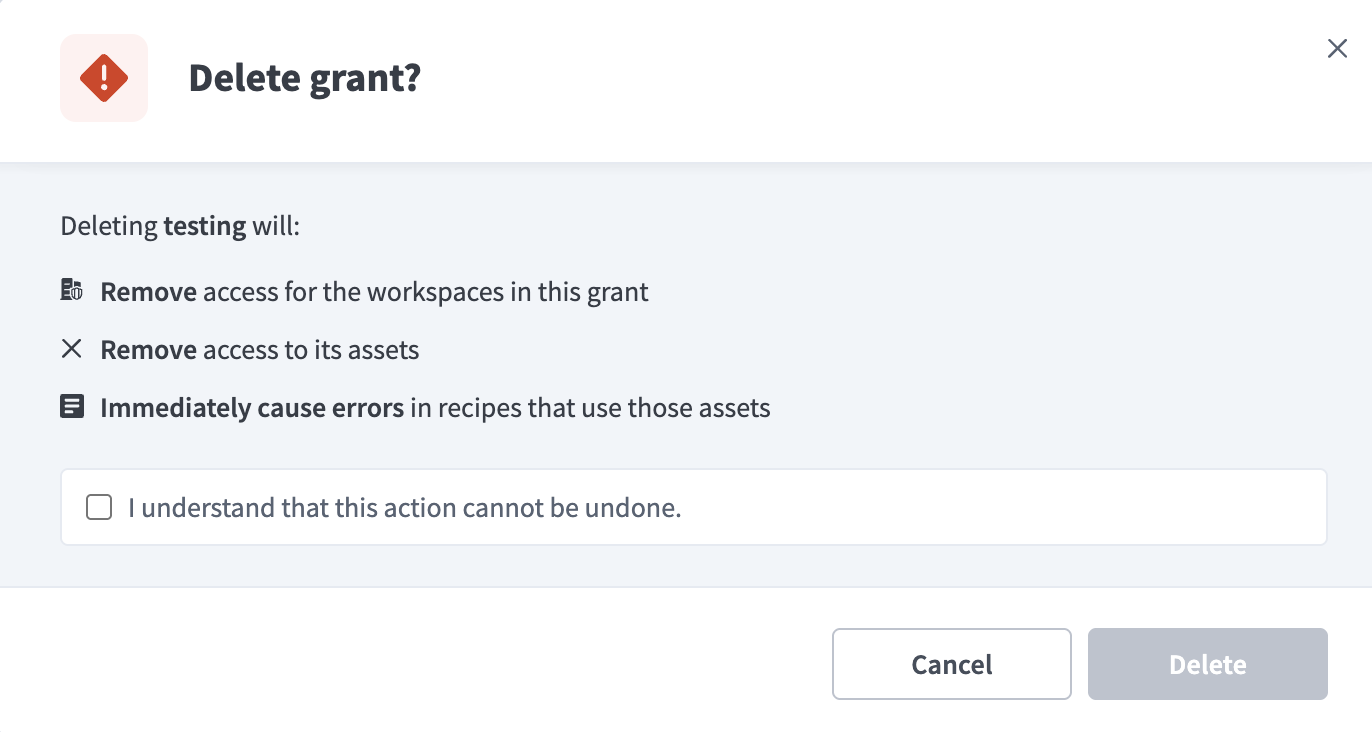 Confirm deletion
Review incoming grants in a target workspace
Target workspace admins review incoming grants in workspace settings. Incoming grants are grants from other workspaces that give this workspace access to shared topics. The Incoming grants tab displays the grant name, source workspace, environments, and the date and source of the access grant.
NO ADMIN ACTION REQUIRED
You don't need to approve or accept an incoming grant. The shared topics are available to recipe builders as soon as the source workspace admin creates the grant.
Complete the following steps to review incoming grants:
Sign in to the target workspace.
Go to Workspace admin > Settings > Grants.
Select the Incoming grants tab.
The No incoming grants yet empty state appears if no workspace has granted you access yet.
Select a grant to view its details. The detail panel displays the following:
- Access granted date and source workspace
- Description
- The list of shared topics, grouped by environment
- The access level for each topic
- The latest grant activity
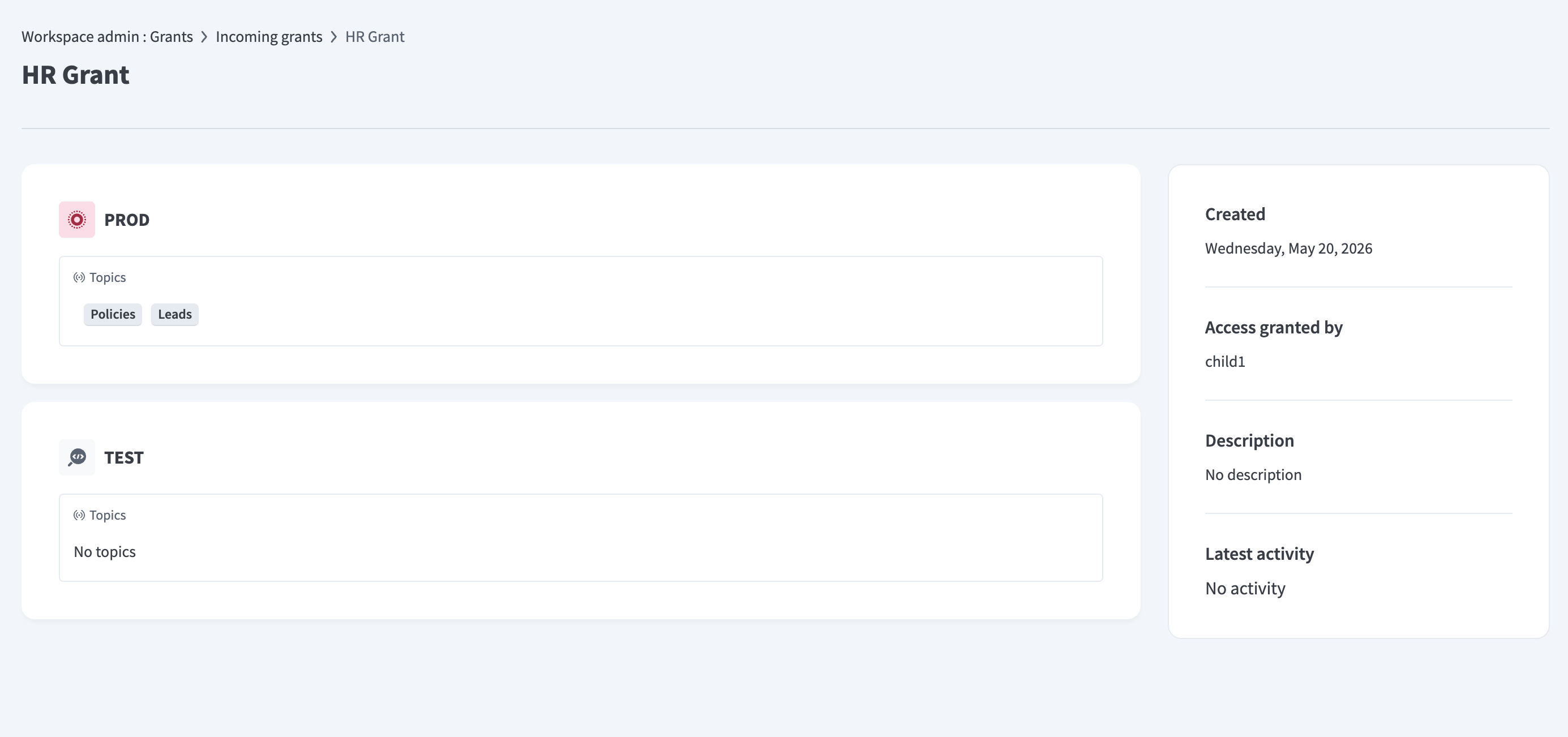 Review grants
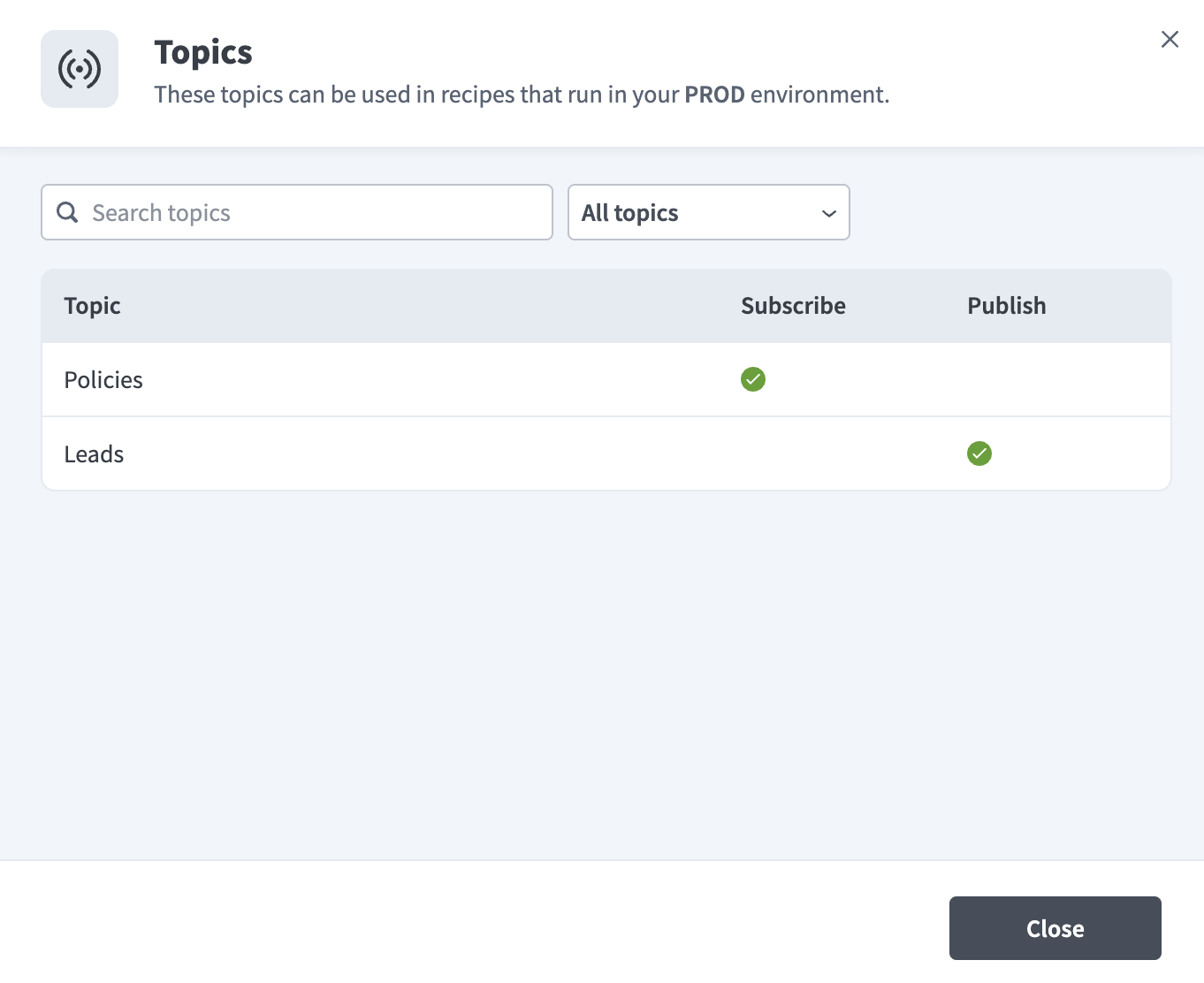
Optional. Click View topics to view the full list of topics shared in this grant. The Topics view lists each topic with its access level and notes that the topics can be used in recipes that run in the corresponding environment.
 View topics
Search, filter, and sort grants
You can use the following capabilities on the Incoming grants tab to find a grant:
- Search grants to find a grant by name.
- All workspaces to filter by source workspace.
- Sort by: Latest activity to change the sort order.
Unavailable topics
A shared topic can become unavailable to your workspace when the source admin removes the topic from the grant, deletes the grant, or deletes the topic or its project. The AHQ admin can also disable cross-workspace grants for the entire organization, which removes all shared topics.
Unavailable topics are removed from the topic picker in the recipe editor after the recipe is stopped, and can't be selected in new recipes.
Deploying recipes that use shared topics
Recipes that use shared topics work the same way in deployment packages as any other recipe, with one extra requirement. The destination environment must already have the topic, promoted from the source workspace and shared through a grant, before you deploy a recipe that references it. Grants aren't part of RLCM manifests, so the source admin must promote the topic and create the grant in each destination environment independently.
A MISSING TOPIC CREATES A DUPLICATE
Workato doesn't warn you when you add a recipe that references a shared topic to a package, or when you deploy that package into an environment where the topic doesn't exist yet. Deployment creates a new, local topic with the same name instead of failing, and the recipe binds to this new local topic instead of the shared one. Refer to Promote environments with shared topics to avoid this.
This only surfaces as an error when the destination environment previously had access to the topic and lost it, for example when the source admin deletes the grant after you build the manifest. The topic is marked Not found in the manifest, the same as any other asset that's been deleted or moved. Resolve it the same way you resolve any missing-asset error in a manifest.
Promote environments with shared topics
Promote environments in the following order so that a recipe binds to the shared topic instead of creating a duplicate. The following steps use Dev and Test as an example. Apply the same order to promote any environment pair:
Export the RLCM package containing the topic from Dev and import it into Test on the source workspace. This creates the topic in Test.
Create or update the grant on the source workspace to share the Test topic with the target workspaces.
Export the RLCM package containing the recipe from Dev and import it into Test on the target workspace. The recipe binds to the topic shared in the preceding step instead of creating a new local topic.
Updating the grant doesn't fix a recipe that's already bound to a duplicate topic, even if you update the grant before you redeploy the recipe. Complete the following steps to recover:
Ask the source workspace admin to promote the topic into the destination environment through an RLCM package, if they haven't already.
Confirm the grant shares that promoted topic with your workspace.
Update the recipe to reference the shared topic instead of the duplicate.
Redeploy the recipe.
Limitations
Cross-workspace grants have the following limitations:
- You can only share Event streams topics. Grants don't support files, data tables, or other asset types.
- Grants don't have an active or inactive toggle state. Delete the grant and recreate it when needed to pause sharing.
Last updated: