Configure Airtable as a data pipeline source
Set up Airtable as a data pipeline source to extract and sync records from your Airtable bases and tables to your destination.
Use this guide to review the features and prerequisites, connect Airtable as a data pipeline source, configure the pipeline, and understand the supported objects, sync modes, schema handling, and limitations.
Features supported
The following features are supported when you use Airtable as a pipeline source:
- Cloud connectivity: Connect to Airtable over HTTPS through
https://api.airtable.com. On-premise agents aren't required. - Dynamic object discovery: Workato automatically discovers every table in your selected Airtable bases and exposes each table as an object you can sync. Refer to Supported objects for more information.
- Full sync and incremental sync: Workato supports full sync for every table. Tables that have a valid
Last Modified Timefield also support incremental sync. Refer to Sync modes for more information. - Delete tracking: Detect deletions for tables that sync in full by comparing consecutive full snapshots. Refer to Delete tracking for more information.
- Schema drift detection and handling: Detect and apply schema changes automatically with Auto-sync new fields, or keep the schema fixed with Block new fields.
- Field-level data protection: Hash or replicate sensitive fields as is before the data reaches your destination.
- Configurable sync frequency: Schedule syncs on a time-based interval or with a cron expression. The minimum supported interval is 15 minutes.
Prerequisites
Connecting Airtable as a data pipeline source requires:
- An Airtable account with access to the bases and tables you plan to sync. Accessible bases, tables, and fields vary by Airtable account and authorization scope, so any base you plan to sync must be included in your token's or OAuth grant's access.
- Credentials for your chosen authentication method:
- Personal access token: A personal access token scoped with, at minimum, the
data.records:readandschema.bases:readscopes. Refer to Creating personal access tokens in the Airtable documentation. - OAuth 2.0: An Airtable account with permission to authorize Workato through Airtable's OAuth flow.
- Personal access token: A personal access token scoped with, at minimum, the
REQUIRED PERMISSIONS
Workato recommends scoping your personal access token or OAuth connection to read-only access: data.records:read and schema.bases:read. Data pipelines only read from Airtable and never write back to it. An OAuth 2.0 connection defaults to write scopes if you don't select any scopes. You must deselect the write scopes explicitly rather than leaving the field blank.
Supported connection types
Airtable data pipelines support the following authentication methods:
- Personal access token: Connect using a personal access token generated from your Airtable account. Refer to Prerequisites for the required scopes.
- OAuth 2.0: Connect by signing in to Airtable and granting access through Airtable's authorization flow.
Airtable deprecated legacy API key authentication at the end of January 2024. Data pipelines don't support API key authentication.
Connect to Airtable
The Airtable connector supports the following authentication types:
Personal access token
Use personal access token authentication to connect to Airtable with a token generated from your Airtable account.
API KEY DEPRECATION
Airtable deprecated API keys for authentication at the end of January 2024. API keys no longer work on the platform. Migrate to personal access tokens to maintain API access to Airtable. Personal access tokens provide granular, secure API access to your Airtable data.
Create a personal access token
Refer to Creating personal access tokens in the Airtable documentation.
Connect to Airtable using personal access token
Complete the following steps to set up a personal access token connection to Airtable in Workato:
Click Create > Connection or press C twice.
Search for and select Airtable on the New connection page.
Enter a name for your connection in the Connection name field.
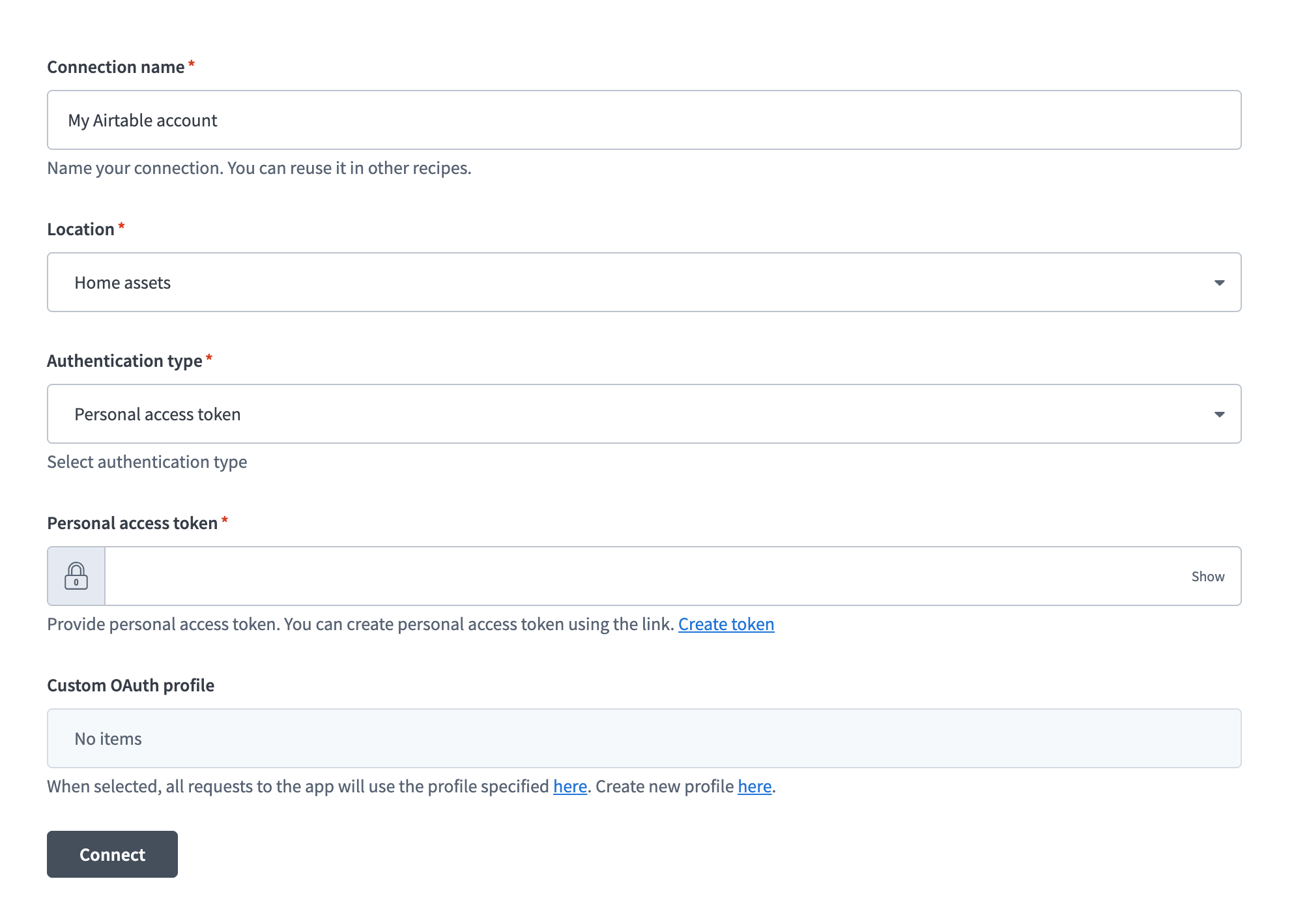 Airtable connection setup
Use the Location drop-down menu to select the project where you plan to store the connection.
Use the Authentication type drop-down menu to select Personal access token.
Enter your personal access token in the Personal access token field.
Optional. Use the Custom OAuth profile drop-down menu to select a custom OAuth profile for your connection.
Click Connect.
OAuth 2.0
Use OAuth 2.0 to connect to Airtable by signing in and granting access through Airtable's authorization flow.
Minimum and default scopes
The scopes data.records:read and schema.bases:read are always requested. The connection defaults to data.records:read, schema.bases:read, data.records:write, and schema.bases:write if no additional scopes are selected.
Ensure that any additional scopes you select are supported by your Airtable plan. Selecting unsupported scopes may result in a connection error. For example, the scope View metadata about workspaces, bases, and views including collaborators corresponds to workspacesAndBases:read, which is available only on the Business and Enterprise Scale plans.
Refer to the Airtable documentation for more information on Airtable OAuth scopes and associated plans.
Connect to Airtable using OAuth 2.0
Complete the following steps to set up an OAuth 2.0 connection to Airtable in Workato:
Click Create > Connection or press C twice.
Search for and select Airtable on the New connection page.
Enter a name for your connection in the Connection name field.
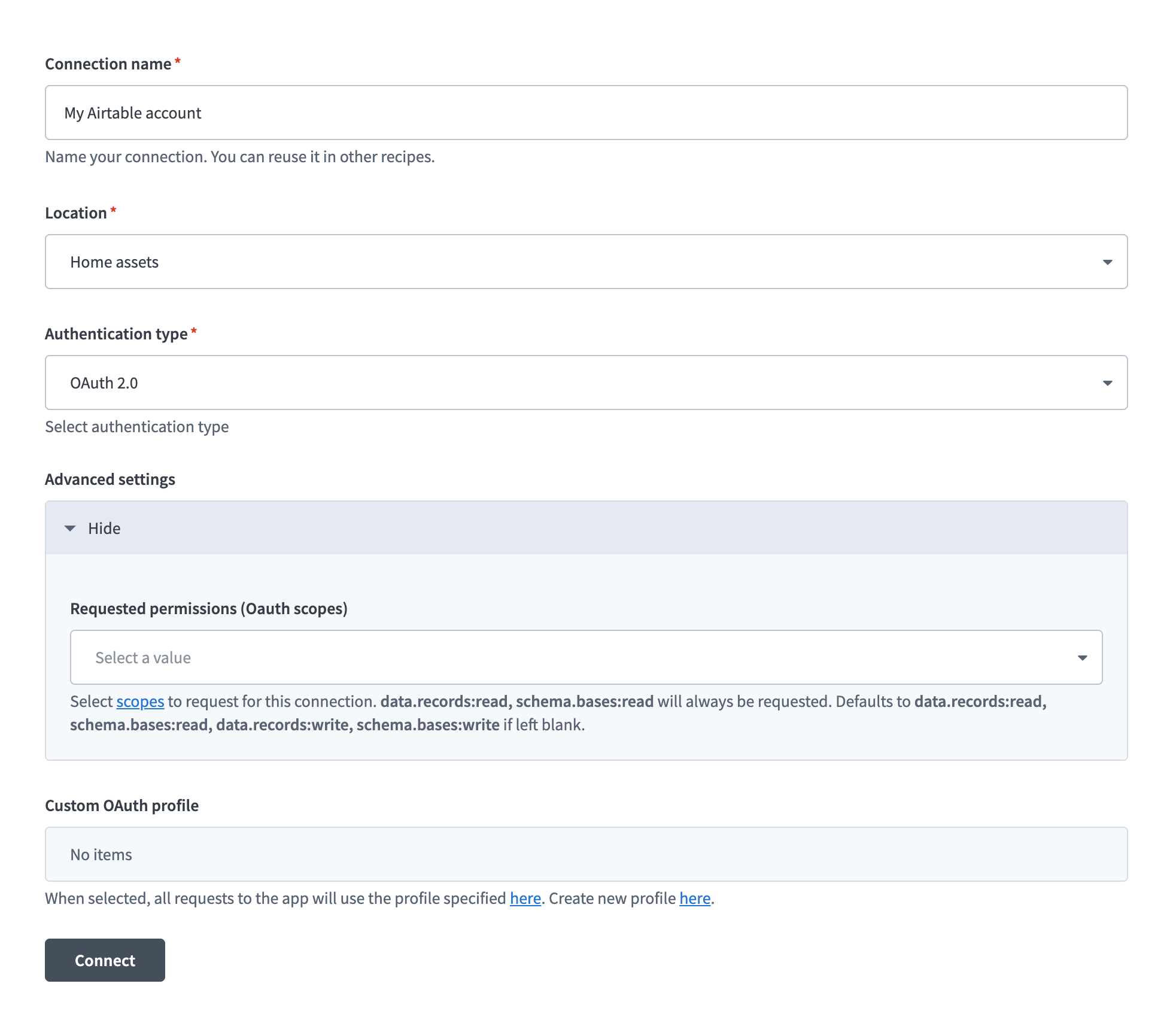 Airtable connection setup
Use the Location drop-down menu to select the project where you plan to store the connection.
Use the Authentication type drop-down menu to select OAuth 2.0.
Expand Advanced settings and use the Requested permissions (OAuth scopes) drop-down menu to select the scopes for this connection.
Optional. Use the Custom OAuth profile drop-down menu to select a custom OAuth profile for your connection.
Click Connect.
Sign in to Airtable when prompted and click Allow to grant Workato access.
Configure the pipeline
Complete the following steps to configure Airtable as your data pipeline source:
Select Create > Data pipeline or press C+I.
Enter a name for the data pipeline in the Data pipeline name field.
 Data pipeline setup
Use the Location drop-down menu to select the project where you plan to store the data pipeline.
Click Start building.
Click the Extract new/updated records from source app trigger. This trigger defines how the pipeline retrieves data from Airtable.
 Configure the Extract new/updated records from source app trigger
Use the Your Connected Source Apps drop-down menu to select Airtable.
Choose the Airtable connection you plan to use for this pipeline. Alternatively, click + New connection to create a new connection.
Use the Bases drop-down menu to select the Airtable bases to sync. Workato lists tables only from the bases you select here.
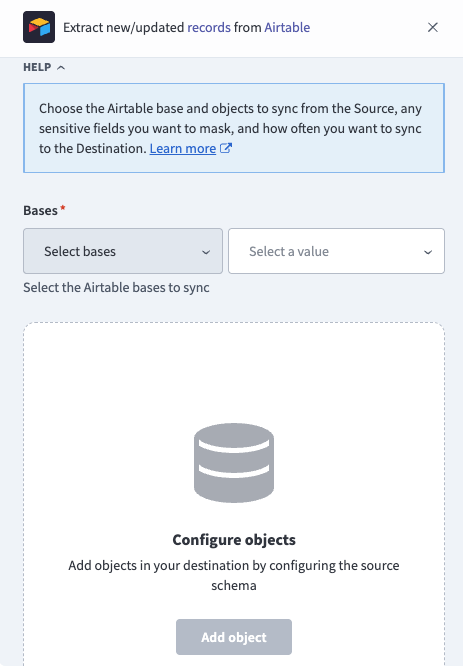 Select Airtable bases
Click Add object to open the Add new objects panel. Workato dynamically discovers the tables in your selected bases and displays them as a searchable list, labeled by base and table. Workato shows the base ID instead of the base name when discovery is scoped using base IDs.
Search or browse the list of available Airtable tables, select the tables you plan to sync, and click Add.
SYNC MODES ARE SCHEMA-DEPENDENT
Workato determines which sync modes are available for each table based on whether the table has a valid Last Modified Time field. Tables with a valid field support incremental sync. Full sync is also supported. Refer to Sync modes for more information.
Review and customize the schema for each selected object. The pipeline automatically fetches an object's schema when you select it. This ensures the destination matches the source.
Expand an object to view associated fields. Keep all fields selected to extract all available data, or deselect specific fields to exclude them from data extraction and schema replication.
Optional. Configure field-level data protection by expanding an object and choosing how to handle each field:
- Replicate as is: Data values at the source replicate identically to the destination.
- Hash: Hash sensitive data values in the field before syncing to your destination.
Workato recommends hashing personally identifiable information (PII) and other sensitive fields.
Click Add object again to add more tables. Repeat this step to include multiple Airtable tables in your pipeline.
Use the Choose how to handle schema changes drop-down menu to select a schema drift handling option:
- Auto-sync new fields: Automatically detects and syncs new fields added in the source.
- Block new fields: Keeps the schema fixed after the pipeline starts. You must add new fields manually. This option may cause the destination to fall out of sync if the source schema updates.
Refer to Schema replication and schema drift management for more information.
Optional. Enter a value in the Concurrency limit field to cap the number of concurrent operations. Leave the field blank to use the default limit set by Workato. The maximum value is 100.
Choose either a standard time-based schedule or define a custom cron expression in the Frequency field. This determines how often the pipeline syncs data from Airtable to the destination.
Supported objects
Airtable bases and tables are entirely customer-defined, so Airtable data pipelines don't sync from a fixed object catalog. Workato discovers every table in your selected bases and exposes each table as a separate object you can sync, labeled <Base name> / <Table name> in the object picker when base names are available. Scoped discovery that supplies only base IDs may display <Base ID> / <Table name> instead.
| Object | Sync modes | Delete tracking |
|---|---|---|
| Records (per table) | Full sync, incremental | Yes (full sync only) |
Workato also queries Airtable's Base Schema to discover tables and fields. Base Schema isn't exposed as an object you can sync.
Sync modes
Airtable data pipelines support full sync and incremental sync. Every table supports full sync. A table with a valid Last Modified Time field configured to track editable fields also supports incremental sync. The available modes depend on the table schema. A table without a valid cursor field is full-sync-only.
Full sync
Workato supports full sync for every table, including tables with a valid Last Modified Time field. A full sync extracts every record in the table and replaces the record set in your destination.
Incremental sync
Workato applies incremental sync to any table with a valid Last Modified Time field. Each incremental sync retrieves only records changed since the last successful sync, using a rolling one-hour overlap window so records changed near the sync boundary aren't missed.
Airtable doesn't provide a way to detect deletions incrementally, so tables that sync incrementally don't support delete tracking. Refer to Delete tracking for more information.
Delete tracking
Tables that sync in full support delete tracking. The pipeline compares each full sync against the previous run and marks records that no longer exist in Airtable with a _workato_is_deleted column in your destination.
Tables that sync incrementally don't support delete tracking, because an incremental run reads only the records changed since the previous run and doesn't observe a deletion. Airtable doesn't provide an API signal for deleted records.
Schema and data type handling
The connector applies specific handling to certain Airtable field types when it replicates data to your destination:
Field renames
Workato identifies each field by its current display name in Airtable, not by Airtable's internal field ID. Workato treats a renamed field as a different field the next time it discovers the table's schema, rather than relabeling the existing destination column.
Nested and attachment field values
Airtable field types such as attachments, collaborators, linked records, lookups, and rollup fields return nested or list-based values. Workato replicates these values as JSON instead of flattening the values into separate columns. Attachment fields replicate only file metadata, including the attachment URL. Workato doesn't download attachment files. Refer to Attachment data isn't downloaded for more information.
Workato syncs JSON fields to the destination's native JSON type, such as VARIANT in Snowflake. Workato serializes JSON fields as strings if the destination doesn't support a native JSON type.
Data type mapping
Airtable field types map to the following destination types:
| Airtable field type | Destination type |
|---|---|
checkbox | Boolean |
number, currency, percent, rating, duration | Double |
count, autonumber | Long |
date | Date |
dateTime, createdTime, lastModifiedTime | Timestamp |
| All other field types | String |
Airtable field types that Workato doesn't explicitly map, including any new field type Airtable introduces, replicate as strings so metadata generation doesn't fail.
Synthetic columns
Workato adds the following synthetic column to every Airtable records object:
| Column | Type | Purpose |
|---|---|---|
_workato_is_deleted | Boolean | Marks records no longer present in Airtable. Only meaningful for tables that sync in full. Refer to Delete tracking for more information. |
Every records object also includes Airtable's own id and createdTime fields as the primary key and creation timestamp, respectively.
Sensitive data handling
Airtable tables are entirely customer-defined, so Workato can't predict which fields in your bases contain personally identifiable information (PII) or other sensitive data. Review your table schemas before you add the tables to a pipeline.
Use the Hash option in field-level data protection during pipeline configuration to protect PII before it reaches your destination. Refer to the Configure the pipeline steps for more information.
Limitations
The following limitations apply when you use Airtable as a data pipeline source:
Attachment data isn't downloaded
Workato replicates attachment metadata, including the attachment URL, but doesn't download the underlying files. Airtable attachment URLs can expire within hours, so don't rely on a synced URL to retrieve the file later.
Minimum sync frequency
The minimum supported sync interval is 15 minutes. You can't trigger syncs more frequently than this.
Airtable API rate limits
Airtable limits API requests to 5 requests per second per base and 50 requests per second per personal access token or OAuth token. When Airtable returns 429 Too Many Requests, the connector waits 30 seconds before retrying. High-concurrency pipelines may therefore take longer to complete.
Last updated: