Configure Algolia as a data pipeline source
Set up Algolia as a data pipeline source to extract index records, index configuration, search and click analytics, and API logs into your destination.
Use this guide to prepare an Algolia API key, set up a connection, configure your pipeline, add objects, review sync behavior, and understand known limitations.
Features supported
The following features are supported when you use Algolia as a pipeline source:
- Cloud connectivity: Connect to Algolia over HTTPS. Workato reads index data from
https://<APPLICATION_ID>-dsn.algolia.net. Analytics data comes fromhttps://analytics.us.algolia.comorhttps://analytics.de.algolia.com, depending on the analytics region you select. On-prem agents aren't required. - Full sync and incremental sync: Supports full sync and incremental sync modes, configured per object. Analytics objects and
Logsdefault to incremental sync, and index objects, such asRecordsandRules, support full sync only. Refer to Sync modes for more information. - Object-level selection: Select application-level objects and per-index objects, including
Records,Index Settings,Rules,Synonyms, and 14 analytics objects, to sync as separate tables in your destination. Refer to Supported objects for the full list. - Records schema discovery: Detect the attributes in each index from a sample of its records, with a fallback column for attributes outside the sample. Refer to Records schema discovery for more information.
- Delete tracking: Reflect records deleted in Algolia for full-sync objects on the next sync. Refer to Delete tracking for more information.
- Schema drift detection and handling: Detect and apply schema changes automatically with Auto-sync new fields, or keep the schema fixed with Block new fields.
- Field-level data protection: Hash or replicate sensitive fields as is before the data reaches your destination.
- Configurable sync frequency: Schedule syncs on a time-based interval or with a cron expression. The minimum supported interval is
15minutes.
Prerequisites
Connecting Algolia as a data pipeline source requires:
- An Algolia application and its application ID
- An Algolia API key with the
listIndexes,browse,settings,logs, andanalyticsACLs. You can use the Admin API key or a restricted API key. You can't use a Search-only API key. - Click analytics and conversion events sent to Algolia through the Insights API, if you plan to sync click and conversion analytics objects. Refer to Click and conversion analytics objects for more information.
REQUIRED PERMISSIONS
Workato recommends a restricted API key that includes only the ACLs listed in Recommended permissions. The Admin API key includes write access that Workato doesn't need for data pipeline source configuration.
Recommended permissions
Grant the following ACLs to your API key to sync the supported Algolia objects:
| Algolia ACL | Workato objects |
|---|---|
listIndexes | Indices |
browse | Records |
settings | Index Settings, Rules, Synonyms |
logs | Logs |
analytics | All analytics objects |
Every connection requires listIndexes, because Workato uses it to verify the connection and discover the indexes in your application.
Refer to Algolia's API keys guide to create a restricted API key and assign ACLs.
Supported connection types
Algolia data pipelines support API key authentication. Provide your Algolia application ID and an API key with the ACLs listed in Recommended permissions.
Connect to Algolia
Complete the following steps to connect Algolia as a data pipeline source:
Connect to Algolia
Select Create > Connection or press C twice.
Search for Algolia and select it as your app.
Enter a name in the Connection name field.
Use the Location drop-down menu to select the project where you plan to store the connection.
Enter your Algolia application ID in the Application ID field. Algolia displays the application ID under Settings > General in your Algolia dashboard.
Enter your API key in the API key field. Use the Admin API key or a restricted API key with the listIndexes, browse, settings, logs, and analytics ACLs.
Use the Analytics region drop-down menu to select the region that hosts your Algolia Analytics data.
Select Connect to verify and save the connection. Workato displays a success message when the connection is established.
Configure the pipeline
Complete the following steps to configure Algolia as your data pipeline source:
Select Create > Data pipeline or press C+I.
Enter a name for the data pipeline in the Data pipeline name field.
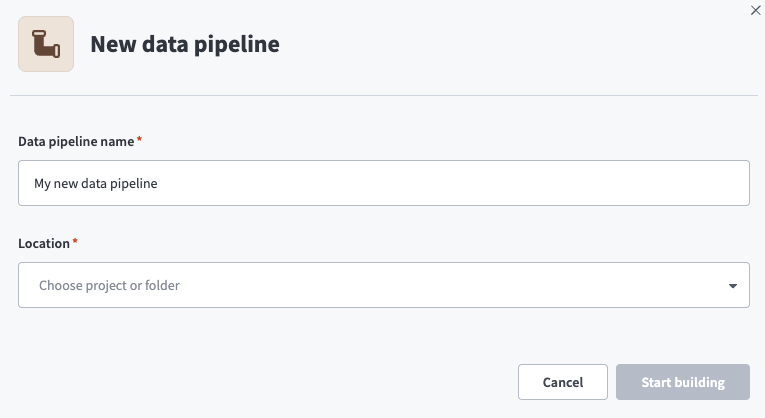 Data pipeline setup
Use the Location drop-down menu to select the project where you plan to store the data pipeline.
Click Start building.
Click the Extract new/updated records from source app trigger. This trigger defines how the pipeline retrieves data from Algolia.
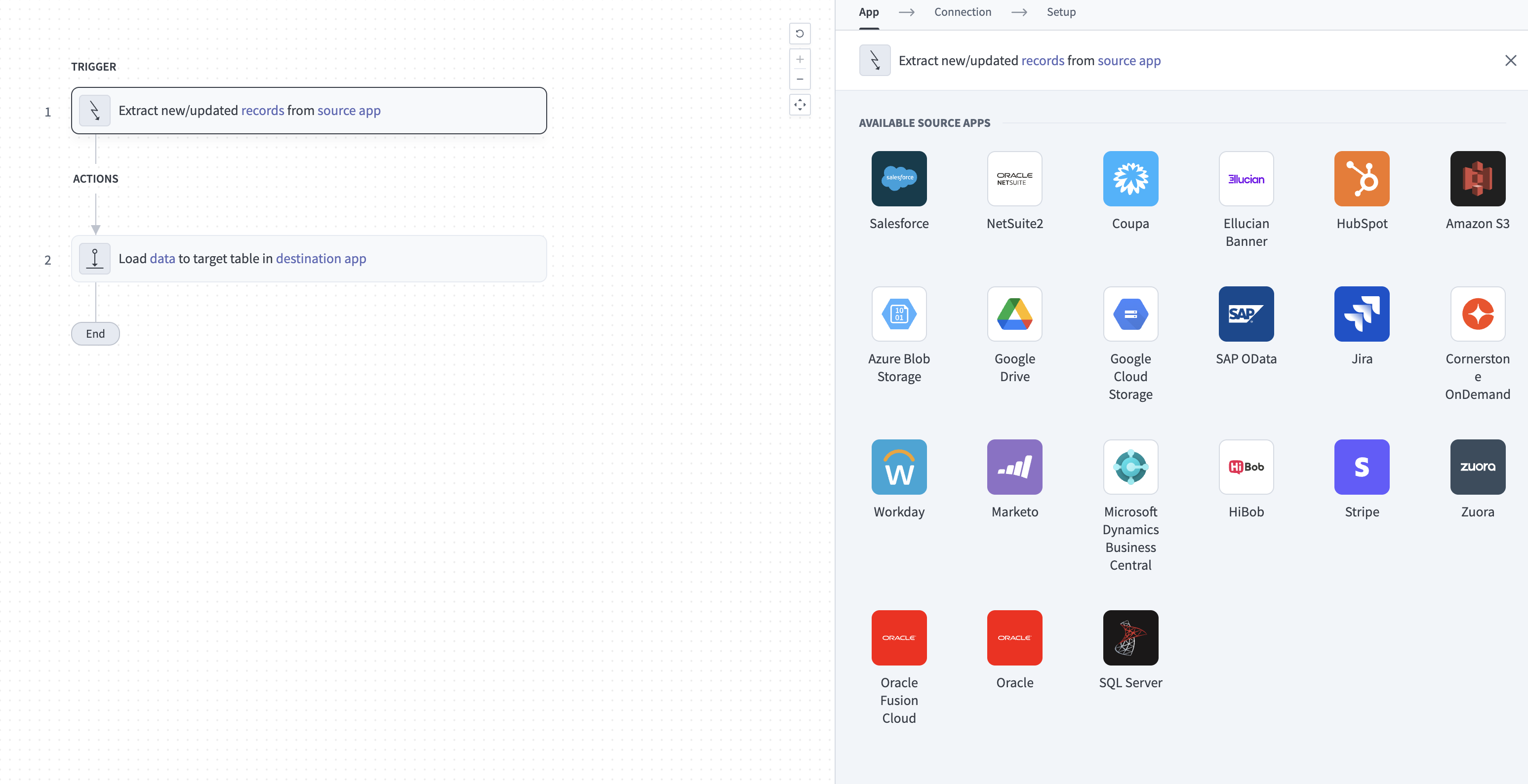 Configure the Extract new/updated records from source app trigger
Use the Your Connected Source Apps drop-down menu to select Algolia.
Choose the Algolia connection you plan to use for this pipeline. Alternatively, click + New connection to create a new connection.
Click Add object to open the Add new objects panel.
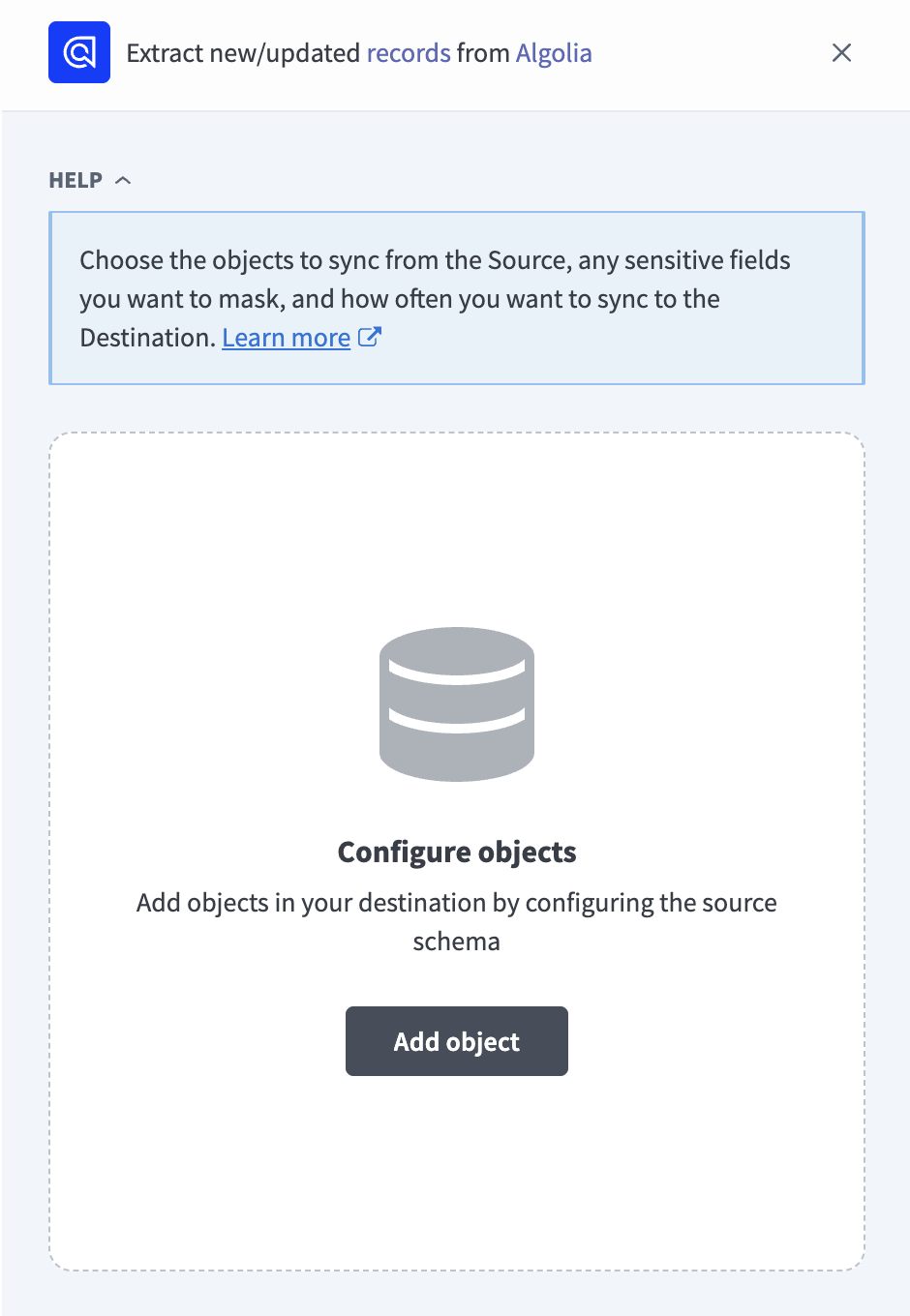 Add objects
Search or browse the list of available Algolia objects, select the objects you plan to sync, and click Add. The list displays Indices and Logs once for your application, and each index-level object once per index, with the index name in parentheses.
FULL SYNC ONLY OBJECTS
Indices and the index objects, such as Records and Rules, don't have a timestamp cursor, so they always sync in full. Refer to Sync modes for more information.
Optional. Click the gear icon next to an analytics object or Logs to open its Sync mode settings. Use the Sync mode drop-down menu to select Full sync or Incremental, then click Save.
The sync mode defaults to Incremental for analytics objects and Logs. Refer to Sync modes for more information.
Review and customize the schema for each selected object. The pipeline automatically fetches an object's schema when you select it. This ensures the destination matches the source.
Expand an object to view associated fields. Keep all fields selected to extract all available data, or deselect specific fields to exclude them from data extraction and schema replication.
Deselected Records attributes still sync in the raw_attributes column. Refer to Records schema discovery for more information.
Optional. Configure field-level data protection by expanding an object and choosing how to handle each field:
- Replicate as is: Data values at the source replicate identically to the destination.
- Hash: Hash sensitive data values in the field before syncing to your destination.
Workato recommends hashing personally identifiable information (PII) and other sensitive fields. Refer to Sensitive data handling for a list of fields that commonly contain PII.
Click Add object again to add more objects. Repeat the preceding steps for each additional object to configure its sync mode, schema, and field-level data protection.
Use the Choose how to handle schema changes drop-down menu to select a schema drift handling option:
- Auto-sync new fields: Automatically detects and syncs new fields added in the source.
- Block new fields: Keeps the schema fixed after the pipeline starts. You must add new fields manually. This option may cause the destination to fall out of sync if the source schema updates.
Refer to Schema replication and schema drift management for more information.
Workato recommends Auto-sync new fields if you sync Records, because Algolia index records don't have a fixed schema. Refer to Records schema discovery for more information.
Optional. Enter a value in the Concurrency limit field to cap the number of concurrent operations. Leave the field blank to use the default limit set by Workato. The maximum value for Algolia is 5.
Choose either a standard time-based schedule or define a custom cron expression in the Frequency field. This determines how often the pipeline syncs data from Algolia to the destination.
Supported objects
Algolia data pipelines sync index content, index configuration, analytics, and API logs from your Algolia application. The following tables list the supported objects, grouped by category. Each object syncs as a separate table in your destination. Index-level objects appear once for each index in your application.
Application objects
These objects sync data for your entire Algolia application:
| Object | Sync mode(s) | Delete tracking |
|---|---|---|
Indices | Full sync | Yes |
Logs | Full sync, incremental | Yes (full sync), No (incremental) |
Indices syncs one row per index in your application. Logs syncs recent API request logs. Refer to Logs retention for the limits that apply to Logs.
Index objects
These objects sync the content and configuration of a single index:
| Object | Sync mode(s) | Delete tracking |
|---|---|---|
Records | Full sync | Yes |
Index Settings | Full sync | Yes |
Rules | Full sync | Yes |
Synonyms | Full sync | Yes |
Index Settings syncs one row per index. Records uses a schema discovered from your index. Refer to Records schema discovery for more information.
Search analytics objects
Search analytics objects sync daily metrics for a single index, with one row per day or one row per query, record, country, or filter attribute per day. These objects require the analytics ACL, and fail with a permissions error if your API key or Algolia plan doesn't allow Analytics API access.
| Object | Sync mode(s) | Delete tracking |
|---|---|---|
Search | Full sync, incremental | Yes (full sync), No (incremental) |
Search Count | Full sync, incremental | Yes (full sync), No (incremental) |
Search No Result | Full sync, incremental | Yes (full sync), No (incremental) |
Search No Result Rate | Full sync, incremental | Yes (full sync), No (incremental) |
Hit | Full sync, incremental | Yes (full sync), No (incremental) |
Top Countries | Full sync, incremental | Yes (full sync), No (incremental) |
Top Filter Attributes | Full sync, incremental | Yes (full sync), No (incremental) |
Users Count | Full sync, incremental | Yes (full sync), No (incremental) |
Click and conversion analytics objects
Each object syncs click and conversion metrics by day for one index. Search No Click and Click Position sync one row per query or click position per day, and the rest sync one row per day. They require the analytics ACL and click events sent to Algolia through the Insights API. Conversion Rate also requires conversion events.
| Object | Sync mode(s) | Delete tracking |
|---|---|---|
Search No Click | Full sync, incremental | Yes (full sync), No (incremental) |
Search No Click Rate | Full sync, incremental | Yes (full sync), No (incremental) |
Click Position | Full sync, incremental | Yes (full sync), No (incremental) |
Click Average Click Position | Full sync, incremental | Yes (full sync), No (incremental) |
Click Through Rate | Full sync, incremental | Yes (full sync), No (incremental) |
Conversion Rate | Full sync, incremental | Yes (full sync), No (incremental) |
Sync modes
Algolia data pipelines support full sync and incremental sync. The sync mode is configured per object when you add it to your pipeline.
Full sync
A full sync reads all available records within the selected object's extraction window on every run and replaces the record set in your destination table. Indices, Records, Index Settings, Rules, and Synonyms don't have a timestamp cursor, so they support full sync only.
Analytics objects and Logs also support full sync. A full sync marks rows that fall outside the extracted date range as deleted, even if Algolia still retains them. Analytics extraction starts on the preceding day and log extraction reaches back at most 7 days if you don't set a start date. Workato recommends incremental sync for these objects if you need to retain older rows.
Incremental sync
Analytics objects and Logs read a bounded date range on each run. Your destination deduplicates re-read rows by primary key:
- Analytics objects: The
datecolumn is the cursor. Metrics for the current day are partial and are updated on later runs. - Logs: The
timestampcolumn is the cursor. Each run considers at most the preceding 7 days of logs. It resumes from the previous timestamp with a one-second overlap when no start date is set. A configured start date can narrow the window.
Delete tracking
Delete tracking depends on the object:
- Full sync only objects:
Yes. Workato marks records you delete in Algolia as deleted in your destination on the next full sync. - Analytics objects and
Logs:Noin incremental sync. Rows remain in your destination after they leave the extraction window. A full sync marks rows absent from its current extraction window as deleted. Refer to Full sync for more information.
Schema and data type handling
The following considerations apply to schema and data types when you sync data from Algolia:
Records schema discovery
Algolia index records don't have a fixed schema. Workato samples up to 1,000 records from the index when you add Records and creates a column for each top-level attribute it finds:
objectID: Syncs as the primary key.- Scalar attributes: Boolean, integer, decimal, and string attributes sync as matching column types. Attributes with mixed types sync as strings, except mixed integer and decimal values, which sync as decimals.
raw_attributes: Contains every attribute that doesn't have its own column, such as an attribute missing from the sample, an attribute added to the index later, or an attribute you deselect during schema review.
Workato adds attributes it finds in later samples as new columns when you select Auto-sync new fields.
Nested fields
Nested objects and arrays, such as nested Records attributes, the conditions and consequence fields on Rules, and the attribute lists on Index Settings, sync as JSON objects. Workato stores them in your destination's native JSON type, such as VARIANT in Snowflake, and serializes them to strings only when the destination doesn't have a native JSON type.
Synthetic columns
Workato adds the following columns to destination tables for specific objects:
| Column | Type | Purpose |
|---|---|---|
raw_attributes | JSON | Stores Records attributes that don't have their own column. |
sha1 | String | Primary key for Logs. Workato calculates this SHA-1 hash from the log entry and uses it in place of the sha1 value Algolia returns. |
indexName | String | Primary key for Index Settings. Contains the name of the index. |
index | String | Name of the index that the analytics data describes, on every analytics object. |
Sensitive data handling
Algolia objects can contain personally identifiable information (PII). The following objects commonly contain sensitive fields:
| Object | Sensitive fields |
|---|---|
Records | Any attribute your index stores, including the raw_attributes column |
Logs | ip, query, userToken, authenticatedUserToken, params, filters, details, answer |
Search, Search No Result, Search No Click, Hit | query |
Search queries contain the text your users enter, which can include personal information.
Deselecting a Records attribute doesn't keep its value out of your destination, because Workato stores deselected attributes in the raw_attributes column. Deselect or hash raw_attributes to exclude those values.
Use the Hash option in field-level data protection during pipeline configuration to protect PII before it reaches your destination. Refer to the Configure the pipeline steps for more information.
Limitations
The following limitations apply when you use Algolia as a data pipeline source:
Logs retention
Algolia keeps API logs for 7 days and logs up to 1,000 API requests per server. Each run syncs at most the 1,000 most recent log entries from the preceding 7 days. Schedule frequent syncs for applications with high request volume to reduce the number of log entries that aren't captured.
Query Suggestions indexes aren't listed
Workato excludes indexes with query_suggestions in their name from object discovery, so their index-level and analytics objects aren't available. These indexes still appear as rows in the Indices table.
Deleted or renamed indexes
Objects for an index that you delete or rename in Algolia fail with an error that Algolia couldn't find the index. Remove these objects from your pipeline, and add the objects for the renamed index if needed.
Minimum sync frequency
The minimum supported sync interval is 15 minutes.
Last updated: