Configure Apollo.io as a data pipeline source
Set up Apollo.io as a data pipeline source to extract contact, account, deal, and sales engagement records into your destination.
Use this guide to generate an Apollo.io API key, set up a connection, configure your pipeline, add objects, review sync behavior, and understand known limitations.
Features supported
The following features are supported when you use Apollo.io as a pipeline source:
- Cloud connectivity: Connect to Apollo.io over HTTPS through
https://api.apollo.io. On-prem agents aren't required. - Full sync and incremental sync: Supports full sync and incremental sync modes. Incremental sync uses a timestamp cursor on
contactsand a daily date cursor onanalytics_report. Refer to Sync modes for more information. - Object-level selection: Select Apollo.io objects to sync as separate tables in your destination. Refer to Supported objects for the full list.
- Custom field auto-sync: Automatically detect and sync custom fields you've added to
accounts,contacts,deals, andusers, labeled by their Apollo.io field name. - Schema drift detection and handling: Detect and apply schema changes automatically with Auto-sync new fields, or keep the schema fixed with Block new fields.
- Field-level data protection: Hash or replicate sensitive fields as is before the data reaches your destination.
- Configurable sync frequency: Schedule syncs on a time-based interval or with a cron expression. The minimum supported interval is
15minutes.
Prerequisites
Connecting Apollo.io as a data pipeline source requires:
- An Apollo.io account with API access for your plan.
- An Apollo.io API key. Refer to Generate an Apollo.io API key for setup steps.
REQUIRED PERMISSIONS
Apollo.io API keys come in two types. A master key unlocks every supported object. A scoped key only unlocks the endpoints you granted it access to when you created it. Use a master key, or a scoped key granted access to every endpoint the objects you plan to sync require, to avoid permissions errors.
Generate an Apollo.io API key
Generate the API key in your Apollo.io account before you create the connection in Workato.
Refer to Apollo.io's Create an API key documentation for setup steps.
USE A MASTER KEY FOR FULL OBJECT COVERAGE
A scoped key only reaches the endpoints you granted it access to. Copy a master key instead, or grant your scoped key access to every endpoint the objects you plan to sync require.
Supported connection types
Apollo.io data pipelines support one authentication method:
- API key: Provide an Apollo.io API key. Refer to Generate an Apollo.io API key for setup steps.
Connect to Apollo.io
Complete the following steps to connect to Apollo.io:
Connect to Apollo.io
Select Create > Connection or press C twice.
Search for Apollo.io on the New connection page and select it.
Enter a name in the Connection name field.
Use the Location drop-down menu to select the project where you plan to store the connection.
Paste the key you generated into the API key field. Workato sends this value to Apollo.io as the x-api-key request header. A master key unlocks every supported object. A scoped key only unlocks the endpoints you granted it access to.
Select Connect to verify and save the connection. Workato displays a success message when the connection is established.
Configure the pipeline
Complete the following steps to configure Apollo.io as your data pipeline source:
Select Create > Data pipeline.
Enter a name for the data pipeline in the Data pipeline name field.
 Data pipeline setup
Use the Location drop-down menu to select the project where you plan to store the data pipeline.
Click Start building.
Click the Extract new/updated records from source app trigger. This trigger defines how the pipeline retrieves data from Apollo.io.
 Configure the Extract new/updated records from source app trigger
Use the Your Connected Source Apps drop-down menu to select Apollo.io.
Choose the Apollo.io connection you plan to use for this pipeline. Alternatively, click + New connection to create a new connection.
Click Add object to open the Add new objects panel.
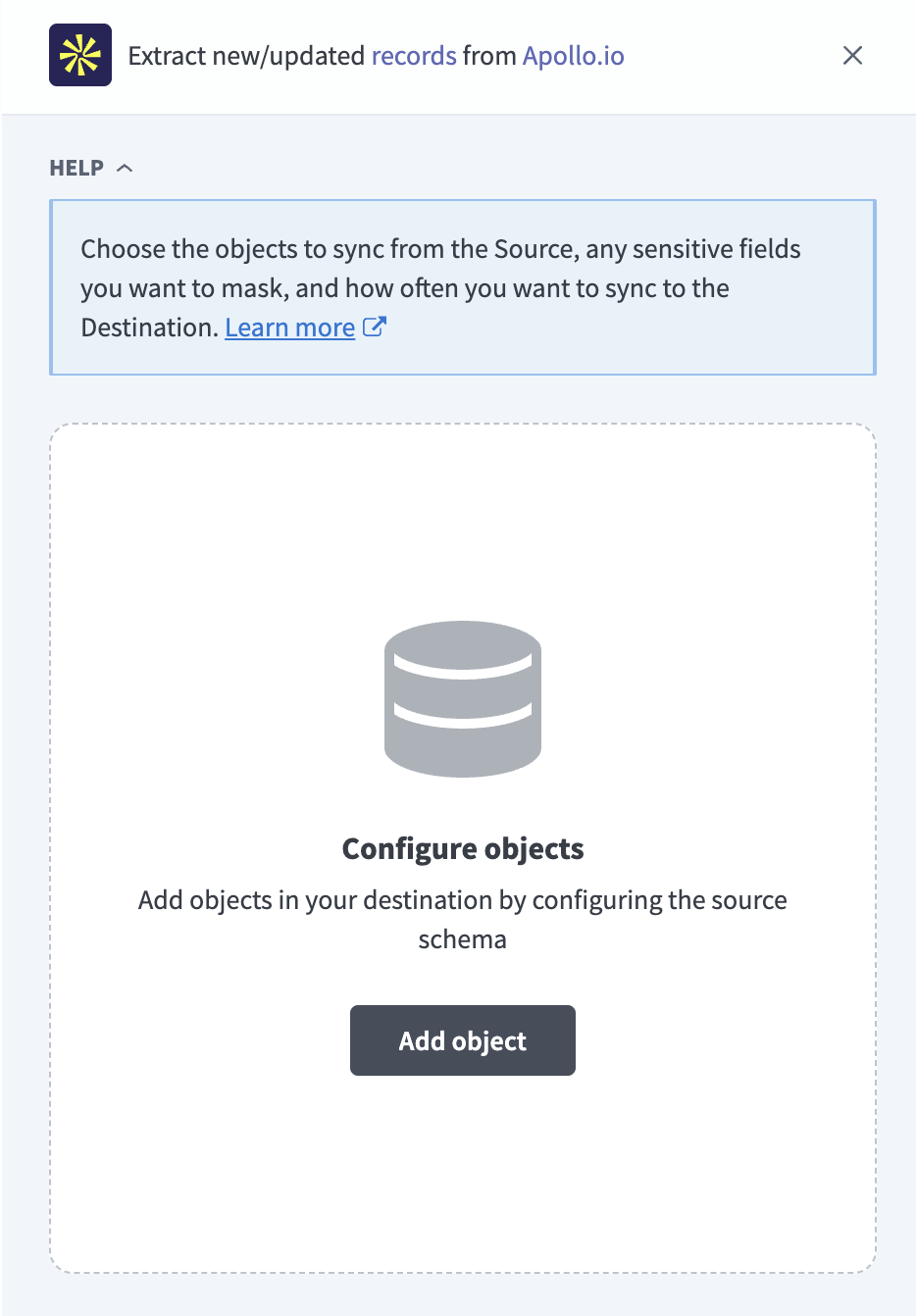 Add objects
Search or browse the list of available Apollo.io objects, select the objects you plan to sync, and click Add.
FULL SYNC FOR MOST OBJECTS
Only contacts and analytics_report support incremental sync. Every other object uses full sync, because Apollo.io doesn't expose an update-tracking cursor for them.
Review and customize the schema for each selected object. The pipeline automatically fetches an object's schema when you select it. This ensures the destination matches the source.
Expand an object to view associated fields. Keep all fields selected to extract all available data, or deselect specific fields to exclude them from data extraction and schema replication.
Optional. Configure field-level data protection by expanding an object and choosing how to handle each field:
- Replicate as is: Data values at the source replicate identically to the destination.
- Hash: Hash sensitive data values in the field before syncing to your destination.
Workato recommends hashing personally identifiable information (PII) and other sensitive fields. Refer to Sensitive data handling for a list of fields that commonly contain PII.
Click Add object again to add more objects. Repeat these steps to include additional Apollo.io objects in your pipeline.
Use the Choose how to handle schema changes drop-down menu to select a schema drift handling option:
- Auto-sync new fields: Automatically detects and syncs new fields added in the source.
- Block new fields: Keeps the schema fixed after the pipeline starts. You must add new fields manually.
Optional. Enter a value in the Concurrency limit field to cap the number of concurrent operations. Apollo.io pipelines run at no more than 2 concurrent operations regardless of the value you enter here.
Choose either a standard time-based schedule or define a custom cron expression in the Frequency field. This determines how often the pipeline syncs data from Apollo.io to the destination.
Supported objects
Apollo.io data pipelines sync data from the Apollo.io REST API. The following tables list the supported objects, grouped by category. Each object syncs as a separate table in your destination:
Core CRM records
| Object | Sync mode | Delete tracking | Notes |
|---|---|---|---|
contacts | Incremental | No | N/A |
accounts | Full sync | Yes (destination-inferred) | N/A |
deals | Full sync | Yes (destination-inferred) | N/A |
Sales engagement
| Object | Sync mode | Delete tracking | Notes |
|---|---|---|---|
sequences | Full sync | Yes (destination-inferred) | N/A |
tasks | Full sync | Yes (destination-inferred) | N/A |
calls | Full sync | Yes (destination-inferred) | Bounded to the historical start date through the sync's start time. |
conversations | Full sync | Yes (destination-inferred) | Bounded to the historical start date through the sync's start time. Doesn't include full call transcripts. |
outreach_emails | Full sync | Yes (destination-inferred) | Bounded to the historical start date through the sync's start time. |
notes | Full sync | Yes (destination-inferred) | Sync time scales with your total contact count. |
email_accounts | Full sync | Yes (destination-inferred) | N/A |
Reference tables
| Object | Sync mode | Delete tracking |
|---|---|---|
contact_stages | Full sync | Yes (destination-inferred) |
deal_stages | Full sync | Yes (destination-inferred) |
account_stages | Full sync | Yes (destination-inferred) |
lists | Full sync | Yes (destination-inferred) |
Team and reporting
| Object | Sync mode | Delete tracking | Notes |
|---|---|---|---|
users | Full sync | Yes (destination-inferred) | N/A |
analytics_report | Incremental | No | Syncs only the daily count of emails sent (num_emails_sent), grouped by day. Refer to Limitations. |
Sync modes
Apollo.io data pipelines support full sync and incremental sync. Each object always uses the sync mode listed in the Supported objects tables. You can't switch an individual object to the other mode.
Full sync
A full sync reads all available records from Apollo.io for the selected object and overwrites the destination table. Every object except contacts and analytics_report uses full sync, because Apollo.io doesn't expose an update-tracking cursor for them. accounts, calls, conversations, and outreach_emails only include a creation or occurrence timestamp, which confirms new records but can't detect edits to records Workato already synced.
Incremental sync
An incremental sync extracts only records that changed since the last successful run. contacts uses its last-updated timestamp as the incremental cursor. analytics_report re-pulls the trailing 2 days of data on every run to capture late-finalizing metrics, in addition to any new days since the last run.
Refer to the Supported objects tables to see the sync mode for each object.
Delete tracking
Apollo.io doesn't expose a delete signal, audit log, or webhook for any object, so Workato can't detect deletions directly from the source.
For objects set to use full sync, Workato compares each run against the previous sync and marks records that no longer appear in Apollo.io as deleted in the destination. Deletions aren't detected for contacts or analytics_report, because both always sync incrementally. An incremental run only pulls changed records and doesn't re-reads the object's full history to compare against.
Refer to Synthetic columns for the destination column this sets, and to the Supported objects tables to see which sync mode each object uses.
Schema and data type handling
The following considerations apply to schema and data types when you sync data from Apollo.io:
Custom fields
Custom fields on accounts, contacts, deals, and users sync in the typed_custom_fields column as a JSON object keyed by field name, for example {"Renewal date": "2026-01-15"}. Workato distinguishes duplicate custom field names by appending the field's Apollo.io ID to the key. Workato doesn't sync custom fields as separate columns.
Nested and list-valued fields
Nested objects and arrays, such as a contact's phone_numbers, sync as JSON strings in a single column. Workato doesn't flatten these formats into separate columns.
Monetary amounts
deals.amount reflects the deal's original currency, identified by the currency field. deals.amount_in_team_currency provides Apollo.io's own converted equivalent in your team's currency. Workato doesn't perform its own currency conversion.
Synthetic columns
Workato adds the following synthetic columns to destination tables:
| Column | Type | Purpose |
|---|---|---|
_workato_run_id | String | Identifies the pipeline run that last wrote the row. |
_workato_synced_at | Timestamp | Records when Workato last synced the row. |
_workato_is_deleted | Boolean | Set to true for records Workato detects as deleted. Present on full sync objects only. Refer to Delete tracking for more information. |
Sensitive data handling
Apollo.io objects can contain significant PII, including contact and account details captured from your sales and outreach activity. The following objects commonly contain sensitive fields:
| Object | Sensitive fields |
|---|---|
contacts | email, phone_numbers, sanitized_phone, first_name, last_name, name, linkedin_url, twitter_url, photo_url, present_raw_address |
accounts | phone, sanitized_phone, linkedin_url |
users | email, first_name, last_name, name, title |
notes | content |
tasks | note |
calls | note, recording_url |
outreach_emails | from_email, to_email, subject, body_text |
conversations | participant_names, participants_info |
Custom fields (typed_custom_fields) on accounts, contacts, deals, and users can also contain PII or other sensitive data, depending on what your workspace stores in them.
Use the Hash option in field-level data protection during pipeline configuration to protect PII before it reaches your destination. Refer to the Configure the pipeline steps for more information.
Limitations
The following limitations apply when you use Apollo.io as a data pipeline source:
Your API key must cover every object you sync
Use a master API key, or a scoped key granted access to every endpoint the objects you plan to sync require. Apollo.io returns a permissions error for any object your key doesn't cover. Refer to Generate an Apollo.io API key for setup steps.
Employment history isn't available
Apollo.io doesn't expose a contact's employment history through this connector. Job-change tracking based on employment history isn't available. Sync contacts for current job title and company information instead.
Analytics report is limited to daily email-sent counts
analytics_report syncs only the daily count of emails sent (num_emails_sent), grouped by day. Other Apollo.io analytics metrics aren't available through this connector.
analytics_report is limited to 5 requests per hour regardless of plan. Apollo.io returns a rate-limit error when Workato exceeds a limit, and Workato retries automatically.
Minimum sync frequency
The minimum supported sync interval is 15 minutes.
Last updated: