Configure Anaplan as a data pipeline source
Set up Anaplan as a data pipeline source to extract planning data from the export actions a workspace admin configures inside your Anaplan models.
Use this guide to review supported features, connect Anaplan, configure your pipeline, and understand the supported objects, sync modes, schema handling, sensitive data handling, and limitations of the Anaplan source connector.
Features supported
The following features are supported when you use Anaplan as a pipeline source:
- Cloud connectivity: Anaplan is a fully vendor-hosted cloud platform. Workato connects directly over HTTPS, so you don't need a proxy, VPN, or on-prem agent.
- Multiple authentication methods: Username/password, OAuth 2.0, and certificate authentication. Refer to Supported connection types.
- Regional data center support: Connect to Anaplan instances hosted in multiple data centers.
- Object-level selection: Choose which Anaplan workspaces, models, and export actions to sync.
- Full sync: Every object syncs as a complete snapshot on each run. Refer to Sync modes.
- Schema drift detection: Automatically sync new fields as your Anaplan export definitions change, or block new fields until you add them manually.
- Field-level data protection: Hash or replicate sensitive fields as is before the data reaches your destination.
- Configurable sync frequency: Schedule syncs on a time-based interval or with a cron expression. The minimum supported interval is 15 minutes.
Prerequisites
Connecting Anaplan as a data pipeline source requires:
- An Anaplan account with a dedicated service account for the pipeline. Don't use a shared or personal account. Refer to Dedicated service account required.
- Credentials for your chosen authentication method:
- Username/password: Your Anaplan username and password.
- OAuth 2.0: A Client ID and Client secret from an OAuth 2.0 client configured in Anaplan under Administration > Security > OAuth Clients.
- Certificate authentication: A PEM-format CA certificate and private key. Refer to Anaplan's Procure CA certificates documentation.
- At least one export action already configured in each Anaplan model you plan to sync. Refer to Anaplan export action prerequisites.
- Add the service account as an Exception User in every model you plan to sync when you use Username/password or Certificate authentication. This requirement doesn't apply to OAuth 2.0.
- A role that grants the service account execute access to the targeted export actions, plus read or write access to the related modules. Workspace administrators can run any export action, but model-level roles may restrict access.
EXPORT ACTIONS MUST EXIST BEFORE YOU CONNECT
Anaplan doesn't expose queryable data through its API. Workato can only sync data through export actions that a workspace admin creates directly in Anaplan. If a model has no export actions, Workato has no data to sync from it, and it can't create export actions on your behalf.
Supported connection types
Anaplan data pipelines support the following authentication methods:
- Username/password: Authenticate with your Anaplan account credentials. Anaplan passwords expire every 90 days and require manual rotation, so this method suits testing more than long-running production pipelines.
- Certificate authentication: Authenticate with a CA certificate and private key. This method suits production service accounts because certificates don't expire on the same 90-day cycle as passwords.
- OAuth 2.0: Authenticate with an OAuth 2.0 client configured in Anaplan. Use a dedicated service account user when you set up the OAuth client, because an OAuth connection is tied to the approving user's permissions.
Every authentication method also uses a Data Centre value that identifies where Anaplan hosts your instance. The field defaults to Anaplan Data Center if left blank. Select a different region if your instance is hosted elsewhere.
Connect to Anaplan
Complete the following steps to connect Anaplan as a data pipeline source.
Connect to Anaplan
The Anaplan connector supports the following authentication types:
Each authentication type includes a Data Centre field that identifies the data centre hosting your Anaplan instance. This field defaults to Anaplan Data Center if left blank. The available options are Anaplan Data Center, AWS Australia, GCP Canada, and AWS Indonesia.
Username/password
Use username/password authentication to connect with your Anaplan account credentials.
Connect to Anaplan with username/password
Complete the following steps to set up a username/password connection to Anaplan in Workato:
Click Create > Connection or press C twice.
Search for Anaplan and select it as your app.
Enter a name for your connection in the Connection name field.
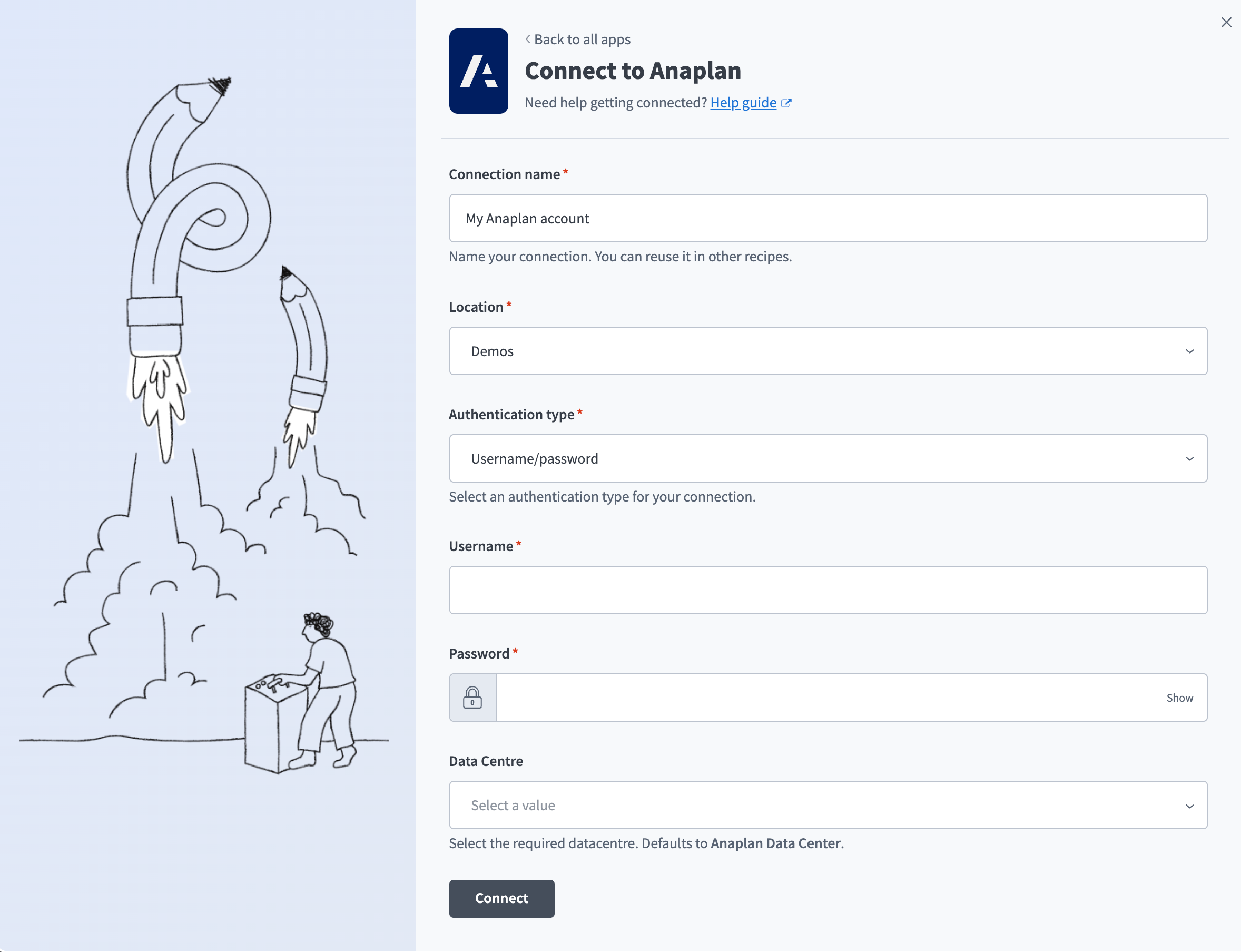 Set up a username/password connection
Use the Location drop-down menu to select the project where you plan to store the connection.
Use the Authentication type drop-down menu to select Username/password.
Enter your Anaplan Username.
Enter your Anaplan Password.
Use the Data Centre drop-down menu to select the data centre that hosts your Anaplan instance. If you leave this field blank, it defaults to Anaplan Data Center.
Click Connect.
OAuth 2.0
Use OAuth 2.0 to connect with an OAuth 2.0 client configured in your Anaplan account.
Connect to Anaplan with OAuth 2.0
Complete the following steps to set up an OAuth 2.0 connection to Anaplan in Workato:
Click Create > Connection or press C twice.
Search for Anaplan and select it as your app.
Enter a name for your connection in the Connection name field.
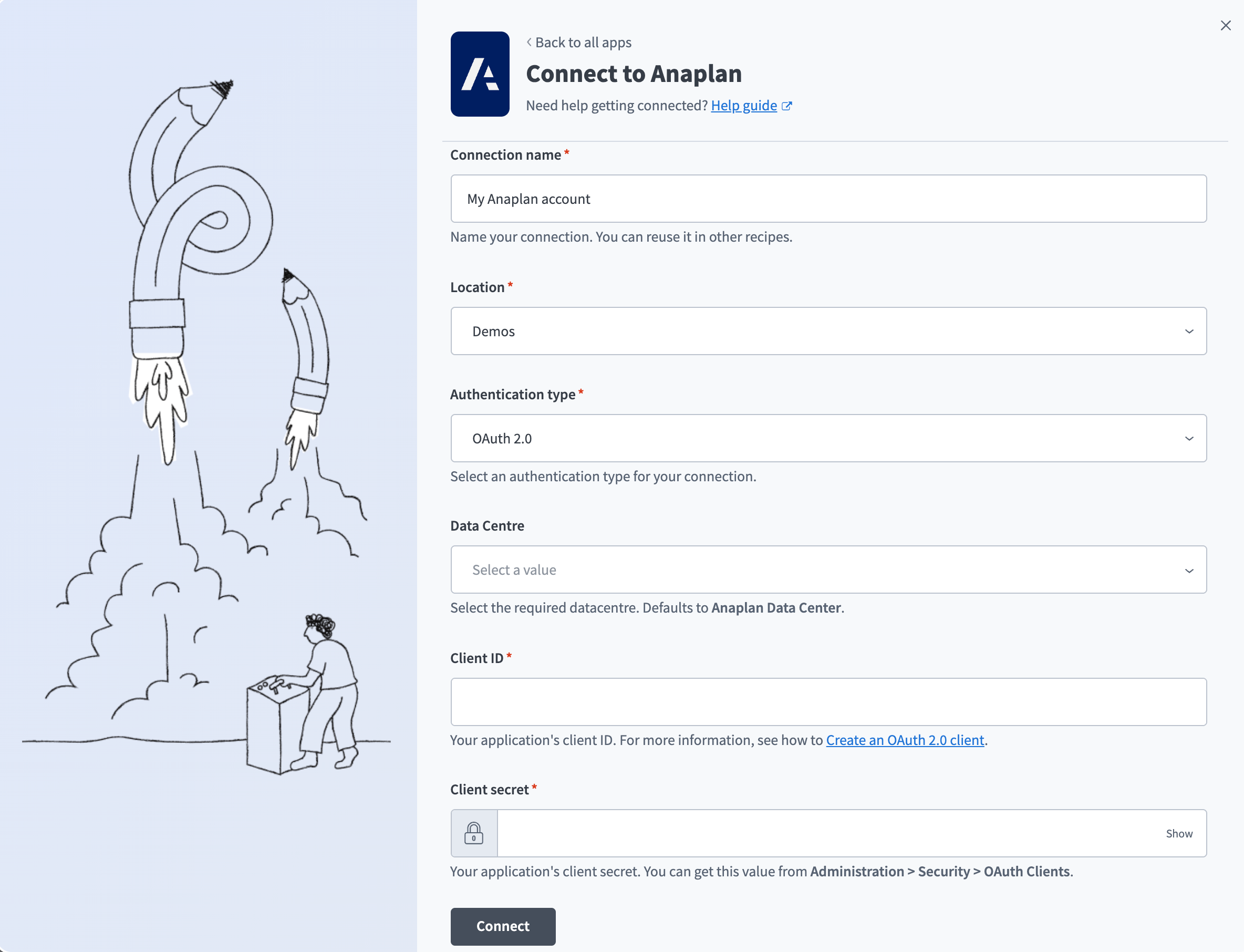 Set up an OAuth 2.0 connection
Use the Location drop-down menu to select the project where you plan to store the connection.
Use the Authentication type drop-down menu to select OAuth 2.0.
Enter your application's Client ID. Refer to the Anaplan Create an OAuth 2.0 client documentation for more information.
Enter your application's Client secret. You can find this value in Anaplan under Administration > Security > OAuth Clients.
Use the Data Centre drop-down menu to select the data centre that hosts your Anaplan instance. If you leave this field blank, it defaults to Anaplan Data Center.
Click Connect.
Certificate authentication
Use certificate authentication to connect with a PEM-format certificate and private key.
Connect to Anaplan with certificate authentication
Complete the following steps to set up a certificate authentication connection to Anaplan in Workato:
Click Create > Connection or press C twice.
Search for Anaplan and select it as your app.
Enter a name for your connection in the Connection name field.
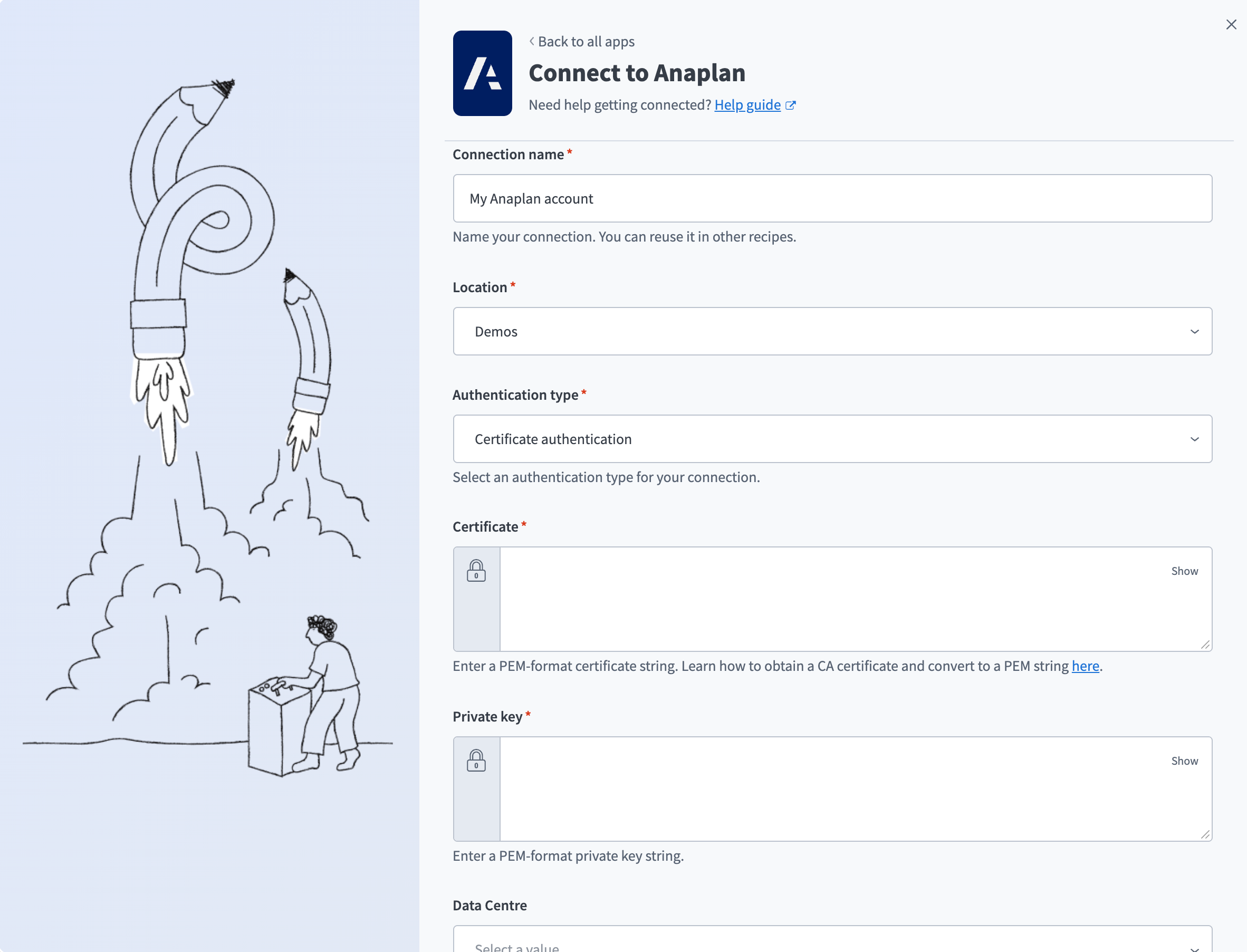 Set up a certificate authentication connection
Use the Location drop-down menu to select the project where you plan to store the connection.
Use the Authentication type drop-down menu to select Certificate authentication.
Enter a PEM-format certificate string in the Certificate field. Refer to the Anaplan Procure CA certificates documentation for more information.
Enter a PEM-format private key string in the Private key field.
Use the Data Centre drop-down menu to select the data centre that hosts your Anaplan instance. If you leave this field blank, it defaults to Anaplan Data Center.
Click Connect.
Configure the pipeline
Complete the following steps to configure Anaplan as your data pipeline source:
Select Create > Data pipeline or press C+I.
Enter a name for the data pipeline in the Data pipeline name field.
 Data pipeline setup
Use the Location drop-down menu to select the project where you plan to store the data pipeline.
Click Start building.
Click the Extract new/updated records from source app trigger. This trigger defines how the pipeline retrieves data from Anaplan.
 Configure the Extract new/updated records from source app trigger
Use the Your Connected Source Apps drop-down menu to select Anaplan.
Choose the Anaplan connection you plan to use for this pipeline. Alternatively, click + New connection to create a new connection.
Use the Workspaces field to select the Anaplan workspaces you want to sync exports from.
Use the Workspace models field to select the models you want to sync exports from within your chosen workspaces. Toggle this field to enter workspace and model IDs as a comma-separated list instead.
WORKSPACE AND MODEL SCOPE
Workato only discovers export actions inside the workspaces and models you select here. Discovery ignores any workspace or model outside this scope, even if your service account has access to it.
Click Add object to open the Add new objects panel.
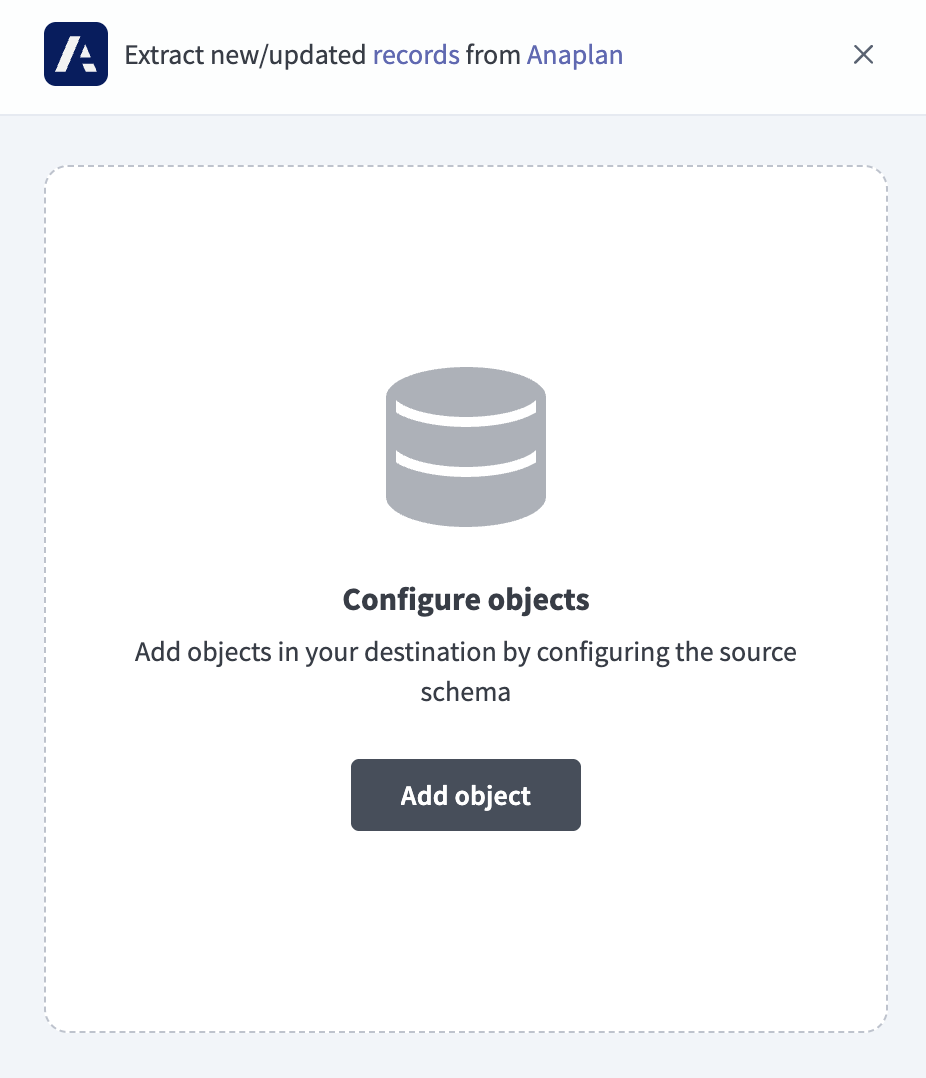 Add Anaplan objects
Search or browse the list of available Anaplan objects, select the objects you plan to sync, and click Add.
OBJECT REQUIREMENTS
Workato only supports CSV exports that use the Tabular Single Column (All Line Items) or Grid (Current Page) layout, without empty rows. Refer to Anaplan export action prerequisites for more information.
Review and customize the schema for each selected object. The pipeline automatically fetches an object's schema when you select it. This ensures the destination matches the source.
Expand an object to view associated fields. Keep all fields selected to extract all available data, or deselect specific fields to exclude them from data extraction and schema replication.
Optional. Configure field-level data protection by expanding an object and choosing how to handle each field:
- Replicate as is: Data values at the source replicate identically to the destination.
- Hash: Hash sensitive data values in the field before syncing to your destination.
Workato recommends hashing personally identifiable information (PII) and other sensitive fields. Refer to Sensitive data handling for a list of fields that commonly contain PII.
Click Add object again to add more objects. Repeat this step to include additional Anaplan objects in your pipeline.
Use the Choose how to handle schema changes drop-down menu to select a schema drift handling option:
- Auto-sync new fields: Automatically detects and syncs new fields added in the source.
- Block new fields: Keeps the schema fixed after the pipeline starts. You must add new fields manually. This option may cause the destination to fall out of sync if the source schema updates.
Refer to Schema replication and schema drift management for more information.
Workato recommends Auto-sync new fields for Anaplan export tables. Editing an export definition in Anaplan (adding a line item or list property, for example) changes the schema on the next sync, because each export table's schema comes from the export action's own column headers.
Optional. Enter a value in the Concurrency limit field to cap the number of concurrent operations. Leave the field blank to use the default quota set by Workato. The maximum value is 100.
Choose either a standard time-based schedule or define a custom cron expression in the Frequency field. This determines how often the pipeline syncs data from Anaplan to the destination.
Supported objects
Anaplan doesn't expose queryable domain objects through a REST API. Workato syncs data through two fixed metadata objects and a dynamic set of export result tables that mirror the export actions configured in your selected workspaces and models.
Metadata objects
workspace and model are always available, regardless of which export actions you configure. They provide the relational context (workspace and model names and IDs) needed to interpret your export result tables.
| Object | Sync mode | Delete tracking |
|---|---|---|
workspace | Full sync | Yes (destination-inferred) |
model | Full sync | Yes (destination-inferred) |
Export result tables
Workato discovers one object per export action found in your selected workspaces and models. Each export action targets a specific module, list, or grid view in Anaplan and produces a flat table of that data.
| Object | Sync mode | Delete tracking |
|---|---|---|
| Export result table (one per configured export action) | Full sync | Not applicable |
Sync modes
Anaplan data pipelines support full sync only. The sync mode isn't configurable per object.
Full sync
Anaplan doesn't expose row-level timestamps, modification logs, or a change feed for any object, so Workato can't sync incrementally. Every sync re-extracts the complete current state: workspace and model metadata are read fresh from the Anaplan API, and each configured export action re-runs and its resulting file downloads in full.
Delete tracking
Whether Workato can flag deleted records depends on whether it can uniquely identify each row in an object, which differs between the two object types Anaplan syncs:
workspaceandmodel: Yes (destination-inferred). Both objects have a primary key, so the destination compares each run's complete snapshot against the previous one and flags records that no longer appear.- Export result tables: Not applicable. Workato doesn't enforce a primary key constraint on an export table's schema, because Anaplan's API gives no way to infer one: A tabular export isn't guaranteed to have a unique, non-null column, and Workato can't deduce one either. Each sync replaces the entire table's contents with the current export result, so any deletes are hard deletes: If a row disappears from Anaplan, it disappears from the destination on the next sync.
Refer to the Supported objects tables to see the sync mode for each object.
Schema and data type handling
Anaplan doesn't expose a fixed schema for export data, so Workato determines each export table's schema at sync time and represents every value as text. The following sections describe what to expect from schema discovery, data types, and destination table naming.
Dynamic schema discovery
Every column in an export table is defined by your Anaplan model structure, so no two customers' export tables share the same schema. Workato discovers each export table's columns from the export action's own column headers, and treats every export table's schema as independent and tenant-specific.
When you select Auto-sync new fields, columns you add to an export definition in Anaplan appear automatically on the next sync. If you remove a column from an export definition, Workato doesn't fail the sync. It sends an empty value for that column instead. If you restructure an export's columns more significantly, the sync can fail until you refresh the object's schema.
Anaplan export headers can contain blank cells (dimension columns without a label) or duplicate names (the same line item repeated across page selections). Workato renames these automatically so every column has a unique name. For example, a blank header becomes column_0.
Data types
Anaplan doesn't declare column types for exported data, so every field in an export table syncs as text, including numbers, dates, and booleans. Perform any type conversion you need after the data lands in your destination. The categoryValues field in the model object syncs as a JSON string rather than a native array.
Destination table names
Workato names each export result table using the export name plus its export, model, and workspace IDs, because export names alone aren't guaranteed unique across your selected workspaces and models. Avoid special characters in your Anaplan export names. Workato replaces them automatically, which can make destination table names harder to recognize.
Sensitive data handling
Workato can't pre-identify which columns contain personally identifiable information (PII) or other sensitive data, because export table schemas are fully dynamic and tenant-defined. Whether an export table contains sensitive data depends entirely on what your Anaplan models track. Common scenarios include:
| Scenario | Sensitive fields |
|---|---|
| Workforce planning models | Employee names, job grades, salaries, headcount by person, bonus targets |
| Sales planning models | Customer names, rep assignments, deal values, territory assignments |
| Financial consolidation | Entity-level financials, cost center data, margin by product or region |
Hash any person-identifiable columns if you use workforce planning models and operate under GDPR or HIPAA.
Use the Hash option in field-level data protection during pipeline configuration to protect PII before it reaches your destination. Refer to the Configure the pipeline steps for more information.
Limitations
The following limitations apply when you use Anaplan as a data pipeline source.
Anaplan export action prerequisites
Workato can only sync data through export actions that a workspace admin configures inside Anaplan, and it can't create export actions for you. Each export action must use one of the following combinations to appear as an available object:
- File type Comma Separated Values (.csv) with layout Tabular Single Column (All Line Items)
- File type Comma Separated Values (.csv) with layout Grid (Current Page)
Export actions that use another file type or layout don't appear as available objects.
Also select the Omit Empty Rows option when you configure each export action in Anaplan. Workato doesn't filter on this setting, but exports that include empty rows produce blank records in your destination table.
Model busy state can delay syncs
Anaplan models are frequently locked during business hours for calculations, imports, or user edits. Most Anaplan API calls wait for a locked model to become available instead of returning an error, which can delay a sync for an unpredictable duration. Schedule syncs outside your organization's typical business hours or planning sessions to avoid this delay.
Dedicated service account required
An export action's resulting file is private to the Anaplan user who triggered it. Workato always triggers a fresh export and downloads the resulting file in the same sync. It never reuses a file produced by a different user, including one run manually through the Anaplan UI. Use a dedicated service account for your pipeline connection, not shared credentials, so Workato can always access the files it generates.
Selective Access and Dynamic Cell Access can omit data silently
Anaplan's Selective Access and Dynamic Cell Access features can remove rows or columns from an export's results without causing the export to fail. If your synced data looks incomplete, check whether these access restrictions apply to the export action's underlying module before assuming a pipeline issue.
Minimum sync frequency
The minimum supported sync interval is 15 minutes.
Last updated: