Configure Cornerstone OnDemand as a data pipeline source
Set up Cornerstone OnDemand as a data pipeline source to extract and sync learning, training, user, and organizational data to your destination.
Use this guide to register a Cornerstone OnDemand API client, connect Cornerstone OnDemand as a data pipeline source, configure the pipeline, and understand the supported objects, sync modes, schema handling, and limitations.
Features supported
The following features are supported when you use Cornerstone OnDemand as a pipeline source:
- Cloud connectivity: Connects to the Cornerstone OnDemand Data Exporter API and Reporting API over HTTPS. An on-prem agent isn't required.
- Object-level selection: Select the objects you plan to sync when you configure the pipeline.
- Sync modes: Data Exporter objects support full sync and incremental sync. Reporting API objects use full sync. Refer to Sync modes for more information.
- Delete tracking: Marks records deleted in Cornerstone OnDemand as deleted in your destination on the next full sync. Refer to Delete tracking for more information.
- Schema drift detection and handling: Detect and apply schema changes automatically with Auto-sync new fields, or keep the schema fixed with Block new fields.
- Field-level data protection: Hash or replicate sensitive fields as is before the data reaches your destination.
- Configurable sync frequency: Schedule syncs on a time-based interval or with a cron expression. The minimum supported interval is 15 minutes.
Prerequisites
Connecting Cornerstone OnDemand as a data pipeline source requires:
- A Cornerstone OnDemand portal.
- A Cornerstone OnDemand OAuth 2.0 API client with the scopes for each object you plan to sync. Refer to Register a Cornerstone OnDemand API client for setup steps.
REQUIRED PERMISSIONS
Cornerstone OnDemand requires a separate read scope for every object you sync. Syncs for an object fail with an authorization error if the API client doesn't have that object's scope. Refer to Required scopes for more information.
Register a Cornerstone OnDemand API client
Register an OAuth 2.0 application in Cornerstone OnDemand before you create the connection in Workato. Skip this section if you already have an API client with the scopes you plan to use.
Refer to Register an application in the Cornerstone developer documentation for steps to register an application and copy the client ID and client secret.
Required scopes
Select the following scopes when you register the application, and select the same object scopes in the Scopes field when you connect to Cornerstone OnDemand:
| Scope | Purpose |
|---|---|
obj_metadata:read | Validates the connection, lists Data Exporter objects, and reads the object metadata. |
reportingmetadata:view | Reads Reporting API object metadata. |
obj_<object_name>:read | Reads a Data Exporter object, for example obj_users_core:read for users_core. Add one scope for each object you plan to sync. |
<view_name>:read | Reads a Reporting API object, for example vw_rpt_transaction_cf:read for vw_rpt_transaction_cf. Add one scope for each Reporting API object you plan to sync. |
Refer to Scopes, security, and permissions in the Cornerstone developer documentation for the full list of scopes.
Supported connection types
Cornerstone OnDemand data pipelines support OAuth 2.0 client credentials authentication:
- OAuth 2.0 client credentials: Authorizes Workato to read the objects your API client has scopes for. Refer to Register a Cornerstone OnDemand API client for setup steps.
Connect to Cornerstone OnDemand
Connect to Cornerstone OnDemand
Complete the following steps to connect to Cornerstone OnDemand:
Select Create > Connection or press C twice.
Search for Cornerstone OnDemand and select it as your app.
Enter a name in the Connection name field.
Use the Location drop-down menu to select the project where you plan to store the connection.
Enter the portal prefix of your Cornerstone OnDemand domain in the Portal field. For example, enter acme if your portal URL is https://acme.csod.com.
Use the Region drop-down menu to select the region where your Cornerstone OnDemand portal is hosted. Options are: U.S., Canada, Europe, United Kingdom, Japan, Singapore, or Australia.
Enter the client ID of your Cornerstone OnDemand OAuth application in the Client ID field.
Enter the client secret of your Cornerstone OnDemand OAuth application in the Client Secret field.
Use the Scopes drop-down menu to select the scopes for the objects you plan to sync. The connection requests the reportingmetadata:view and obj_metadata:read scopes. Refer to Required scopes for the scopes each object requires.
Workato requests all scopes when you select more than 18, because of a Cornerstone OnDemand API limitation.
Select Connect to verify and save the connection. Workato displays a success message when the connection is established.
Configure the pipeline
Complete the following steps to configure Cornerstone OnDemand as your data pipeline source:
Select Create > Data pipeline or press C+I.
Enter a name for the data pipeline in the Data pipeline name field.
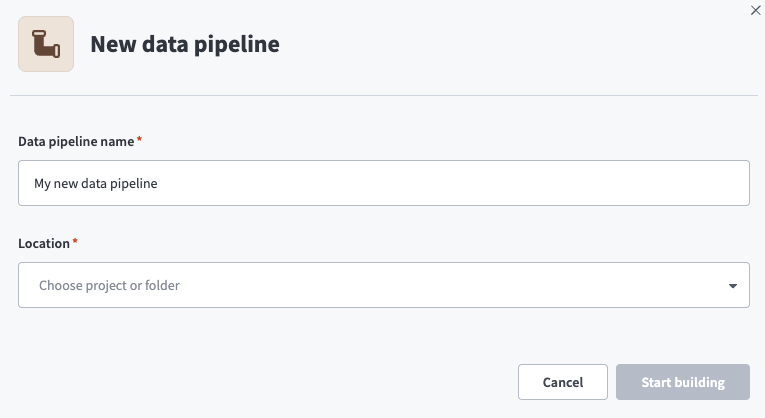 Data pipeline setup
Use the Location drop-down menu to select the project where you plan to store the data pipeline.
Click Start building.
Click the Extract new/updated records from source app trigger. This trigger defines how the pipeline retrieves data from Cornerstone OnDemand.
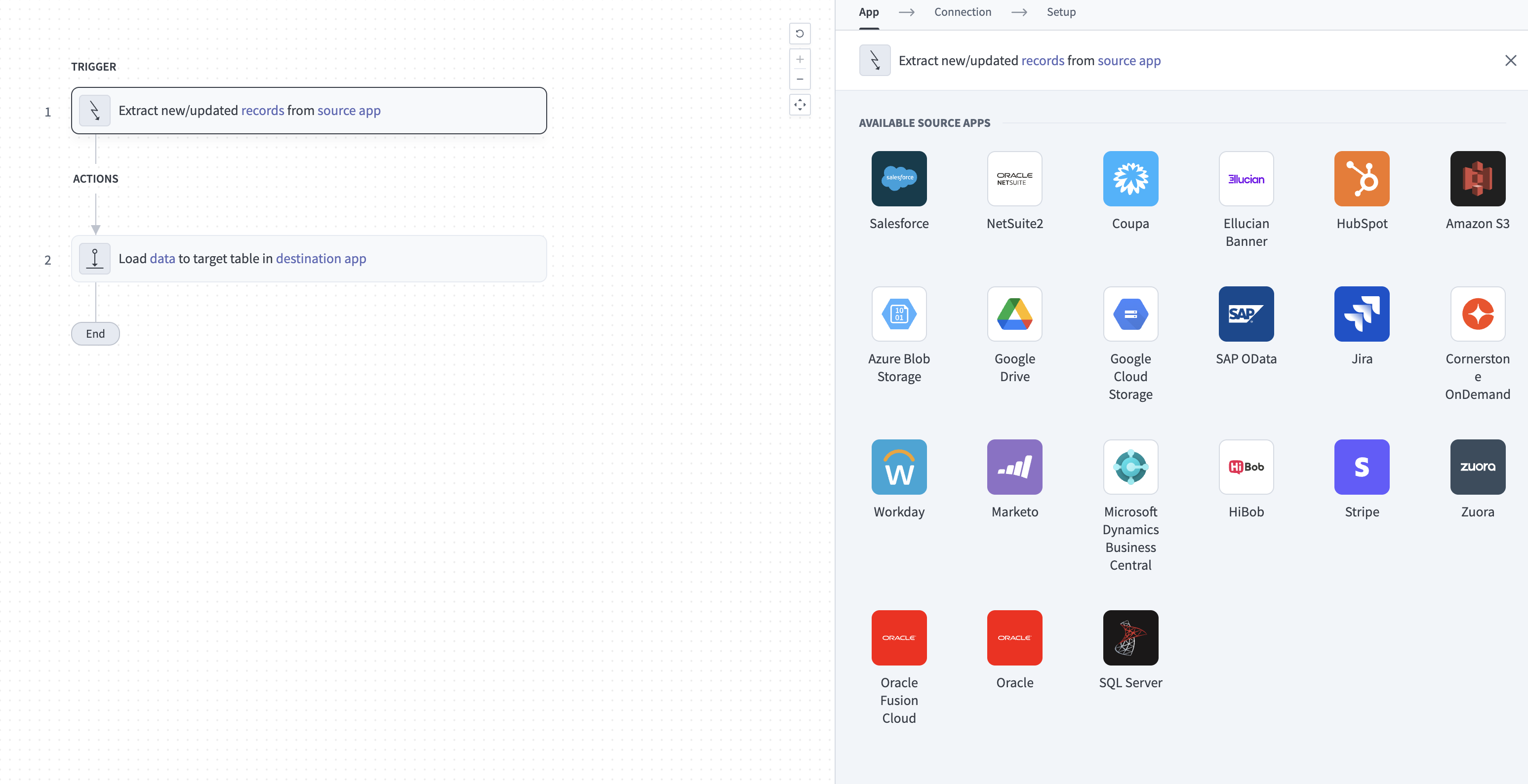 Configure the Extract new/updated records from source app trigger
Use the Your Connected Source Apps drop-down menu to select Cornerstone OnDemand.
Choose the Cornerstone OnDemand connection you plan to use for this pipeline. Alternatively, click + New connection to create a new connection.
Click Add object to open the Add new objects panel.
Search or browse the list of available Cornerstone OnDemand objects, select the objects you plan to sync, and click Add.
FULL SYNC FOR OBJECTS WITHOUT A CURSOR
Objects whose metadata doesn't list a _last_touched_dt_utc field support full sync only. This includes every Reporting API object, which you can identify by a label that ends in (RAPI). Refer to Supported objects for more information.
Review and customize the schema for each selected object. The pipeline automatically fetches an object's schema when you select it. This ensures the destination matches the source.
Expand an object to view associated fields. Keep all fields selected to extract all available data, or deselect specific fields to exclude them from data extraction and schema replication.
Optional. Configure field-level data protection by expanding an object and choosing how to handle each field:
- Replicate as is: Data values at the source replicate identically to the destination.
- Hash: Hash sensitive data values in the field before syncing to your destination.
Workato recommends hashing personally identifiable information (PII) and other sensitive fields. Refer to Sensitive data handling for a list of fields that commonly contain PII.
Click Add object again to add more objects. Repeat this step to include additional Cornerstone OnDemand objects in your pipeline.
Use the Choose how to handle schema changes drop-down menu to select a schema drift handling option:
- Auto-sync new fields: Automatically detects and syncs new fields added in the source.
- Block new fields: Keeps the schema fixed after the pipeline starts. You must add new fields manually. This option may cause the destination to fall out of sync if the source schema updates.
Refer to Schema replication and schema drift management for more information.
Workato recommends Auto-sync new fields because Cornerstone OnDemand updates Data Exporter object schemas automatically for each portal.
Optional. Enter a value in the Concurrency limit field to cap the number of concurrent operations. Cornerstone OnDemand pipelines run at no more than 10 concurrent operations regardless of the value you enter here.
Choose either a standard time-based schedule or define a custom cron expression in the Frequency field. This determines how often the pipeline syncs data from Cornerstone OnDemand to the destination.
HISTORICAL START DATE
The historical start date applies to all Data Exporter objects, including objects that support full sync only, and filters records by the _last_touched_dt_utc field. Reporting API objects extract all available records.
Supported objects
Cornerstone OnDemand data pipelines sync data from the Cornerstone OnDemand Data Exporter API and Reporting API. Each object syncs as a separate table in your destination. The Delete tracking column describes incremental sync for objects that support it. Refer to Delete tracking for how these objects track deletes in full sync:
Data Exporter objects
The pipeline lists every object that the Data Exporter API returns for your portal, such as users_core, transcript_core, and training_core. Refer to Normalized Data Exporter objects for how these objects map to Reporting API views.
| Object | Sync mode | Delete tracking |
|---|---|---|
Data Exporter objects whose metadata lists a _last_touched_dt_utc field | Full sync, incremental | No |
Data Exporter objects whose metadata doesn't list a _last_touched_dt_utc field | Full sync | Yes |
Reporting API objects
The pipeline syncs the following Reporting API views for data that the Data Exporter API doesn't expose or doesn't fully cover. These objects don't have a _last_touched_dt_utc field and support full sync only:
| Object | Sync mode | Delete tracking |
|---|---|---|
vw_rpt_training_unit_key_code | Full sync | Yes |
vw_rpt_training_available_language | Full sync | Yes |
vw_rpt_training_ilt_session_instructor | Full sync | Yes |
vw_rpt_training_schedule | Full sync | Yes |
vw_rpt_transaction_cf | Full sync | Yes |
vw_rpt_transaction_billing_account | Full sync | Yes |
vw_rpt_transaction_credit_card_type | Full sync | Yes |
vw_rpt_transaction_custom_field_option_local | Full sync | Yes |
vw_rpt_transcript_part_attendance | Full sync | Yes |
Sync modes
Cornerstone OnDemand data pipelines support full sync and incremental sync. The sync mode is configured for each object when you add it to your pipeline:
Full sync
A full sync reads all available records for the selected object, updates your destination by primary key, and marks records the sync doesn't read as deleted. A full sync of any Data Exporter object, including objects that support full sync only, reads records with a _last_touched_dt_utc value on or after the historical start date. Reporting API objects extract all available records on every run.
Incremental sync
An incremental sync extracts only Data Exporter records that changed since the last successful run. The pipeline uses the _last_touched_dt_utc field as the incremental cursor. This field records when the record was added to or updated in the Cornerstone OnDemand reporting warehouse, not when it changed in the Cornerstone OnDemand UI.
Refer to Full extract after a Cornerstone OnDemand data reload for a case where an incremental sync reads all records.
Delete tracking
Cornerstone OnDemand doesn't expose deleted records through the Data Exporter API or the Reporting API. Deleted records no longer exist in the reporting warehouse, and _last_touched_dt_utc doesn't record deletions. Workato infers deletions by comparing full syncs instead. Refer to Delete tracking for more information about destination-inferred delete tracking.
Delete tracking depends on the sync mode:
- Full-sync-only objects: Workato marks records that no longer appear in Cornerstone OnDemand as deleted in your destination on the next full sync.
- Incremental-capable objects in incremental sync: Deletions aren't detected. An incremental run only reads changed records, so records deleted in Cornerstone OnDemand remain in your destination.
- Incremental-capable objects in full sync: Workato marks records that the full sync doesn't read as deleted in your destination. Records last touched before the historical start date aren't synced.
Run a full sync on objects that use incremental sync after you delete data with Cornerstone OnDemand GDPR data deletion features, so your destination reflects the deletions.
Schema and data type handling
The following considerations apply to schema and data types when you sync data from Cornerstone OnDemand:
Normalized Data Exporter objects
Data Exporter objects are normalized tables that reference each other through foreign keys, while each Reporting API view combines data from several of these tables. Join Data Exporter tables in your destination to rebuild a Reporting API view. For example, combine user_ou_pivoted_core and ou_core to rebuild vw_rpt_user_ou_info.
Refer to Cornerstone's RAPI to Data Exporter mapping for the Data Exporter objects that make up each Reporting API view.
Data types
Workato maps Cornerstone OnDemand field types to destination types as follows:
| Cornerstone OnDemand type | Destination type |
|---|---|
Edm.Boolean | Boolean |
Edm.Byte, Edm.SByte, Edm.Int16, Edm.Int32 | Integer |
Edm.Int64 | Long |
Edm.Single, Edm.Double | Double |
Edm.Decimal | Decimal |
Edm.Date | Date |
Edm.TimeOfDay | Time |
Edm.DateTime | Timestamp without time zone |
Edm.DateTimeOffset | Timestamp with time zone |
Edm.Binary | Binary |
| Enumerations, complex types, and all other types | String |
Sensitive data handling
Cornerstone OnDemand objects can contain PII, including employee contact details and demographic data. The following objects commonly contain sensitive fields:
| Object | Sensitive fields |
|---|---|
users_core | user_name_first, user_name_middle, user_name_last, user_email, user_personal_email, user_phone_home, user_phone_mobile, user_phone_work, user_phone_fax, user_birth_dt, user_gender, user_ethnicity, user_login |
Custom field objects, such as users_cf_core and vw_rpt_transaction_cf, can also contain PII or other sensitive data, depending on what your portal stores in the objects.
Use the Hash option in field-level data protection during pipeline configuration to protect PII before it reaches your destination. Refer to the Configure the pipeline steps for more information.
Limitations
The following limitations apply when you use Cornerstone OnDemand as a data pipeline source:
Full extract after a Cornerstone OnDemand data reload
Cornerstone OnDemand resets _last_touched_dt_utc on every record when it runs a full reporting warehouse reload, such as a Master Data Load or Historical Data Load. The next incremental sync after a reload reads all records for each Data Exporter object, which can take longer than usual.
Minimum sync frequency
The minimum supported sync interval is 15 minutes.
Last updated: