Configure Google Sheets as your data pipeline source
Set up Google Sheets as a data pipeline source to extract spreadsheet data into your destination. Each sheet (tab) you select syncs as its own table, so you can move data from ad hoc spreadsheets into your data warehouse.
Use this guide to set up a connection, configure your pipeline, and understand how objects sync, sync behavior, schema and data type handling, and known limitations.
Features supported
The following features are supported when you use Google Sheets as a pipeline source:
- Cloud connectivity: Connect to Google Sheets over HTTPS through Google's global API. On-prem agents aren't required.
- Full refresh sync: Reads the complete contents of every selected sheet on every scheduled run. Google Sheets exposes no row-level change timestamps, so incremental sync isn't supported. Refer to Sync modes for more information.
- Object-level selection: Select individual sheet tabs to sync. Each tab syncs as a separate table in your destination.
- Primary-key-based upsert or full overwrite: Set a primary key on an object to upsert rows and track deletions, or leave the primary key unset to overwrite the destination table on every sync. Refer to Sync modes for more information.
- Schema drift detection and handling: Detect and apply schema changes automatically with Auto-sync new fields, or keep the schema fixed with Block new fields.
- Field-level data protection: Replicate sensitive fields as is or hash them before they reach your destination.
- Configurable sync frequency: Schedule syncs on a time-based interval or with a cron expression.
Prerequisites
Complete the following requirements before you connect Google Sheets as a data pipeline source.
- A Google account or Google Cloud Platform (GCP) service account with access to the spreadsheets you plan to sync
- Credentials for your chosen authentication method:
- OAuth 2.0: A Google user account that can complete Google's OAuth consent flow.
- Service account: A GCP service account email and private key.
REQUIRED PERMISSIONS
Grant the service account at least Viewer access on each spreadsheet you plan to sync. Service accounts don't inherit access from Drive folder-level sharing unless your organization has configured Domain-Wide Delegation, which isn't supported for this connector. Refer to Limitations for more information.
Supported connection types
Google Sheets data pipelines support two authentication methods:
- OAuth 2.0: Connect using a Google user account through Google's OAuth consent screen. Workato recommends this method for individual users or teams.
- Service account: Connect using a GCP service account email and private key. Workato recommends this method for automated, non-interactive pipelines. The service account must be explicitly shared on each spreadsheet you plan to sync.
Connect to Google Sheets
Complete the following steps to connect Google Sheets as a data pipeline source.
Connect to Google Sheets
The Google Sheets connector supports the following authentication methods:
SERVICE ACCOUNT AUTHENTICATION
You can use a service account to authenticate without a personal user account. For consistent use, Workato recommends service account authentication.
OAuth 2.0
Complete the following steps to set up an OAuth 2.0 connection:
Click Create > Connection or press C twice.
Provide a name for your connection in the Connection name field.
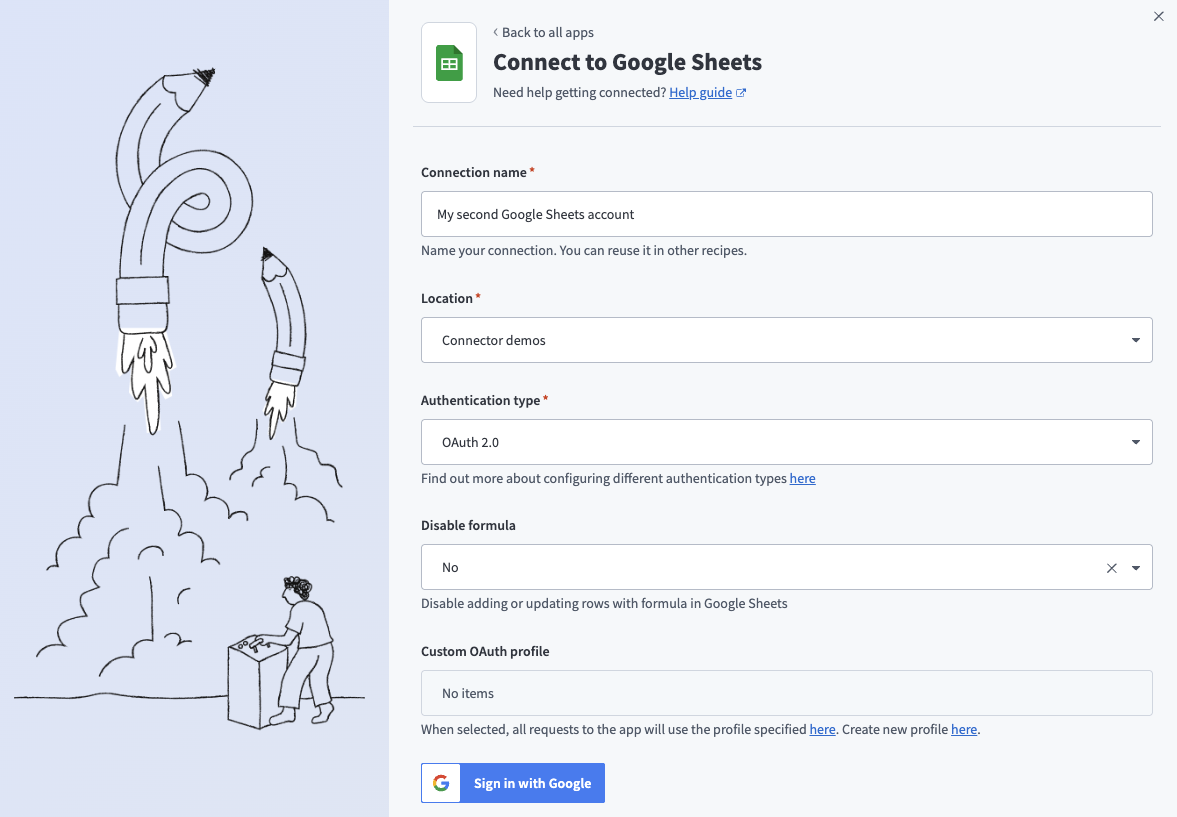 OAuth 2.0 connection fields
Use the Location drop-down menu to select the project where you plan to store the connection.
Search for and select Google Sheets as your connection on the New connection page.
Use the Authentication type drop-down menu to select OAuth 2.0.
Optional. Use the Disable formula drop-down menu to select whether to disable adding and updating rows with formulas.
Optional. Use the Custom OAuth profiles drop-down menu to select a custom OAuth profile for this connection.
Click Sign in with Google.
Sign in with your Google account.
Click Allow to enable Workato to access your Google account.
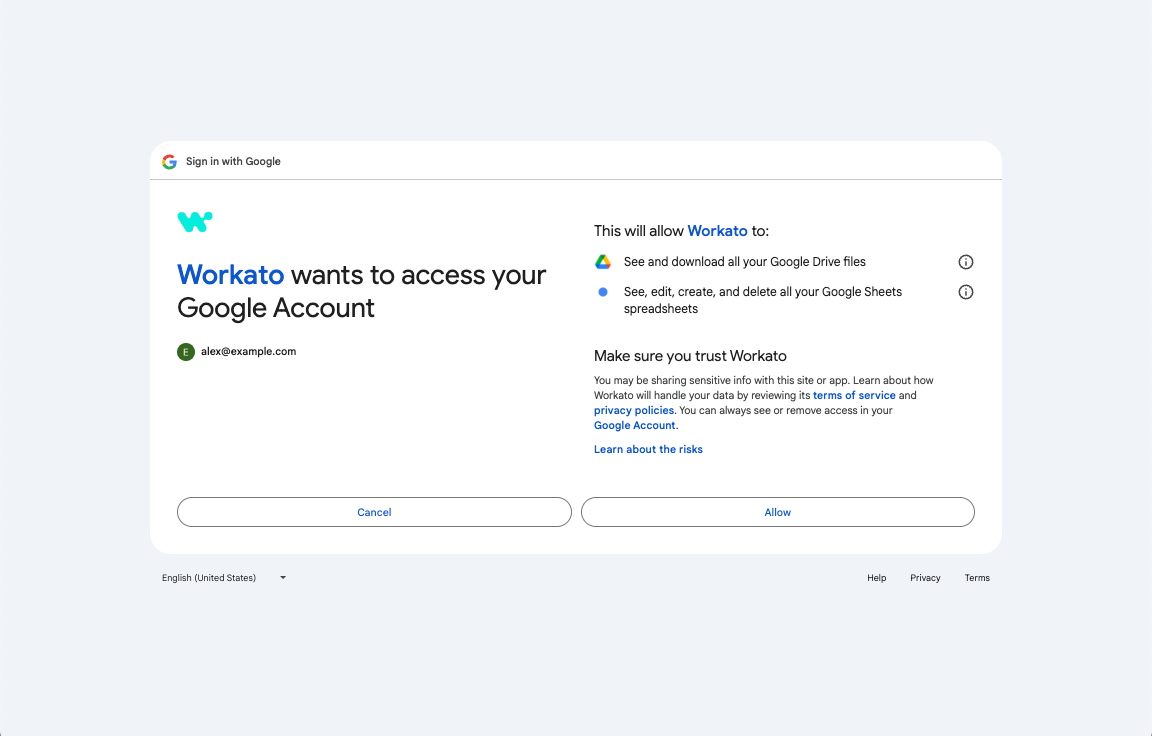 Click Allow to enable Workato to access your Google account
Service account
A Google service account is a specialized Google account associated with a Google Cloud Project (GCP) that can run API requests on your behalf.
Service accounts provide the following benefits:
- Continuous operation: Service accounts ensure that operations continue even if individual user permissions change.
- Dedicated permissions: Service accounts can only access projects that you share with them.
- Dedicated API quotas: You can manage a service account's API quotas through GCP and request quota increases directly from Google.
Refer to the Google service account documentation to learn more about service accounts.
REAL-TIME TRIGGER LIMITATIONS
Service accounts don't support real-time triggers for Google Sheets. Use OAuth 2.0 authentication to monitor Google Sheets in real-time.
Set up a Google service account
Service account authentication requires the following prerequisites:
Complete the following steps to set up a Google service account:
Create a service account in your GCP project.
Go to IAM & Admin > Service accounts. Ensure your dashboard is scoped to the project that contains your service account.
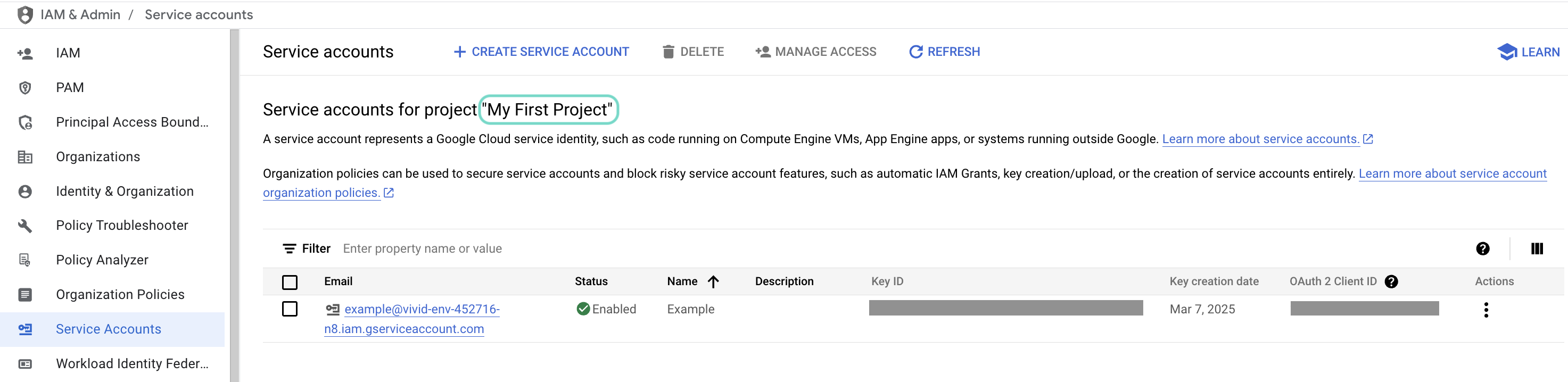 Check the scope of your dashboard.
Click the Email of the service account you intend to use.
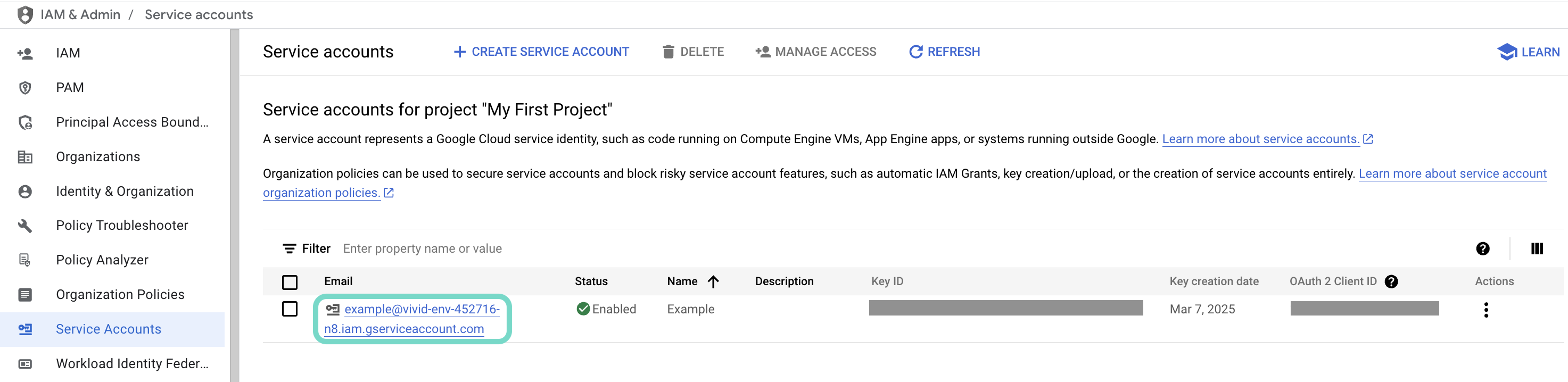 Click the Email of the service account you intend to use.
Copy the service account's Email and save it to configure your connection later.
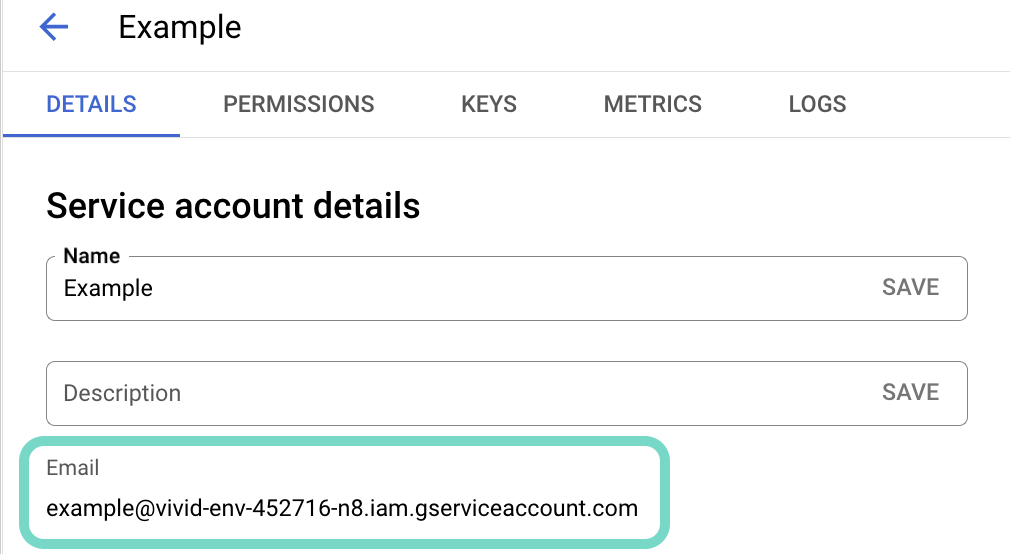 Copy the account's Email.
Go to the KEYS tab.
Generate a private key and download it in JSON format. You can only download the key once.
Open the JSON file, then copy the entire private key from -----BEGIN PRIVATE KEY----- to -----END PRIVATE KEY-----\n (inclusive) and save it to configure your connection later.
The email associated with your service account must have access to the Google Sheets you plan to use in recipes. You can share specific sheets from within Google Sheets.
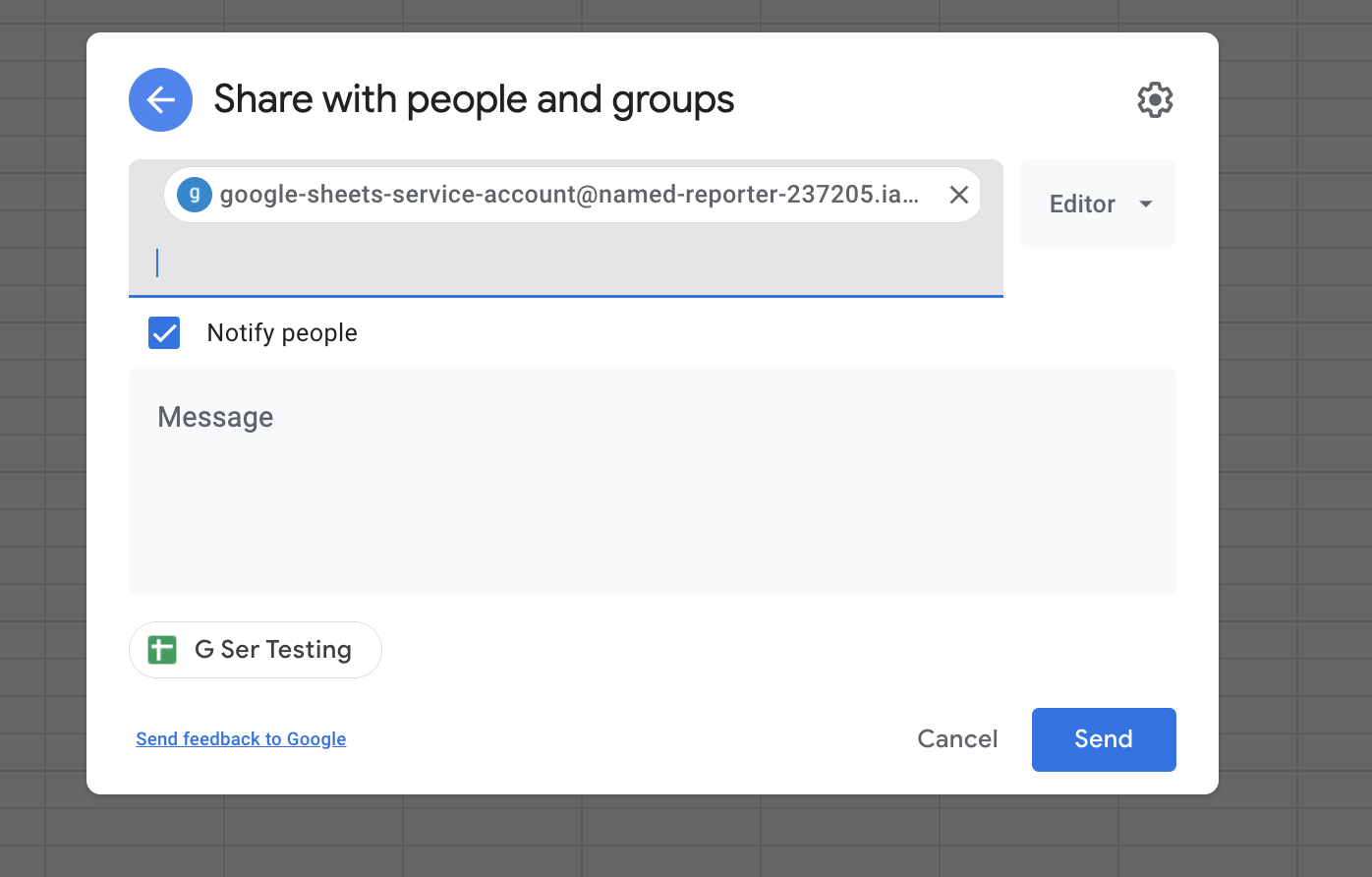 Share Google Sheets spreadsheets with your service account email
Complete setup in Workato
Complete the following steps to set up a service account connection:
Click Create > Connection or press C twice.
Search for and select Google Sheets as your connection.
Provide a name for your connection in the Connection name field.
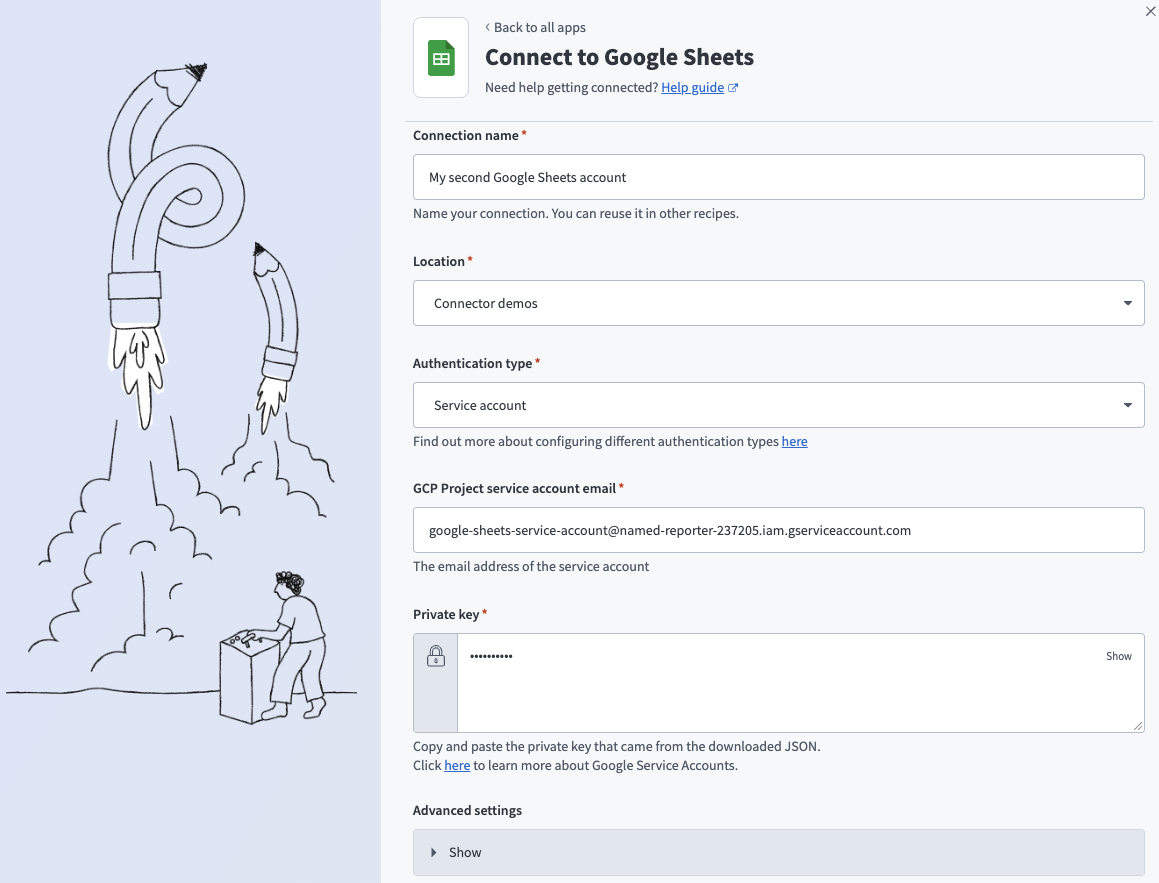 Google Sheets service account connection fields
Use the Location drop-down menu to select the project where you plan to store the connection.
Use the Authentication type drop-down menu to select Service account.
Enter your service account email in the GCP Project service account email field.
Enter the entire Private key for your service account, including -----BEGIN PRIVATE KEY----- and -----END PRIVATE KEY-----\n.
Optional. Go to Advanced settings and use the Requested permissions (Service auth scopes) drop-down menu to adjust the scopes for your connection. Workato requests the See and download all your Google Drive files and See, edit, create, and delete all your Google Sheets spreadsheets permissions by default. The permissions you select from the drop-down menu overwrite the default permissions.
Optional. Use the Disable formula drop-down menu to select whether to disable adding and updating rows with formulas.
Optional. Use the Custom OAuth profiles drop-down menu to select a custom OAuth profile for this connection.
Click Sign in with Google.
Sign in with your Google account.
Click Allow to enable Workato to access your Google account.
Configure the pipeline
Complete the following steps to configure Google Sheets as your data pipeline source:
Select Create > Data pipeline or press C+I.
Enter a name for the data pipeline in the Data pipeline name field.
 Data pipeline setup
Use the Location drop-down menu to select the project where you plan to store the data pipeline.
Click Start building.
Click the Extract new/updated records from source app trigger. This trigger defines how the pipeline retrieves data from Google Sheets.
 Configure the Extract new/updated records from source app trigger
Use the Your Connected Source Apps drop-down menu to select Google Sheets.
Choose the Google Sheets connection you plan to use for this pipeline. Alternatively, click + New connection to create a new connection.
Select the Google Drive that contains your spreadsheets. A single pipeline can sync sheets from multiple spreadsheets within this Drive. Create a separate pipeline to sync sheets from a different Drive.
Click Add object to configure a sheet you plan to sync.
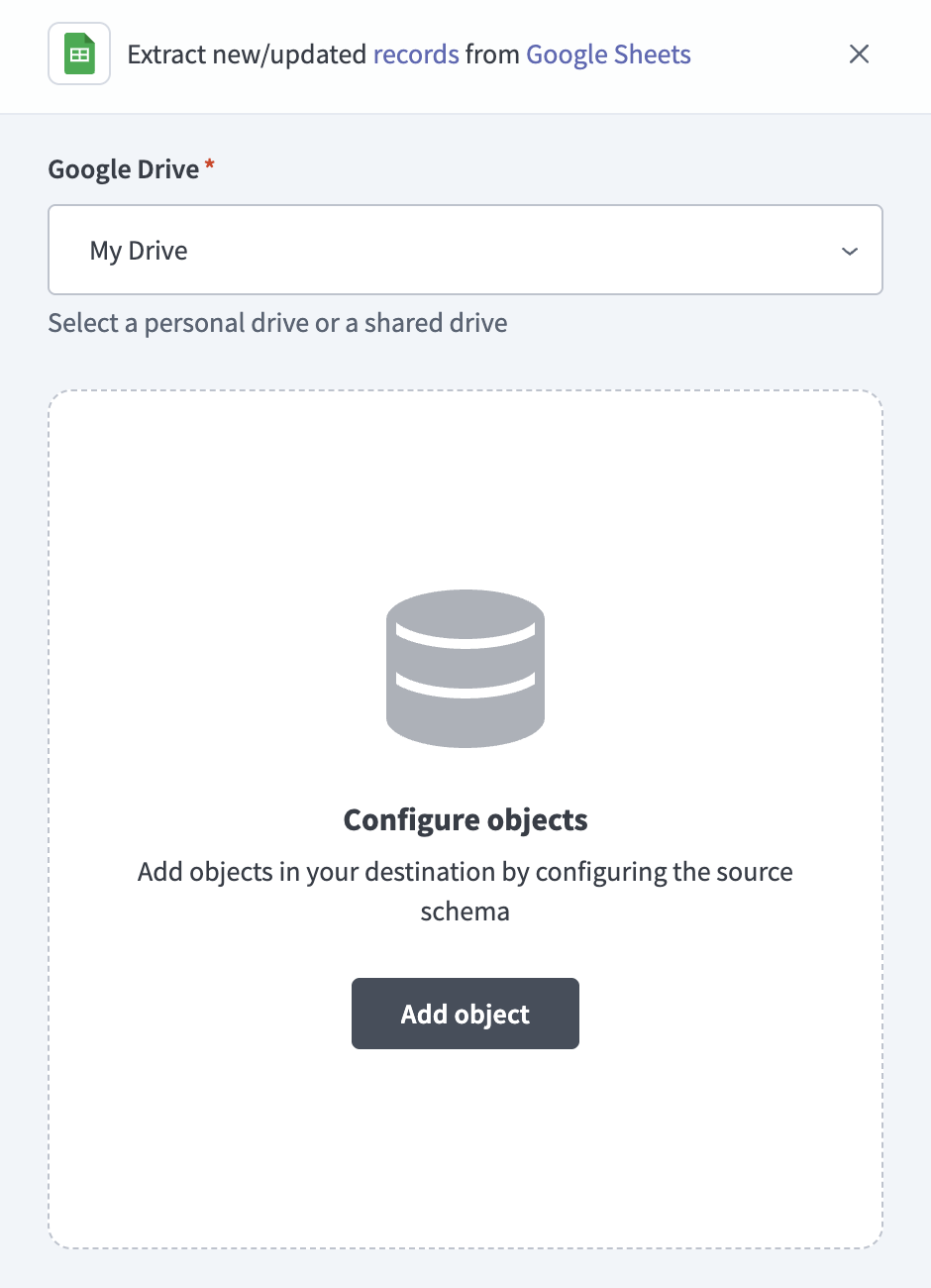 Add Google Sheets objects
Configure the sheet settings:
Use the Spreadsheet fields to select the spreadsheet that contains the sheet you plan to sync, or switch the adjoining drop-down to enter the spreadsheet ID directly.
Use the Sheet drop-down menu to select the tab you plan to sync as a table.
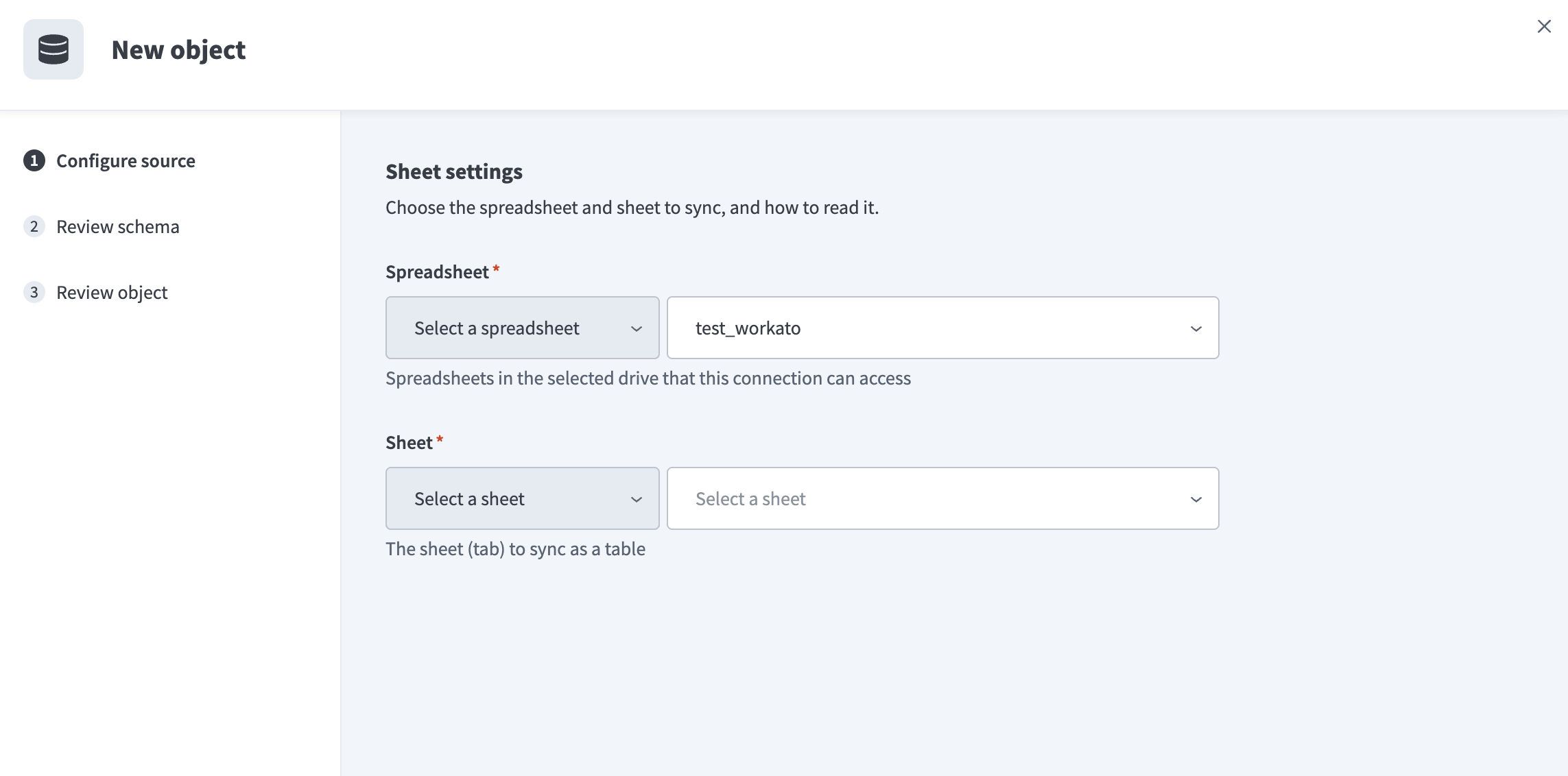 Select a sheet from the list
You can also toggle the field to enter the sheet name directly.
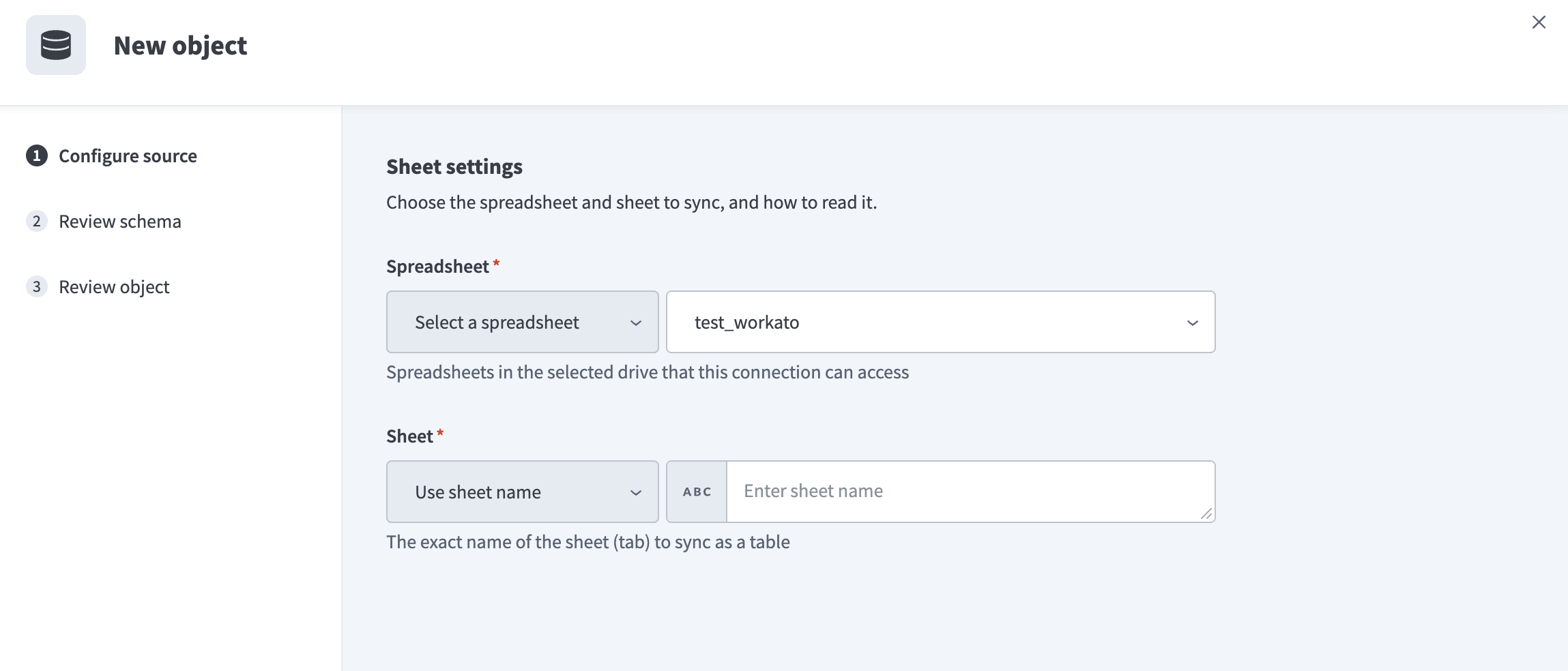 Enter the sheet name directly
Use the Header row drop-down menu to indicate whether the first row of the sheet contains column names. Select Yes to treat the first row as column headers, or No to treat every row as data and auto-name columns col1, col2, and so on.
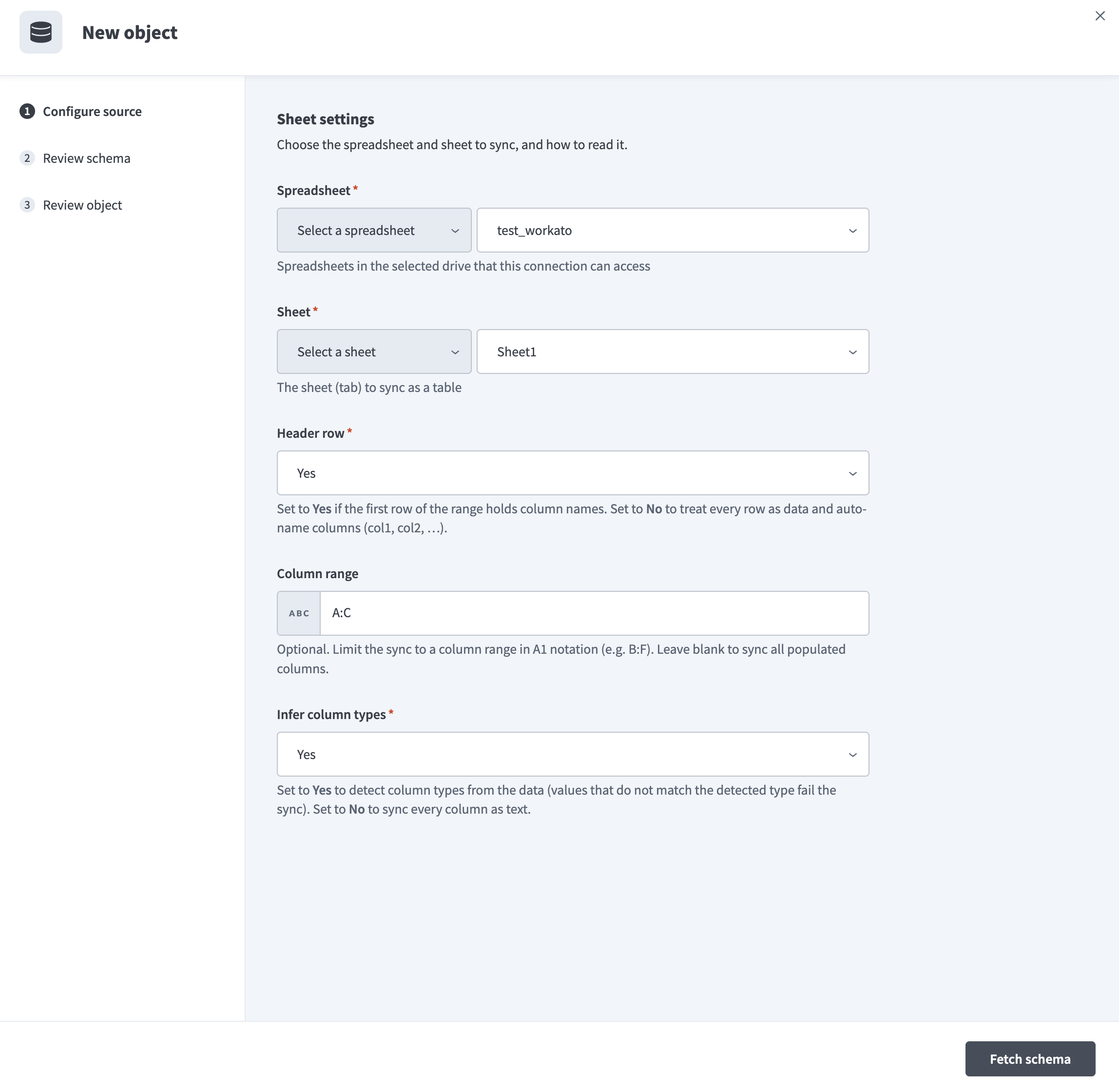 Configure Google Sheets settings
Optional. Enter a range in A1 notation, such as B:F, in the Column range field to limit the sync to specific columns. Leave this field blank to sync every populated column.
Use the Infer column types drop-down menu to select how Workato reads column values. Select Yes to detect column types from the data. Rows with a value that doesn't match the detected type fail to sync. Select No to sync every column as text.
Click Fetch schema.
Review the columns Workato detected for the sheet. Optionally select one or more columns in the Primary key field.
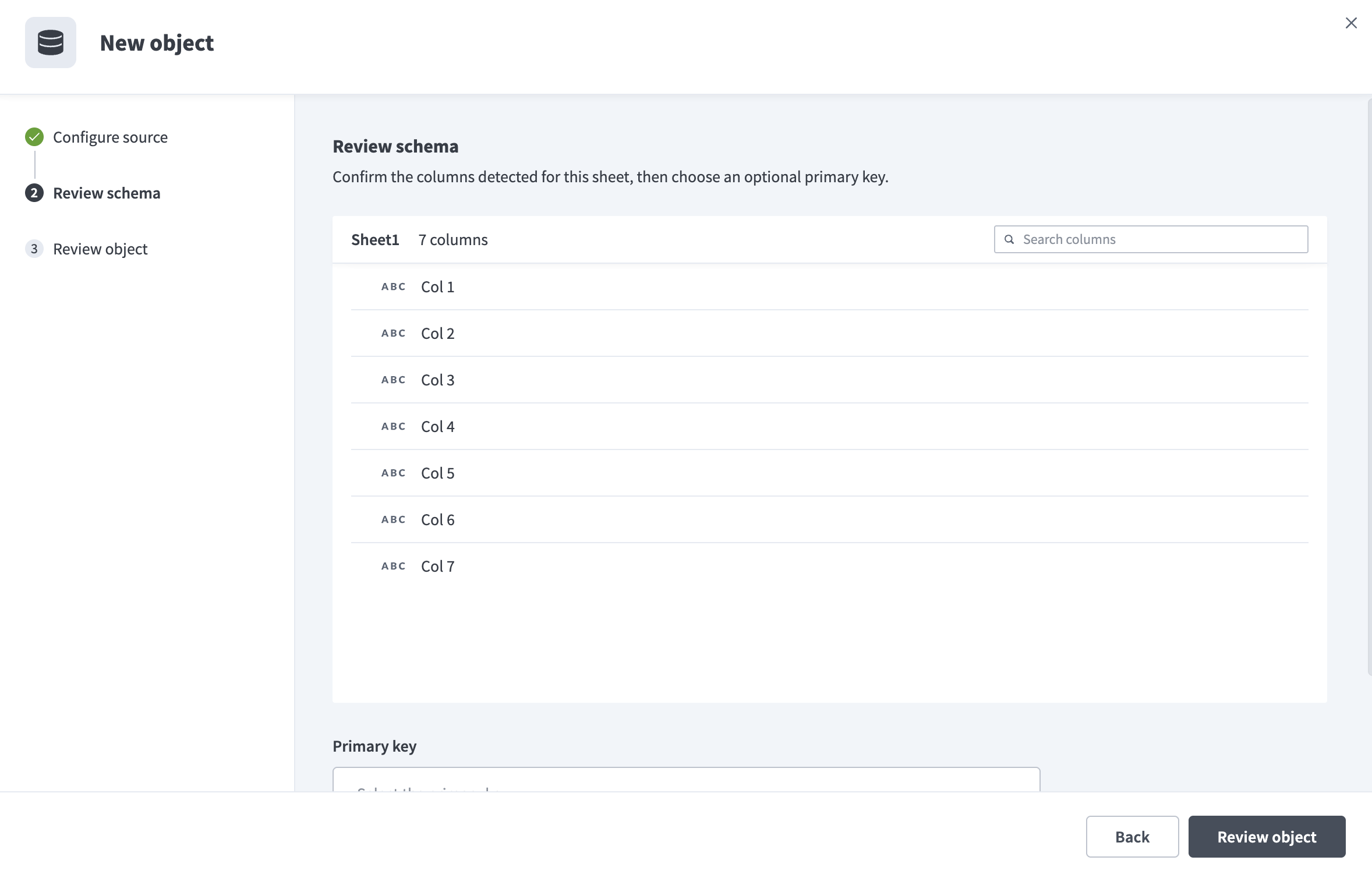 Review schema
Workato only fetches the columns within your configured Column range. For example, entering A:C limits the detected schema to three columns:
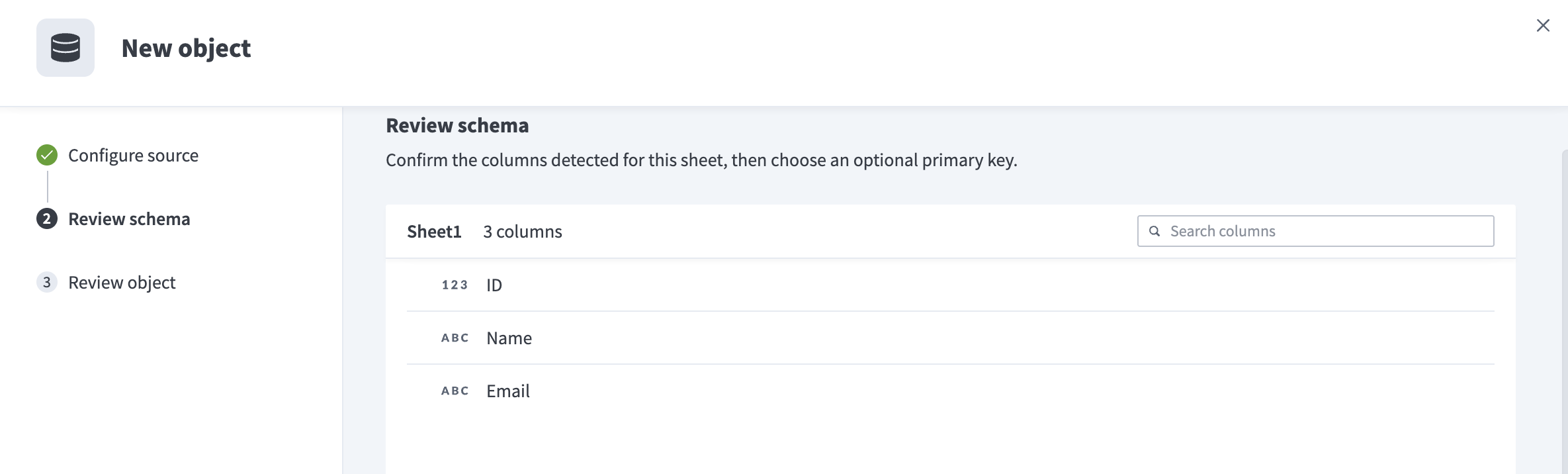 Review schema limited to a column range of A:C
CHOOSING A PRIMARY KEY
Setting a primary key upserts rows in the destination and marks rows removed from the sheet as deleted. Leaving the primary key blank overwrites the entire destination table on every sync instead. Refer to Sync modes for more information. You can select up to five columns as a composite primary key.
Click Review object to confirm your setup.
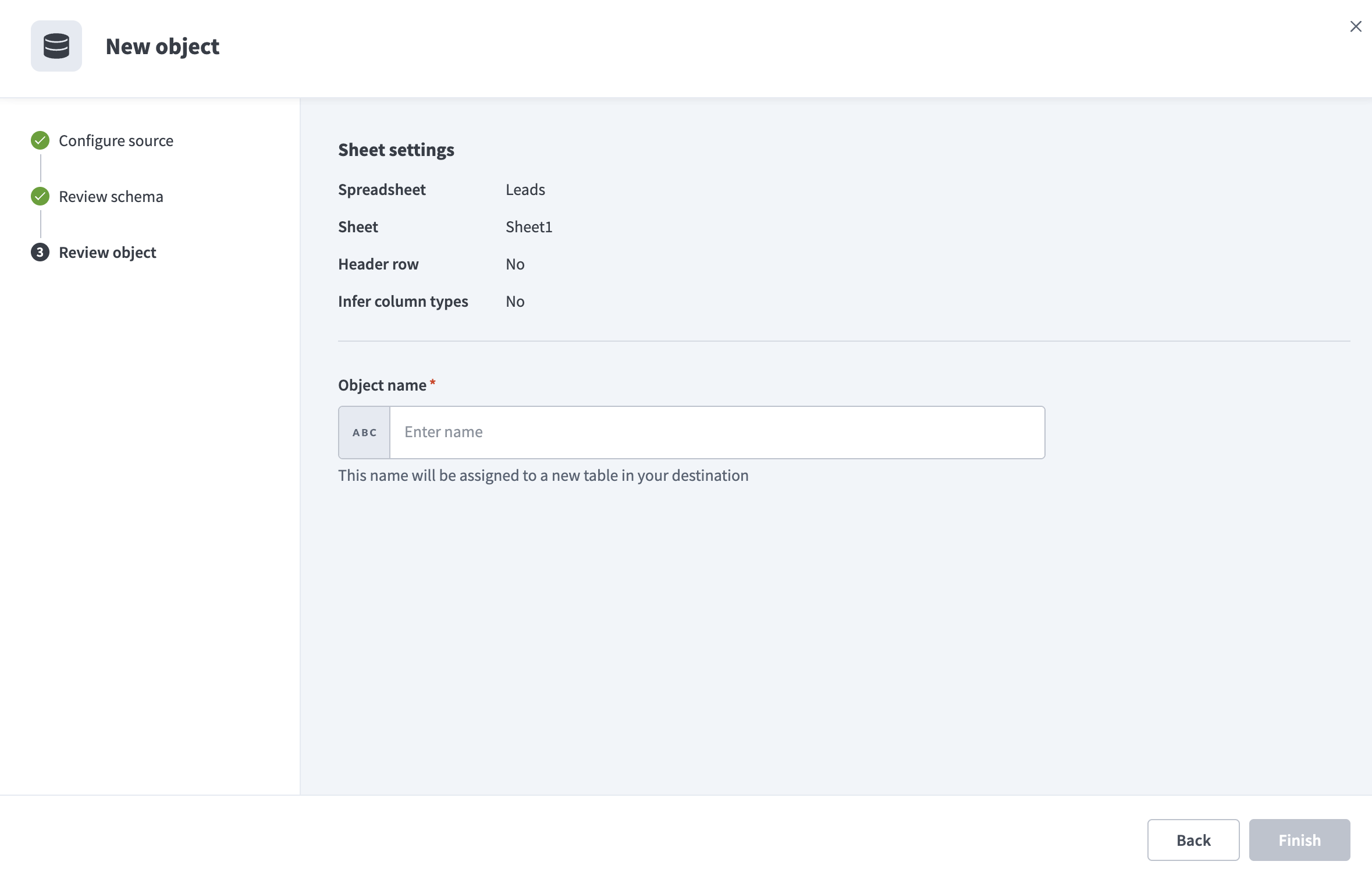 Review object
Enter an Object name. This name defines the destination table name.
Click Finish to save the object configuration.
Review and customize the schema for each selected object. The pipeline automatically fetches an object's schema when you select it. This ensures the destination matches the source.
Expand an object to view associated fields. Keep all fields selected to extract all available data, or deselect specific fields to exclude them from data extraction and schema replication.
Optional. Configure field-level data protection. Choose how to handle each field after you expand an object:
- Replicate as is (default): Data values at the source are replicated identically to the destination.
- Hash: Hash sensitive data values in the column before syncing to your destination.
Refer to Sensitive data handling for more information.
Click Add object again to add more objects using the same flow. You can add sheets from multiple spreadsheets within the same Drive to one pipeline.
Use the Choose how to handle schema changes drop-down menu to select a schema drift handling option:
- Auto-sync new fields: Automatically detects and syncs new fields added in the source.
- Block new fields: Keeps the schema fixed after the pipeline starts. You must add new fields manually. This option may cause the destination to fall out of sync if the source schema updates.
Refer to Schema replication and schema drift management for more information.
Configure how often the pipeline syncs data from Google Sheets to the destination in the Frequency field. Choose either a standard time-based schedule or define a custom cron expression.
How objects sync
Each Google Sheets object corresponds to one sheet (tab) within a spreadsheet. Workato discovers the sheet's schema from the first row and syncs the sheet to its own table in your destination. Workato discovers and rebuilds this schema for each connection rather than relying on a fixed object catalog.
Workato only syncs grid-type sheets, the standard sheets made up of rows and columns. Chart sheets and object sheets (embedded drawings or forms) aren't supported.
Workato continues to track and sync the sheet tab internally if you rename it after selecting it as an object. The sync fails until you remove or reconfigure the object if you delete the tab.
Header rows, blank headers, and empty rows
Workato applies the following rules when it reads a sheet:
- Columns whose header cell is blank or contains only whitespace are excluded from the sync. Use a blank header to intentionally hide a column from the pipeline.
- Workato appends the column's letter to disambiguate columns when a sheet has two or more columns with the same header value. For example, two columns both named
Scorein columns C and G sync asScore_CandScore_G. - Rows where every cell is empty are excluded from the destination. Workato doesn't persist empty rows as null-valued records.
Sync modes
Google Sheets data pipelines support full-refresh sync only because the Sheets API exposes no per-row timestamps or change cursor. Workato re-reads the full contents of every selected sheet on every scheduled run, rather than syncing incrementally.
A full re-read on every run correctly captures data changes regardless of how they were made, including changes from Google Forms submissions or IMPORTRANGE() formulas.
Delete tracking
Whether an object upserts or overwrites depends on whether you set a primary key when you add the object:
- Primary key set: Workato upserts rows, matching on the primary key. Rows removed from the sheet remain in the destination and are marked as deleted.
- No primary key: Workato overwrites the entire destination table on every sync. Rows removed from the sheet are also removed from the destination, with no deleted-row history.
Schema and data type handling
The following considerations apply to schema and data types when you sync data from Google Sheets.
Type inference
Set Infer column types to No (the default) to sync every column as text. Set it to Yes to infer each column's type from its data instead, from narrowest to widest in the order boolean, integer, long, double, decimal, and text.
Workato infers a column's type once, during the initial sync, and doesn't widen it automatically afterward. A row fails to sync if a later sync encounters a value that doesn't match the inferred type, such as text in a column inferred as a number. Reset the object's schema if a column's values need to change type.
DATES AND TIMESTAMPS SYNC AS TEXT
Workato doesn't convert Google Sheets date or timestamp values to date or timestamp types, even when Infer column types is set to Yes. Date and time values sync as their displayed text (for example, 1/15/2024). Transform these fields to the appropriate type in your destination after the load completes.
Column names
Workato preserves sheet column headers exactly as typed, including spaces and special characters. Workato automatically converts column names to valid identifiers when it writes to a destination that requires SQL-safe identifiers.
Sensitive data handling
Any column in any synced sheet can contain personally identifiable information (PII) or other sensitive data, because Google Sheets column schemas are entirely customer-defined. Workato can't predict which fields are sensitive in advance, unlike connectors with a fixed object catalog.
Before you sync a spreadsheet that contains sensitive data, review its columns and use the Hash option in field-level data protection to mask any column that shouldn't reach your destination as is. Refer to the Configure the pipeline steps for more information.
Limitations
The following limitations apply when you use Google Sheets as a data pipeline source.
10 million cell quota
Google Sheets enforces a hard platform quota of 10 million cells per spreadsheet, shared across all tabs combined, rather than per tab. For example, a spreadsheet with 5 tabs shares one 10-million-cell pool. A sheet caps at approximately 385,000 rows at the default column count of 26, or approximately 547 rows at the maximum column count of 18,278. Google enforces this quota, not Workato.
Shared Drive spreadsheets aren't supported
This connector doesn't currently support spreadsheets stored in a Shared Drive (Team Drive). Use a spreadsheet stored in a personal Google Drive (My Drive).
Domain-Wide Delegation isn't supported
Service accounts can only access spreadsheets they're explicitly shared on. Domain-Wide Delegation, which lets a service account inherit access to sheets it doesn't own, isn't supported.
API key authentication isn't supported
Google's public API keys don't grant access to private spreadsheets, so Workato doesn't support API key authentication for this connector. Use OAuth 2.0 or a service account instead.
Last updated: