Configure Greenhouse as a data pipeline source
Set up Greenhouse as a data pipeline source to extract recruiting data, such as applications, candidates, jobs, offers, and scorecards, from the Greenhouse Harvest API and sync it to your destination.
Use this guide to review the prerequisites, connect Greenhouse as a data pipeline source, configure the pipeline, and understand the supported objects, sync modes, schema handling, and limitations.
Features supported
The following features are supported when you use Greenhouse as a pipeline source:
- Cloud connectivity: Connects to the Greenhouse Harvest API over https. An on-prem agent is not required.
- Custom domains: Supports Greenhouse custom subdomains, such as
https://acme.greenhouse.io, in addition to the defaulthttps://harvest.greenhouse.io. - Object-level selection: Choose which Greenhouse objects to sync to your destination.
- Sync modes: Supports full sync and incremental sync, configured for each object.
- Custom fields: Discovers your tenant's Greenhouse custom fields and syncs them as columns on the objects that support them.
- Schema drift detection and handling: Detect and apply schema changes automatically with Auto-sync new fields, or keep the schema fixed with Block new fields.
- Field-level data protection: Hash or replicate sensitive fields as is before the data reaches your destination.
- Configurable sync frequency: Schedule syncs on a time-based interval or with a cron expression. The minimum supported interval is 15 minutes.
Prerequisites
Complete the following requirements before you connect Greenhouse as a data pipeline source:
- A Greenhouse account with access to the Harvest API.
REQUIRED PERMISSIONS
Greenhouse data pipelines read data only. Use the Harvest OAuth scopes field to request read (:list) scopes for the objects you plan to sync when you create the connection. The connection requests the default scopes, which include write scopes, if you leave this field blank. Refer to Recommended scopes for the full list.
Recommended scopes
The harvest:users:list scope is included when you select specific scopes.
Select the following Harvest API read scopes in the Harvest OAuth scopes field to sync the supported Greenhouse objects:
Harvest API read scopes
harvest:applications:listharvest:application_stages:listharvest:approval_flows:listharvest:attachments:listharvest:candidate_educations:listharvest:candidate_employments:listharvest:candidate_tags:listharvest:candidates:listharvest:close_reasons:listharvest:custom_fields:listharvest:custom_field_options:listharvest:custom_field_departments:listharvest:custom_field_offices:listharvest:demographic_answer_options:listharvest:demographic_answers:listharvest:demographic_question_sets:listharvest:demographic_questions:listharvest:departments:listharvest:eeoc:listharvest:email_templates:listharvest:interviews:listharvest:job_hiring_managers:listharvest:job_interview_stages:listharvest:job_owners:listharvest:job_posts:listharvest:jobs:listharvest:notes:listharvest:offers:listharvest:offices:listharvest:openings:listharvest:prospect_pools:listharvest:referrers:listharvest:rejection_reasons:listharvest:scorecard_question_answers:listharvest:scorecards:listharvest:sources:listharvest:tracking_links:listharvest:user_emails:listharvest:user_job_permissions:listharvest:user_roles:listharvest:users:list
Supported connection types
Greenhouse data pipelines support the OAuth 2.0 authorization code grant, which authenticates against the Greenhouse Harvest v3 API.
API key authentication isn't supported for Greenhouse data pipelines.
Connect to Greenhouse
Complete the following steps to connect Greenhouse as a data pipeline source:
Connect to Greenhouse
Select Create > Connection or press C twice.
Search for Greenhouse and select it as your app.
Enter a name in the Connection name field.
Use the Location drop-down menu to select the project where you plan to store the connection.
Optional. Enter your Greenhouse custom domain, such as acme.greenhouse.io, if your organization uses one. The connection uses harvest.greenhouse.io if you leave this field blank.
Select Connect and sign in to Greenhouse with an account authorized to use the Harvest OAuth credential. Workato displays a success message when the connection is established.
Configure the pipeline
Complete the following steps to configure Greenhouse as your data pipeline source:
Select Create > Data pipeline or press C+I.
Enter a name for the data pipeline in the Data pipeline name field.
 Data pipeline setup
Use the Location drop-down menu to select the project where you plan to store the data pipeline.
Click Start building.
Click the Extract new/updated records from source app trigger. This trigger defines how the pipeline retrieves data from Greenhouse.
 Configure the Extract new/updated records from source app trigger
Use the Your Connected Source Apps drop-down menu to select Greenhouse.
Choose the Greenhouse connection you plan to use for this pipeline. Alternatively, click + New connection to create a new connection.
Click Add object to open the Add new objects panel.
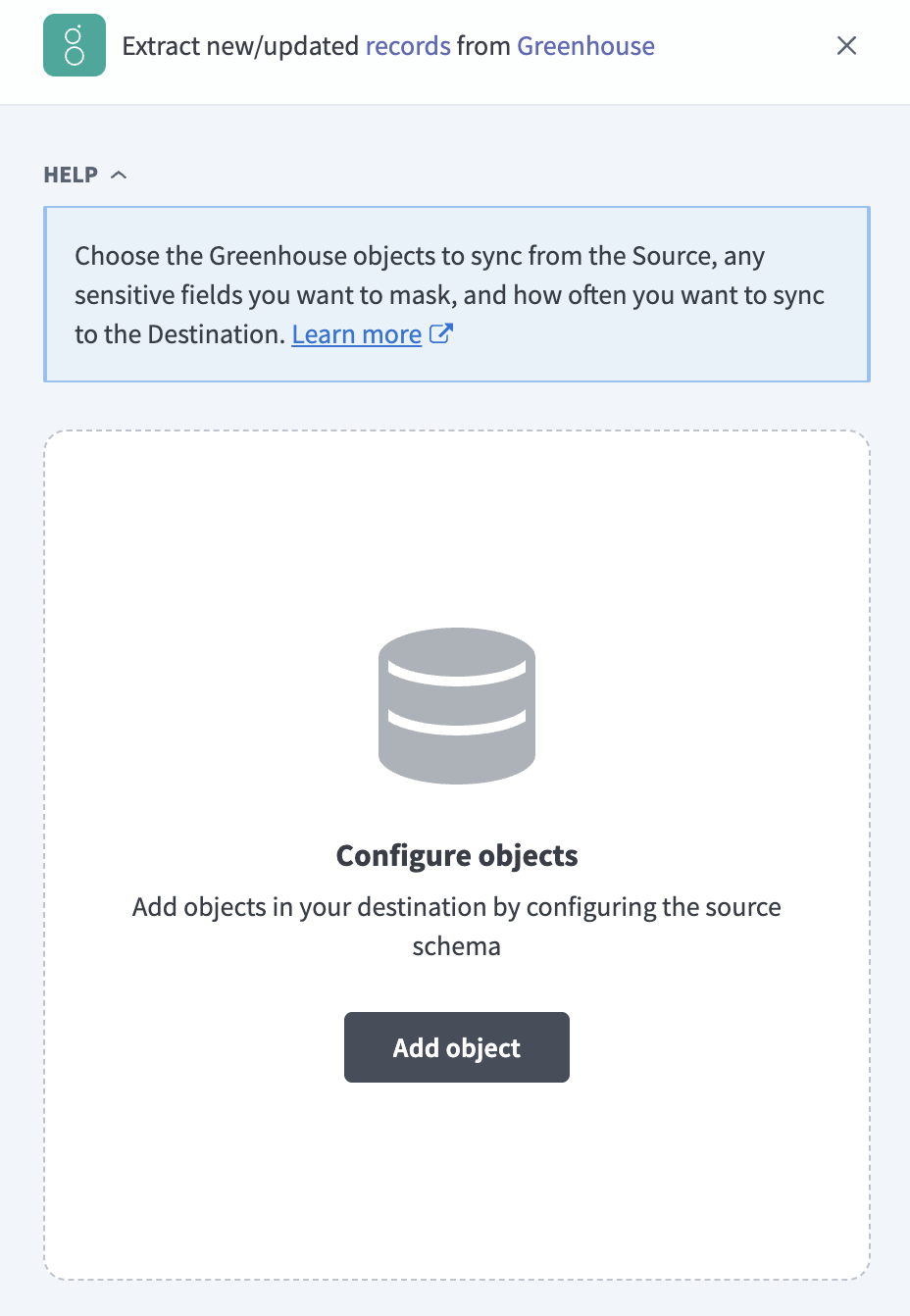 Add Greenhouse objects
Search or browse the list of available Greenhouse objects, select the objects you plan to sync, and click Add.
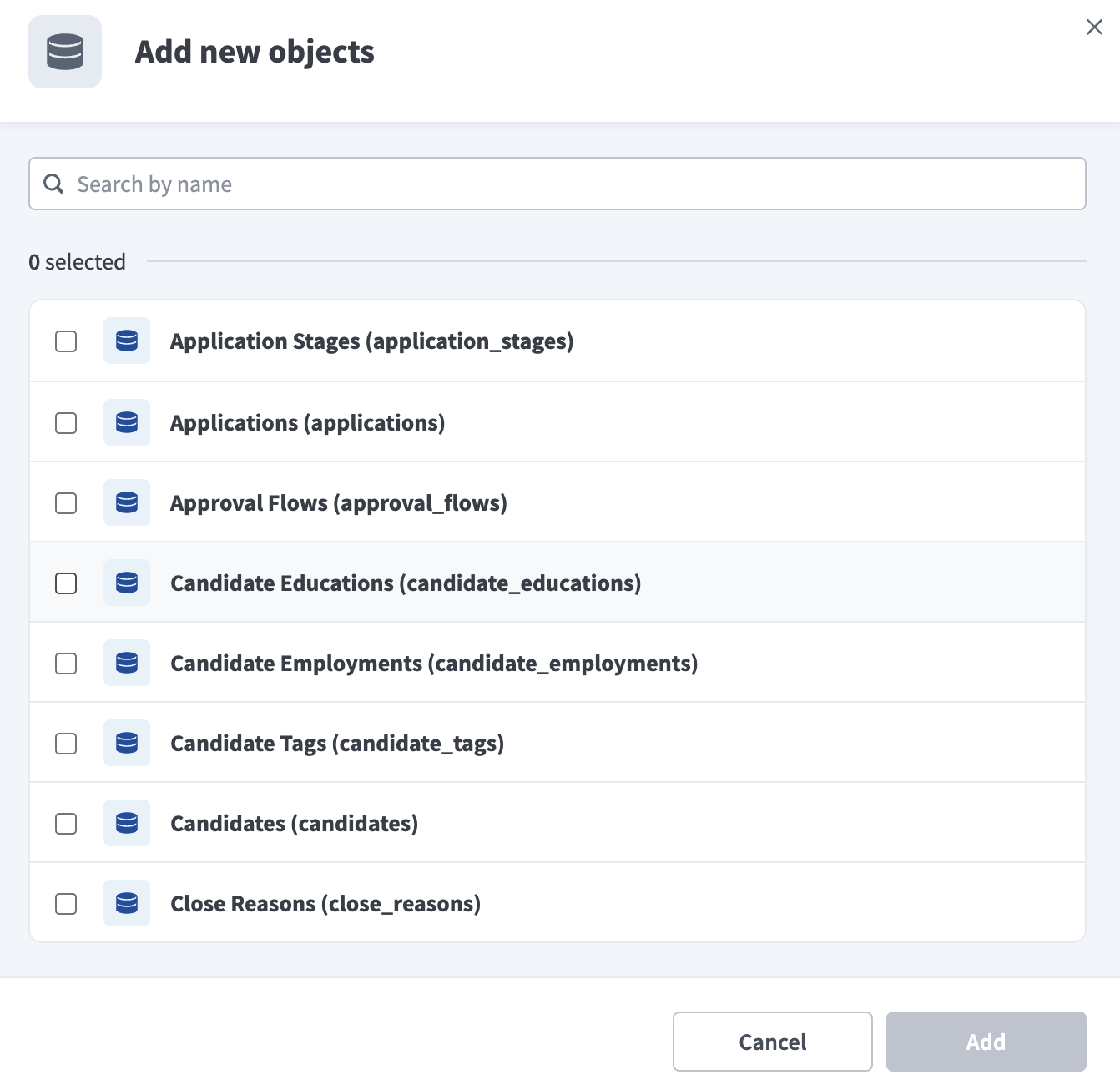 Select Greenhouse objects
Optional. Click the settings icon next to an object to configure how the object syncs. Use the Sync mode drop-down menu to select a sync mode. The object defaults to full sync if Greenhouse doesn't provide a timestamp for it. Refer to Sync modes for more information.
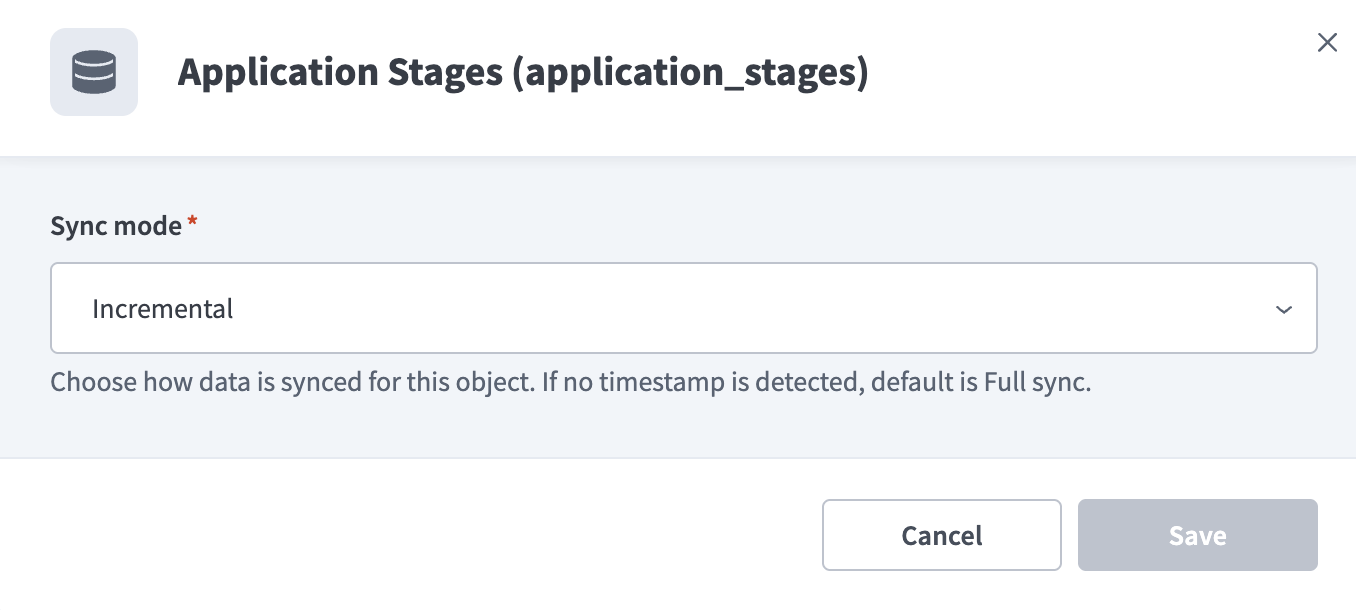 Configure the sync mode for an object
Review and customize the schema for each selected object. The pipeline automatically fetches an object's schema when you select it. This ensures the destination matches the source.
Expand an object to view associated fields. Keep all fields selected to extract all available data, or deselect specific fields to exclude them from data extraction and schema replication.
Optional. Configure field-level data protection by expanding an object and choosing how to handle each field:
- Replicate as is: Data values at the source replicate identically to the destination.
- Hash: Hash sensitive data values in the field before syncing to your destination.
Workato recommends hashing personally identifiable information (PII) and other sensitive fields. Refer to Sensitive data handling for a list of fields that commonly contain PII.
Click Add object again to add more objects. Repeat this step to include additional Greenhouse objects in your pipeline.
Use the Choose how to handle schema changes drop-down menu to select a schema drift handling option:
- Auto-sync new fields: Automatically detects and syncs new fields added in the source.
- Block new fields: Keeps the schema fixed after the pipeline starts. You must add new fields manually. This option may cause the destination to fall out of sync if the source schema updates.
Refer to Schema replication and schema drift management for more information.
Workato recommends Auto-sync new fields because Greenhouse tenants frequently add custom fields.
Choose either a standard time-based schedule or define a custom cron expression in the Frequency field. This determines how often the pipeline syncs data from Greenhouse to the destination.
Supported objects
Greenhouse data pipelines sync data from Greenhouse Harvest v3 API resources. The following tables list the supported objects, grouped by category. Each object syncs as a separate table in your destination.
Recruiting data
| Object | Sync modes | Delete tracking |
|---|---|---|
Application Stages | Full sync, incremental | No |
Applications | Full sync, incremental | No |
Approval Flows | Full sync, incremental | No |
Candidate Educations | Full sync, incremental | No |
Candidate Employments | Full sync, incremental | No |
Candidate Tags | Full sync, incremental | No |
Candidates | Full sync, incremental | No |
Interviews | Full sync, incremental | No |
Job Interview Stages | Full sync, incremental | No |
Job Posts | Full sync, incremental | No |
Jobs | Full sync, incremental | No |
Notes | Full sync, incremental | No |
Offers | Full sync, incremental | No |
Openings | Full sync, incremental | No |
Prospect Pools | Full sync, incremental | No |
Referrers | Full sync, incremental | No |
Scorecards | Full sync, incremental | No |
Tracking Links | Full sync, incremental | No |
Users and organization
| Object | Sync modes | Delete tracking |
|---|---|---|
Departments | Full sync, incremental | No |
Offices | Full sync, incremental | No |
User Job Permissions | Full sync, incremental | No |
User Roles | Full sync, incremental | No |
Users | Full sync, incremental | No |
Configuration and reference data
| Object | Sync modes | Delete tracking |
|---|---|---|
Close Reasons | Full sync, incremental | No |
Custom Field Options | Full sync, incremental | No |
Custom Fields | Full sync, incremental | No |
Email Templates | Full sync, incremental | No |
Rejection Reasons | Full sync, incremental | No |
Sources | Full sync, incremental | No |
Demographic and EEOC data
The EEOC and Demographic Answers objects contain protected class data. These objects are excluded from sync by default and don't appear in the Add new objects panel.
| Object | Sync modes | Delete tracking |
|---|---|---|
Demographic Answer Options | Full sync | No |
Demographic Answers | Full sync, incremental | No |
Demographic Question Sets | Full sync, incremental | No |
Demographic Questions | Full sync | No |
EEOC | Full sync, incremental | No |
Sync modes
Greenhouse data pipelines support full sync and incremental sync. The sync mode is configured for each object when you add it to your pipeline.
Full sync
Full sync reads all available records from Greenhouse on every sync and overwrites the destination table. Records deleted in Greenhouse are removed from the destination on the next sync because the destination table reflects the full current state of the source.
Incremental sync
Incremental sync reads only the records created or updated after the previous sync. The pipeline tracks each record's updated_at timestamp and requests only records updated after the latest timestamp from the previous run. Objects that don't provide an updated_at timestamp sync with full sync.
Incremental sync doesn't capture records deleted in Greenhouse. Deleted records remain in the destination table.
Delete tracking
The Greenhouse Harvest v3 API doesn't provide a delete feed, so Greenhouse data pipelines don't track deletes. To remove deleted records from your destination, sync the object with full sync.
Schema and data type handling
Custom fields
Greenhouse data pipelines discover your tenant's custom fields and add them as columns on the objects that support custom fields: Jobs, Applications, Candidates, Offers, and Openings. Custom field columns are named after the field's Greenhouse name_key value.
Greenhouse supports the following custom field types: short text, long text, yes/no, single select, multi-select, date, URL, currency, number, and user.
Nested objects and arrays
Fields that contain nested objects or arrays sync to the destination as JSON.
Workato syncs JSON fields to the destination's native JSON type, such as VARIANT in Snowflake. Workato serializes JSON fields as strings if the destination doesn't support a native JSON type.
Timestamps
Greenhouse timestamps are ISO 8601 UTC strings, such as 2024-01-15T10:30:00.000Z. Some fields return date-only values in YYYY-MM-DD format, such as the Offers object's sent_on field. The pipeline preserves the original values.
Sensitive data handling
Greenhouse objects contain significant personally identifiable information (PII), and some objects contain protected class data or compensation data. The following objects commonly contain sensitive fields:
| Object | Sensitive fields |
|---|---|
Candidates | first_name, last_name, phone_numbers, email_addresses, addresses, social_media_addresses, photo_url |
Candidate Educations | Education history |
Candidate Employments | Employment history |
Applications | answers (free-text responses), cover_letter_text |
Users | name, first_name, last_name, primary_email_address, emails, employee_id |
Offers | custom_fields (frequently contains salary and compensation data) |
Scorecards | notes (free-text interviewer evaluations) |
Notes | Free-text note content |
Interviews | organizer, interviewers (internal employee PII) |
EEOC | gender, race, disability_status, veteran_status (protected class data) |
Demographic Answers | free_form_text (protected class data) |
Use the Hash option in field-level data protection during pipeline configuration to protect PII before it reaches your destination. Refer to the Configure the pipeline steps for more information.
Workato recommends hashing the Offers object's custom_fields field to prevent compensation data from reaching your destination unprotected.
Candidate anonymization
Greenhouse sets a candidate's anonymized_at timestamp and clears the candidate's PII fields when the candidate is anonymized, for example, after a GDPR or CCPA erasure request. The pipeline preserves the anonymized_at value in the destination. Anonymized candidate records sync with null PII fields, which is expected behavior.
Limitations
The following limitations apply when you use Greenhouse as a data pipeline source.
Private candidates
Greenhouse doesn't return private candidates to API users who aren't authorized to view them. The pipeline can't detect or warn about private candidates missing from the sync. If private candidates are missing from your destination, verify the permissions of the Greenhouse account that authorized the connection.
Confidential jobs
Jobs marked confidential in Greenhouse may return null values for fields such as name and requisition_id, depending on the permissions of the account that authorized the connection. The pipeline syncs these records with null values and preserves the confidential field.
Minimum sync frequency
The minimum supported sync interval is 15 minutes.
Last updated: