Configure HiBob as a data pipeline source
Set up HiBob as a data pipeline source to extract employee data, historical people records, time off, compensation, and custom table objects into your destination. Use this guide to review the features supported, complete prerequisites, connect HiBob to Workato, configure the pipeline, and understand known limitations.
Features supported
The following features are supported when you use HiBob as a pipeline source:
- Cloud connectivity: HiBob is a cloud-only SaaS. Workato connects over
https://api.hibob.com/and no on-prem agent is required. - Sync modes: Full refresh for most objects, and incremental sync for
time_off_requestsandout_of_office. Refer to Sync modes for details. - Object-level selection: Select which HiBob objects to include in each pipeline.
- Delete tracking: Soft-delete tracking for the
employeesobject surfaces through theinternal.statuslifecycle field. - Schema drift detection: Configure per-tenant objects to auto-sync new fields, or lock the schema after the pipeline starts.
- Configurable sync frequency: Schedule syncs on a time-based interval or with a cron expression. The minimum supported interval is 15 minutes.
Prerequisites
Complete the following requirements before you connect HiBob as a data pipeline source.
- A HiBob account with admin access, or a user with the Features > Integrations > Automation > Create/update/delete the integration privilege to create service users.
- Credentials for your chosen authentication method:
- Service user credentials: A HiBob service user ID and Token. Refer to Generate a HiBob service user ID and token for setup steps.
REQUIRED PERMISSIONS
Assign the service user a permission group that grants read access to the HiBob resources you plan to sync. Grant only the permissions your pipeline requires. Refer to the HiBob documentation on service user permissions for more information.
Generate a HiBob service user ID and token
Complete the following steps in HiBob to generate the service user ID and token you use to connect Workato.
Sign in to HiBob as an admin and go to Bob products > System settings.
Select Integrations in the side navigation menu.
Use the All categories drop-down menu to select Automation.
Go to the Service users tile and click Manage.
Click + New service user.
Enter a name in the Display name field and optionally provide a description in the Description field.
Click Next. HiBob displays the service user's ID and token.
Go to Credentials and copy the ID and Token values. Store the values in a safe location.
Go to Permissions > permission groups to create a service user permission group and assign it to the service user you created in the preceding steps.
Click Done.
HIBOB ADMIN ACCESS
Ask a Bob admin to generate credentials for you if you don't have direct access.
Supported connection types
HiBob data pipelines support one authentication method:
- Service user credentials: A service user ID and token pair generated in HiBob. Workato applies these as HTTP Basic authentication on every API request. Refer to Generate a HiBob service user ID and token for setup steps.
Connect to HiBob
Complete the following steps to connect HiBob as a data pipeline source.
Connect to HiBob
Select Create > Connection or press C twice.
Search for HiBob and select it as your app.
Enter a name in the Connection name field.
Use the Location drop-down menu to select the project where you plan to store the connection.
Enter the ID you copied from HiBob in the Service user ID field.
Enter the token you copied from HiBob in the Service user token field.
Use the Environment drop-down menu to select the environment for your HiBob account.
Optional. Enter your Partner token in the Partner token field if you have a HiBob Partner account. To obtain the Partner token, log in to your Partner Stack account, go to the HiBob Program, select My Profile, and locate the Partner-Token field.
Select Connect to verify and save the connection. Workato displays a success message when the connection is established.
Configure the pipeline
Complete the following steps to configure HiBob as your data pipeline source:
Select Create > Data pipeline or press C+I.
Enter a name for the data pipeline in the Data pipeline name field.
 Data pipeline setup
Use the Location drop-down menu to select the project where you plan to store the data pipeline.
Click Start building.
Click the Extract new/updated records from source app trigger. This trigger defines how the pipeline retrieves data from HiBob.
 Configure the Extract new/updated records from source app trigger
Use the Your Connected Source Apps drop-down menu to select HiBob.
Choose the HiBob connection you plan to use for this pipeline. Alternatively, click + New connection to create a new connection.
Click Add object to open the Add new objects panel.
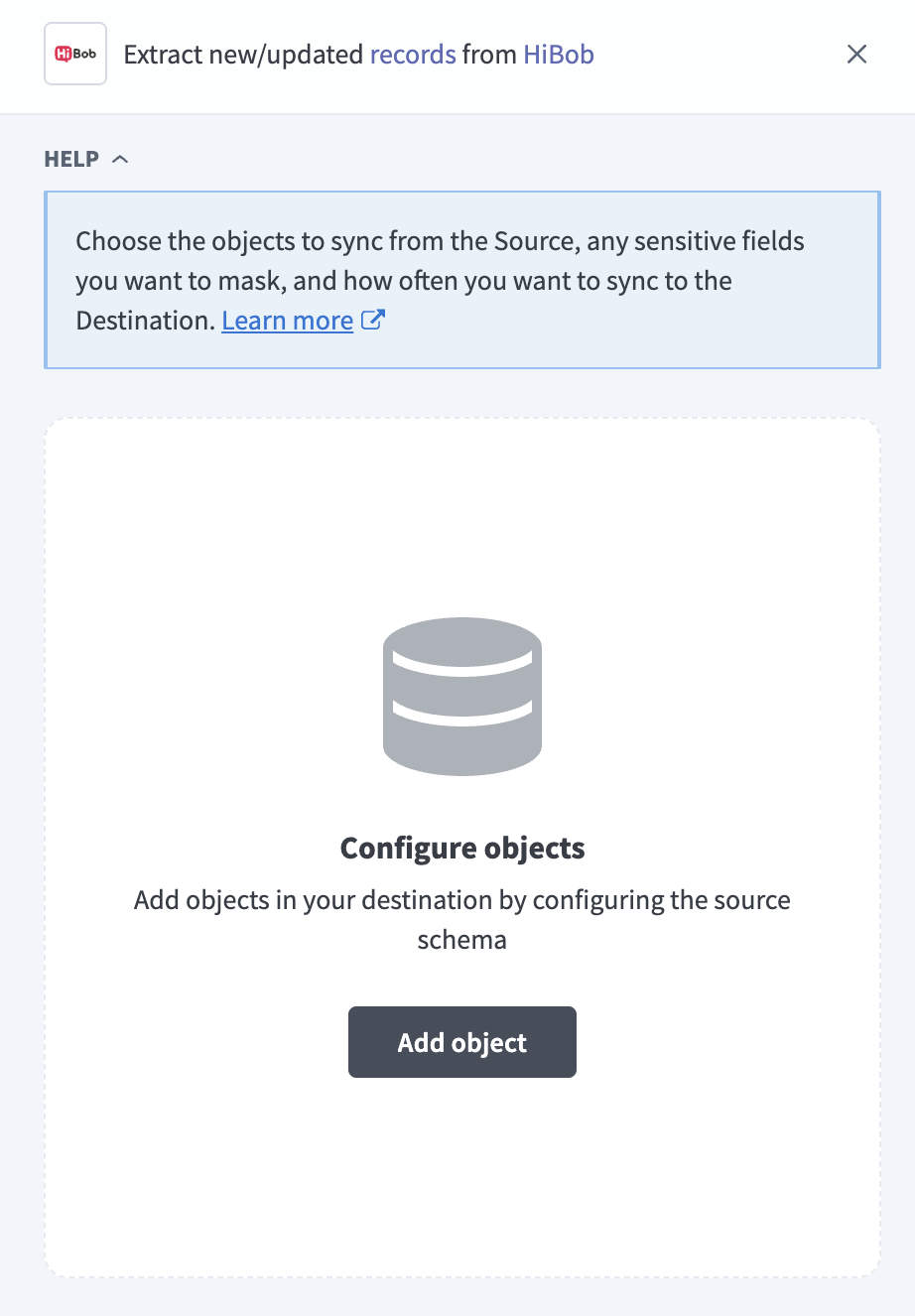 Add objects
Search or browse the list of available HiBob objects, select the objects you plan to sync, and click Add.
Review and customize the schema for each selected object. The pipeline automatically fetches an object's schema when you select it. This ensures the destination matches the source.
Expand an object to view associated fields. Keep all fields selected to extract all available data, or deselect specific fields to exclude them from data extraction and schema replication.
Optional. Configure field-level data protection by expanding an object and choosing how to handle each field:
- Replicate as is: Data values at the source replicate identically to the destination.
- Hash: Hash sensitive data values in the field before syncing to your destination.
Workato recommends hashing personally identifiable information (PII) and other sensitive fields. Refer to Sensitive data handling for a list of fields that commonly contain PII.
Click Add object again to add more objects. Repeat this step to include additional HiBob objects in your pipeline.
Use the Choose how to handle schema changes drop-down menu to select a schema drift handling option:
- Auto-sync new fields: Automatically detects and syncs new fields added in the source.
- Block new fields: Keeps the schema fixed after the pipeline starts. You must add new fields manually. This option may cause the destination to fall out of sync if the source schema updates.
Refer to Schema replication and schema drift management for more information.
Auto-sync new fields applies to objects with per-tenant schemas, such as employees and any custom tables discovered in your workspace.
Optional. Enter a value in the Concurrency limit field to cap the number of concurrent operations. Leave the field blank to use the default quota set by Workato. The maximum value is 100.
Choose either a standard time-based schedule or define a custom cron expression in the Frequency field. This determines how often the pipeline syncs data from HiBob to the destination.
Supported objects
The pipeline supports a curated set of HiBob objects, plus any custom tables defined in your workspace. Custom fields on employees and custom tables are discovered at pipeline setup time when you load the available objects and schemas in the object wizard. All other objects have fixed schemas.
If you don't see data for an object you expect, verify that your service user's permission group grants access to the underlying HiBob resource.
The following tables list the supported objects, grouped by category. Each object syncs as a separate table in your destination.
Employee data
| Object | Sync modes | Incremental mechanism | Delete tracking |
|---|---|---|---|
employees | Full refresh | N/A | Yes (soft, through internal.status) |
employee_fields | Full refresh | N/A | No |
The employees object contains a single, comprehensive row per employee — including personal information, employment details, location, and inline custom field values. Terminated and inactive employees are included; the lifecycle state is exposed in the internal.status field.
The employee_fields object exposes the custom field definitions (id, name, type, category, description) for your HiBob tenant. Use it for schema discovery when mapping custom fields downstream.
Historical tables
Historical tables are append-only records with effective dates. Each row represents one event in an employee's history.
| Object | Sync modes | Incremental mechanism | Delete tracking |
|---|---|---|---|
lifecycle_history | Full refresh | N/A | No |
salary_history | Full refresh | N/A | No |
employment_history | Full refresh | N/A | No |
work_history | Full refresh | N/A | No |
The HiBob bulk endpoints return historical data grouped by employee. Workato flattens the response so that each destination row represents one entry.
Time off
| Object | Sync modes | Incremental mechanism | Delete tracking |
|---|---|---|---|
out_of_office | Full refresh, incremental | from date parameter | No |
time_off_requests | Full refresh, incremental | createdOn timestamp | No |
The time_off_requests object records one row per change event (create, update, or cancel). The same request can produce multiple rows, so the primary key is the combination of employeeId, requestId, and createdOn.
Compensation
| Object | Sync modes | Incremental mechanism | Delete tracking |
|---|---|---|---|
variable_payments | Full refresh | N/A | No |
equity_grants | Full refresh | N/A | No |
The equity_grants object is fetched per employee because HiBob doesn't provide a bulk endpoint. Refer to Per-employee sync overhead for the throughput impact.
Company reference
| Object | Sync modes | Incremental mechanism | Delete tracking |
|---|---|---|---|
named_lists | Full refresh | N/A | No |
The named_lists object flattens HiBob company lists (departments, job titles, sites, and more) into one row per list item with list_id, list_name, item_id, and item_name columns.
Workflow and records
| Object | Sync modes | Incremental mechanism | Delete tracking |
|---|---|---|---|
tasks | Full refresh | N/A | No |
training | Full refresh | N/A | No |
documents | Full refresh | N/A | No |
The tasks object returns open tasks only. Historical closed tasks aren't available through the HiBob API. The training and documents objects are fetched per employee; documents syncs metadata only, not file contents.
Custom tables
If your HiBob workspace defines custom tables (such as emergency contacts or certifications), Workato discovers them at runtime through GET /v1/people/custom-tables/metadata and syncs the data per employee. The exact set of custom tables and their columns depends on your HiBob configuration, so custom tables are registered dynamically rather than listed in the preceding tables.
Sync modes
HiBob data pipelines support full refresh and incremental sync. The sync mode is determined per object based on what the HiBob API supports.
Full refresh
Full refresh replaces the destination table on every sync. Most HiBob objects run in full refresh mode because the HiBob API doesn't expose a modified_since filter on the underlying endpoints. Historical tables (lifecycle_history, salary_history, employment_history, work_history) are append-only by nature, so full refresh returns the complete history each run.
Incremental sync
Two HiBob objects support incremental sync:
time_off_requests: Workato passes the last successful sync time as thecreatedOnlower bound and requests only change events created after that timestamp.out_of_office: Workato passes the last successful sync time as thefromdate parameter.
Delete tracking
The employees object supports soft-delete tracking. Workato requests HiBob with showInactive: true so that terminated and inactive employees remain in the destination table with the internal.status field indicating their lifecycle state. Downstream consumers can filter on internal.status to identify inactive or terminated employees.
No other HiBob object supports delete tracking.
Sensitive data handling
HiBob objects can contain personally identifiable information (PII) and compensation data. The following objects commonly contain sensitive fields. Custom fields defined in your HiBob workspace may contain additional PII depending on your configuration.
| Object | Sensitive fields |
|---|---|
employees | Personal information (name, contact details, home address, identifiers), employment details, and any custom fields containing PII |
salary_history | base_value, base_currency, and additional compensation fields |
variable_payments | amount, currency |
Use the Hash option in field-level data protection during pipeline configuration to protect PII before it reaches your destination. Refer to the Configure the pipeline steps for more information.
Limitations
The following limitations apply when you use HiBob as a data pipeline source.
Per-employee sync overhead
HiBob doesn't provide bulk endpoints for equity_grants, training, documents, or custom tables. Workato issues one request per employee for these objects, so sync duration scales with your employee count.
Tasks object scope
The tasks object returns open tasks only. HiBob doesn't expose historical closed tasks through the API.
Last updated: