Configure Mixpanel as a data pipeline source
Set up Mixpanel as a data pipeline source to extract raw events, user profiles, cohorts, funnels, annotations, and group profiles from Mixpanel and sync them to your destination.
Use this guide to review the features and prerequisites, create a Mixpanel service account, connect Mixpanel as a data pipeline source, configure the pipeline, and understand the supported objects, sync modes, schema handling, and limitations.
Features supported
The following features are supported when you use Mixpanel as a pipeline source:
- Cloud connectivity: Connects to Mixpanel over https. An on-prem agent isn't required.
- Data residency regions: Connects to Mixpanel projects hosted in the US, EU, or IN data residency region.
- Full sync and incremental sync: Supports full sync and incremental sync. Incremental sync uses a date window for events and funnels, and the profile update timestamp for user and group profiles. Refer to Sync modes for more information.
- Object-level selection: Choose the supported objects you plan to sync when you configure the pipeline.
- Event and profile properties: Custom event and profile properties sync as JSON columns. Refer to Property maps for more information.
- Schema drift detection and handling: Detect and apply schema changes automatically with Auto-sync new fields, or keep the schema fixed with Block new fields.
- Field-level data protection: Hash or replicate sensitive fields as is before the data reaches your destination.
- Configurable sync frequency: Schedule syncs on a time-based interval or with a cron expression. The minimum supported interval is 15 minutes.
Prerequisites
Connecting Mixpanel as a data pipeline source requires:
- A Mixpanel project
- A Mixpanel service account with the Analyst role on the project. Refer to Create a Mixpanel service account for setup steps.
- The service account username and secret
- The numeric project ID and the data residency region of the project
- Optional. The workspace ID, if the project uses Data Views
- Optional. The project timezone, if the project was created before January 1, 2023
PLAN AND ADD-ON REQUIREMENTS
The Funnels, Cohorts, and Cohort Members objects require a Mixpanel plan that includes Query API access. The Group Profiles object requires the Mixpanel Group Analytics add-on. Refer to Plan and add-on requirements for more information.
Create a Mixpanel service account
Create a service account in Mixpanel before you create the connection in Workato. Refer to the Mixpanel service accounts documentation for the steps. Assign the Analyst role on the project you plan to sync. Workato validated the connector with this role.
COPY THE SERVICE ACCOUNT SECRET
Mixpanel displays the service account secret only when you create the service account, and you can't recover it later. Copy the secret and store it securely.
Supported connection types
Mixpanel data pipelines support service account authentication:
- Service account: Authenticates with a Mixpanel service account username and secret, and the project ID. Refer to Create a Mixpanel service account for setup steps.
The Mixpanel connection in recipes also supports API key and secret authentication. Data pipelines don't support this authentication type.
Connect to Mixpanel
Complete the following steps to connect to Mixpanel:
Connect to Mixpanel
Select Create > Connection or press C twice.
Search for Mixpanel and select it as your app.
Provide a name for your connection in the Connection name field.
Use the Location drop-down menu to select the project or folder where you plan to store the connection.
Use the Authentication type drop-down menu to select Service account.
Enter the service account username in the Service account username field.
Enter the service account secret in the Service account secret field.
Enter the numeric Mixpanel project ID in the Project ID field. You can find the project ID in Mixpanel under Project Settings > Overview.
Use the Data residency drop-down menu to select the region that matches your Mixpanel project. The value must match the Data Residency setting in Mixpanel Project Settings.
Mixpanel rejects requests with an invalid project ID error if the region doesn't match the project.
Optional. Enter the workspace ID in the Workspace ID field if your project uses Data Views. Leave this field blank otherwise.
Optional. Enter the IANA timezone name from Mixpanel Project Settings > Timezone in the Project timezone field, for example US/Pacific. Leave this field blank to use UTC.
Enter a value for Mixpanel projects created before January 1, 2023. Mixpanel interprets export dates for these projects in the project timezone instead of UTC.
Click Connect to verify and save the connection. Workato displays a success message when the connection is established.
Configure the pipeline
Complete the following steps to configure Mixpanel as your data pipeline source:
Select Create > Data pipeline or press C+I.
Enter a name for the data pipeline in the Data pipeline name field.
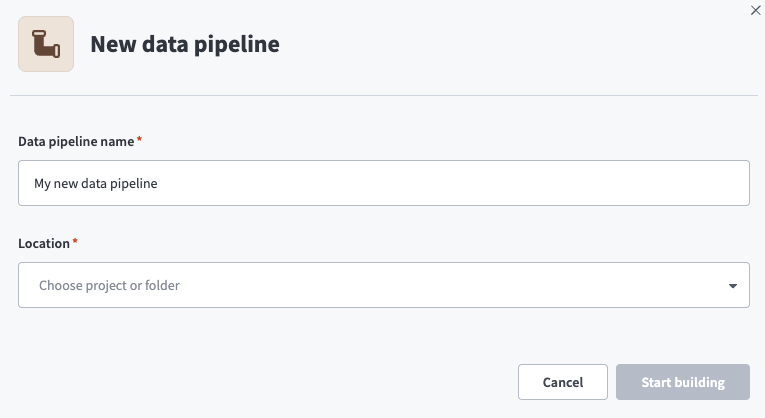 Data pipeline setup
Use the Location drop-down menu to select the project where you plan to store the data pipeline.
Click Start building.
Click the Extract new/updated records from source app trigger. This trigger defines how the pipeline retrieves data from Mixpanel.
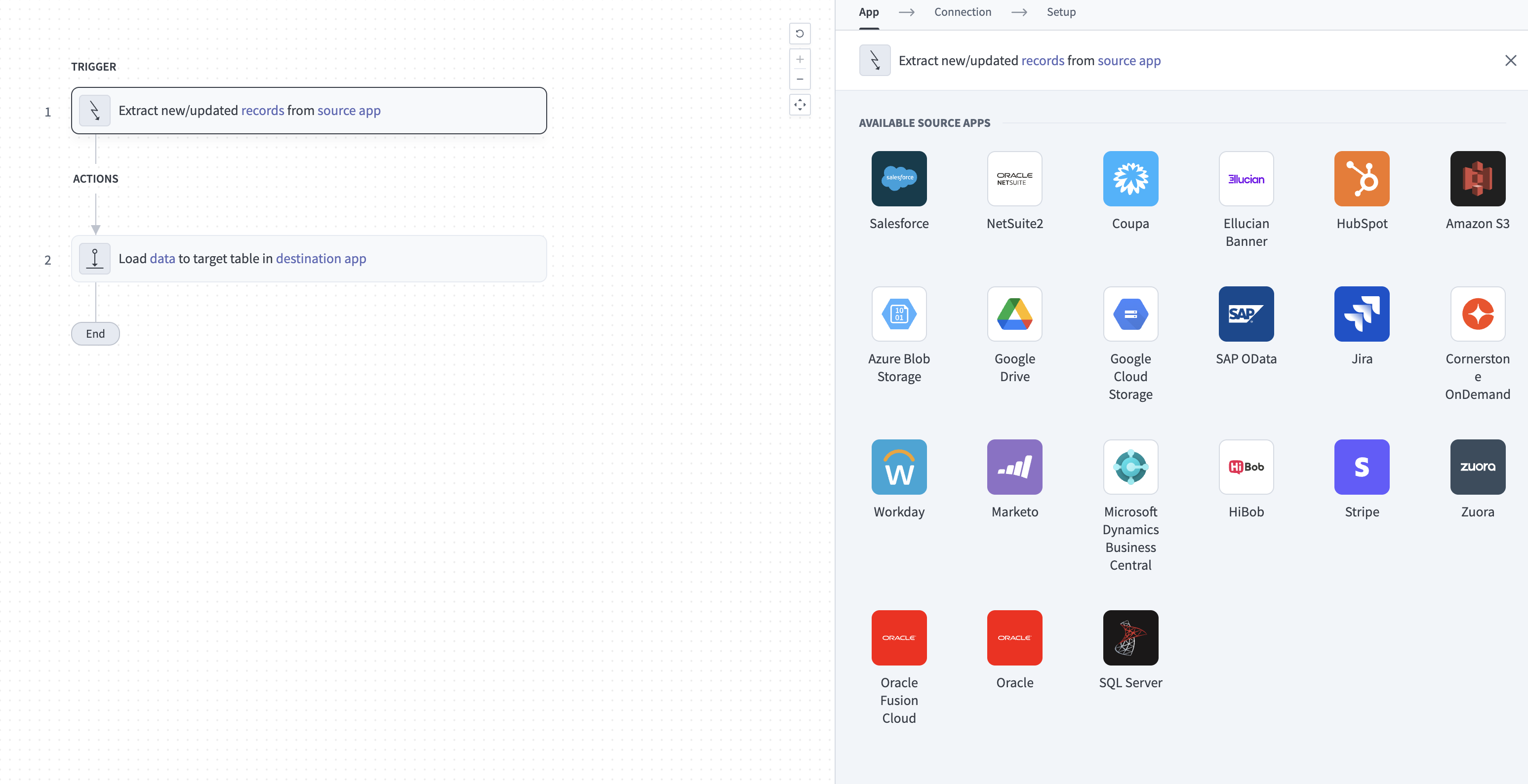 Configure the Extract new/updated records from source app trigger
Use the Your Connected Source Apps drop-down menu to select Mixpanel.
Choose the Mixpanel connection you plan to use for this pipeline. Alternatively, click + New connection to create a new connection.
Click Add object to open the Add new objects panel.
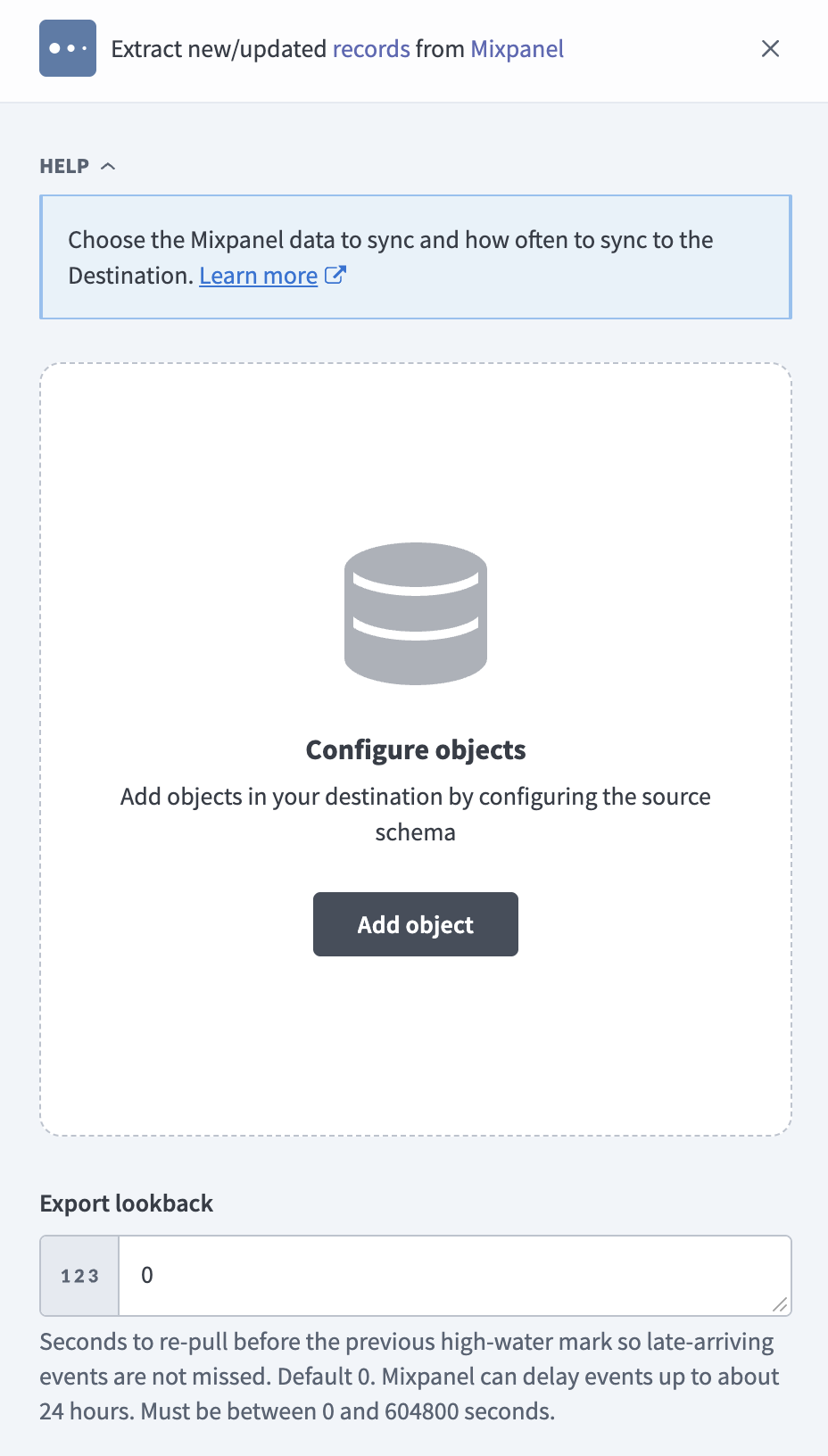 Add objects
Search or browse the list of available Mixpanel objects, select the objects you plan to sync, and click Add.
SOME OBJECTS REQUIRE A MIXPANEL PLAN OR ADD-ON
Select only the objects your Mixpanel plan supports. Refer to Plan and add-on requirements for more information.
Optional. Click the gear icon next to an object to open its Sync mode settings. Use the Sync mode drop-down menu to select Full sync or Incremental, then click Save.
The sync mode defaults to Full sync for Cohorts and Annotations, which don't support incremental sync. Refer to Sync modes for more information.
Review and customize the schema for each selected object. The pipeline automatically fetches an object's schema when you select it. This ensures the destination matches the source.
Expand an object to view associated fields. Keep all fields selected to extract all available data, or deselect specific fields to exclude them from data extraction and schema replication.
Optional. Configure field-level data protection by expanding an object and choosing how to handle each field:
- Replicate as is: Data values at the source replicate identically to the destination.
- Hash: Hash sensitive data values in the field before syncing to your destination.
Workato recommends hashing personally identifiable information (PII) and other sensitive fields. Refer to Sensitive data handling for a list of fields that commonly contain PII.
Click Add object again to add more objects. Repeat this step to include additional Mixpanel objects in your pipeline.
Optional. Enter a value in the Export lookback field to re-pull events from before the end of the previous sync, so late-arriving events aren't missed. This setting applies to the Export object. The default is 0 seconds. Mixpanel can delay events by up to about 24 hours. The value must be between 0 and 604800 seconds.
Optional. Enter a value in the Export date window field to set the number of days of events the pipeline requests in each Export query. The default is 30 days, and the value must be between 1 and 30 days. Use a smaller window for high-volume projects.
Optional. Enter a value in the Funnel date window field to set the number of days of data the pipeline requests in each Funnels query. The default is 15 days, and the value must be between 1 and 30 days.
Optional. Enter a value in the Attribution window field to set the Mixpanel funnel attribution window for the Funnels object. The default is 5 days, and the value must be between 1 and 90 days.
Enter the numeric Mixpanel data group ID in the Group Analytics Data Group ID field if you sync the Group Profiles object. Leave this field blank otherwise.
Use the Choose how to handle schema changes drop-down menu to select a schema drift handling option:
- Auto-sync new fields: Automatically detects and syncs new fields added in the source.
- Block new fields: Keeps the schema fixed after the pipeline starts. You must add new fields manually. This option may cause the destination to fall out of sync if the source schema updates.
Refer to Schema replication and schema drift management for more information.
Mixpanel syncs event and profile properties as JSON columns, so new properties don't change the destination schema. Refer to Property maps for more information.
Optional. Enter a value in the Concurrency limit field to cap the number of concurrent operations. Leave the field blank to use the default quota set by Workato. The maximum value is 100.
Choose either a standard time-based schedule or define a custom cron expression in the Frequency field. This determines how often the pipeline syncs data from Mixpanel to the destination.
HISTORICAL START DATE
The start date applies to the Export and Funnels objects. If you leave the field blank, the pipeline picks up the last 365 days of events and funnel data instead of all available records. Other objects aren't filtered by this date on a full sync.
Supported objects
Mixpanel data pipelines sync data from the Mixpanel APIs. The following table lists the supported objects. Each object syncs as a separate table in your destination:
| Object | Sync modes | Delete tracking | Notes |
|---|---|---|---|
Export | Full sync, incremental | No | Raw events. Contains PII. |
Engage | Full sync, incremental | No | User profiles. Contains PII. |
Cohort Members | Full sync, incremental | No | Profiles in each saved cohort. Requires a Mixpanel plan with Query API access. Contains PII. |
Group Profiles | Full sync, incremental | No | Group profiles for one group key. Requires the Group Analytics add-on. May contain business-sensitive data. |
Funnels | Full sync, incremental | No | Daily results for each saved funnel. Requires a Mixpanel plan with Query API access. |
Cohorts | Full sync | Yes (destination-inferred) | Saved cohort definitions. Requires a Mixpanel plan with Query API access. |
Annotations | Full sync | Yes (destination-inferred) | Project annotations. Contains the names of annotation authors. |
Sync modes
Mixpanel data pipelines support full sync and incremental sync. Refer to the Supported objects table to see the sync modes for each object.
Full sync
Full sync reads all available records for an object and replaces the record set in the destination. Cohorts and Annotations support only full sync.
For Export and Funnels, a full sync reads the date range from the start date you set in the When first started, this pipeline should pick up records from field through the current day.
Incremental sync
Incremental sync reads only the records that changed since the previous run. Mixpanel incremental sync uses the following mechanisms, depending on the object:
Export: Reads events by date window, starting from the day the previous sync ended minus the Export lookback value. Mixpanel doesn't expose an update timestamp for events, so the pipeline can't detect changes to events that Mixpanel already returned.Engage,Cohort Members, andGroup Profiles: Reads profiles whose$last_seenproperty, which Mixpanel maintains as the profile's update time, is later than the latest$last_seenvalue from the previous sync.Cohort Membersreads each saved cohort separately.Funnels: Reads each saved funnel by date window, starting from the day the previous sync ended.
Mixpanel filters events and funnels by whole days, not by time. Each incremental sync re-reads the last day of the previous sync, so Mixpanel can return records that the pipeline already synced. Refer to Columns and primary keys for the primary key that identifies each record.
Delete tracking
Delete tracking is per-object and follows sync mode:
- Full-sync objects:
CohortsandAnnotationssync in full. Mixpanel doesn't expose a native delete signal for them, so Workato compares each full sync against the previous run and flags records that no longer appear in Mixpanel. Workato detects deletions on the next full sync, not when the deletion occurs. - Incremental objects:
Export,Engage,Cohort Members,Group Profiles, andFunnelsdon't support delete tracking, because Mixpanel doesn't emit delete events and an incremental run reads only changed records. Deleting a user profile in Mixpanel removes the profile properties only. The user's tracked events remain as anonymous events.
Delete tracking doesn't replace erasure requests. Submit erasure requests through the Mixpanel GDPR API.
Schema and data type handling
The following considerations apply to schema and data types when you sync data from Mixpanel:
Property maps
Mixpanel events and profiles carry custom properties that vary by project. The connector uses a fixed set of columns for each object and syncs the properties as JSON columns instead of expanding each property into its own column:
Export: Thepropertiescolumn contains all event properties, including custom properties.Engage,Cohort Members, andGroup Profiles: The$propertiescolumn contains all profile properties, including custom properties.Funnels: Thestepsandanalysiscolumns contain the funnel results as JSON.Annotations: Thetagscolumn contains the annotation tags as JSON.
New properties that you add in Mixpanel appear inside the JSON column and don't change the destination schema. Parse the JSON column in your destination to query individual properties.
Columns and primary keys
The following table lists the columns and primary key for each object:
| Object | Primary key | Columns |
|---|---|---|
Export | insert_id, time | event, distinct_id, insert_id, time, mp_processing_time_ms, properties |
Engage | distinct_id | distinct_id, last_seen, $properties |
Cohort Members | distinct_id, cohort_id | distinct_id, cohort_id, last_seen, $properties |
Group Profiles | distinct_id | distinct_id, last_seen, $properties |
Funnels | funnel_id, date | funnel_id, date, steps, analysis |
Cohorts | id | id, name, count, description, created, is_visible, project_id |
Annotations | id | id, date, description, user_id, user_first_name, user_last_name, tags |
Event identifiers
Mixpanel doesn't guarantee an insert_id value for every event, and incremental syncs can return the same event more than once because each sync re-reads the last day of the previous sync. Workato uses insert_id and time as the primary key for Export. If an event has no insert_id, Workato populates the insert_id column with a SHA-256 hash of the event record.
Timestamps
Workato handles timestamps as follows:
- Event
time: Mixpanel returns Unix timestamps in seconds. Workato syncs them as timestamps without adjusting for timezone. - Profile
last_seen: Mixpanel returns the value without a timezone. Workato interprets it in the Project timezone from your connection, or UTC if you leave that field blank, and syncs it as a UTC timestamp. - Export date boundaries: Workato converts the sync start and end times to calendar dates in the Project timezone, or UTC if you leave that field blank.
Sensitive data handling
Mixpanel objects can contain personally identifiable information (PII). The following objects commonly contain sensitive fields:
| Object | Sensitive fields |
|---|---|
Export | distinct_id, properties (can include $user_id, $device_id, $city, $region, mp_country_code, and any custom property that carries personal data, such as an email address) |
Engage | distinct_id, $properties (can include $name, $first_name, $last_name, $email, $phone, location, and device properties) |
Cohort Members | distinct_id, $properties (same properties as Engage) |
Group Profiles | distinct_id, $properties (can include the group name and custom group properties, which may contain business-sensitive account data) |
Annotations | user_first_name, user_last_name |
The properties and $properties columns carry the highest risk, because Mixpanel projects can store arbitrary personal data in custom properties. Each property map is a single column, so field-level data protection applies to the whole map and not to individual properties. Review your Mixpanel tracking plan to determine which properties contain personal data before you choose how to handle these columns.
Use the Hash option in field-level data protection during pipeline configuration to protect PII before it reaches your destination. Refer to the Configure the pipeline steps for more information.
Limitations
The following limitations apply when you use Mixpanel as a data pipeline source:
Export event limit per date window
The pipeline requests each Export date window in a single Mixpanel query, and Mixpanel allows a maximum of 100,000 events per query. The pipeline doesn't split a window or paginate within it. Reduce the Export date window value for high-volume projects so that each window contains fewer than 100,000 events.
Plan and add-on requirements
Certain objects require a specific Mixpanel plan or add-on:
| Object | Requirement |
|---|---|
Funnels, Cohorts, Cohort Members | A Mixpanel plan with Query API access (Growth or Enterprise) |
Group Profiles | The Group Analytics add-on and a value in the Group Analytics Data Group ID field |
Select only the objects your plan supports. A sync fails with the error The Mixpanel project or plan does not permit this API request if you select Funnels, Cohorts, or Cohort Members without the required plan. A Group Profiles sync fails with a configuration error if the Group Analytics Data Group ID field is blank.
Incremental events are not updated
Mixpanel doesn't expose an update timestamp for events. The pipeline can't detect changes to events that it already synced.
Profile updates without a timestamp change are not detected
Incremental syncs of Engage, Cohort Members, and Group Profiles filter on the $last_seen property. Mixpanel doesn't update $last_seen for edits made in the Mixpanel UI or for API updates sent with $ignore_time set to true, so incremental syncs miss these changes. Run a full sync to capture them.
Cohort membership changes are not detected
Incremental syncs of Cohort Members filter on $last_seen, which Mixpanel updates only when a profile itself changes. A profile that joins a cohort is missed unless its $last_seen value is later than the previous sync, and a profile that leaves a cohort stays in your destination. Run a full sync to refresh cohort membership.
Minimum sync frequency
The minimum supported sync interval is 15 minutes.
Last updated: