Configure Microsoft SharePoint as a data pipeline source
Set up Microsoft SharePoint as a data pipeline source to extract and sync .csv, .parquet, and .avro files from SharePoint Online document libraries into your destination.
Use this guide to set up your Microsoft Entra app, connect SharePoint to Workato, configure the pipeline, and review file handling, sync modes, and limitations.
Features supported
The following features are supported when you use Microsoft SharePoint as a pipeline source:
- SharePoint Online connectivity: Connects to SharePoint Online through the Microsoft Graph API over HTTPS.
- CSV, Parquet, and Avro files: Extracts data from
.csv,.parquet, and.avrofiles stored directly in a document library folder. - Full sync and incremental sync: Incremental sync detects new and modified files based on each file's last modified timestamp. Refer to Sync modes for more information.
- Site and document library selection: Select the SharePoint site and document library to sync for each pipeline.
- Merge strategies: Choose Upsert or Append only to control how rows load into the destination table.
- Schema drift handling: Choose to auto-sync or block newly added fields in the source files.
- Field-level data protection: Hash sensitive fields before they sync to your destination.
- Configurable sync frequency: Schedule syncs on a time-based or cron-based schedule. The minimum interval is
15minutes.
Prerequisites
Connecting Microsoft SharePoint as a data pipeline source requires:
- A SharePoint Online site with a document library that stores
.csv,.parquet, or.avrofiles - Access to the Azure portal to register an app in Microsoft Entra ID
- A Microsoft Entra admin who can grant admin consent for application permissions. A SharePoint or Global admin must also grant the app access to each site if you use the
Sites.Selectedpermission. - The folder path and filename pattern for the files to sync
Supported connection types
Microsoft SharePoint data pipelines support one authentication method:
- Client credentials: Authenticate with an app registered in Microsoft Entra ID that has application permissions for Microsoft Graph. Refer to Set up your Microsoft Entra app for setup steps.
Authorization code grant isn't supported for data pipelines, even though the SharePoint connector for recipes supports it.
USE SEPARATE CONNECTIONS FOR PIPELINES AND RECIPES
Data pipelines require a SharePoint connection with the Graph API (Data-Pipelines only) API scope. This scope doesn't work with recipe triggers and actions, and recipe connections that use the SharePoint API or SharePoint & Graph API scope don't work with data pipelines. Create a separate SharePoint connection for your pipelines instead of reusing a connection from your recipes.
Required permissions
Assign one of the following Microsoft Graph permissions to your Workato app as an Application permission:
| Permission | Access | Additional setup |
|---|---|---|
Sites.Selected (recommended) | Only the sites you explicitly grant to the app. | A SharePoint or Global admin must grant the app access to each site. Refer to Grant site access for Sites.Selected. |
Sites.Read.All | All site collections in your tenant. | Admin consent only. |
The pipeline only reads files, so it doesn't require write permissions.
Set up your Microsoft Entra app
Complete the following steps to register a Workato app in the Azure portal and collect the values you need to create the connection:
Register the Workato app in the Azure portal
Complete the following steps to register the Workato app in the Azure portal:
Sign in to the Azure portal.
Select App registrations > + New registration.
Enter a unique name for the application.
Use the Supported account types drop-down menu to select an account type.
Select Web from the Select a platform drop-down menu.
Use the following URI for the Redirect URI:
https://www.workato.com/oauth/callbackSelect Register.
Assign permissions to your app
Complete the following steps to assign Microsoft Graph application permissions to your app:
Go to your newly registered app and select Manage > API permissions.
Click + Add a permission and select Microsoft Graph.
Select Application permissions as the permission type, because your pipeline runs without a signed-in user.
Search for and select the Sites.Selected or Sites.Read.All permission. Refer to Required permissions to choose between them.
Click Add permissions.
Generate a certificate and private key
You need a certificate and private key to authenticate using client credentials. You can generate these locally using OpenSSL or PowerShell. Refer to the Microsoft documentation to generate a certificate with PowerShell.
Complete the following steps to generate a self-signed certificate with OpenSSL:
Open terminal, or another CLI (command-line interface) tool.
Create a password-protected, 2048-bit RSA private key named domain.key:
openssl genrsa -out domain.key 2048Create a Certificate Signing Request (CSR) domain.csr from the private key. Provide values for the required fields when prompted:
openssl req -key domain.key -new -out domain.csrCreate a self-signed certificate named domain.crt with your private key and CSR:
openssl x509 -signkey domain.key -in domain.csr -req -days 365 -out domain.crtOpen domain.crt and copy the entire certificate string, including the -----BEGIN CERTIFICATE----- and -----END CERTIFICATE----- lines. Use this as your Certificate value in Workato.
Open domain.key and copy the entire private key string, including the -----BEGIN PRIVATE KEY----- and -----END PRIVATE KEY----- lines. Use this as your Private key value in Workato.
Go to Manage > Certificates & secrets > Certificates in the Azure Portal.
Click Upload certificate and select the domain.crt file.
Provide a description for the certificate.
Click Add.
Obtain the Application (client) ID and Directory (tenant) ID from the Azure portal
Go to the Overview > Essentials section.
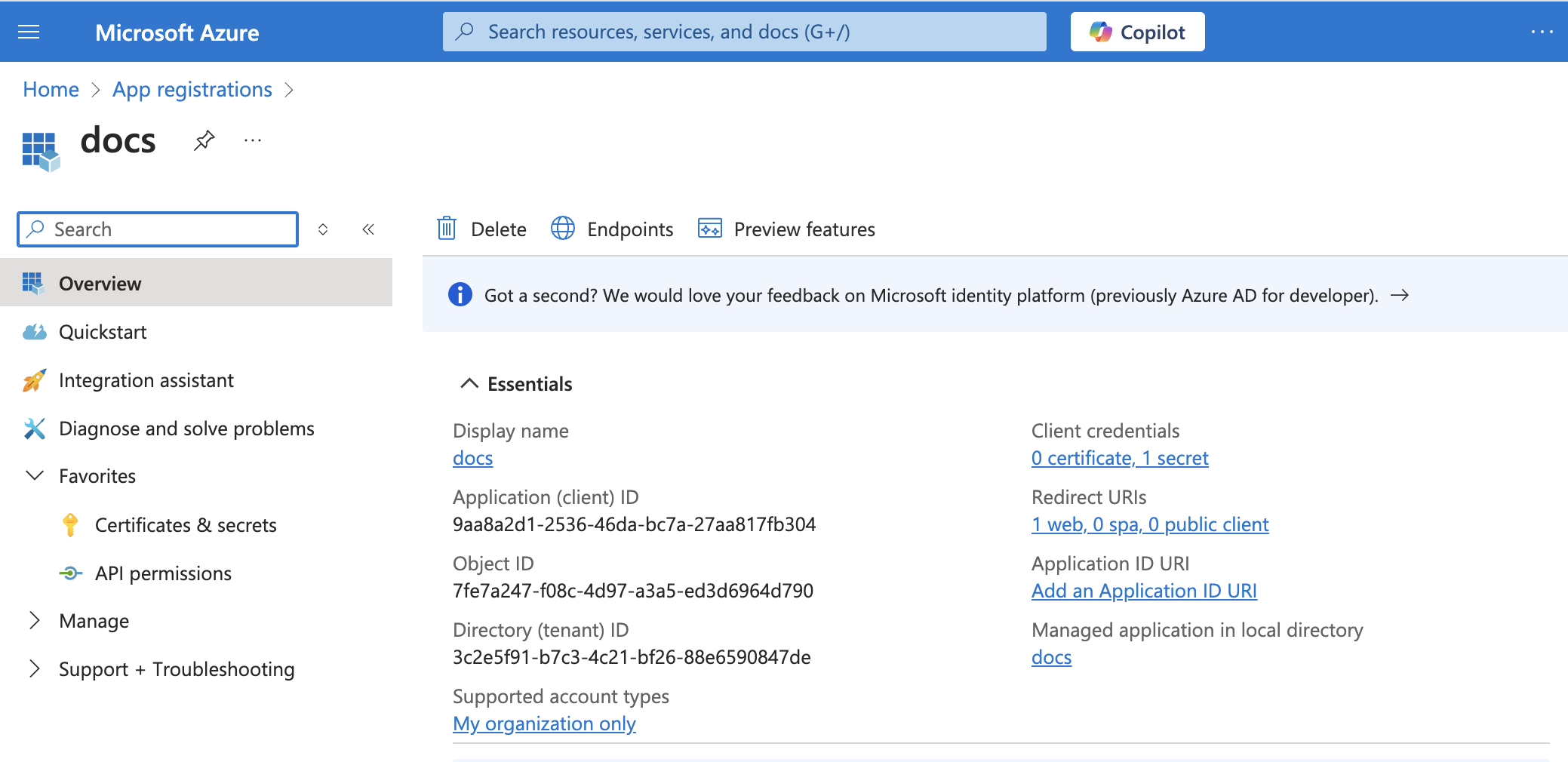 App details
Copy the Application (client) ID and Directory (tenant) ID for use in Workato.
Grant admin consent
To connect to the Microsoft SharePoint connector using a Microsoft Entra ID account, ensure that all the consent requests are granted by admins.
Complete the following steps to grant admin consent using an admin account:
Sign in to your Azure portal and navigate to Enterprise Applications > Activity > Admin consent requests.
Approve the necessary consent requests.
Required if you selected the Sites.Selected permission. Grant your app access to your SharePoint sites. Syncs fail without the grant. Refer to Grant site access for Sites.Selected for more information.
Grant site access for Sites.Selected
The Sites.Selected permission doesn't give your app access to any site until a SharePoint or Global admin grants it. You can't start this grant inside Workato. Use PowerShell or the Microsoft Graph POST /sites/{site-id}/permissions call to grant your app access to each site you plan to sync.
Refer to the Microsoft documentation on Sites.Selected for the steps.
THE CONNECTION'S SITE REQUIRES A GRANT
If you use Sites.Selected, Workato checks the site in your connection's Site name field at the start of every sync, even if you enter a different Site name in the pipeline. Workato checks the root site of your tenant if you leave the connection's Site name field blank. The root site needs its own site grant, like any other site. Without it, the sync fails with a permission error.
Enter a site your app can access in the connection's Site name field to avoid granting access to the root site.
Connect to Microsoft SharePoint
Complete the following steps to connect Microsoft SharePoint as a data pipeline source:
Connect to Microsoft SharePoint
Select Create > Connection or press C twice.
Search for SharePoint and select it as your app.
Provide a name for your connection in the Connection name field.
Use the Location drop-down menu to select the project where you plan to store the connection.
Select Cloud in the Connection type field.
Select the Client credentials option from the Authentication type drop-down menu.
Enter your SharePoint Subdomain. You can find it in your SharePoint URL. For example, if your SharePoint URL is https://abc.sharepoint.com, the subdomain is abc.
Use the API Scope drop-down menu to select Graph API (Data-Pipelines only). Data pipelines return an error for connections that use the SharePoint API or SharePoint & Graph API scope.
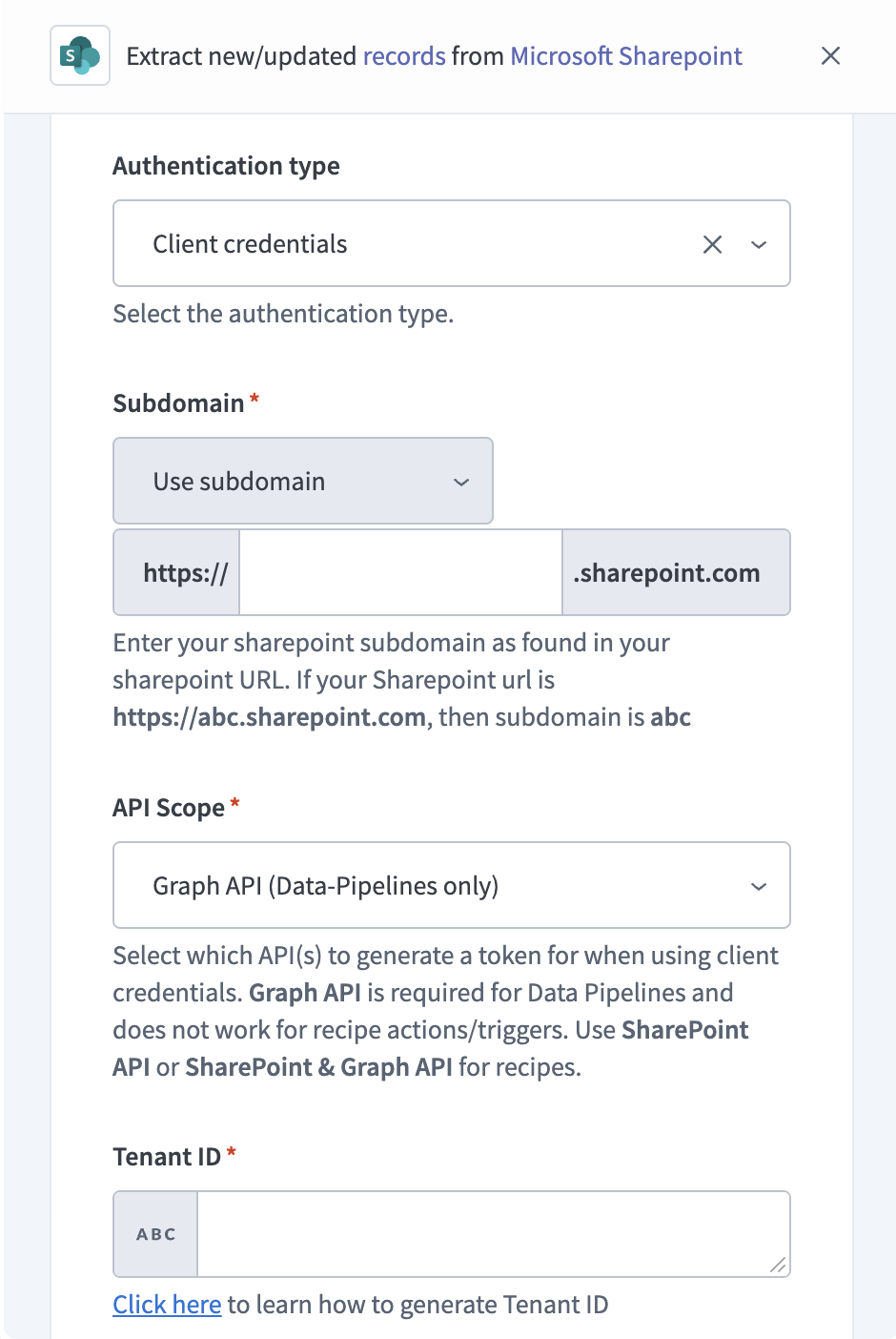 Select the Graph API (Data-Pipelines only) API scope
Provide the Directory (tenant) ID from the Azure portal in the Tenant ID field.
Provide the Application (client) ID from the Azure portal in the Client ID field.
Provide the certificate string you generated in the Certificate field.
Provide the private key string you generated in the Private key field.
Optional. Provide the name of your SharePoint site in the Site name field. Enter the name as it appears in the site URL. For example, if the URL is https://company-name.sharepoint.com/sites/product, the site name is product. If left blank, Workato connects to the root site of your tenant.
You can override this value for each pipeline when you configure the pipeline.
Optional. Use the Custom OAuth profile drop-down menu to select a custom OAuth profile for your connection.
Click Sign in with Microsoft.
Configure the pipeline
Complete the following steps to configure Microsoft SharePoint as your data pipeline source:
Select Create > Data pipeline or press C+I.
Enter a name for the data pipeline in the Data pipeline name field.
 Data pipeline setup
Use the Location drop-down menu to select the project where you plan to store the data pipeline.
Click Start building.
Click the Extract new/updated records from source app trigger. This trigger defines how the pipeline retrieves data from Microsoft SharePoint.
 Configure the Extract new/updated records from source app trigger
Use the Your Connected Source Apps drop-down menu to select Microsoft SharePoint.
Choose the Microsoft SharePoint connection you plan to use for this pipeline. Alternatively, click + New connection to create a new connection.
Optional. Enter the name of the SharePoint site that contains your document library in the Site name field. Leave the field blank to use the Site name from your connection.
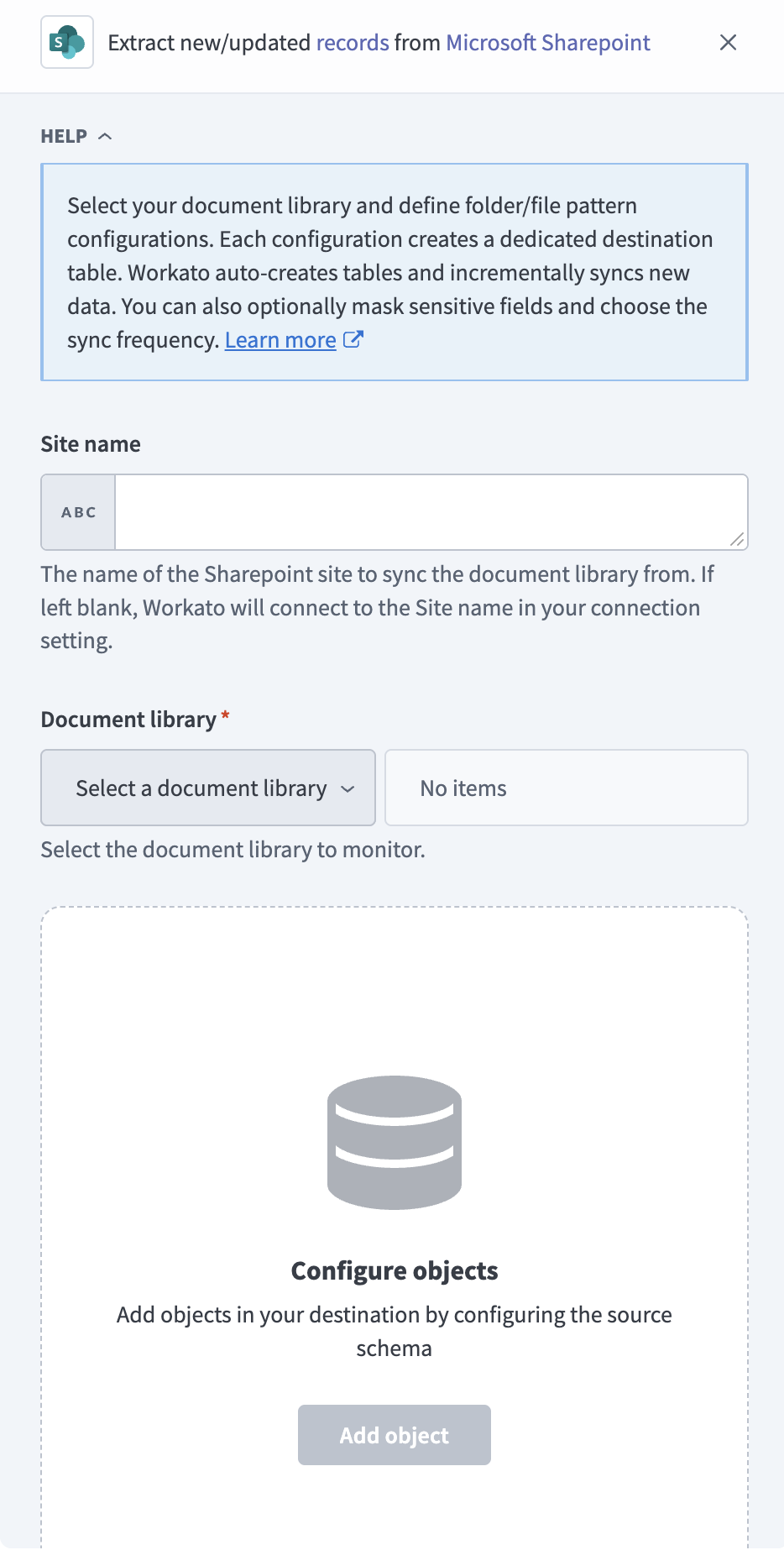 Enter site name
Use the Document library drop-down menu to select the document library you plan to monitor. Each pipeline reads from one document library.
Click Add object to configure the files the pipeline monitors and syncs. Each object configuration creates a dedicated table in your destination.
Enter the folder path to monitor in the Source Folder path field. The pipeline monitors this folder and fetches files that match your filename pattern. Enter / to monitor the root of the document library.
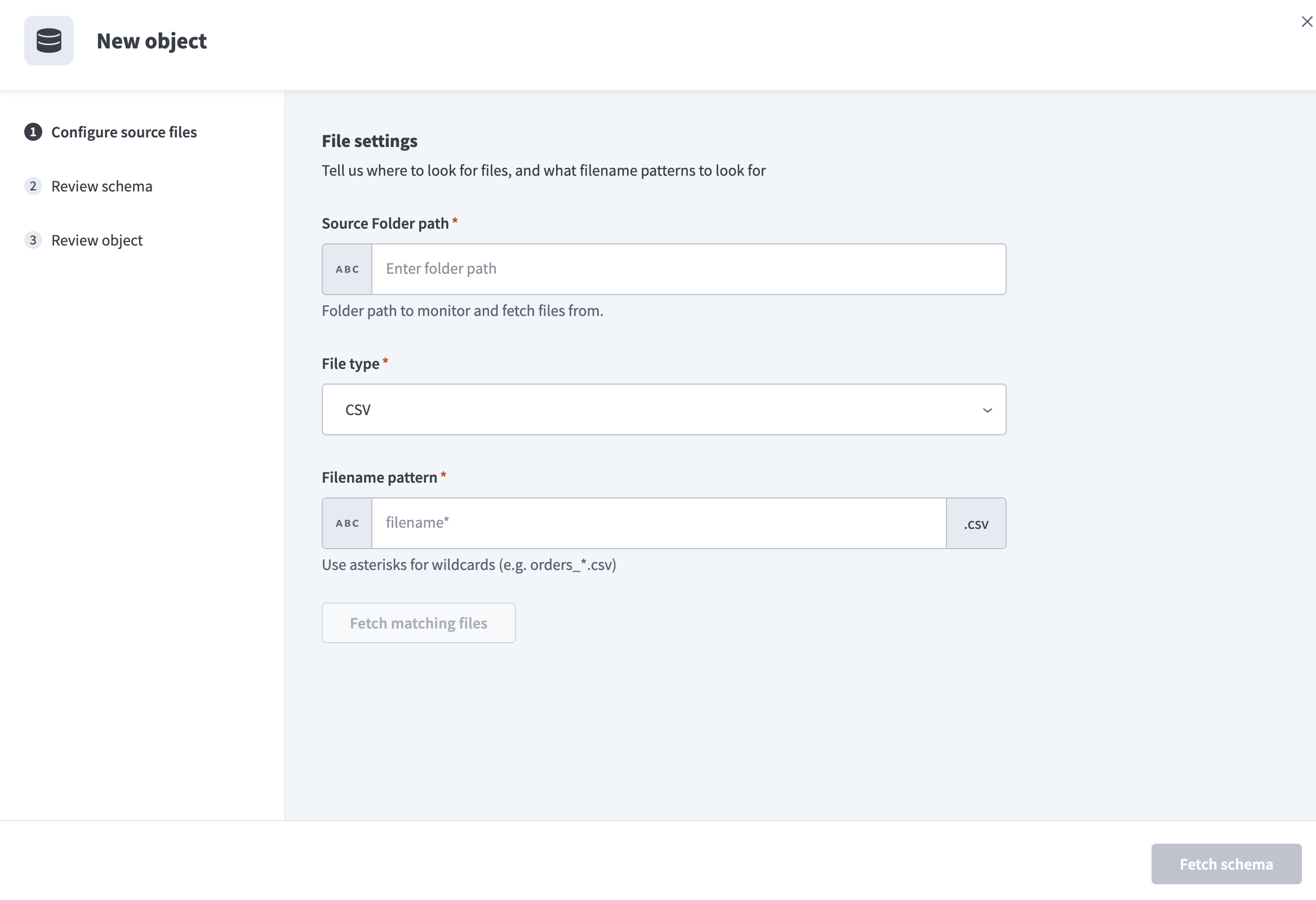 Configure file settings
NESTED FOLDER LIMITATION
The pipeline fetches only files located directly within the folder specified in the Source Folder path field. It doesn't fetch files from nested subfolders.
If your pipeline expects to include files in subfolders, move those files to the top-level folder or create a separate object for each folder.
Use the File type drop-down menu to select the file format to extract. Workato supports the following file types for Microsoft SharePoint:
- CSV: Extract data from
.csvfiles. Requires additional file type settings configuration. To sync tab-separated files, select this option and set the column delimiter to Tab. - Parquet: Extract data from
.parquetfiles. Schema and data types are inferred directly from the file. - Avro: Extract data from
.avrofiles. Schema and data types are inferred directly from the file.
Enter a pattern in the Filename pattern field to define which files to fetch. Use wildcards such as orders_* to include multiple files. The file extension is appended automatically based on the File type you selected.
Click Fetch matching files to preview files matching the defined pattern.
Select a Reference file to define the schema for your destination table.
Configure File type settings:
Click Fetch schema to retrieve the schema from the reference file.
Review the schema to ensure it matches your expected table structure. The schema preview includes the columns from your source file along with the system-generated columns described in Synthetic columns.
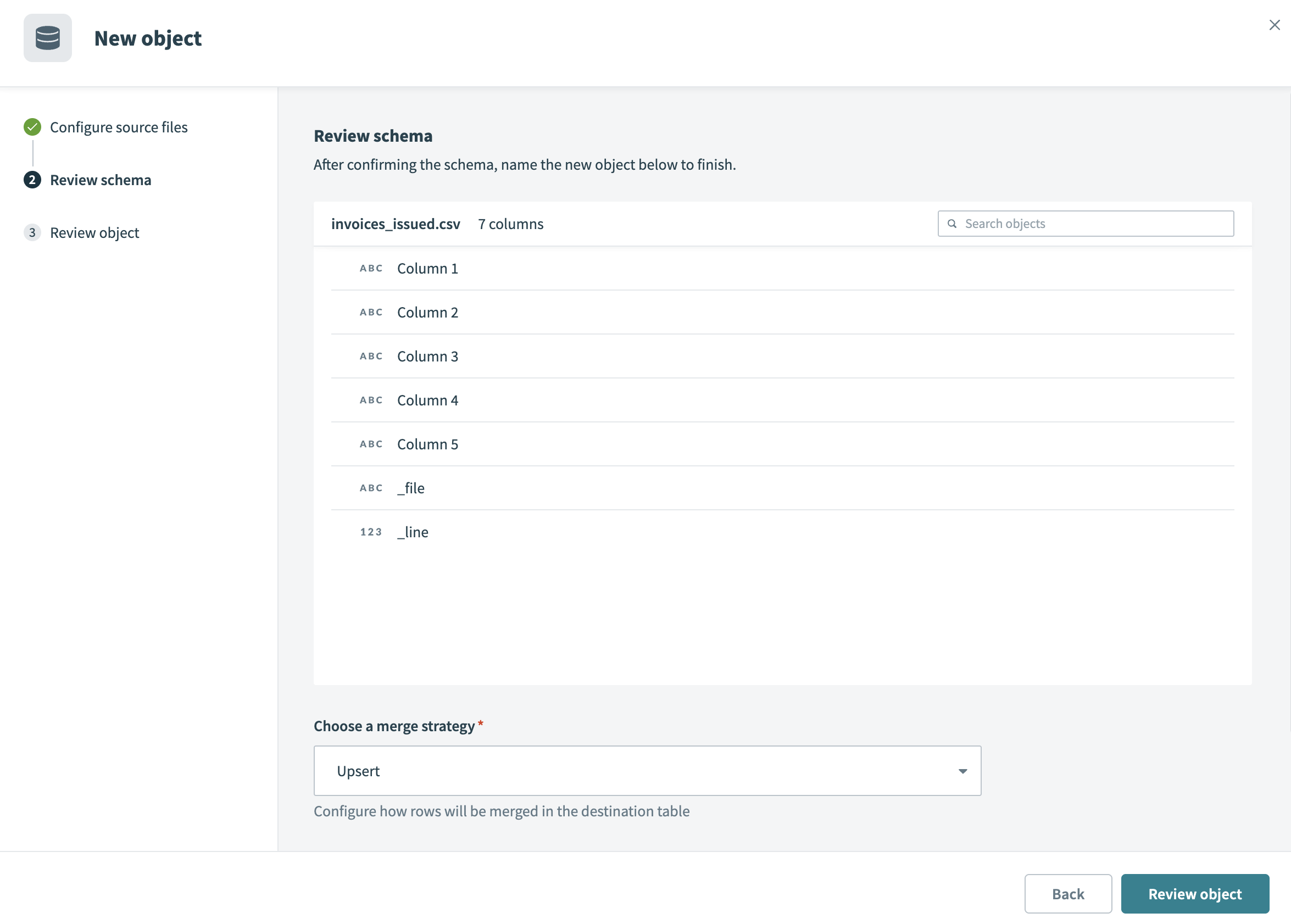 Review schema
Configure how rows are merged in the destination table in the Choose a merge strategy field. Workato supports the following merge strategies:
- Upsert: Inserts new rows and updates existing rows. When you choose Upsert, the Merge method field appears. You can select one or more columns to use as the primary key for the destination table. If you leave Merge method blank, the pipeline uses the system-generated
_fileand_linecolumns as a composite primary key. - Append only: Inserts all rows without attempting to match or update existing records. When you choose Append only, the pipeline doesn't match on a key and doesn't update existing rows.
Click Review object to confirm your setup. This screen displays your file settings, file type-specific options, and merge details.
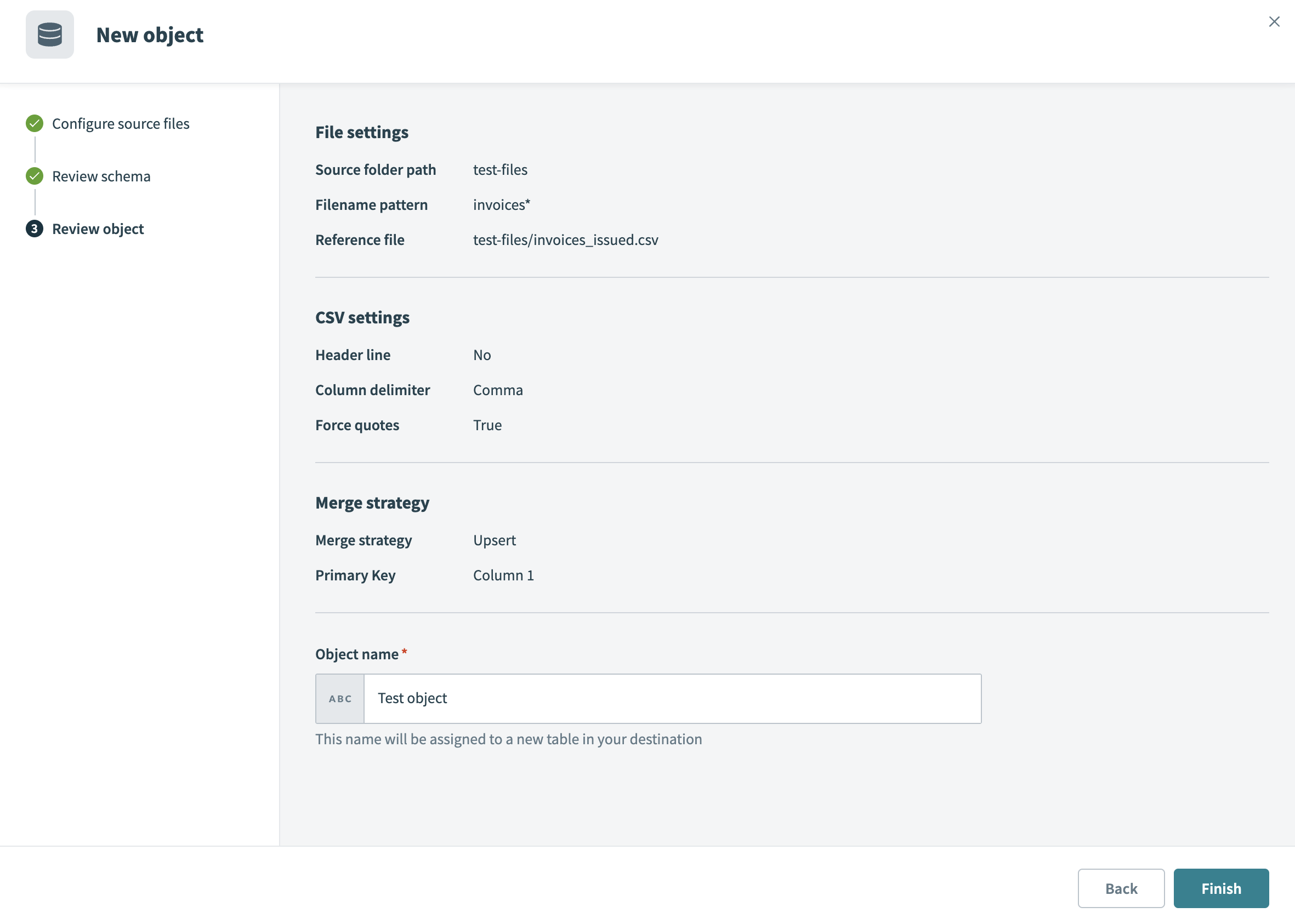 Review object
Enter an Object name. This value becomes the destination table name.
Click Finish to save the object configuration.
Review and customize the schema for each selected object. The pipeline automatically fetches an object's schema when you select it. This ensures the destination matches the source.
Expand an object to view associated fields. Keep all fields selected to extract all available data, or deselect specific fields to exclude them from data extraction and schema replication.
Optional. Configure field-level data protection by expanding an object and choosing how to handle each field:
- Replicate as is: Data values at the source replicate identically to the destination.
- Hash: Hash sensitive data values in the field before syncing to your destination.
Workato recommends hashing personally identifiable information (PII) and other sensitive fields. Refer to Sensitive data handling for a list of fields that commonly contain PII.
Click Add object again to add more objects. Repeat this step to include additional Microsoft SharePoint objects in your pipeline.
Use the Choose how to handle schema changes drop-down menu to select a schema drift handling option:
- Auto-sync new fields: Automatically detects and syncs new fields added in the source.
- Block new fields: Keeps the schema fixed after the pipeline starts. You must add new fields manually. This option may cause the destination to fall out of sync if the source schema updates.
Refer to Schema replication and schema drift management for more information.
Choose either a standard time-based schedule or define a custom cron expression in the Frequency field. This determines how often the pipeline syncs data from Microsoft SharePoint to the destination.
File schema and processing
The Microsoft SharePoint connector reads .csv, .parquet, and .avro files stored in the folder you specify. These files define the structure and data that the pipeline extracts and syncs to your destination.
Workato infers the schema and data types from the selected reference file:
- CSV: Workato infers boolean and numeric types and treats all other values, including date and date-time values, as strings. Transform these fields to the appropriate data type in the destination after the load completes.
- Parquet and Avro: Workato reads the schema and data types embedded in the file, including date and timestamp types.
All matched files must maintain the same column structure and data format to ensure accurate schema mapping.
Sync modes
Microsoft SharePoint data pipelines support full sync and incremental sync. Workato skips empty files in both modes.
Full sync
A full sync lists the files that match your folder path and filename pattern and extracts all rows from each file.
Incremental sync
An incremental sync is file-level, not row-level. Workato uses each file's last modified timestamp in SharePoint as the incremental cursor. The pipeline lists the files in your folder on every run and processes files that are new or modified since the previous successful sync started. Unmodified files are skipped.
Workato reprocesses a modified file in full, because SharePoint doesn't provide row-level change tracking for CSV, Parquet, or Avro content. Use the Upsert merge strategy if you want reprocessed rows to update existing rows instead of inserting again.
If you set a start date in the When first started, this pipeline should pick up records from field, the first run includes only files modified on or after that date.
Delete tracking
Microsoft SharePoint data pipelines don't support delete tracking. Workato doesn't remove or mark rows that came from a file you delete from SharePoint.
Schema and data type handling
The following considerations apply to schema and data types when you sync data from Microsoft SharePoint:
Nested data
Parquet and Avro files can contain nested objects and repeated fields (arrays). Workato serializes these as JSON in a single column rather than flattening them into individual columns. For Avro files, this also applies to maps and to union fields that can hold more than one non-null type.
Workato extracts Avro bytes and fixed values as Base64-encoded strings. Values that use the decimal logical type are extracted as decimals.
Synthetic columns
Workato adds the following synthetic columns to destination tables created from a Microsoft SharePoint object:
| Column | Type | Purpose |
|---|---|---|
_file | String | Path of the source file the row was read from, including the folder path and file name |
_line | Long | Row number of the record within the source file |
_modified | Timestamp | Last modified timestamp of the source file at the time of sync. Workato adds this column only when you use the Append only merge strategy. |
The names _file, _line, and _modified are reserved. A file that contains a column with one of these names fails schema processing.
Sensitive data handling
SharePoint files can contain any customer data, including PII and business-confidential information. Workato can't predict which columns contain sensitive data ahead of time, because the schema of every file is customer-defined.
Review the fields in each object before you sync it, and use the Hash option in field-level data protection to hash any column that contains PII or other sensitive data. Refer to the Configure the pipeline steps for more information.
Limitations
The following limitations apply when you use Microsoft SharePoint as a data pipeline source:
Recipe connections can't be reused
Data pipelines require a SharePoint connection with the Graph API (Data-Pipelines only) API scope, which doesn't work with recipes. Create a separate connection for your pipelines. Refer to Supported connection types for more information.
Nested folders aren't supported
The pipeline fetches only files located directly within the folder in the Source Folder path field. Files in subfolders aren't synced.
Only CSV, Parquet, and Avro files are supported
The pipeline doesn't extract data from other file formats, such as Excel, JSON, XML, PDF, or images.
SharePoint Lists and SharePoint Server aren't supported
Data pipelines read files from SharePoint Online document libraries only. Structured SharePoint Lists and SharePoint Server (on-premises) deployments aren't supported.
One site and document library for each pipeline
Each pipeline reads from the single site and document library you select. The pipeline doesn't aggregate files across multiple sites or enumerate every file in your tenant.
Minimum sync frequency
The minimum supported sync interval is 15 minutes.
Last updated: